1. Introduction
This manual provides detailed instructions for the setup, operation, and maintenance of your nuphy Field75 HE Magnetic Switch Gaming Keyboard. Please read this manual thoroughly to ensure proper use and to maximize your keyboard's performance.
2. Package Contents
Verify that all items are present in your package:
- 1 x Field75 HE Magnetic Switch Gaming Keyboard
- 1 x USB Cable (1.5m / 59 inches)
- 1 x Keycap/Switch Puller
- 4 x Extra Keycaps
- 1 x Quick Guide/Poster
3. Product Overview
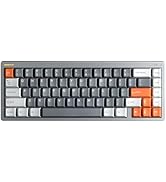
The nuphy Field75 HE is an 83-key wired gaming keyboard featuring magnetic switches and Hall Effect Sensors for enhanced performance. It includes a volume control knob, customizable buttons, and RGB backlighting.

Key Features:
- Magnetic Switches & Hall Effect Sensors: Provides faster response times and adjustable actuation points.
- Rapid Trigger: Allows for quick key resets and re-triggers, enhancing gaming performance.
- 8000 Hz Polling Rate: Ensures minimal input latency for a responsive experience.
- Adjustable Actuation: Customize key travel from 0.1mm to 3.3mm (Magnetic Jade switches).
- NuPhyIO Customization Software: Web-based tool for comprehensive key binding, trigger settings, and lighting adjustments.
- Dynamic Keystroke: Assign up to four functions to a single key press and release.
- Three Modes: Easily switch between different configurations for various operating systems or applications using the 'shifter' switch.
- RGB Backlighting: Customizable per-key RGB lighting for visual customization.
- Volume Control Knob: Dedicated knob for convenient audio adjustment.
- 8 Customizable Buttons: Additional G-keys for macros and custom functions.


4. Setup
Follow these steps to set up your nuphy Field75 HE keyboard:
- Unpack the Keyboard: Carefully remove the keyboard and all accessories from the packaging.
- Connect the USB Cable: Insert the USB-C end of the provided cable into the port on the keyboard. Connect the other end (USB-A) to an available USB port on your computer.
- System Recognition: Your computer should automatically detect and install the necessary drivers for the keyboard. This may take a few moments.
- Initial Test: Open a text editor or browser and test typing to ensure all keys are functioning correctly.
5. Operating Instructions
5.1. Basic Functions
- Typing: Use the standard QWERTY layout for text input.
- Function Keys (F1-F12): Access multimedia controls or system functions by pressing the Fn key in combination with the F-keys.
- Volume Control Knob: Rotate the knob on the top left to adjust system volume. Press the knob to mute/unmute.
5.2. Mode Selection
The Field75 HE features a 'shifter' switch (M1, M2, M3) to select between three customizable modes. Each mode can store different key bindings, lighting settings, and trigger parameters.

5.3. Customization with NuPhyIO
The NuPhyIO Console is a web-based tool that allows for extensive customization of your keyboard. Access it via nuphy.io.

Within NuPhyIO, you can:
- Adjustable Actuation: Set the actuation point for each key within the 0.1-3.3mm range.
- Rapid Trigger: Configure the trigger and re-trigger points for keys, allowing for faster, more responsive inputs. The shortest re-trigger distance is 0.02mm.
- Dynamic Keystroke: Assign up to four different functions to a single key based on its press and release stages.
- Key Bindings: Remap any key to a different function or macro.
- Lighting Effects: Customize RGB backlighting patterns, colors, and brightness.
- Save Layers: Store global configurations as layers, which can be activated via the mode switch.
5.4. G-Keys
The Field75 HE includes four dedicated G-keys (G1-G4) on the left side of the keyboard. These keys are fully programmable via the NuPhyIO Console to execute macros or specific functions.
6. Maintenance
Proper maintenance ensures the longevity and performance of your keyboard:
- Cleaning: Regularly clean the keyboard with a soft, dry cloth. For deeper cleaning, use a can of compressed air to remove dust and debris from between the keycaps.
- Keycap Removal: Use the provided keycap puller to carefully remove keycaps for cleaning or replacement. Avoid using excessive force.
- Switch Care: The magnetic switches are designed for durability. Avoid exposing them to liquids or extreme temperatures.
- Cable Management: Ensure the USB cable is not kinked or strained to prevent damage.
7. Troubleshooting
If you encounter issues with your nuphy Field75 HE keyboard, refer to the following common problems and solutions:
| Problem | Possible Cause | Solution |
|---|---|---|
| Keyboard not responding | Loose USB connection, faulty cable, driver issue. | Check USB cable connection. Try a different USB port. Restart your computer. Try a different USB cable. |
| Keys not registering inputs | Dust/debris under keycap, software conflict, incorrect actuation setting. | Remove keycap and clean switch area. Check NuPhyIO for actuation settings. Test on another computer. |
| Backlighting not working | Lighting disabled, software setting, power issue. | Check lighting settings in NuPhyIO. Ensure keyboard is properly powered. |
| Custom settings not applied | Settings not saved, incorrect mode selected. | Ensure settings are saved in NuPhyIO. Verify the correct mode (M1, M2, or M3) is selected on the keyboard. |
If the problem persists after attempting these solutions, please contact nuphy customer support for further assistance.
8. Specifications
Detailed specifications for the nuphy Field75 HE Magnetic Switch Gaming Keyboard:
- Model: Field75 HE
- Connectivity: Wired (USB-C)
- Switches: Magnetic Jade (Linear)
- Actuation Range: 0.1 - 3.3 mm
- Initial Force: 30 ± 7 gf
- End Force: 50 ± 7 gf
- Bottom-out Magnetic Flux: 700 ± 80 Gs
- Lifespan: 100 million clicks
- Polling Rate: 8000 Hz
- Backlighting: RGB
- Dimensions: 14.66 x 5.62 x 1.59 inches (372.3 x 142.8 x 40.4 mm)
- Item Weight: 2.65 pounds
- Compatible Devices: Laptop, PC, Tablet
- Operating Systems: Windows, macOS, Linux

9. Warranty and Support
The nuphy Field75 HE Magnetic Switch Gaming Keyboard comes with a standard manufacturer's warranty. For specific warranty terms and conditions, please refer to the warranty card included in your package or visit the official nuphy website.
For technical support, troubleshooting assistance, or any inquiries regarding your product, please contact nuphy customer support through their official website or designated support channels. Keep your purchase receipt and product serial number handy when contacting support.
Official nuphy website: nuphy.com


