
DERAPID BE6500
DERAPID USB 3.0 Gaming WiFi 7 Adapter User Manual
Model: BE6500
Introduction
The DERAPID BE6500 USB 3.0 Gaming WiFi 7 Adapter is a high-speed, tri-band wireless network card designed for desktop and laptop computers. Featuring the 8912AU chipset, this adapter supports the latest WiFi 7 (802.11be) technology, along with backward compatibility for 802.11ac and 802.11ax standards. It offers a driver-free, plug-and-play experience for Windows 10 and Windows 11 systems, ensuring seamless connectivity for streaming, gaming, and large file transfers.

Figure 1: The DERAPID BE6500 USB WiFi 7 Adapter with its dual antennas extended, showcasing its compact design and USB 3.0 connector.
Setup and Installation
The DERAPID BE6500 adapter is designed for a straightforward, driver-free installation process on compatible Windows systems.
System Requirements:
- Operating System: Windows 10 (32/64-bit), Windows 11 (32/64-bit)
- Available USB Port: USB 3.0 recommended for optimal performance. Compatible with USB 2.0.
Installation Steps:
- Plug In the Adapter: Insert the DERAPID BE6500 USB WiFi 7 Adapter into an available USB port on your desktop or laptop. For best performance, use a USB 3.0 port.
- Automatic Driver Installation: The adapter features a built-in driver. Upon first insertion, your Windows 10 or Windows 11 system should automatically detect the device and install the necessary drivers. This process typically takes a few moments.
- Verify Installation: Once the driver installation is complete, a blue indicator light on the adapter may illuminate or flash, indicating it is active. You can verify successful installation by checking your computer's Device Manager under "Network adapters."
- Connect to Network: After successful installation, your computer will display available Wi-Fi networks. Select your desired network and enter the password to connect.
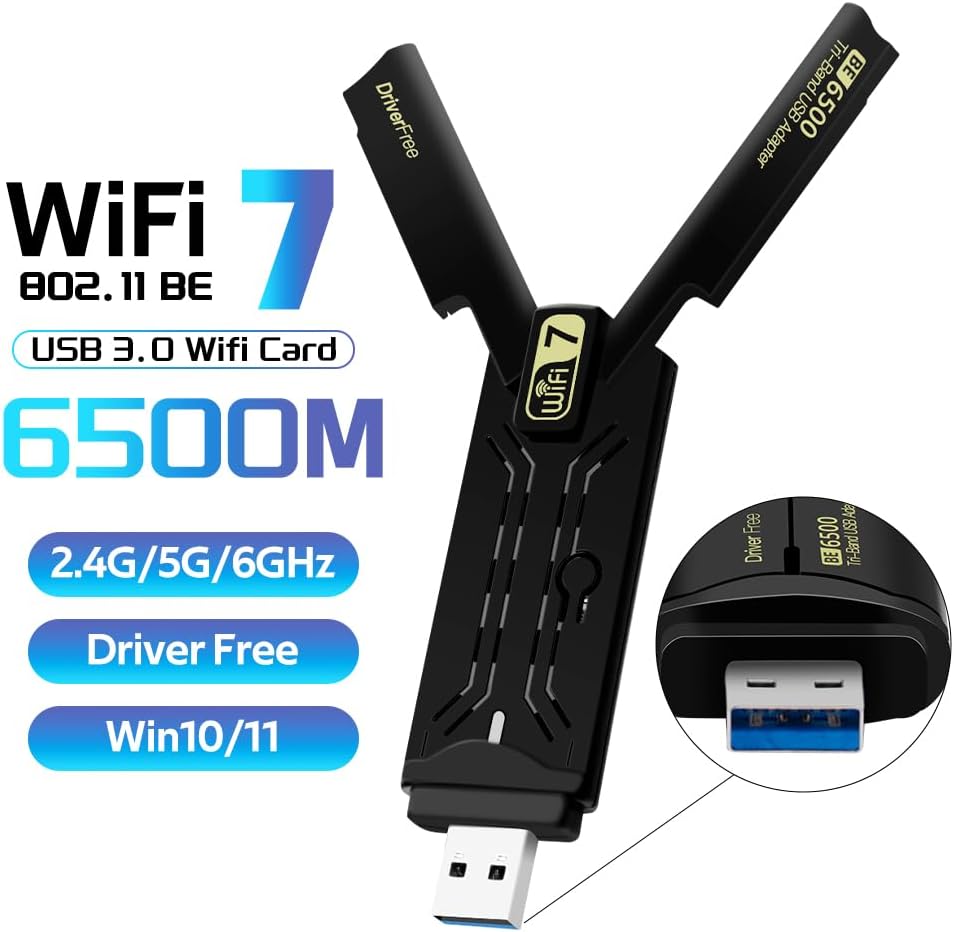
Figure 2: The adapter connected to a laptop, illustrating its plug-and-play functionality with Windows 10/11.
Video 1: An overview of the WiFi 7 USB 3.0 Adapter, demonstrating its features and ease of use. This video highlights the product's design and key functionalities.
Operating the Adapter
The DERAPID BE6500 supports tri-band connectivity (2.4GHz, 5GHz, and 6GHz) and can operate in two primary modes:
1. Station Mode (Signal Receiver):
In Station Mode, the adapter functions as a standard Wi-Fi receiver, allowing your desktop or laptop to connect to an existing wireless network (router/modem) to access the internet. This is the most common use case for the adapter.
2. AP Mode (Signal Transmitter - Hotspot):
AP (Access Point) Mode allows the adapter to create a wireless hotspot, sharing your computer's internet connection with other Wi-Fi enabled devices. This is useful for creating a temporary network or extending Wi-Fi coverage.
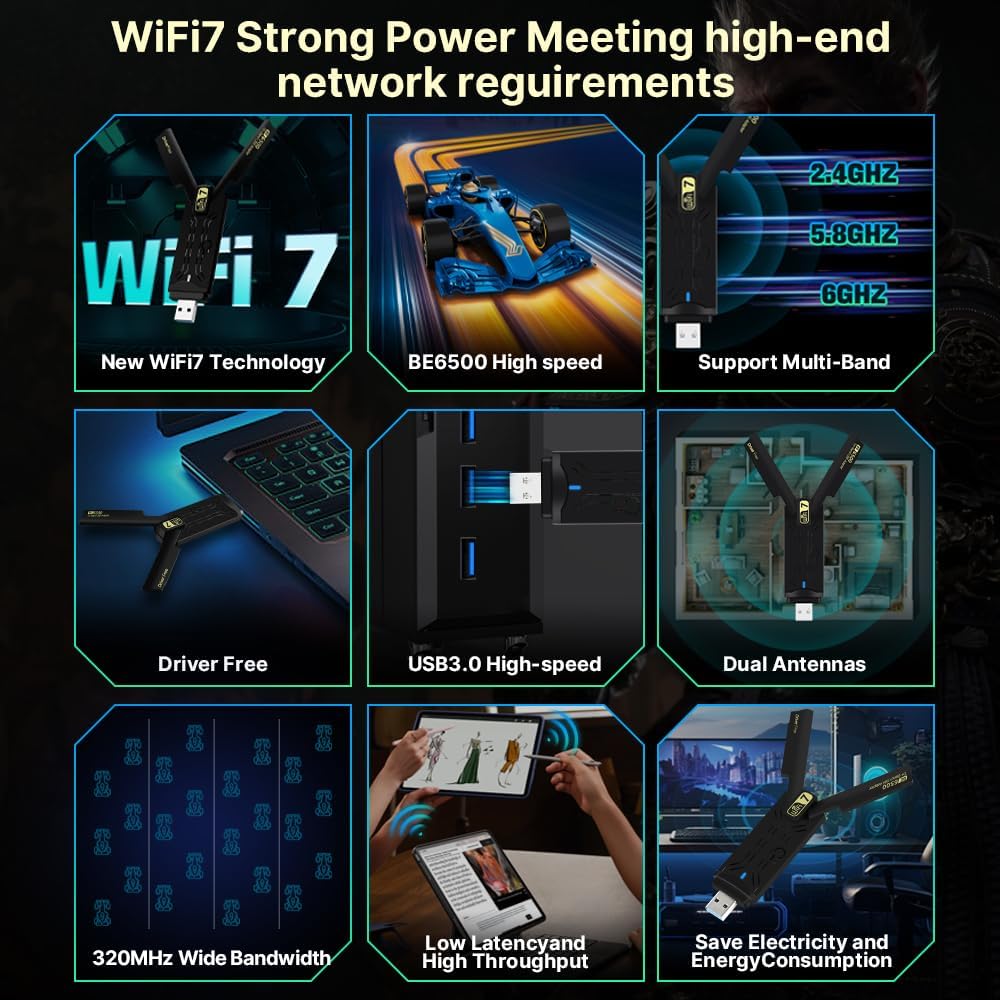
Figure 3: Visual representation of the two working modes: Station Mode for receiving Wi-Fi signals and AP Mode for creating a Wi-Fi hotspot.
Tri-Band Connectivity:
- 2.4GHz: Offers wider coverage and better penetration through walls, suitable for general browsing and less demanding tasks.
- 5GHz: Provides higher speeds and lower latency, ideal for gaming, 4K streaming, and video conferencing.
- 6GHz (WiFi 7): The newest band, offering the highest speeds and lowest congestion, perfect for demanding applications like 8K streaming and VR. Note that maximum speeds on the 6GHz band require a WiFi 7 compatible router.
Figure 4: Illustrates the potential speed capabilities of the adapter across the 2.4GHz, 5GHz, and 6GHz frequency bands, highlighting the significant speed increase with WiFi 7 technology.
Maintenance
To ensure optimal performance and longevity of your DERAPID BE6500 USB WiFi 7 Adapter, consider the following maintenance tips:
- Keep it Clean: Periodically wipe the adapter with a soft, dry cloth to remove dust and debris. Avoid using liquid cleaners.
- Proper Storage: When not in use, store the adapter in a cool, dry place away from direct sunlight and extreme temperatures.
- Handle with Care: Avoid dropping the adapter or subjecting it to physical shock. Do not force it into USB ports.
- Antenna Position: For best signal reception, adjust the dual antennas to an optimal position, typically perpendicular to each other or angled towards your Wi-Fi router.
- Software Updates: While the adapter is driver-free for initial setup, ensure your Windows operating system is up-to-date to benefit from the latest network optimizations and security patches.
Troubleshooting
If you encounter issues with your DERAPID BE6500 USB WiFi 7 Adapter, try the following troubleshooting steps:
| Problem | Possible Cause | Solution |
|---|---|---|
| Adapter not recognized / No Wi-Fi networks visible. | Driver not installed correctly or USB port issue. |
|
| Slow speeds or unstable connection. | Interference, distance from router, or incorrect band usage. |
|
| Cannot connect to 6GHz network. | Router not WiFi 7 compatible or Windows version. |
|
| Connection drops frequently. | Signal interference, power saving settings, or driver conflict. |
|
Specifications
| Feature | Detail |
|---|---|
| Model Number | BE6500 |
| Brand | DERAPID |
| Hardware Interface | USB 3.0 (Backward compatible with USB 2.0) |
| Wireless Standard | WiFi 7 (802.11be), 802.11ax, 802.11ac, 802.11n, 802.11g, 802.11b |
| Frequency Bands | 2.4GHz, 5GHz, 6GHz |
| Max Data Transfer Rate | Up to 6500 Mbps (Theoretical) |
| Chipset | 8912AU |
| Operating System Compatibility | Windows 10/11 (32/64-bit) |
| Color | Black |
| Item Weight | 1.44 ounces |
| Package Dimensions | 5.04 x 5 x 0.98 inches |
| Security Features | WPA3 Encryption |

Figure 5: A visual summary of the key features and specifications of the DERAPID BE6500 adapter.
Warranty and Support
For warranty information and technical support, please refer to the contact details provided with your product packaging or visit the official DERAPID website. Keep your purchase receipt for warranty claims.
For common questions and further assistance, you may also refer to the product page on Amazon or contact Amazon customer service.
Related documentsBE6500

Ask a question about this manual
Ask about setup, troubleshooting, compatibility, parts, safety, or missing instructions. Manuals+ will review the question and use this page’s manual context to help answer it.