
Lamzu Maya X
Lamzu Maya X Wireless Gaming Mouse User Manual
Model: Maya X
Introduction
The Lamzu Maya X is an ultra-lightweight wireless gaming mouse designed for high-performance gaming. Featuring a symmetrical shape, optical switches, and a high-precision PAW3950 sensor, it offers exceptional responsiveness and comfort for various grip styles. This manual provides detailed instructions for setting up, operating, maintaining, and troubleshooting your Lamzu Maya X mouse.

Figure 1: Lamzu Maya X Wireless Gaming Mouse and 8K Polling Dongle.
Package Contents
Before you begin, please ensure all items are present in the package:
- Lamzu Maya X Wireless Gaming Mouse
- 8K Polling Dongle
- 1.8m Type-C Paracord Cable (for wired connection and charging)
- PTFE Feet (extra set)
- Velvet Bag
- MAYA X Mouse Grip Tape
Setup
1. Charging the Mouse
The Lamzu Maya X mouse comes with a built-in Lithium Ion battery. For optimal performance, it is recommended to fully charge the mouse before first use.
- Connect the supplied 1.8m Type-C paracord cable to the USB-C port on the front of the mouse.
- Connect the other end of the cable to an available USB port on your computer or a USB wall adapter.
- The mouse's indicator light will show charging status. Once fully charged, the light will change or turn off.
The mouse can be used in wired mode while charging.
2. Connecting the Mouse
The Lamzu Maya X supports both 2.4G wireless and wired connectivity.
Wireless Connection (2.4G with 8K Polling Dongle)
- Locate the 8K Polling Dongle.
- Plug the 8K Polling Dongle into an available USB port on your computer. For best performance, use a USB port on the front of your computer or a USB hub placed close to the mouse to minimize interference.
- Turn on the mouse using the On/Off switch located on the bottom of the mouse.
- The mouse should automatically connect to the dongle. If connection is not established, refer to the troubleshooting section.

Figure 2: Wireless Connection with 8K Polling Dongle.
Wired Connection
- Connect the supplied 1.8m Type-C paracord cable to the USB-C port on the front of the mouse.
- Connect the other end of the cable to an available USB port on your computer.
- The mouse will automatically switch to wired mode. In wired mode, the polling rate is 1000 Hz.

Figure 3: Dual Mode Connectivity (2.4G Wireless and Wired).
3. Driver and Software Installation
The Lamzu Maya X mouse is plug-and-play for basic functionality. For advanced customization, including DPI settings, button remapping, macros, and polling rate adjustments, you can download the official Lamzu Aurora Web Driver from the Lamzu website. This web-based software eliminates the need for local installation.
- Visit the official Lamzu website (www.lamzu.com) to access the Aurora Web Driver.
- Follow the on-screen instructions to connect your device and customize settings.
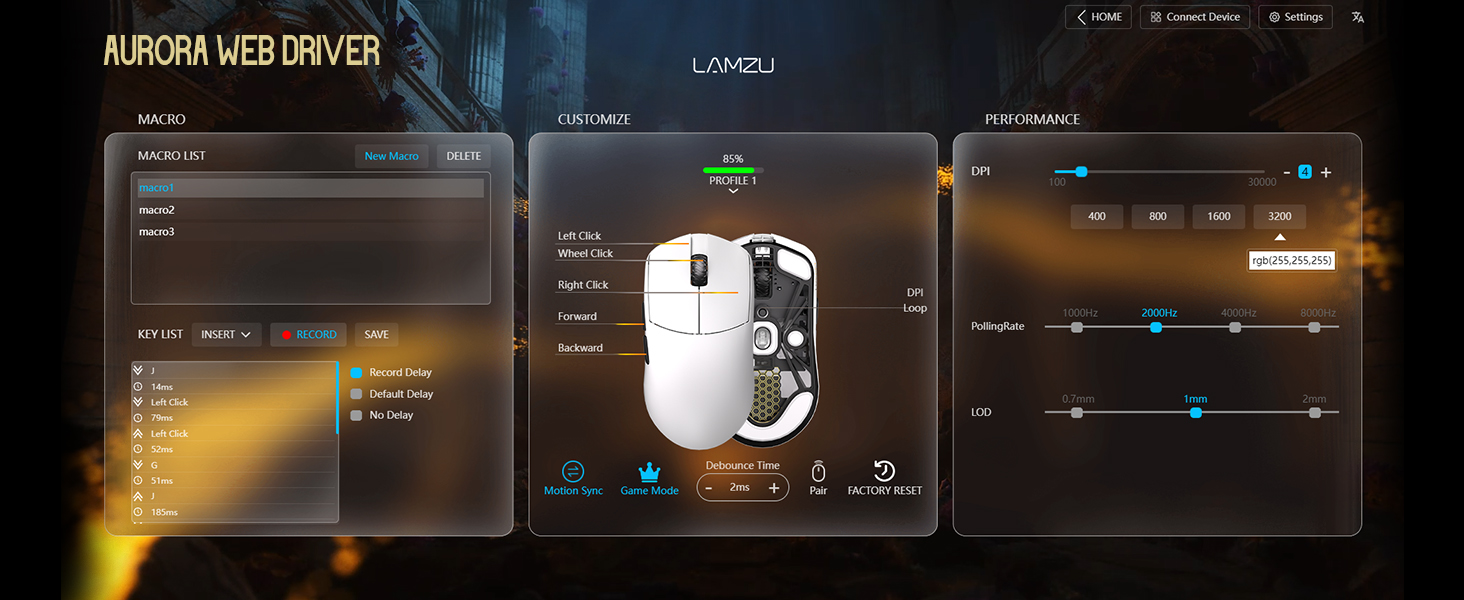
Figure 4: Lamzu Aurora Web Driver Interface.
Operating the Mouse
Button Functions
The Lamzu Maya X is a 6-button gaming mouse. The default functions are as follows:
| Button | Default Function |
|---|---|
| Left Click | Primary click function |
| Right Click | Secondary click function |
| Scroll Wheel (Click) | Middle click / Universal scroll |
| Scroll Wheel (Up/Down) | Scroll content up/down |
| DPI Button (Bottom) | Cycle through preset DPI levels |
| Forward Side Button | Navigate forward in web browsers/applications |
| Back Side Button | Navigate backward in web browsers/applications |
| On/Off Switch (Bottom) | Power on/off the mouse |
All buttons, except the On/Off switch, can be remapped using the Aurora Web Driver software.

Figure 5: Lamzu Maya X Button Layout.
Adjusting DPI (Dots Per Inch)
The Lamzu Maya X features a Pixart PAW 3950 sensor, supporting up to 30,000 DPI. You can adjust the DPI sensitivity to match your preference and gaming style.
- On-the-fly Adjustment: Press the DPI button located on the bottom of the mouse to cycle through pre-configured DPI stages. The LED indicator on the mouse may change color to indicate the current DPI stage.
- Software Adjustment: For precise control and custom DPI stages, use the Lamzu Aurora Web Driver. You can set specific DPI values and assign them to different profiles.
Polling Rate
The polling rate determines how often the mouse reports its position to the computer. A higher polling rate results in smoother and more responsive cursor movement.
- Wireless (2.4G): The Maya X supports up to 8,000 Hz polling rate when using the included 8K Polling Dongle. This can be configured via the Aurora Web Driver.
- Wired (USB-C): In wired mode, the mouse operates at a 1,000 Hz polling rate.
Grip Styles
The symmetrical shape of the Lamzu Maya X is designed to accommodate various grip styles, providing comfort and control for different hand sizes and preferences.
- Palm Grip: The entire palm rests on the mouse, offering maximum stability.
- Claw Grip: Fingers are arched, and the palm makes minimal contact with the rear of the mouse, allowing for quick, precise movements.
- Fingertip Grip: Only the fingertips touch the mouse, providing the highest degree of maneuverability.

Figure 6: Supported Grip Styles.
Maintenance
Proper maintenance ensures the longevity and optimal performance of your Lamzu Maya X mouse.
- Cleaning: Use a soft, dry cloth to wipe the surface of the mouse. For stubborn dirt, a slightly damp cloth can be used, but ensure no moisture enters the mouse. Avoid harsh chemicals or abrasive materials.
- Sensor Care: Keep the optical sensor on the bottom of the mouse clean and free of dust or debris. Use a cotton swab or compressed air if necessary.
- Mouse Feet (PTFE Skates): The PTFE feet are designed for smooth gliding. If they become worn or damaged, replace them with the extra set provided in the package.
- Storage: When not in use for extended periods, store the mouse in a cool, dry place, ideally in the provided velvet bag to protect it from dust and scratches.
- Battery Care: Avoid fully discharging the battery frequently. For long-term storage, charge the mouse to about 50% to preserve battery health.
Troubleshooting
If you encounter issues with your Lamzu Maya X mouse, refer to the following common problems and solutions:
| Problem | Possible Cause / Solution |
|---|---|
| Mouse not responding (Wireless) |
|
| Mouse not responding (Wired) |
|
| Cursor movement is erratic or jumpy |
|
| Buttons not responding or double-clicking |
|
| Battery drains quickly |
|
Specifications
| Feature | Detail |
|---|---|
| Model | Maya X |
| Dimensions (L x W x H) | 4.88 x 2.52 x 0.04 inches (124 x 64 x 40 mm) |
| Weight | 1.66 ounces (approx. 47g) |
| Sensor | Pixart PAW 3950 Optical Sensor |
| Maximum DPI | 30,000 DPI |
| MCU | Nordic 52840 |
| Polling Rate | Up to 8,000 Hz (Wireless with 8K dongle), 1,000 Hz (Wired) |
| Switches | Omron Optical Switches (Left/Right buttons) |
| Encoder | Dust-Proof Encoder with 30-grid roller |
| Connectivity | 2.4G Wireless, USB-C Wired |
| Battery Type | 1 Lithium Ion battery (included) |
| Color | Black (as per product variant) |
| Country of Origin | China |
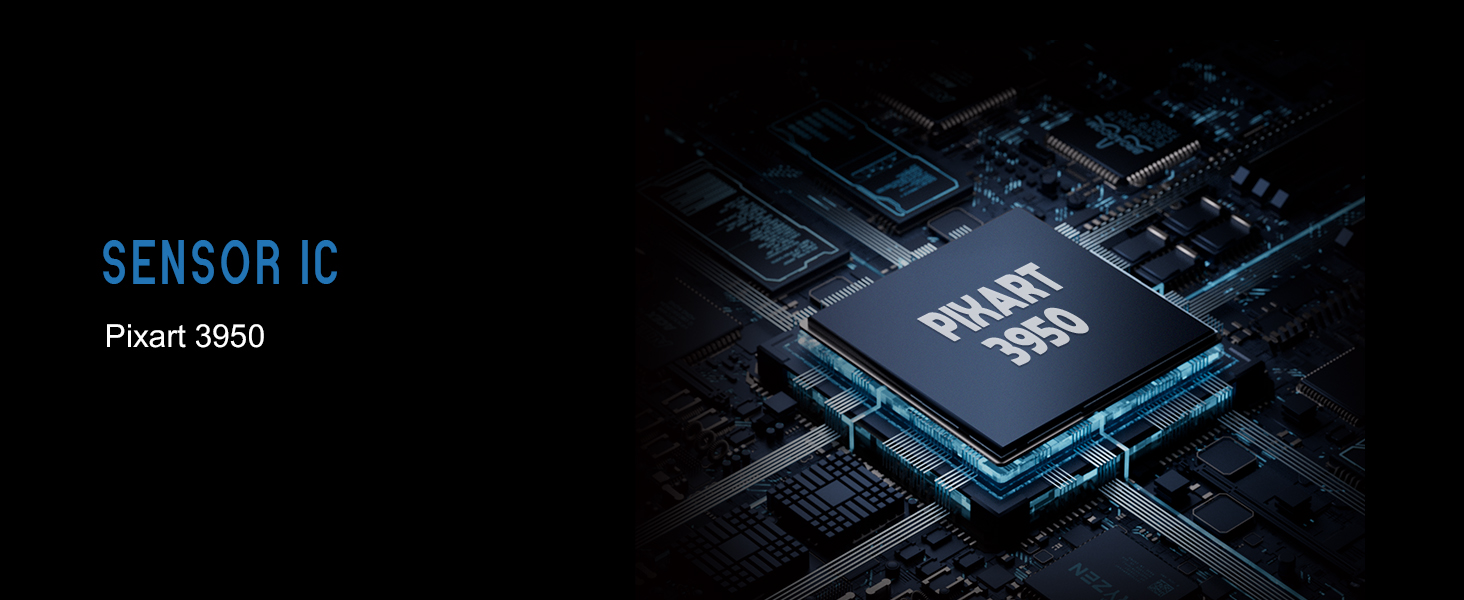
Figure 7: Lamzu Maya X Detailed Specifications.
Warranty and Support
Lamzu products are manufactured to the highest quality standards. For information regarding warranty coverage, technical support, or service inquiries, please visit the official Lamzu website or contact their customer service department.
- Official Website: www.lamzu.com
- Customer Service: Refer to the contact information provided on the official website.
Please retain your proof of purchase for warranty claims.
Related documentsMaya X


Ask a question about this manual
Ask about setup, troubleshooting, compatibility, parts, safety, or missing instructions. Manuals+ will review the question and use this page’s manual context to help answer it.