
1. Introduction
This manual provides comprehensive instructions for the setup, operation, maintenance, and troubleshooting of your Lamzu Maya X Wireless Gaming Mouse. Please read this manual carefully to ensure proper use and to maximize the performance of your device.
2. Product Overview
2.1 Key Features
- Ultra-lightweight Design: Weighs approximately 47g for extended comfort during use.
- Symmetrical Shape: Accommodates various grip styles including palm, claw, and fingertip.
- Optical Switches: Durable and responsive, rated for over 70 million clicks.
- Dust-Proof Encoder: 30-grid roller for precise and responsive scroll wheel actions.
- Pixart PAW 3950 Sensor: Supports up to 30,000 DPI and 750 IPS.
- Nordic 52840 MCU: Ensures power efficiency, fast response times, and accurate motion tracking.
- High Polling Rate: Up to 8,000 Hz with the optional 8K dongle.
2.2 Package Contents
- Lamzu Maya X Wireless Gaming Mouse
- PTFE Skates (x1 set)
- 8K Dongle (x1)
- MAYA X Dustproof Seal
- 1.8m Type-C Paracord Cable
- Velvet Bag
- MAYA X Mouse Grip
2.3 Mouse Components
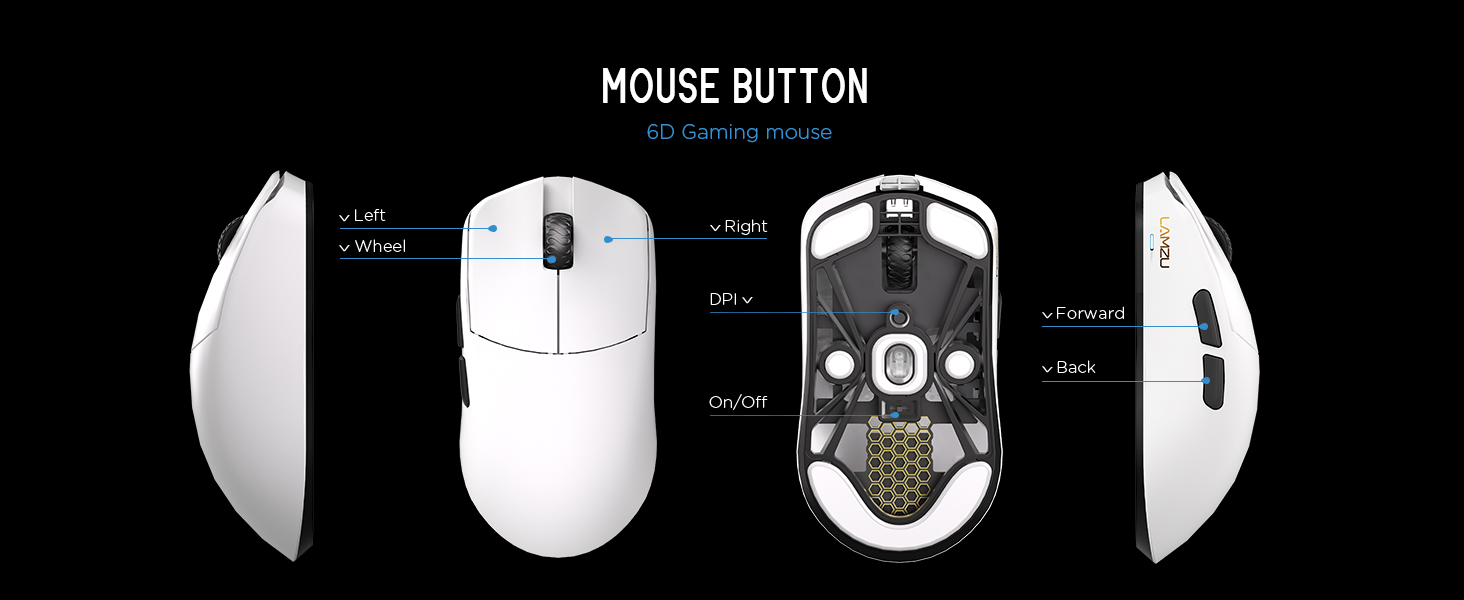
Image 2.3.1: Diagram illustrating the various buttons and internal structure of the Lamzu Maya X mouse, including left click, right click, scroll wheel, DPI button, forward, back buttons, and the on/off switch.
- Left Button: Primary click function.
- Right Button: Secondary click function.
- Scroll Wheel: For scrolling and middle-click function.
- DPI Button: Adjusts Dots Per Inch sensitivity.
- Forward Button: Navigational function (e.g., browser forward).
- Back Button: Navigational function (e.g., browser back).
- On/Off Switch: Powers the mouse on or off.
3. Setup
3.1 Initial Connection and Charging
- Charge the Mouse: Connect the provided Type-C paracord cable to the mouse and a USB port on your computer. The mouse will charge while connected.
- Power On: Locate the On/Off switch on the underside of the mouse and slide it to the "On" position.
- Connect Wireless Dongle: Insert the 8K wireless dongle into an available USB port on your computer. The mouse should automatically pair.
- Wired Mode (Optional): To use the mouse in wired mode, connect the Type-C paracord cable directly to the mouse and your computer. The mouse will function as a wired device and charge simultaneously.
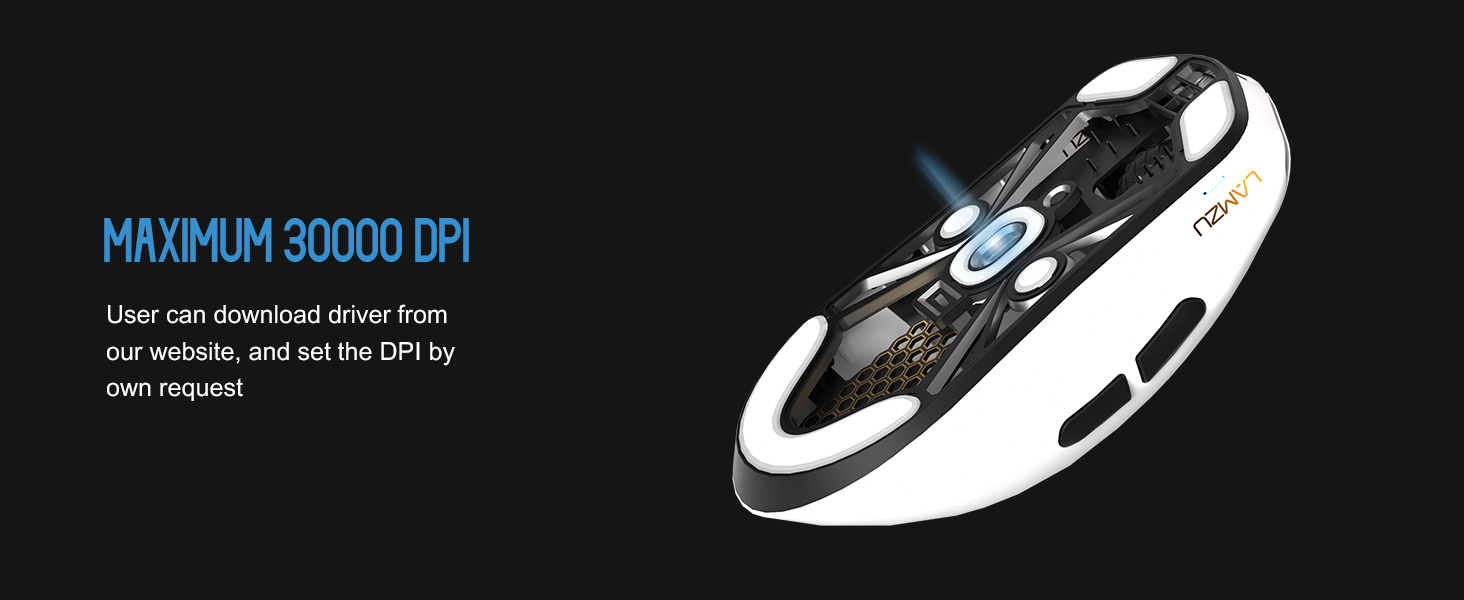
Image 3.1.1: The Lamzu Maya X mouse connected via its Type-C paracord cable, illustrating both wired operation and charging capabilities.
3.2 Driver and Software Installation
The Lamzu Maya X mouse utilizes a web-based driver for customization. To access the software and update firmware:
- Visit the official Lamzu website.
- Navigate to the support or downloads section for the Maya X model.
- Download the web driver application. This application allows for DPI adjustment, polling rate settings, macro programming, and firmware updates.
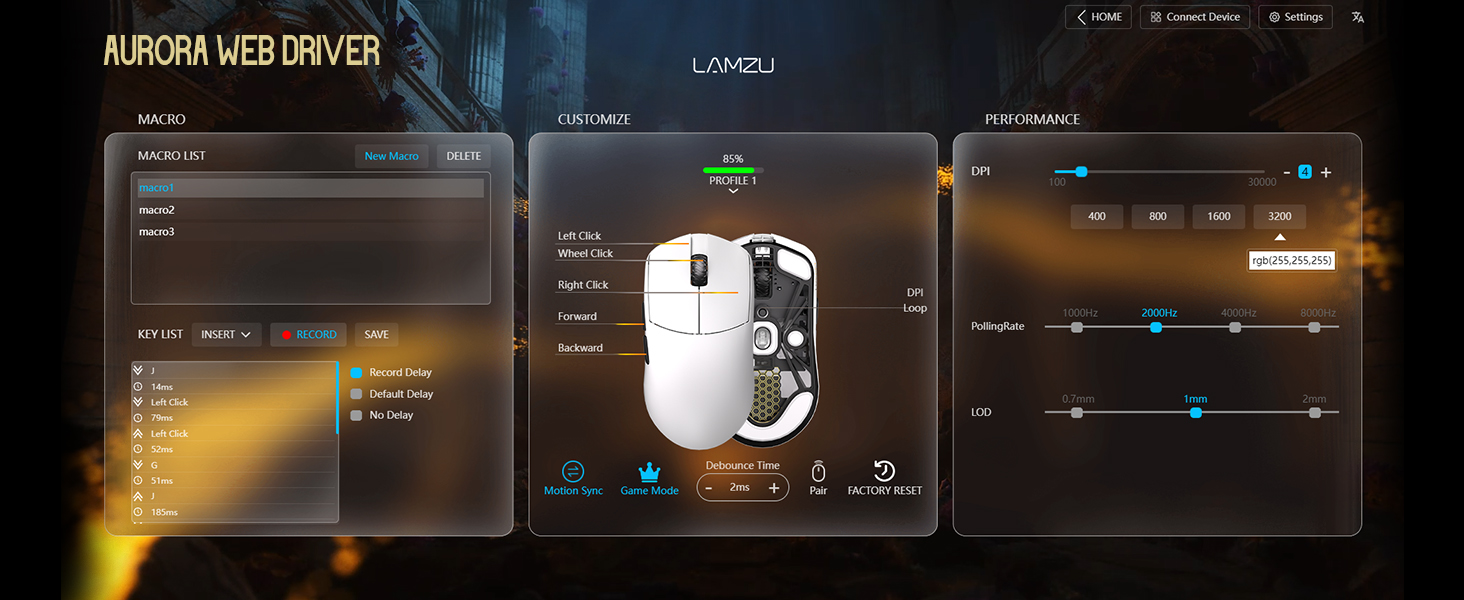
Image 3.2.1: Screenshot of the Aurora Web Driver interface, displaying options for macro creation, button customization, DPI settings (up to 30000), polling rate selection (up to 8000Hz), and Lift-Off Distance (LOD).
4. Operating Instructions
4.1 DPI Adjustment
The DPI (Dots Per Inch) setting controls the mouse cursor's sensitivity. You can adjust the DPI using the dedicated DPI button on the mouse or through the Aurora Web Driver software. The Pixart PAW 3950 sensor supports up to 30,000 DPI.
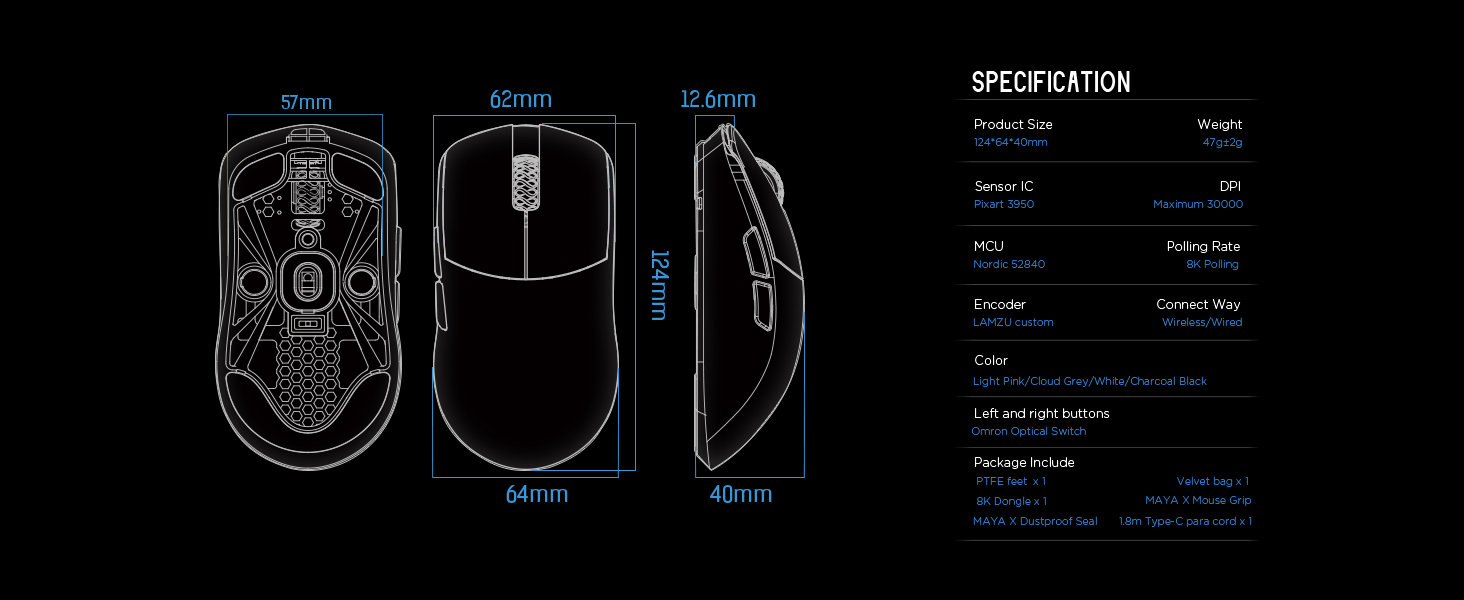
Image 4.1.1: An underside view of the Lamzu Maya X mouse, emphasizing its optical sensor and the capability to reach a maximum of 30,000 DPI, configurable via software.
4.2 Polling Rate
The polling rate determines how often the mouse reports its position to the computer. The Maya X supports up to 8,000 Hz polling rate when using the included 8K dongle. Higher polling rates result in smoother cursor movement and reduced input lag.
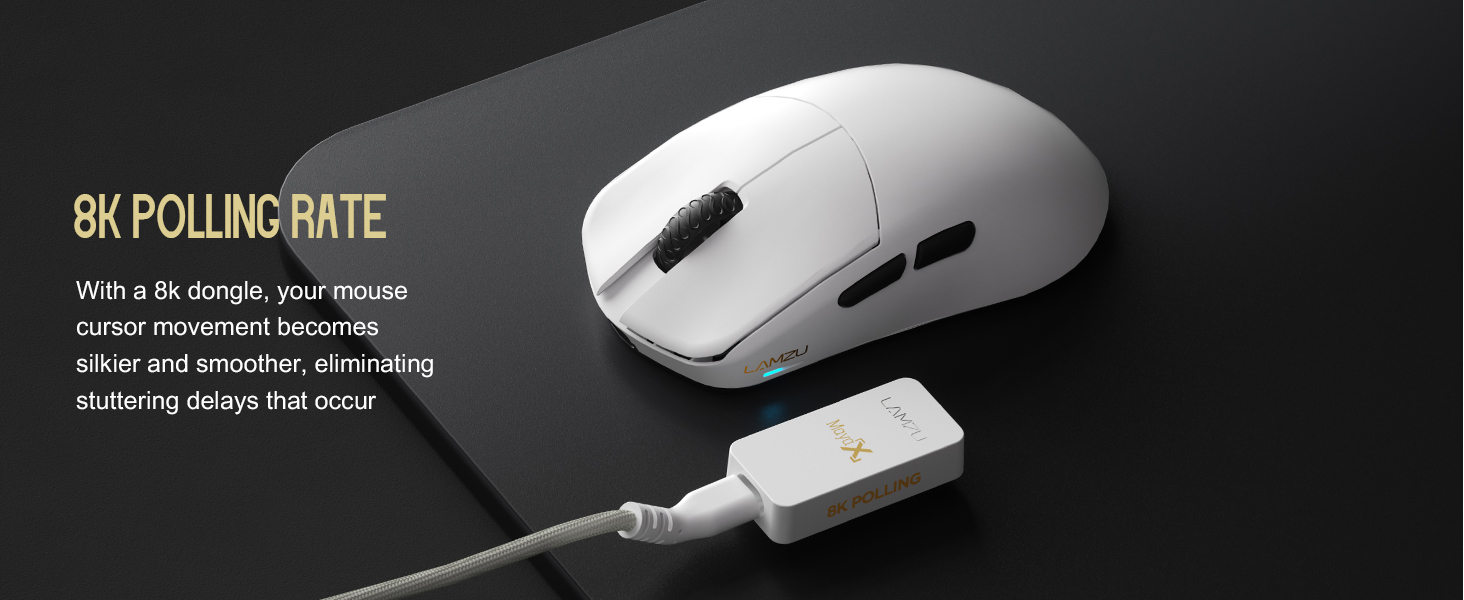
Image 4.2.1: The Lamzu Maya X mouse positioned next to its 8K polling rate dongle, highlighting the benefit of smoother and more responsive cursor movement provided by high polling rates.
4.3 Grip Styles
The symmetrical design of the Maya X mouse is engineered to accommodate various common grip styles:
- Palm Grip: The entire palm rests on the mouse.
- Claw Grip: Fingers are arched, and the palm rests on the back of the mouse.
- Fingertip Grip: Only the fingertips make contact with the mouse.
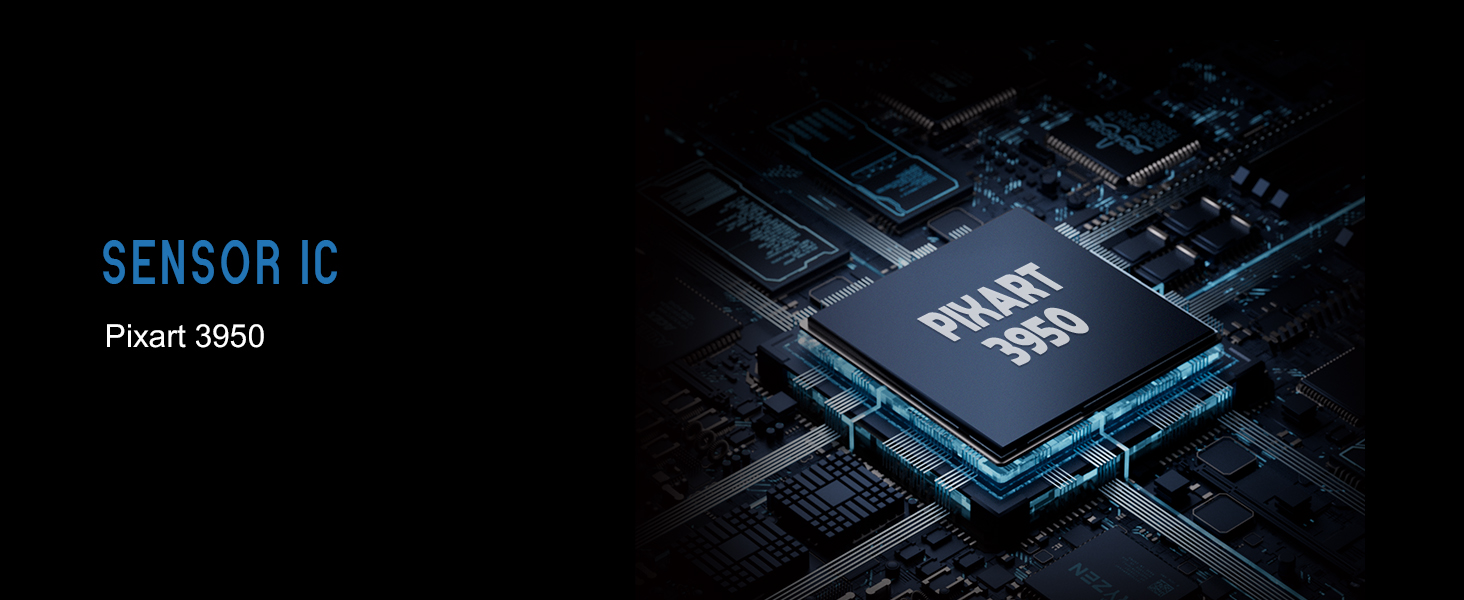
Image 4.3.1: A visual guide demonstrating the three primary mouse grip styles—Palm Grip, Claw Grip, and Fingertip Grip—and how the Maya X mouse is designed to be compatible with each.
4.4 Wired and Wireless Modes
The Maya X mouse supports both 2.4G wireless and wired (USB Type-C) connectivity. You can switch between modes by connecting or disconnecting the Type-C cable. In wired mode, the mouse operates at a 1K polling rate, while wireless mode with the 8K dongle supports up to 8K polling.
5. Maintenance
5.1 Cleaning
- Ensure the mouse is powered off before cleaning.
- Use a soft, lint-free cloth lightly dampened with water or a mild cleaning solution to wipe the surface of the mouse.
- Avoid using harsh chemicals, abrasives, or solvents.
- Use compressed air to clear dust from crevices and around buttons.
- For the optical sensor, use a cotton swab lightly dampened with isopropyl alcohol to gently clean the lens.
5.2 Battery Care
- To prolong battery life, avoid fully discharging the mouse frequently.
- Store the mouse at room temperature when not in use for extended periods.
- If storing for a long time, charge the battery to approximately 50% before storage.
6. Troubleshooting
- Mouse Not Responding:
- Ensure the mouse is powered on.
- Check battery level and charge if necessary.
- Verify the wireless dongle is securely plugged into a USB port.
- Try connecting the mouse in wired mode to confirm functionality.
- Restart your computer.
- Intermittent Connectivity:
- Ensure the wireless dongle is not obstructed and is close to the mouse.
- Avoid placing the dongle near other wireless devices that may cause interference.
- Update mouse firmware via the Aurora Web Driver.
- Cursor Jumps or Lag:
- Clean the optical sensor (refer to Section 5.1).
- Ensure the mousepad surface is clean and uniform.
- Adjust the polling rate in the software.
- Check for any background applications consuming excessive system resources.
- Buttons Not Working:
- Check button assignments in the Aurora Web Driver.
- Ensure no physical obstructions are preventing button presses.
7. Specifications
| Product Dimensions | 4.88 x 2.52 x 0.04 inches (124 x 64 x 40 mm) |
| Item Weight | 1.66 ounces (47g) |
| Sensor IC | Pixart PAW 3950 |
| Maximum DPI | 30,000 |
| MCU | Nordic 52840 |
| Polling Rate | Up to 8,000 Hz (with 8K dongle) |
| Connectivity Technology | 2.4G Wireless, USB Type-C Wired |
| Switches | Optical Switches (Left/Right buttons) |
| Encoder | Dust-Proof Encoder |
| Battery | 1 Lithium Ion battery (included) |
| Manufacturer | Lamzu |

Image 7.1.1: A technical diagram detailing the dimensions (length, width, height) of the Lamzu Maya X mouse and a summary of its key specifications, including weight, sensor, MCU, DPI, and polling rate.
8. Warranty and Support
For warranty information and technical support, please refer to the official Lamzu website or contact their customer service directly. Details regarding product registration, warranty claims, and frequently asked questions can typically be found in the support section of the website.
Official Website: www.lamzu.com


