
1. Introduction
This manual provides detailed instructions for the setup, operation, maintenance, and troubleshooting of your Trueque 2 Pack Backlit Wireless Full-Sized Ergonomic Keyboard and Mouse Combo. Please read this manual thoroughly before use to ensure optimal performance and longevity of your devices.
Package Contents:
- Wireless Keyboard (x1)
- Wireless Mouse (x1)
- USB Receiver (x1)
- Type-C Adapter (x1)
- User Manual (this document)
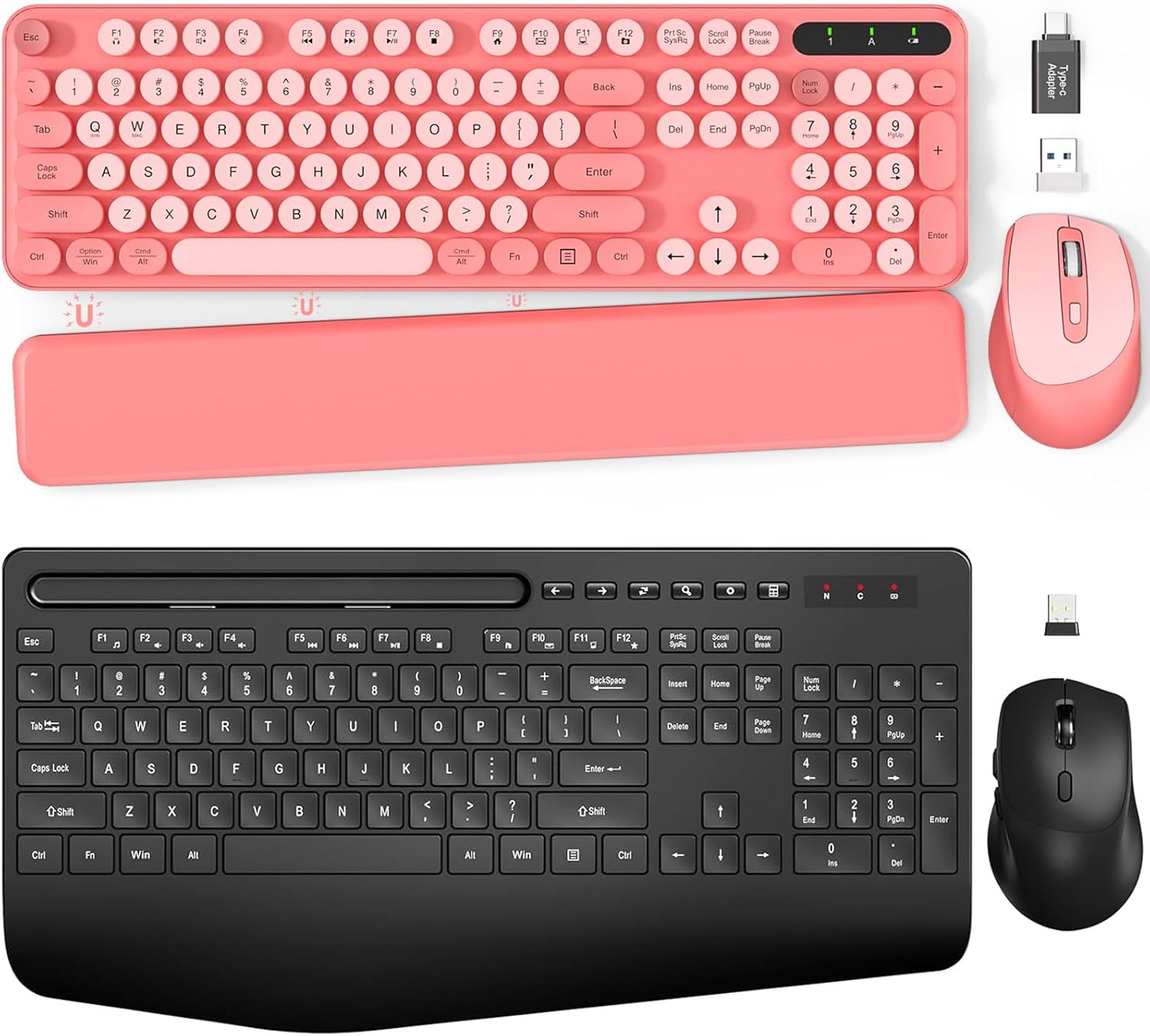
Image 1.1: Overview of the Trueque Wireless Keyboard and Mouse Combo (Pink version).
2. Setup
2.1 Battery Installation
The keyboard requires two (2) AAA batteries, and the mouse requires one (1) AA battery (batteries are not included).
- For the Keyboard: Locate the battery compartment on the underside of the keyboard. Open the cover, insert two AAA batteries according to the polarity indicators (+/-), and close the cover.
- For the Mouse: Locate the battery compartment on the underside of the mouse. Open the cover, insert one AA battery according to the polarity indicators (+/-), and close the cover.

Image 2.1: Battery compartments and ON/OFF switches for the keyboard and mouse.
2.2 Connecting the USB Receiver
The keyboard and mouse share a single 2.4GHz USB receiver for wireless connectivity.
- Locate the USB receiver, typically stored in the mouse's battery compartment or packaged separately.
- Plug the USB receiver into an available USB port on your computer (PC or Laptop). If your computer only has USB-C ports, use the provided Type-C adapter.
- Turn on the keyboard and mouse using their respective ON/OFF switches. The devices should automatically connect to your computer.

Image 2.2: USB receiver and Type-C adapter for wireless connection.
3. Operating Instructions
3.1 Keyboard Features
- Backlit Keys: The keyboard features backlighting for improved visibility in low-light conditions. Refer to the keyboard's function keys for backlight control (e.g., Fn + specific key for brightness adjustment or on/off toggle).
- Retro Round Keycaps: The keyboard is equipped with detachable round keycaps, offering a distinct tactile experience and ease of cleaning.
- Integrated Phone/Tablet Holder: A built-in cradle allows you to prop up your smartphone or tablet (under 11.9 inches) for convenient viewing while working.

Image 3.1: Keyboard with a tablet securely placed in the integrated holder.
- Foldable Legs: The keyboard includes foldable legs on the underside, allowing you to adjust the typing angle for improved ergonomics.
- Magnetic Palm Rest: A detachable magnetic palm rest is provided to reduce wrist fatigue during extended use. It can be positioned to suit individual preferences.

Image 3.2: Foldable stands and magnetic palm rest for ergonomic adjustment.
3.2 Mouse Features
- Ergonomic Design: The mouse is contoured to fit the hand comfortably, promoting a natural grip and reducing strain.

Image 3.3: Ergonomic design of the keyboard and mouse for comfortable use.
3.3 Power Saving Mode
To conserve battery life, both the keyboard and mouse feature an automatic sleep mode:
- Keyboard: Enters sleep mode after 15 minutes of inactivity. Press any key to reactivate.
- Mouse: Enters sleep mode after 10 minutes of inactivity. Double-click any button to reactivate.

Image 3.4: Details on smart power saving for extended battery life.
4. Maintenance
4.1 Cleaning
To clean your keyboard and mouse:
- Turn off both devices and disconnect the USB receiver from your computer.
- Use a soft, dry, lint-free cloth to wipe the surfaces of the keyboard and mouse.
- For the keyboard, the retro round keycaps are detachable for easier cleaning. Gently pull them off, clean as needed, and then firmly press them back into place.
- Avoid using harsh chemicals, abrasive cleaners, or excessive moisture, as these can damage the devices.
4.2 Battery Replacement
Replace batteries when performance degrades or devices become unresponsive. Follow the battery installation steps in Section 2.1. Always use new batteries of the specified type (AAA for keyboard, AA for mouse) and dispose of old batteries responsibly.
5. Troubleshooting
If you encounter issues with your Trueque wireless keyboard and mouse combo, please refer to the following common solutions:
| Problem | Possible Solution |
|---|---|
| Keyboard/Mouse not responding |
|
| Lag or intermittent connection |
|
| Keyboard backlight not working |
|
6. Specifications
| Feature | Detail |
|---|---|
| Brand | Trueque |
| Model Number | B0DFGXN2JX |
| Connectivity Technology | 2.4GHz Wireless (USB Receiver) |
| Wireless Range | Up to 33 feet (10 meters) |
| Keyboard Battery | 2 x AAA (not included) |
| Mouse Battery | 1 x AA (not included) |
| Compatible Devices | Laptop, Personal Computer (Windows OS) |
| Special Features | Ergonomic Design, Foldable Legs, Wrist Rest, Backlit, Phone/Tablet Holder, Retro Round Keycaps |
7. Warranty and Support
For warranty information or technical support, please refer to the contact details provided with your purchase or visit the official Trueque website. Keep your purchase receipt as proof of purchase for any warranty claims.
