
Introduction
The Missyou 3DHologramFan with Cover (34CM) utilizes advanced holographic technology to create stunning visual effects that appear to float in mid-air. Designed for exhibitions, trade shows, and promotional events, it features high-brightness LED lights for clear and vibrant displays. This device offers convenient control via Wi-Fi and a dedicated mobile application, along with a comprehensive library of pre-loaded video content. A transparent protective cover ensures safe operation and product longevity.
Safety Information
WARNING: The fan blades rotate at high speeds. Do not touch the blades while the device is operating or connected to power. Failure to observe this warning may result in serious injury.
Ensure the device is mounted securely in a location where the rotating blades will not come into contact with any objects or persons. Maintain adequate clearance around the fan.
Video: Initial setup and safety precautions for the 3DHologramFan.
What's in the Box
Upon unboxing your Missyou 3DHologramFan, please verify that all components listed below are present:
- 3DHologramFan Unit with Cover
- Adapter
- Power Cord
- Remote Control
- User Manual
- Warranty Card
- Mounting Brackets and Screws
- SD Card Reader
- Screwdriver

Image: Overview of the 3DHologramFan components included in the package.
Video: Unboxing the 3DHologramFan and verifying package contents.
Setup
1. Mounting the Device
The 3DHologramFan can be mounted on a wall or placed on a stand. Ensure the chosen location provides sufficient clearance for the rotating blades (approximately 34CM diameter) and is stable.
- Stand Placement: If using the included stand, simply place the fan unit securely onto the stand on a flat, stable surface.
- Wall Mounting: Use the provided mounting brackets and screws to securely attach the fan unit to a sturdy wall. Ensure the power cable can be routed neatly without interfering with the fan's operation.
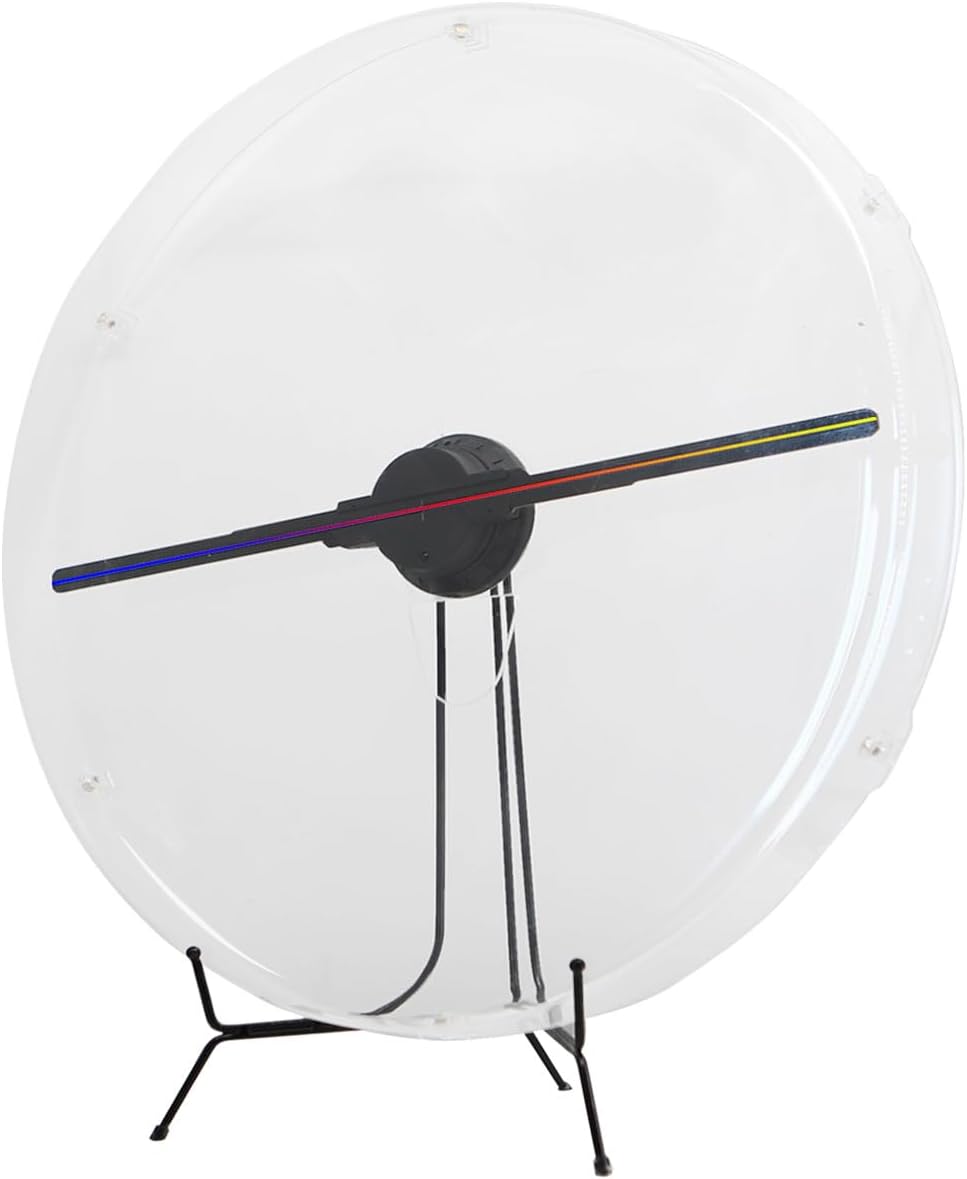
Image: 3DHologramFan on its tabletop stand.

Image: 3DHologramFan mounted on a wall.
2. Connecting Power
Connect the power cord to the adapter, then plug the adapter into the designated port on the 3DHologramFan unit. Plug the power cord into a standard electrical outlet. The device will power on automatically.
3. Software and App Installation
To manage content, download the dedicated 5D Display app on your smartphone (Android or iOS) or computer. Follow the instructions provided in the app to connect to the 3DHologramFan via Wi-Fi.
Video: Detailed guide on software and app usage for content management.
Operating Instructions
1. Power On/Off
The 3DHologramFan powers on automatically when connected to an electrical outlet. Use the provided remote control or the mobile app to turn the display on or off.
2. Content Selection and Upload
The device comes with access to a library of 1500+ pre-made video materials. You can select and display these videos using the mobile app. To upload your own custom content:
- Use the SD card reader to transfer your video files to the provided SD card.
- Insert the SD card into the slot on the 3DHologramFan unit.
- Alternatively, use the mobile app's Wi-Fi functionality to upload videos directly from your smartphone or computer.

Image: A selection of 3D holographic video content from the included library.
3. App Controls
The mobile app allows for various adjustments:
- Brightness: Adjust the display brightness.
- Volume: Control the audio volume (if content includes sound).
- Angle: Adjust the display angle for optimal viewing.
- Format: Manage content format settings.
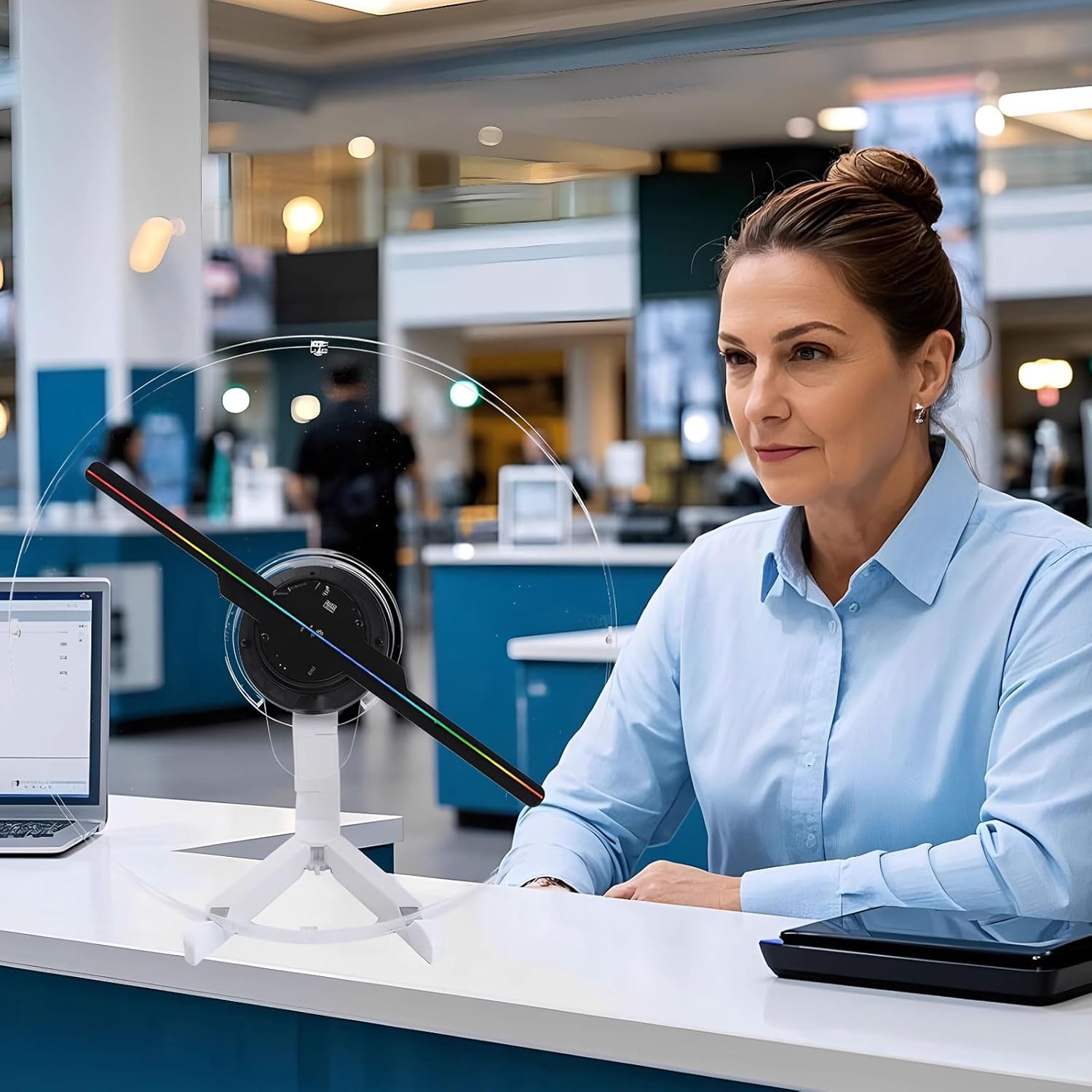
Image: 3DHologramFan displaying dynamic content in a commercial environment.
Video: Demonstration of various 3D holographic content displayed by the fan.
Maintenance
To ensure the longevity and optimal performance of your 3DHologramFan, regular maintenance is recommended:
- Cleaning: Gently wipe the transparent protective cover with a soft, dry cloth to remove dust and fingerprints. Avoid using abrasive cleaners that may scratch the surface.
- Storage: When not in use for extended periods, store the device in a cool, dry place away from direct sunlight and extreme temperatures.
Troubleshooting
If you encounter issues with your 3DHologramFan, please refer to the following common solutions:
- Device Not Powering On: Ensure the power cord and adapter are securely connected to both the device and a working electrical outlet.
- App Connectivity Issues: Verify that your smartphone or computer is connected to the 3DHologramFan's Wi-Fi network. Restart the app and the device if necessary.
- Content Not Displaying Correctly: Check that your video files are in a compatible format and have been uploaded correctly. Ensure the SD card is properly inserted.
- Unclear Display: Ensure the protective cover is clean and free from obstructions. Adjust brightness settings via the app.
Specifications
| Feature | Detail |
|---|---|
| Brand Name | Missyou |
| Model Number | MS3 |
| Item Weight | 2.89 pounds |
| Product Dimensions | 12.6 x 3 x 12.6 inches |
| Display Resolution | 1024 x 768 |
| Connectivity Technology | Bluetooth, Wi-Fi |
| Special Feature | 3D-Ready |
Warranty and Support
The Missyou 3DHologramFan comes with a 1-year warranty, ensuring reliable performance. For any issues or assistance, please contact customer support through the vendor's official channels.