
Introduction
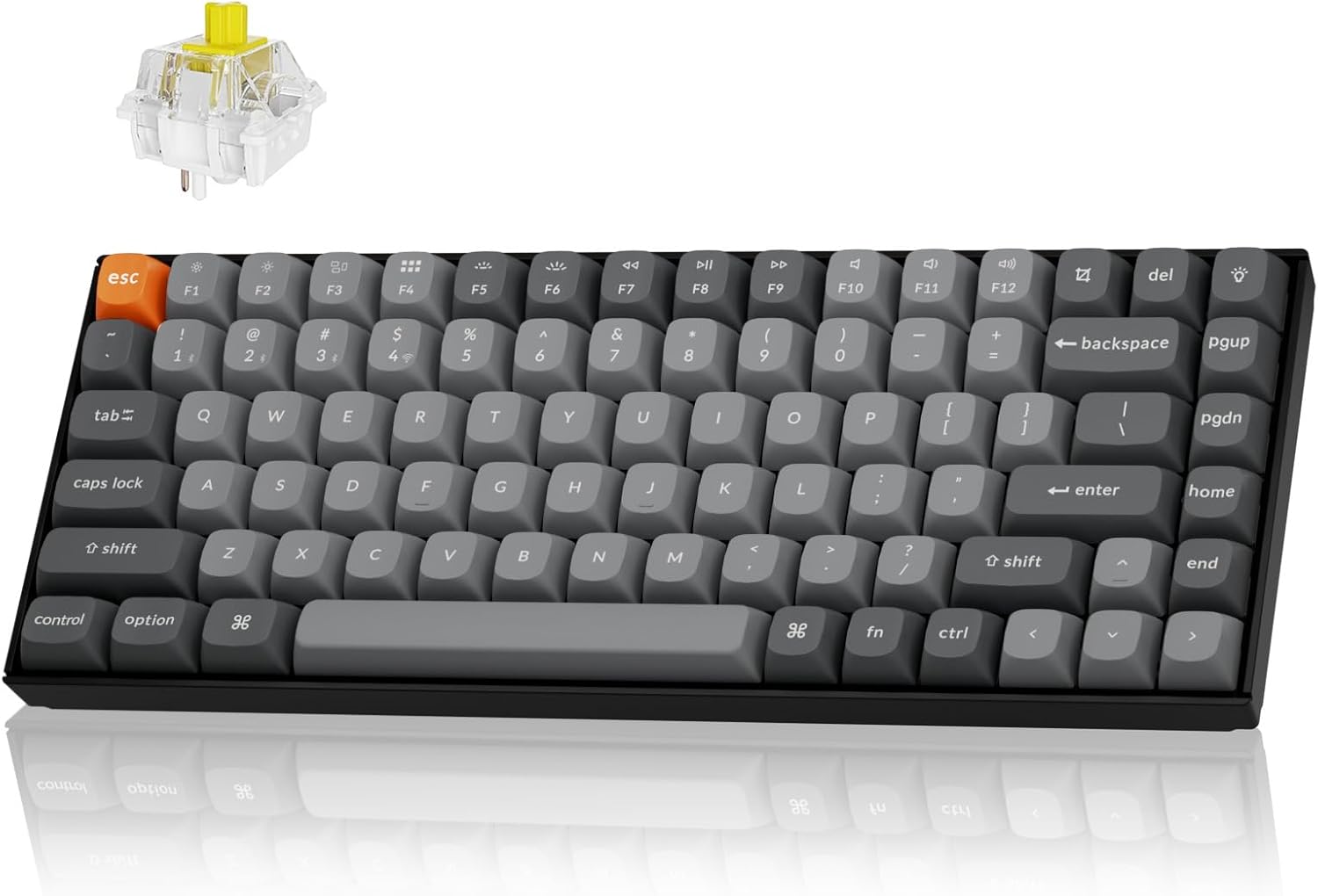
The Keychron K2 Max is a versatile 75% layout mechanical keyboard designed for seamless integration across multiple operating systems and connectivity options. It supports 2.4 GHz wireless, Bluetooth 5.1, and Type-C wired connections, offering a 1000Hz polling rate in 2.4G and wired modes for optimal performance in both gaming and professional environments. This manual provides detailed instructions for setting up, operating, maintaining, and troubleshooting your K2 Max keyboard.
Setup
Package Contents
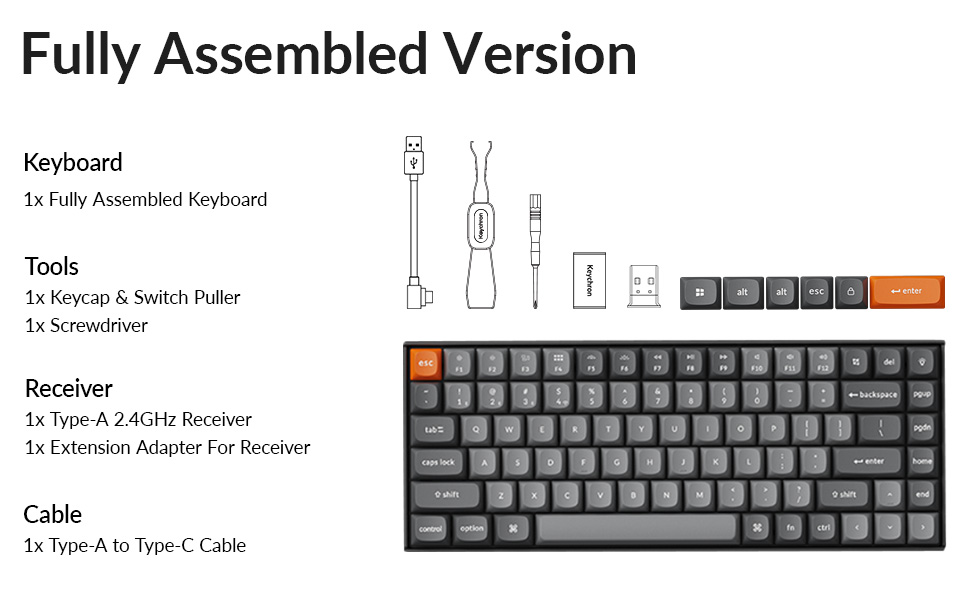
Before you begin, ensure all components are present in your package:
- 1x Fully Assembled Keyboard
- 1x Keycap & Switch Puller
- 1x Screwdriver
- 1x Type-A 2.4GHz Receiver
- 1x Extension Adapter For Receiver
- 1x Type-A to Type-C Cable
- Extra keycaps for Windows layout
Initial Charging
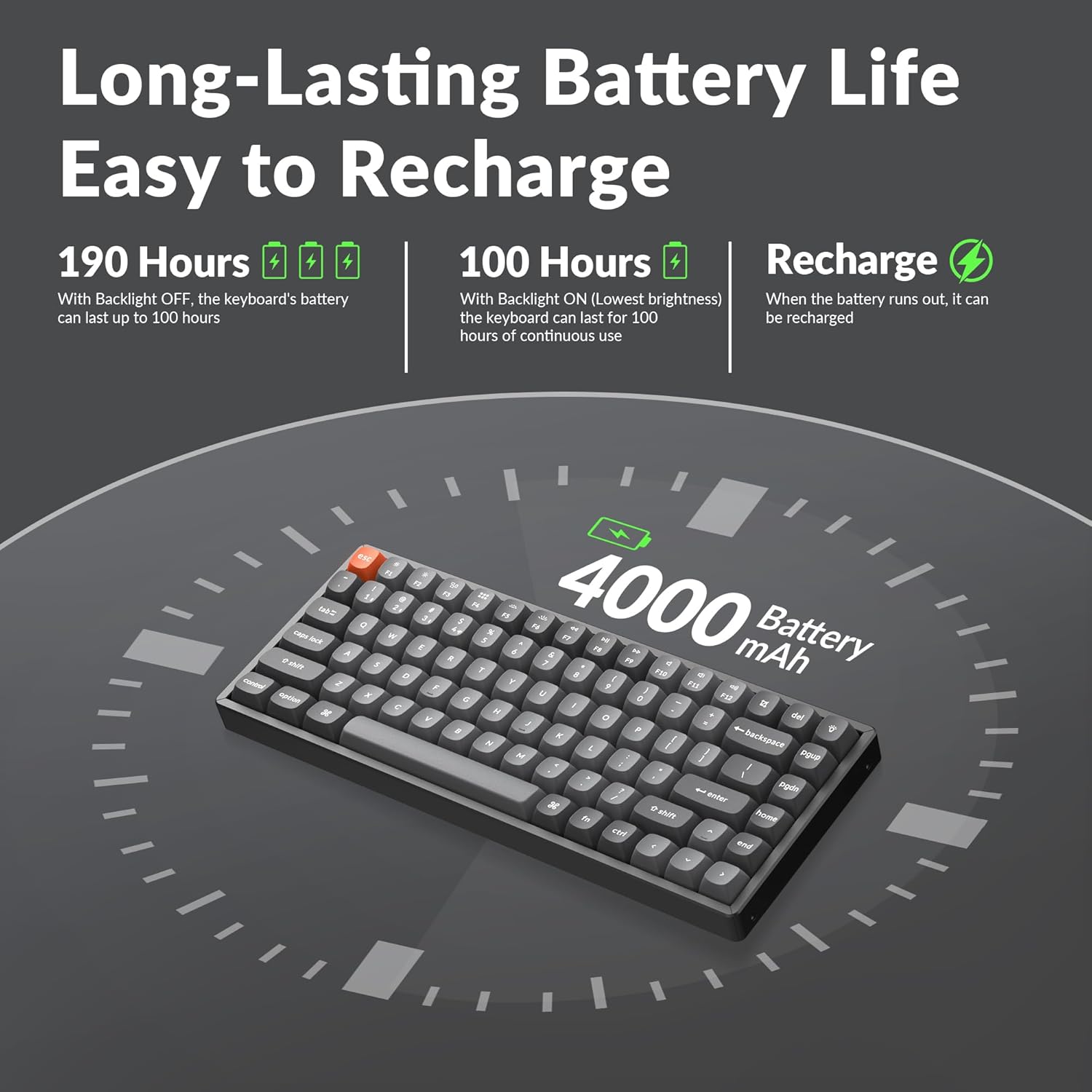
The keyboard comes with a built-in 4000mAh rechargeable battery. For optimal performance, it is recommended to fully charge the keyboard before first use. Connect the provided Type-A to Type-C cable to the keyboard's USB-C port and a power source (e.g., computer USB port or wall adapter).
Connectivity Options
The K2 Max offers three connection modes:
- 2.4 GHz Wireless: For a stable and fast connection, ideal for gaming. Insert the 2.4GHz receiver into a USB port on your device. The receiver can be stored in a dedicated slot on the keyboard's underside when not in use.
- Bluetooth 5.1: For wireless convenience with up to 3 devices. Pair the keyboard with your laptop, tablet, or smartphone.
- Type-C Wired: For a direct and reliable connection, also allowing charging.


Operating Instructions
Switching Operating Systems
The K2 Max is optimized for both macOS and Windows. Use the dedicated toggle switch on the keyboard to switch between macOS and Windows layouts. Extra keycaps for Windows are included to match the layout.

QMK/VIA Customization
The keyboard supports QMK open-source firmware, allowing extensive customization of key remapping, macros, and shortcuts. Access the Keychron Launcher web app for configuration without requiring any software installation.

Backlight Control
The K2 Max features South-Facing RGB Backlight. Use the dedicated function keys to cycle through various lighting effects, adjust brightness, and change colors. Refer to the keyboard's quick start guide for specific key combinations.
Battery Life Management
The 4000mAh battery provides long-lasting performance. With the backlight off, the keyboard can last up to 190 hours. At the lowest brightness setting, it can provide approximately 100 hours of continuous use. Recharge the keyboard when the battery indicator shows low power.
Maintenance
Cleaning the Keyboard
To clean your keyboard, first disconnect it from all power sources. Use a soft, lint-free cloth slightly dampened with water or a mild cleaning solution. For cleaning between keycaps, use compressed air or a small brush. Avoid spraying liquids directly onto the keyboard.
Keycap and Switch Replacement
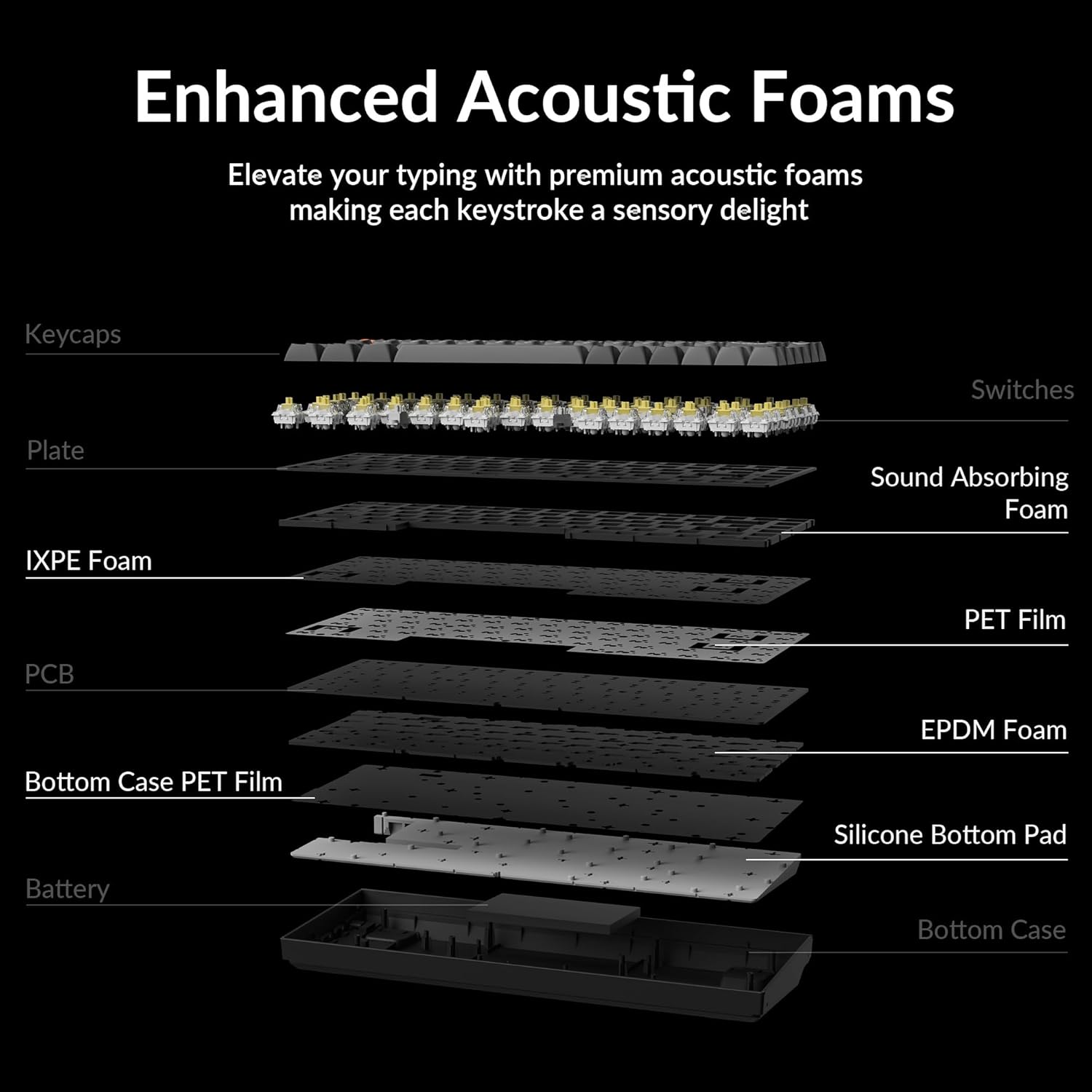
The Keychron K2 Max features hot-swappable switches, allowing you to change switches without soldering. Use the provided keycap and switch puller tools for safe removal and installation.
- Removing Keycaps: Gently pull the keycap straight up using the keycap puller.
- Removing Switches: Insert the switch puller's prongs under the top and bottom clips of the switch and gently rock it while pulling upwards.
- Installing Switches: Align the pins of the new switch with the holes on the PCB and press down firmly until it clicks into place. Ensure pins are not bent.
- Installing Keycaps: Align the keycap with the switch stem and press down firmly.


Troubleshooting
Connectivity Issues
- 2.4 GHz Wireless: Ensure the receiver is securely plugged into a USB port. Try a different USB port. Ensure the keyboard is in 2.4G mode.
- Bluetooth: Ensure Bluetooth is enabled on your device. Unpair and re-pair the keyboard if connection is lost. Ensure the keyboard is in Bluetooth mode and selected the correct device slot (BT1, BT2, BT3).
- Wired: Check the USB-C cable connection at both ends. Try a different USB-C cable or port.
Keys Not Responding
- If a specific key is not responding, it might be a faulty switch. If your model is hot-swappable, try replacing the switch with a spare one or swapping it with a less frequently used key to diagnose.
- Ensure the keyboard is not in sleep mode.
- Check for any debris under the keycap or switch.
Backlight Issues
- If the backlight is off, check if it's disabled or set to the lowest brightness. Adjust using the backlight control keys.
- Ensure the keyboard has sufficient battery charge.
Charging Issues
- Ensure the charging cable is properly connected.
- Try a different USB port or power adapter.
- Allow the keyboard to charge for a few hours.
Specifications
| Model Name | K2M-B4 |
| Connectivity Technology | 2.4G Wireless, Bluetooth 5.1, Type-C Wired |
| Keyboard Description | Mechanical |
| Special Feature | Backlit (South-Facing RGB) |
| Color | Keychron Super Banana Switch (Black keyboard chassis) |
| Compatible Devices | Gaming Console, Laptop, PC (Mac/Windows/Linux) |
| Battery | 4000mAh Lithium Polymer (included) |
| Item Weight | 3.08 pounds |
| Package Dimensions | 15.27 x 6.42 x 2.24 inches |
| Manufacturer | Keychron |
Warranty and Support
For warranty information, technical support, or further assistance, please visit the official Keychron website or their Amazon store. Keychron offers various protection plans for extended coverage.
Visit the Keychron Store on Amazon for more products and support resources.


