
1. Product Overview
The GeekTale F08 Fingerprint Smart Deadbolt Lock offers advanced security and convenient keyless entry for your home or office. This smart lock integrates multiple unlocking methods including fingerprint recognition, smartphone app control via Bluetooth, and traditional physical keys. It is designed for easy installation and provides robust security features.

Image: The GeekTale F08 Fingerprint Smart Deadbolt Lock, showcasing its sleek black design and the illuminated fingerprint sensor, with a smartphone displaying the companion app interface.
Key Features:
- Fingerprint Recognition: High accuracy fingerprint scanner supporting up to 50 unique user profiles for quick, one-touch unlocking.
- App Control: Manage lock functions, add/delete users, and review access logs via a dedicated smartphone application (Bluetooth within 10 meters).
- Remote Access (Gateway Required): Optional gateway (sold separately) enables remote unlocking and real-time notifications from any location.
- Rechargeable Battery: Built-in battery provides up to 8 months of use on a 2-hour charge, with low-battery alerts and emergency USB power access.
- Durable Construction: Made from aluminum alloy, suitable for both indoor and outdoor use (under covered entries for exterior doors).
2. Package Contents
Verify that all components are present before beginning installation:
- GeekTale F08 Fingerprint Deadbolt Lock (Exterior and Interior Assemblies)
- Deadbolt Latch
- Strike Plate
- Mounting Hardware (Screws)
- Physical Keys (2-3, quantity may vary)
- Installation Guide (this document)
3. Installation Guide
3.1. Door Compatibility Check
Ensure your door meets the following specifications:
- Door Hole Diameter: 2-1/8 inches (54mm)
- Door Thickness: 1-3/8 inches to 2-1/8 inches (35mm to 54mm)
- Backset: Adjustable for 2-3/4 inches (70mm) or 2-3/8 inches (60mm). If your door's backset is 2-3/4 inches (70mm), pull out the face plate to extend.

Image: Diagram illustrating required door hole diameter, door thickness, and backset measurements for proper installation of the deadbolt lock. It also shows incompatible lock types like Rim Cylinder, Mortise, and Integrated handles.
3.2. Installation Steps
- Prepare the Door: If replacing an existing lock, remove it. Ensure the door frame is clean and free of debris.
- Install the Deadbolt Latch: Insert the deadbolt latch into the door edge. Ensure the "UP" arrow on the latch is facing upwards. Adjust the backset if necessary (60mm or 70mm). Secure with screws.
- Install the Exterior Assembly: Route the cable from the exterior assembly through the door hole, ensuring the spindle passes through the latch mechanism.
- Install the Interior Mounting Plate: Secure the interior mounting plate to the door using screws, ensuring it aligns with the exterior assembly.
- Connect the Cable and Install the Interior Assembly: Connect the cable from the exterior assembly to the interior assembly. Attach the interior assembly to the mounting plate, ensuring the thumb turn operates smoothly. Secure with screws.
- Install the Strike Plate: Install the strike plate on the door frame, aligning it with the deadbolt latch.
- Test Operation: Manually test the lock and unlock function with the thumb turn and physical key to ensure smooth operation.
4. Operating Instructions
4.1. Unlocking Methods
The GeekTale F08 offers three primary ways to unlock your door:
- Fingerprint Unlock:
Place your registered finger on the fingerprint sensor. The lock will recognize your fingerprint in approximately 0.3 seconds. Once recognized, twist the deadbolt knob to unlock the door.

Image: A hand placing a finger on the illuminated fingerprint sensor of the GeekTale F08 lock, indicating a quick 0.3-second recognition speed.
- App Unlock (Bluetooth):
Download the dedicated GeekTale app (or compatible smart home app like Tuya Smart). Pair your lock via Bluetooth. Within 10 meters of the lock, open the app and tap the unlock icon. Once unlocked, twist the deadbolt knob to open the door.

Image: A smartphone displaying the lock's app interface with an unlock button, positioned next to the GeekTale F08 deadbolt, illustrating app-based unlocking.
- Key Unlock:
In case of emergency or preference, use the provided physical key to unlock the deadbolt. The keyhole is discreetly located on the exterior assembly.

Image: A hand inserting a physical key into the keyhole of the GeekTale F08 deadbolt lock, demonstrating manual unlocking.
4.2. Locking the Door
To lock the door, simply twist the deadbolt knob from either the interior or exterior side. The lock will engage automatically.
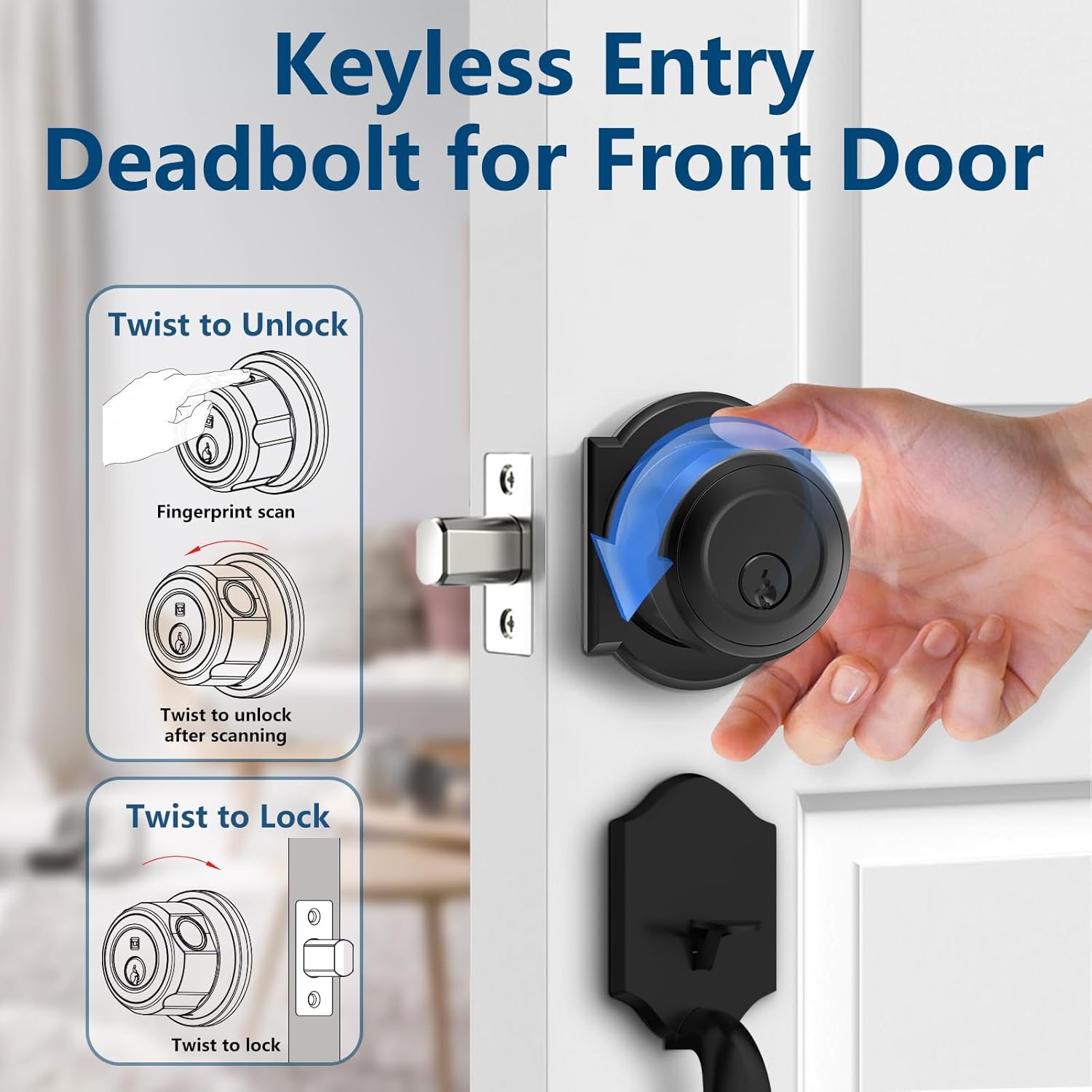
Image: A diagram showing the "Twist to Unlock" action after a fingerprint scan and the "Twist to Lock" action for the GeekTale F08 deadbolt, illustrating the manual operation of the lock.
4.3. App Management and Remote Control
The companion app allows for comprehensive management of your lock:
- User Management: Add or delete fingerprint profiles for family members or guests.
- Access Logs: Review a history of entries and exits, including the method used (fingerprint, app).
- Remote Unlock (Requires Gateway): For remote unlocking functionality and real-time door status notifications from anywhere, a GeekTale G3 Gateway (sold separately) is required. Pair the gateway with your lock and connect it to your home Wi-Fi network.
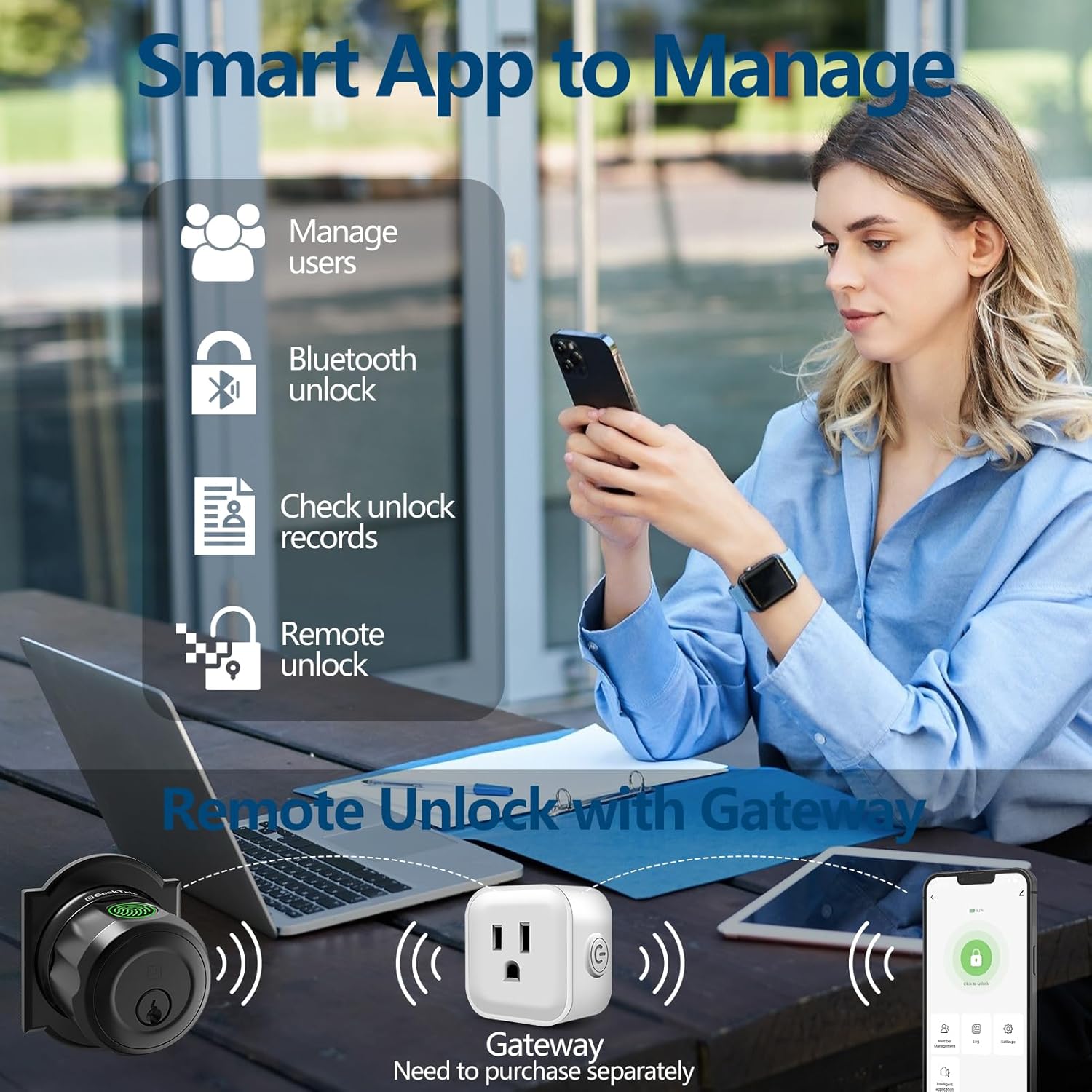
Image: An illustration detailing the smart app's capabilities, including managing users, Bluetooth unlock, checking unlock records, and remote unlock, with a separate gateway device shown for remote functionality.
5. Maintenance
5.1. Battery Management
The lock is equipped with a rechargeable Lithium-Ion battery. A full charge takes approximately 2 hours and provides up to 8 months of use.
- Charging: Use a standard USB cable to charge the lock. The charging port is typically located on the interior assembly.
- Low Battery Alert: The lock will provide visual or audible alerts when the battery level is low. The app will also display battery status.
- Emergency Power: If the battery completely drains, you can use a portable power bank connected via USB to temporarily power the lock for entry, or use the physical key.

Image: A visual representation of the GeekTale F08's built-in rechargeable battery, highlighting a 30-minute full charge time and an 8-month battery life, along with a low battery alert indicator.
5.2. Cleaning and Care
- Wipe the lock surface with a soft, dry cloth. Avoid abrasive cleaners or solvents.
- While the lock is constructed for durability, for exterior doors, installation under covered entries (e.g., porches) is recommended to protect it from direct rain exposure and extreme weather conditions.

Image: The GeekTale F08 lock shown on a door with rain effects, indicating its IP65 weather resistance and operational temperature range of 23°F to 131°F.
6. Troubleshooting
- Fingerprint Not Recognized:
Ensure your finger is clean and dry. Try repositioning your finger on the sensor. If issues persist, delete and re-register your fingerprint in the app. Ensure the sensor is clean.
- Lock Not Responding:
Check the battery level in the app or look for low battery alerts on the lock. Recharge the battery if necessary. If completely drained, use a physical key or emergency USB power.
- App Connectivity Issues (Bluetooth):
Ensure Bluetooth is enabled on your smartphone and you are within 10 meters of the lock. Restart the app or your phone. If using a gateway, ensure the gateway is powered on and connected to Wi-Fi.
- Remote Unlock Not Working:
Verify that the GeekTale G3 Gateway is properly installed, powered, and connected to your home Wi-Fi network. Ensure the lock is paired with the gateway. Check your internet connection.
- Lock Malfunctions / Unlocks Randomly:
This is an uncommon issue. If the lock exhibits unpredictable behavior, try resetting the lock to factory settings (refer to the app or manufacturer's instructions for specific steps) and re-pairing it. If the problem persists, contact customer support.
7. Specifications
| Feature | Detail |
|---|---|
| Brand | GeekTale |
| Model Name | F08 |
| Lock Type | Keyless Entry Deadbolt |
| Unlocking Methods | Fingerprint, App (Bluetooth), Physical Key |
| Fingerprint Capacity | Up to 50 profiles |
| Material | Aluminum Alloy |
| Color | Black |
| Dimensions (L x W x H) | 2.67 x 2.67 x 1.87 inches |
| Item Weight | 1.41 pounds (0.64 Kilograms) |
| Power Source | 1 Lithium Ion battery (included) |
| Battery Life | Up to 8 months on a 2-hour charge |
| Connectivity | Bluetooth (App Control) |
| Remote Control | Requires GeekTale G3 Gateway (sold separately) |
| Recommended Use | Residential and commercial front doors, outdoor use (under covered entries) |
8. Warranty and Support
8.1. Warranty Information
Please refer to the product packaging or the official GeekTale website for detailed warranty information, terms, and conditions. Keep your proof of purchase for warranty claims.
8.2. Customer Support
For further assistance, technical support, or inquiries regarding your GeekTale F08 Smart Deadbolt Lock, please contact GeekTale customer support through their official website or the contact information provided in your product packaging.