
1. Safety Information
- Read all instructions carefully before installation and use.
- Do not attempt to disassemble or repair the lock yourself. Contact customer support for assistance.
- Keep keys in a safe place, separate from the lock.
- Ensure the door frame and door are structurally sound before installation.
- For exterior doors, install under a covered entry to protect from direct rain exposure.
2. Package Contents
Verify that all components are present before beginning installation:
- Front Lock Assembly
- Rear Lock Assembly
- Deadbolt Latch
- Mounting Plate
- Strike Plate
- Screws (various sizes)
- Backup Keys (2)
- USB Charging Cable
- User Manual
3. Product Overview
The GeekTale F08 Smart Deadbolt Lock offers multiple access methods and smart features for enhanced security and convenience.

Image: The GeekTale F08 Smart Deadbolt Lock, showing the fingerprint sensor and keyhole.
Key Features:
- Fingerprint Recognition: Fast and accurate one-touch unlocking. Supports up to 50 unique user profiles.
- App Control: Manage users, unlock via Bluetooth, and review access logs through the dedicated mobile application.
- Remote Control Capability: When paired with a separate gateway (sold separately), enables remote unlocking and real-time notifications.
- Rechargeable Battery: Built-in battery provides up to 8 months of use on a 2-hour charge. Features low-battery alerts and emergency USB power access.
- Multiple Unlock Methods: Fingerprint, App, and Physical Key.

Image: Illustration showing the three unlocking methods: App Unlock, Fingerprint Unlock, and Key Unlock.
4. Installation Guide
The GeekTale F08 Smart Deadbolt Lock is designed for easy installation. Please refer to the following steps and the installation video for a smooth process.
Video: Demonstrates the installation process for the F08 Deadbolt Lock, highlighting its quick 15-minute setup.
Door Preparation and Measurement:
Ensure your door meets the following specifications:
- Door Hole Diameter: 2-1/8 inches (54mm)
- Door Thickness: 1-3/8 inches to 2-1/8 inches (35mm to 54mm)
- Backset: Adjustable for 2-3/4 inches (70mm) or 2-3/8 inches (60mm). Pull out the face plate to extend if your backset is 2-3/4 inches (70mm).
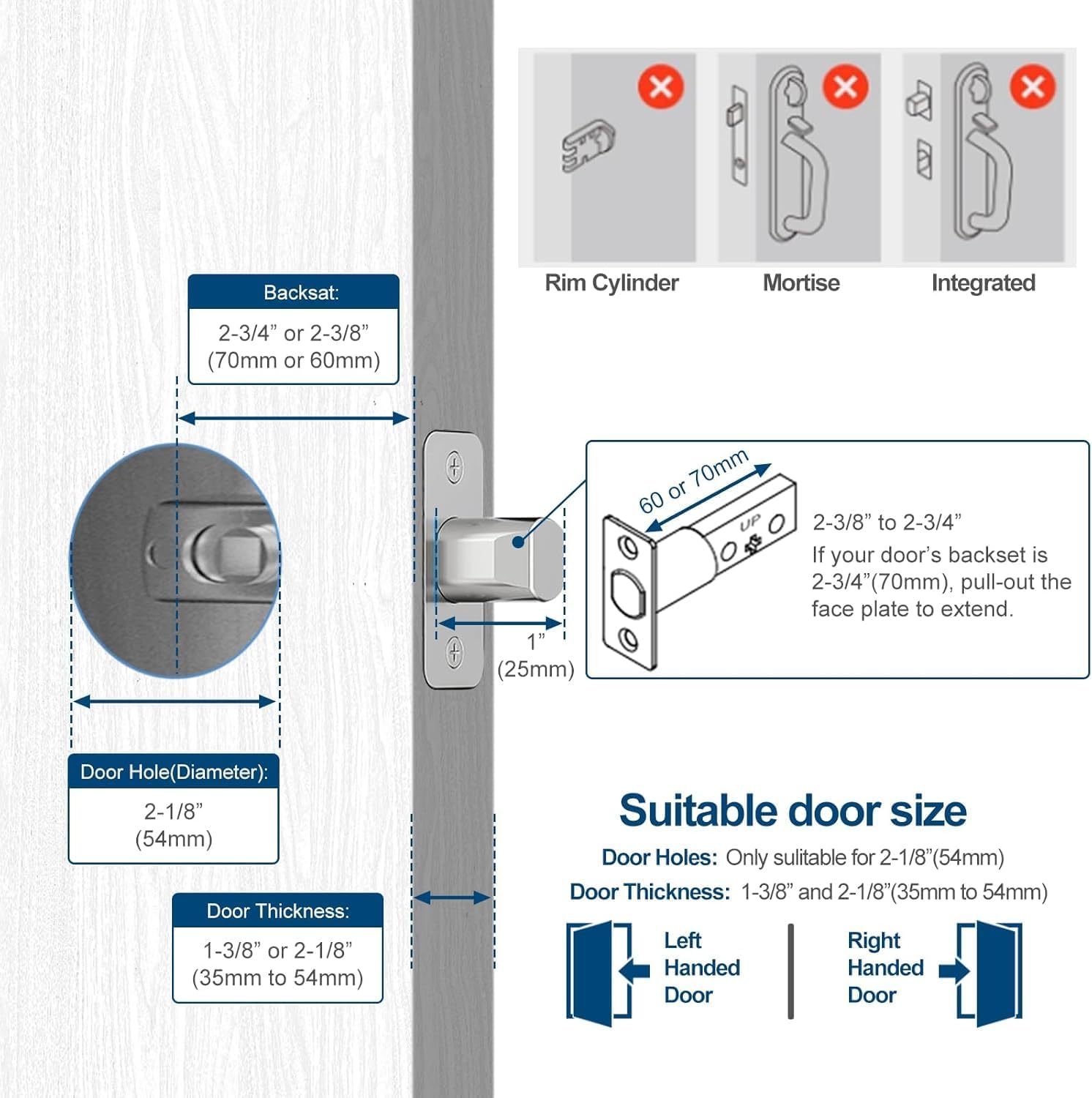
Image: Diagram illustrating required door hole diameter, thickness, and backset measurements for installation.
Installation Steps:
- Remove Existing Hardware: Carefully remove your old deadbolt and any associated hardware.
- Install Deadbolt Latch: Insert the new deadbolt latch into the door edge. Ensure it is oriented correctly for your door's swing (left-handed or right-handed). Secure with screws.
- Connect Wires: Connect the wire from the front lock assembly to the wire from the rear lock assembly.
- Install Front and Rear Assemblies: Align the front and rear lock assemblies with the deadbolt latch and secure them to the door using the provided screws. Ensure the wires are not pinched.
- Install Strike Plate: Install the strike plate on the door frame, aligning it with the deadbolt latch.
- Test Operation: Manually test the lock and unlock mechanism to ensure smooth operation.
5. Setup
App Download and Connection:
- Download the dedicated GeekTale app from your smartphone's app store.
- Create an account or log in.
- Follow the in-app instructions to add your F08 Smart Deadbolt Lock. This typically involves selecting the lock model and pairing via Bluetooth.
Video: Guide on how to connect the lock to the app and add fingerprints for control.
Fingerprint Enrollment:
- Within the app, navigate to 'Member Management' or 'Fingerprint Settings'.
- Select 'Add Fingerprint' and follow the on-screen prompts.
- Place your finger on the lock's fingerprint sensor multiple times as instructed until enrollment is complete.
- Test the enrolled fingerprint to ensure it unlocks the deadbolt.

Image: A hand demonstrating the 0.3-second fingerprint recognition speed for unlocking the deadbolt.
User Management:
- The app allows you to add, modify, or delete user fingerprints.
- You can assign names to each enrolled fingerprint for easy identification in access logs.
- Access logs can be viewed in the app to track entry and exit times.

Image: A person using the smart app to manage the lock, showing options for user management, Bluetooth unlock, and checking unlock records. A gateway is shown as a separate purchase for remote unlock.
6. Operating Instructions
Unlocking the Deadbolt:
- By Fingerprint: Place an enrolled finger on the fingerprint sensor. Once recognized (indicated by a green light), twist the deadbolt knob to unlock.
- By App (Bluetooth): Open the GeekTale app on your smartphone. Ensure Bluetooth is enabled and you are within range (approx. 10 meters). Tap the 'Unlock' button in the app.
- By Physical Key: Insert one of the provided backup keys into the keyhole and turn to unlock.
Video: Demonstrates the three unlocking methods for the F08 Deadbolt Lock: fingerprint, app, and physical key.
Locking the Deadbolt:
- Manual Locking: From the inside, twist the deadbolt knob to the locked position. From the outside, after closing the door, twist the deadbolt knob to the locked position.
- App Locking (Bluetooth): Open the GeekTale app and tap the 'Lock' button.
- Auto-Lock (Configurable): The lock can be configured via the app to automatically lock after a set period.

Image: Diagram showing the 'Twist to Unlock' and 'Twist to Lock' actions for the keyless entry deadbolt.
7. Maintenance
Battery Charging:
- The lock features a built-in rechargeable battery.
- When the battery is low, the lock will provide an audible and visual alert, and the app will display a low battery notification.
- Connect the provided USB charging cable to the charging port on the lock (typically located on the underside of the exterior unit) and to a standard USB power source.
- A full charge takes approximately 2 hours and provides up to 8 months of use.
- In case of a completely drained battery, you can temporarily power the lock using a portable power bank connected via the USB port.

Image: Illustration of the built-in rechargeable battery and low battery alert feature, indicating 30 minutes of charge for 8 months of use.
Cleaning:
- Wipe the lock's surface with a soft, damp cloth.
- Avoid using abrasive cleaners or solvents, as these can damage the finish.
- Keep the fingerprint sensor clean and free of debris for optimal performance.
8. Troubleshooting
- Lock not responding: Check battery level. Recharge if necessary. Ensure the lock is properly installed and all connections are secure.
- Fingerprint not recognized: Ensure your finger is clean and dry. Try re-enrolling the fingerprint. Ensure the sensor is clean.
- App connection issues: Ensure Bluetooth is enabled on your phone and you are within range of the lock. Restart the app and/or your phone.
- Remote unlock not working: Verify that the optional gateway is properly installed, connected to Wi-Fi, and paired with the lock. Check internet connectivity.
- Deadbolt not extending/retracting fully: Check for obstructions in the door frame or strike plate. Ensure the deadbolt latch is correctly aligned.
9. Specifications
| Brand | GeekTale |
| Model Name | F08 |
| Lock Type | Keyless Entry Deadbolt |
| Material | Aluminum |
| Color | Black |
| Connectivity Protocol | Bluetooth |
| Control Method | App, Touch (Fingerprint) |
| Item Weight | 0.62 Kilograms (1.37 pounds) |
| Battery Type | Lithium Ion (Rechargeable) |
| Recommended Uses | Under an awning residential front doors, back door, garage door |
10. Warranty and Support
GeekTale products are covered by a limited warranty. For specific warranty details, please refer to the warranty card included with your product or visit the official GeekTale website.
For technical support, troubleshooting assistance, or to inquire about replacement parts, please contact GeekTale customer service through their official channels. Contact information can typically be found on the product packaging or the GeekTale website.