Introduction
This manual provides essential instructions for the safe and effective use of your PUSOKEI 4K Digital Camera. Please read this manual thoroughly before operating the camera and retain it for future reference.

Image: Front and back view of the PUSOKEI 4K Digital Camera, highlighting its 4K capability, 16X digital zoom, and anti-shake feature.
Package Contents
- 1 x PUSOKEI Digital Camera
- 1 x Hand Strap
- 1 x USB Cable
Note: A memory card is not included and must be purchased separately.
Setup
1. Charging the Battery
The camera has a built-in 800mAh lithium battery. Before first use, ensure the camera is fully charged. Connect the camera to a power source using the provided USB cable. The charging indicator light will typically show the charging status and turn off or change color when fully charged.
2. Inserting a Memory Card
The camera supports memory cards up to 128GB. Locate the memory card slot, usually on the side or bottom of the camera. Insert the memory card with the metal contacts facing the correct direction until it clicks into place. Ensure the camera is powered off before inserting or removing the memory card.
3. Attaching the Hand Strap
Thread the included hand strap through the strap loop on the side of the camera to prevent accidental drops.

Image: Close-up view of the side of the PUSOKEI 4K Digital Camera, showing the strap loop and tripod screw hole.
Operating the Camera
1. Powering On/Off
Press and hold the Power button (usually marked with a circle and a vertical line) to turn the camera on or off. The 2.4-inch screen will illuminate.
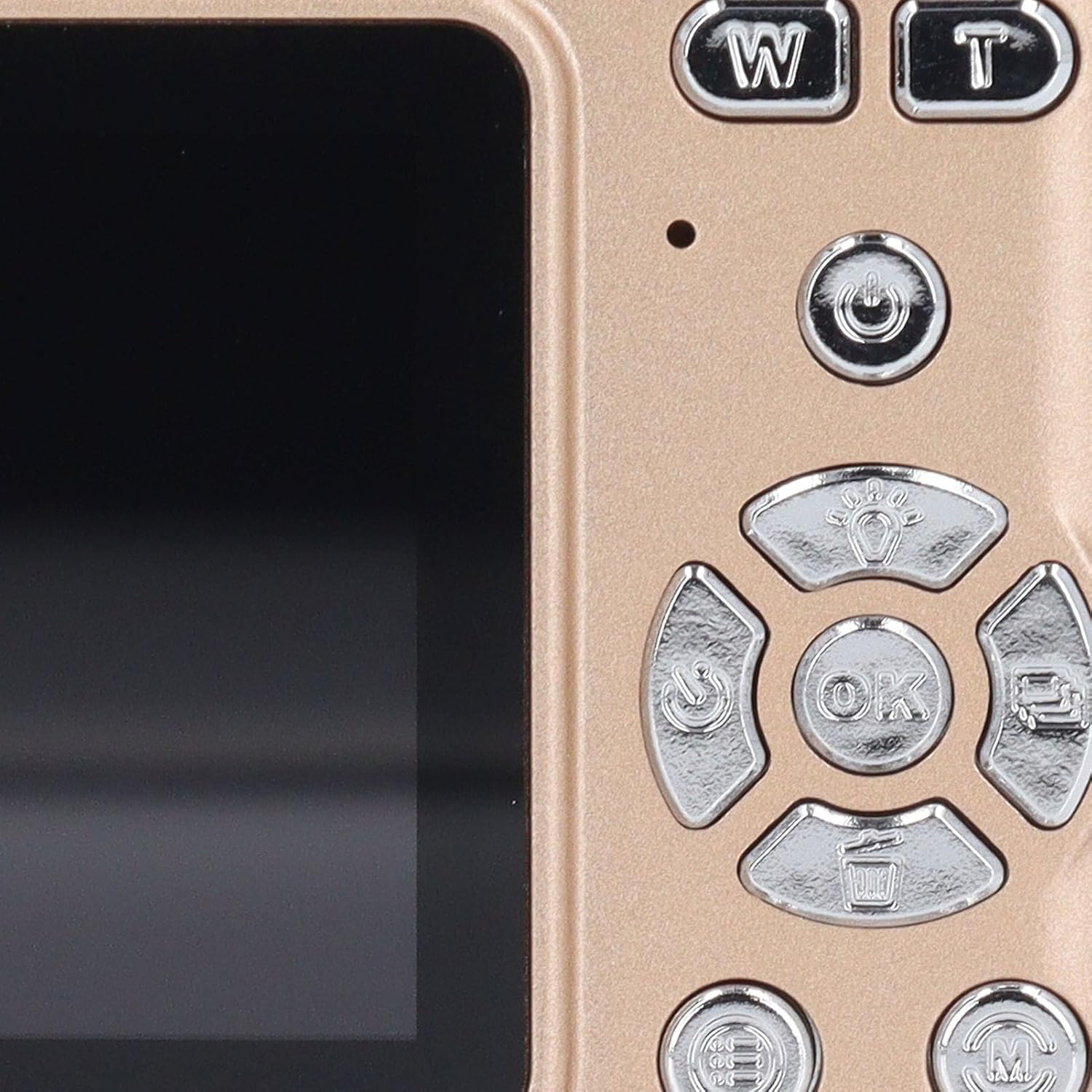
Image: Close-up of the camera's back panel, showing the power button, zoom controls (W/T), navigation buttons, OK button, and menu/delete buttons.
2. Taking Photos
- Auto Focus: The camera features automatic focusing. Point the camera at your subject, and it will automatically adjust focus for clear images.
- Zoom: Use the 'W' (Wide) and 'T' (Telephoto) buttons to adjust the 16X digital zoom.
- Shutter Button: Press the shutter button (typically on top of the camera) halfway to focus, then press fully to capture the image.
- LED Flashlight: In low-light conditions, the built-in LED flashlight can be activated to improve scene lighting. Refer to the on-screen menu for flash settings.
- Macro Function: For close-up shots of small objects, activate the macro function through the camera's menu. This allows for precise focus on delicate details.

Image: Demonstrating the camera's autofocus and macro capabilities, showing clear details of strawberries and a flower.

Image: The PUSOKEI 4K Digital Camera positioned against a background of various scenic photographs, illustrating its versatility.
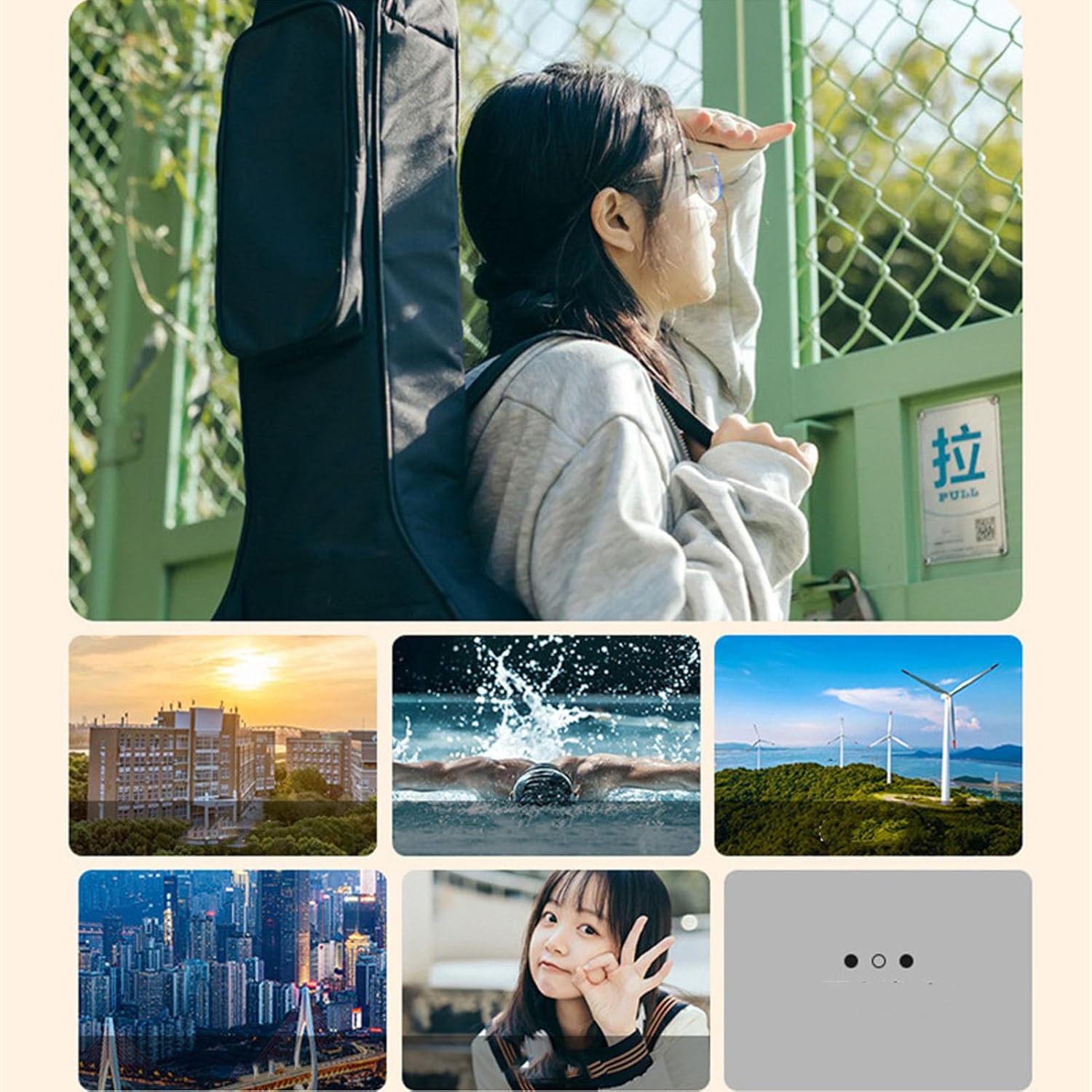
Image: A collage of diverse photographs including cityscapes, nature scenes, and portraits, showcasing the camera's ability to capture various subjects.
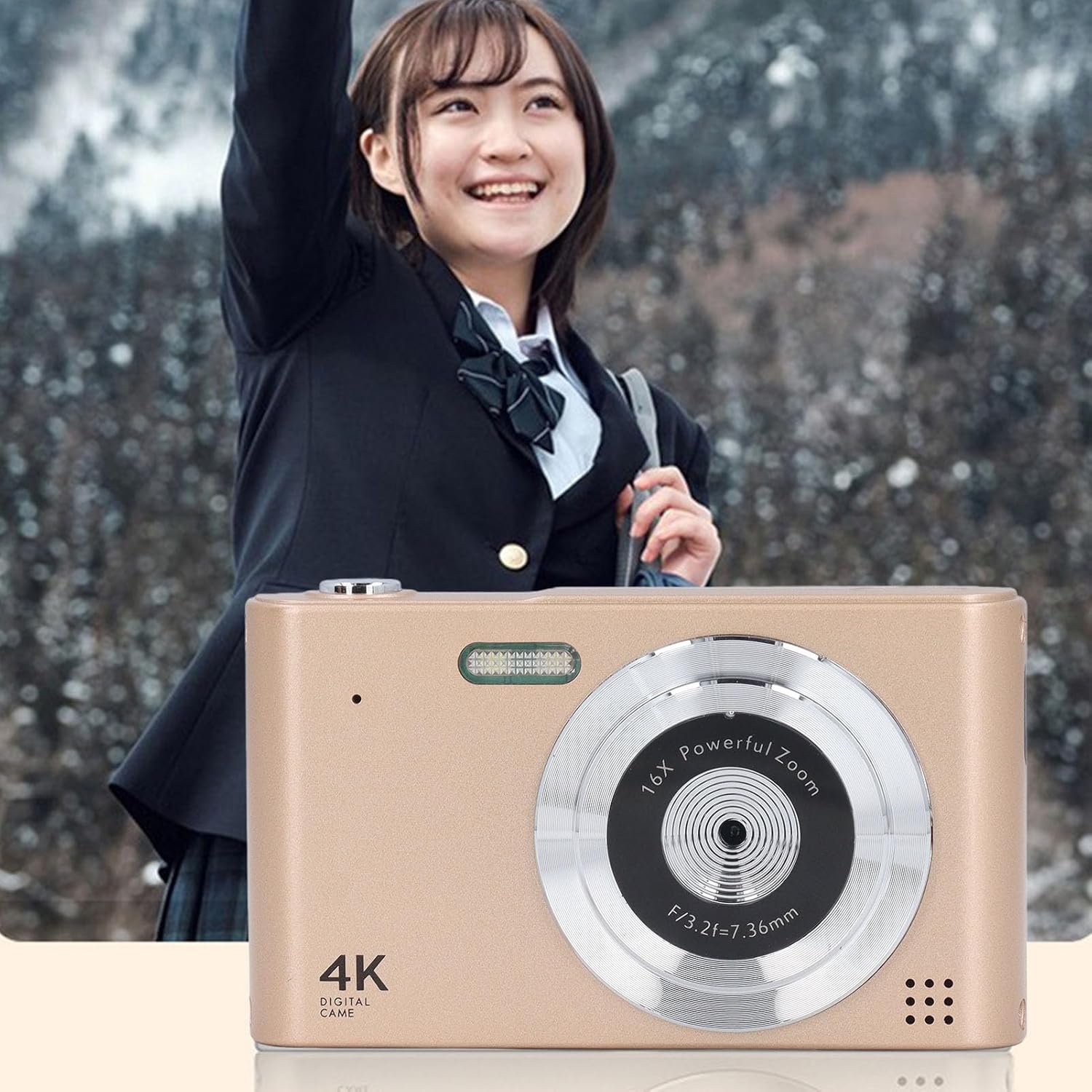
Image: The PUSOKEI 4K Digital Camera shown in use, capturing a moment with a person in a natural, outdoor setting.
3. Recording Videos
Switch the camera to video mode (refer to the on-screen menu or mode dial, if present). Press the shutter button to start recording and press it again to stop. The camera supports up to 4K video resolution.
4. Reviewing Photos and Videos
Press the Playback button (often indicated by a triangle icon) to enter playback mode. Use the navigation buttons to scroll through your captured images and videos. Press the OK button to view a video or zoom into a photo.
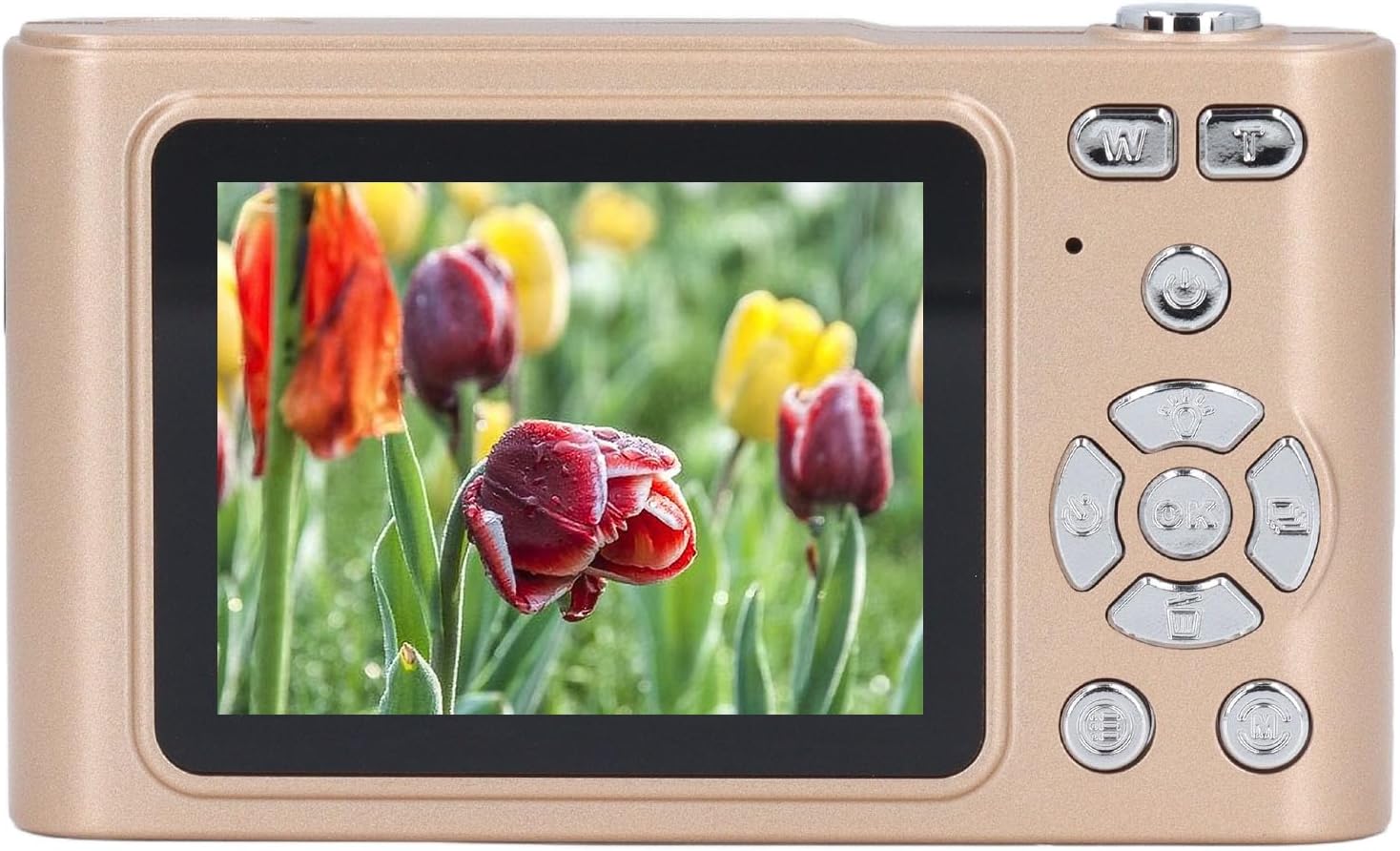
Image: Back view of the PUSOKEI 4K Digital Camera displaying a vibrant image of tulips on its screen.
5. Connecting to a Computer
Connect the camera to your computer using the provided USB Type-C cable. The camera should appear as a removable disk drive, allowing you to transfer photos and videos.
Maintenance
- Cleaning the Lens and Screen: Use a soft, lint-free cloth specifically designed for optical surfaces to gently wipe the lens and screen. Avoid using harsh chemicals or abrasive materials.
- Battery Care: To prolong battery life, avoid fully discharging the battery frequently. Store the camera in a cool, dry place when not in use for extended periods.
- Storage: Store the camera in a protective case or bag to prevent scratches and damage from dust or moisture.
Troubleshooting
- Camera does not turn on: Ensure the battery is fully charged. If the issue persists, try connecting the camera to a power source and attempting to turn it on while charging.
- Cannot take photos/videos: Check if a memory card is inserted correctly and has sufficient free space. Ensure the camera is in the correct mode (photo or video).
- Images are blurry: Ensure the lens is clean. Allow the camera to autofocus before fully pressing the shutter button. Check if macro mode is accidentally enabled for distant shots, or disabled for close-ups.
- Memory card error: Reinsert the memory card. If the error persists, try formatting the card (this will erase all data) or using a different compatible memory card.
- Camera freezes: Remove and reinsert the battery (if accessible) or press and hold the power button for an extended period (e.g., 10-15 seconds) to force a shutdown.
Specifications
| Feature | Specification |
|---|---|
| Maximum Image Resolution | 48MP |
| Maximum Video Resolution | 4K |
| Screen Size | Approx. 2.4 inches |
| Digital Zoom | 16X |
| Bottom Screw Hole | 1/4 inch |
| Camera Interface | Type C |
| Storage Support | Up to 128GB memory card (not included) |
| Battery Information | Built-in Lithium Battery, 800mAh |
| Item Weight | 7.7 ounces |
| Package Dimensions | 5.12 x 4.72 x 1.57 inches |
| Model Number | PUSOKEI58aqcu2wyt-11 |
Warranty and Support
For warranty information and customer support, please refer to the documentation provided with your purchase or contact the seller directly. Keep your proof of purchase for warranty claims.


