
SIMREX X300C
SIMREX X300C Mini Drone User Manual
Model: X300C
Brand: SIMREX
1. Introduction
Thank you for purchasing the SIMREX X300C Mini Drone. This manual provides essential information for the safe operation, setup, and maintenance of your drone. Please read it thoroughly before first use to ensure optimal performance and to prevent damage or injury. The X300C is a compact, foldable RC quadcopter featuring a 720P HD FPV camera, Altitude Hold, 3D Flip, Headless Mode, and Gravity Control, designed for beginners, kids, and adults.

Image: The SIMREX X300C Mini Drone, its remote controller, and two modular batteries.
2. Safety Precautions
- Adult Supervision: Always ensure adult supervision, especially when children are operating the drone.
- Flight Environment: Fly in open, clear areas, away from people, animals, buildings, and obstacles. Avoid flying in strong winds or adverse weather conditions.
- Propeller Safety: Keep hands, face, and hair away from rotating propellers. Always turn off the drone and controller before handling the propellers.
- Battery Safety: Use only the provided charging cable and batteries. Do not overcharge or short-circuit batteries. Discontinue use if batteries show signs of swelling or damage.
- Water and Moisture: Keep the drone and its components away from water and moisture to prevent damage to electronic parts.
- Emergency Stop: Familiarize yourself with the emergency stop function for immediate shutdown if needed.

Image: The SIMREX X300C drone equipped with propeller guards, emphasizing safe operation.
3. What's in the Box
- SIMREX X300C Mini Drone
- Remote Controller
- Modular Batteries (x2)
- Spare Propellers
- USB Charging Cable
- Screwdriver
- User Manual (this document)
4. Product Overview
Drone Components
- Foldable Arms with Motors and Propellers
- 720P HD FPV Camera (front)
- Optical Flow Positioning Sensor (bottom)
- Battery Compartment
- Power Button
Remote Controller Layout

Image: Detailed diagram of the remote controller, showing buttons for gravity sensor switch, one key takeoff/ascend, 3 speeds mode, gyro calibration, left/right sliders, one key descend, headless mode, one key return, 3D flip, fine tuning controls, power switch, and charging interface.
- Left Joystick: Controls altitude (up/down) and rotation (left/right).
- Right Joystick: Controls forward/backward and left/right movement.
- One Key Takeoff/Landing Button: Initiates automatic takeoff or landing.
- Speed Switch Button: Toggles between different flight speeds (low, medium, high).
- Headless Mode Button: Activates/deactivates headless mode.
- 3D Flip Button: Performs 360-degree flips.
- Fine-tuning Buttons: Adjusts drone drift for stable flight.
- Power Button: Turns the controller on/off.
5. Setup
5.1 Battery Charging and Installation
Charge both drone batteries and the remote controller battery using the provided USB charging cable. The indicator light will turn off when fully charged. Insert the charged modular batteries into the drone's battery compartment until they click into place. The remote controller has a built-in rechargeable battery.
5.2 Propeller Installation
Ensure propellers are installed correctly according to the markings (A1, A2, B1, B2) on the drone arms and propellers. Incorrect installation will prevent the drone from taking off.
5.3 App Installation (SIMREX Zoomy)
Download the "SIMREX Zoomy" app from your smartphone's app store (iOS App Store or Google Play Store). This app is required for FPV viewing, photo/video recording, and advanced flight features like Waypoints and Gravity Control. You can also scan the QR code on the product packaging or visit simrex.com.cn/download_zoomy.html to download the app.
5.4 Pairing the Drone and Controller
- Place the drone on a flat, level surface.
- Press and hold the power button on the drone for a long time until the color light flashes.
- Turn on the switch button at the bottom of the remote controller.
- Push the left joystick up and then down. The drone's indicator lights will become solid, indicating successful pairing.

Image: Visual guide for initial setup, showing propeller installation, powering on the drone, and turning on the remote controller for adaptation.
6. Operating Instructions
6.1 Basic Flight Controls
- One Key Takeoff/Landing: Press the dedicated button on the controller for automatic takeoff or landing.
- Ascend/Descend: Push the left joystick up to ascend, down to descend.
- Forward/Backward: Push the right joystick up for forward flight, down for backward flight.
- Turn Left/Right: Push the left joystick left or right to rotate the drone.
- Fly Left/Right: Push the right joystick left or right to fly sideways.
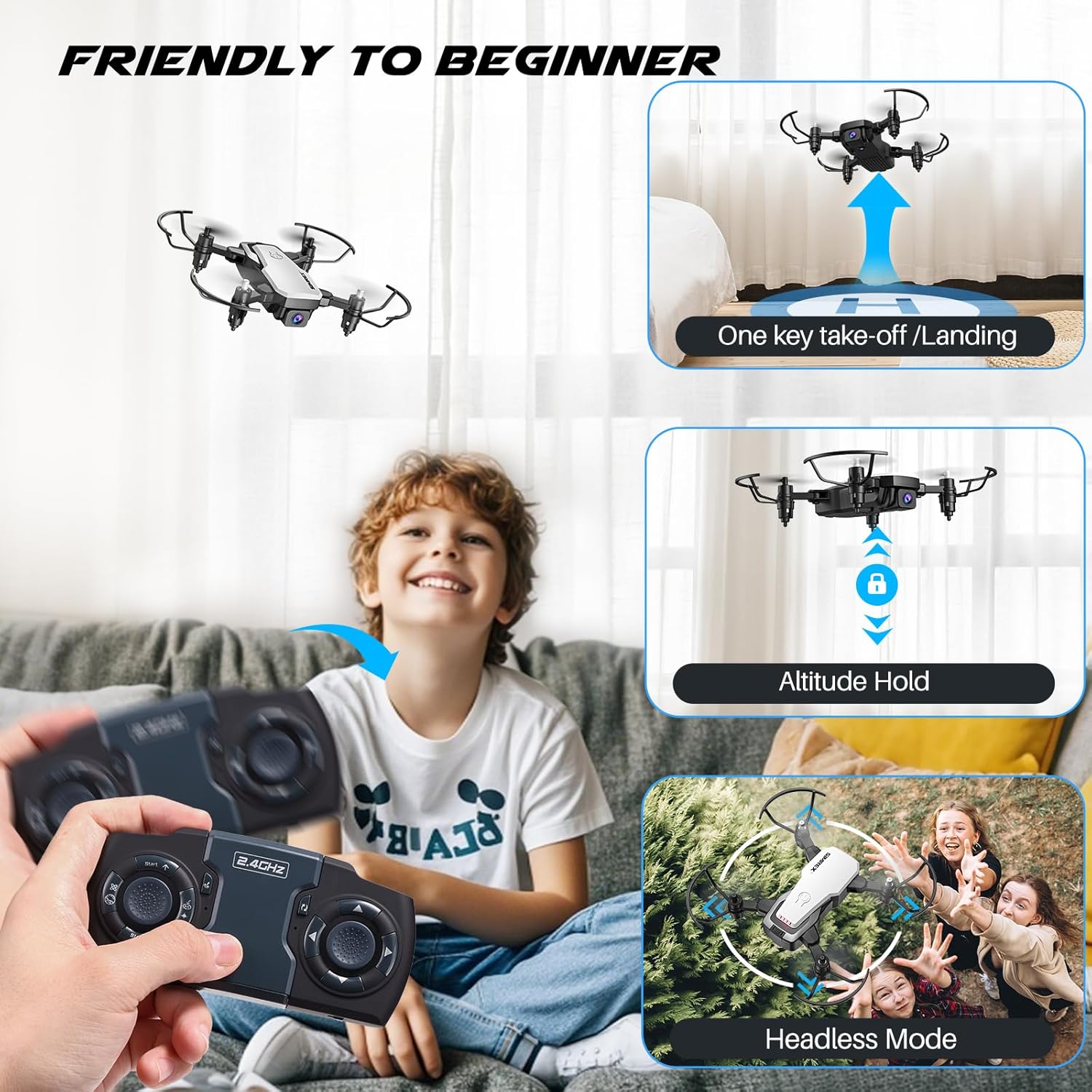
Image: A child operating the SIMREX X300C drone, illustrating features like one-key takeoff/landing, altitude hold, and headless mode for beginner-friendly flight.
6.2 Special Features
- Altitude Hold: The drone maintains a consistent altitude, making it easier to control and capture stable photos/videos. This is supported by optical flow positioning.
- Headless Mode: In this mode, the drone's orientation is relative to the pilot, eliminating the need to adjust its position before flying.
- 3D Flip: Press the 3D Flip button and move the right joystick in any direction to perform a 360-degree flip.
- Gravity Control: Using the SIMREX Zoomy app, you can control the drone's direction by tilting your smartphone.
- Waypoints Fly: Draw a flight path on the app screen, and the drone will automatically follow the designated route.
- 3 Speed Modes: Adjust the drone's speed to suit your skill level or flying environment.

Image: A child observing the SIMREX X300C drone as it hovers stably, demonstrating its optical flow positioning capability.
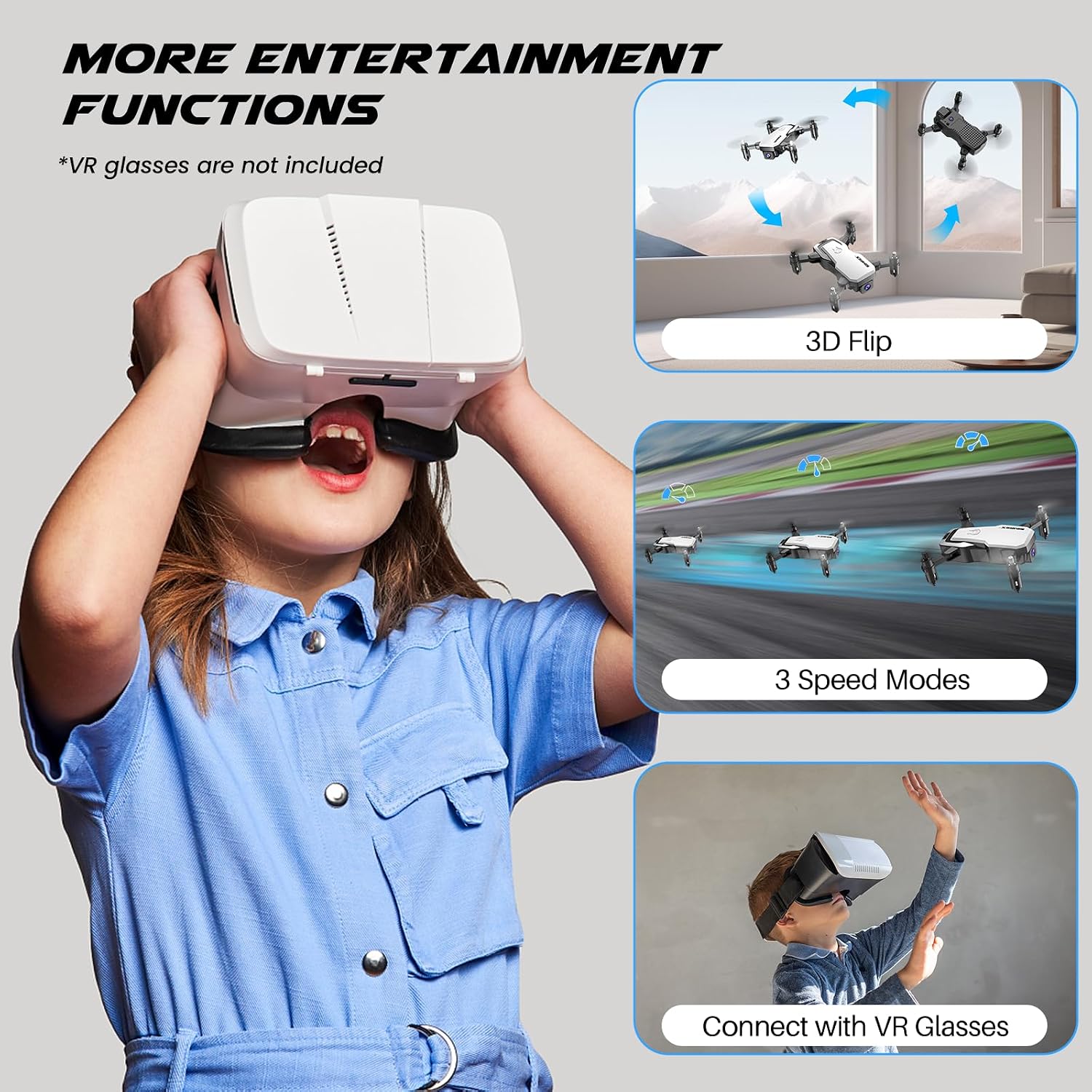
Image: A child wearing VR glasses, with illustrations of the SIMREX X300C performing 3D flips and operating in different speed modes, highlighting entertainment functions.
6.3 Camera Operation (FPV)
Connect your smartphone to the drone's Wi-Fi network (usually named "SIMREX-X300C-XXXX"). Open the SIMREX Zoomy app to view the live FPV feed. From the app, you can capture 720P HD photos and videos directly to your phone's gallery.

Image: Close-up of the SIMREX X300C drone's 720P WiFi FPV camera, with examples of photos and videos it can capture.
6.4 Official Product Video
Video: An official demonstration of the SIMREX mini drone, showcasing its features and flight capabilities for kids and beginners.
7. Maintenance
- Cleaning: Use a soft, dry cloth to clean the drone and controller. Do not use harsh chemicals or solvents.
- Propeller Inspection: Regularly check propellers for damage. Replace any bent or broken propellers immediately using the spare parts provided.
- Battery Care: Store batteries in a cool, dry place. If not used for an extended period, charge them to about 50% capacity every three months to prolong battery life.
- Storage: Store the drone and its components in a safe place, away from direct sunlight and extreme temperatures.
8. Troubleshooting
| Problem | Possible Cause | Solution |
|---|---|---|
| Drone does not respond to controller | Not paired; Low battery (drone/controller); Out of range | Re-pair drone and controller; Charge batteries; Fly within range (18 meters) |
| Drone cannot take off or flies unstable | Propellers installed incorrectly; Damaged propellers; Not calibrated; Uneven surface | Check propeller installation (A/B markings); Replace damaged propellers; Perform gyro calibration; Place on a flat surface for takeoff |
| FPV feed is laggy or disconnected | Weak Wi-Fi signal; Too far from drone; Interference | Ensure strong Wi-Fi connection; Fly closer to the drone; Avoid areas with strong Wi-Fi interference |
| Short flight time | Battery not fully charged; Old battery; Aggressive flying | Fully charge batteries; Consider replacing old batteries; Fly more gently |
9. Specifications
| Feature | Detail |
|---|---|
| Model Name | X300C |
| Brand | SIMREX |
| Color | White |
| Video Capture Resolution | 720p |
| Connectivity Technology | USB (charging) |
| Control Type | Remote Control, App Control (Wi-Fi FPV) |
| Maximum Range | 18 Meters |
| Item Weight | 237 Grams (8.4 ounces) |
| Product Dimensions | 1.9"L x 4.5"W x 1.3"H (Folded) |
| Battery Type | Lithium Ion (Modular) |
| Flight Time | Up to 18 minutes (with 2 batteries) |
| Special Features | 360 Degree Flip, Speed Adjustment, Anti-Fall, Foldable, First Person View (FPV), Optical Flow Positioning, Altitude Hold, Headless Mode, Gravity Control |

Image: The SIMREX X300C drone resting in a hand, illustrating its compact and portable dimensions.
10. Warranty and Support
For warranty information or technical support, please contact SIMREX customer service. Keep your purchase receipt as proof of purchase.
Email: simrex.com@outlook.com
Website for App Download: simrex.com.cn/download_zoomy.html
Related documentsX300C


Ask a question about this manual
Ask about setup, troubleshooting, compatibility, parts, safety, or missing instructions. Manuals+ will review the question and use this page’s manual context to help answer it.