
Darmoshark M3Pro
Darmoshark M3Pro Wireless Gaming Mouse User Manual
Model: M3Pro
1. Introduction
The Darmoshark M3Pro is a high-performance wireless gaming mouse designed for versatility and precision. It features a tri-mode connection, allowing seamless switching between 2.4G wireless, Bluetooth, and wired USB-C modes. Equipped with the PAW3395 optical sensor and a lightweight ergonomic design, the M3Pro is engineered to enhance your gaming and productivity experience across various platforms.
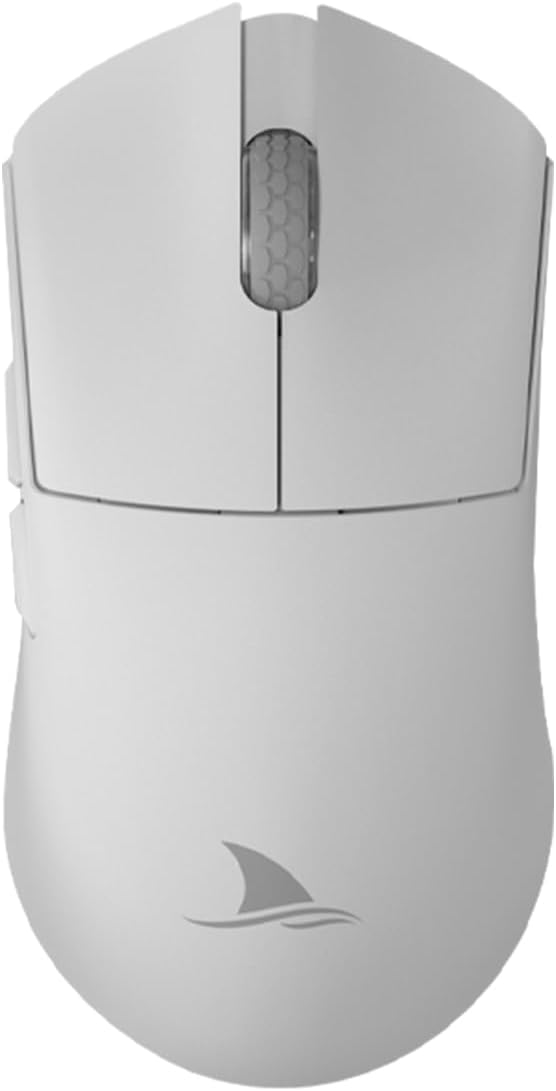
Image 1: Top view of the Darmoshark M3Pro Wireless Gaming Mouse.
2. Product Features
- Tri-Mode Connectivity: Supports 2.4G wireless, Bluetooth 5.0, and wired USB-C connections for maximum flexibility across multiple devices.
- High-Performance Sensor: Integrates the PAW3395 optical sensor, offering up to 26000 DPI, 650 IPS tracking speed, 1000Hz polling rate, and 50G acceleration for precise and responsive tracking.
- Lightweight Design: Weighs approximately 55g with dimensions of 129.5 x 66.2 x 39.6 mm, providing comfort during extended use and quick maneuverability.
- Durable Switches: Features TTC Dustproof Gold Microswitches for crisp clicks and a responsive feel.
- Precision Scroll Wheel: Equipped with TTC Golden Wheel Encoders for accurate and smooth scrolling.
- Programmable Buttons: 8 customizable buttons allow for personalized macros and functions via dedicated software.
- Long Battery Life: Built-in 500mAh lithium-ion battery provides approximately 280 hours of interval use (8 hours/day office calculation) or 140 hours of continuous use in 2.4G 1KHz return rate mode.
- High Polling Rate: Supports up to 4KHz return rate for ultra-low latency.

Image 2: Lightweight design and dimensions of the M3Pro mouse.

Image 3: Illustration of TTC Dustproof Gold Micromotion switches.
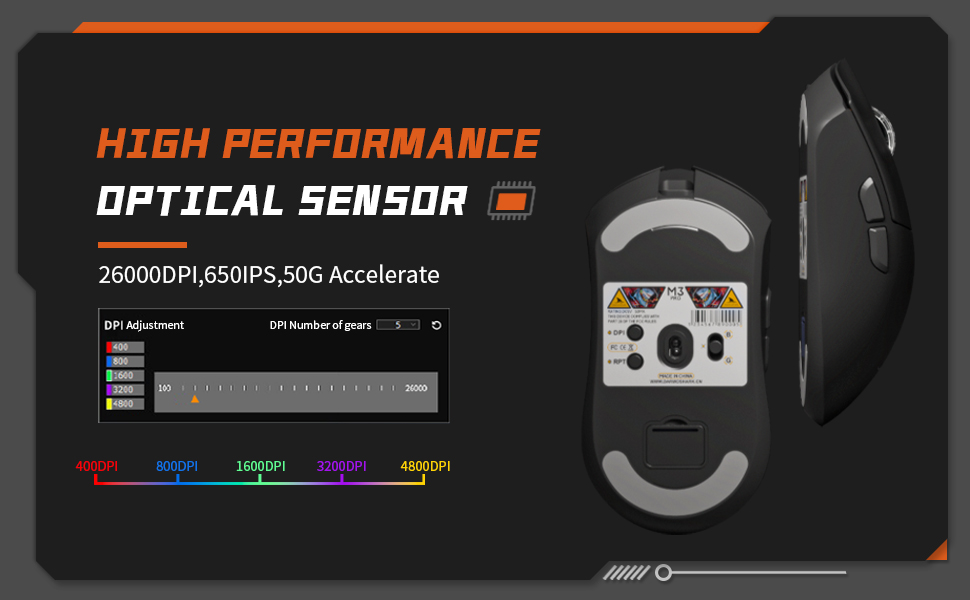
Image 4: Battery life information for the M3Pro mouse.
3. Setup
3.1 Charging the Mouse
Before first use, it is recommended to fully charge the mouse. Connect the included USB-C cable to the mouse and to a USB power source (e.g., computer USB port, USB wall adapter). The mouse's indicator light will show charging status.

Image 5: M3Pro mouse connected for charging via USB-C.
3.2 Connecting the Mouse
The M3Pro supports three connection modes:
- 2.4G Wireless Mode:
- Locate the 2.4G USB receiver stored in the compartment at the bottom of the mouse.
- Plug the USB receiver into an available USB port on your computer.
- Switch the mode selector switch on the bottom of the mouse to the '2.4G' position. The mouse should connect automatically.
- Bluetooth Mode:
- Switch the mode selector switch on the bottom of the mouse to the 'Bluetooth' position.
- On your computer or device, enable Bluetooth and search for new devices.
- Select "Darmoshark M3Pro" from the list of available devices to pair.
- Wired Mode:
- Connect the USB-C cable to the mouse and the other end to a USB port on your computer.
- The mouse will automatically switch to wired mode and begin charging.

Image 6: Tri-mode connection options for the M3Pro mouse.
3.3 Software Installation
To customize DPI settings, button functions, and macro settings, download the official Darmoshark M3Pro software from the official Darmoshark website. Follow the on-screen instructions for installation.

Image 7: Software interface for DPI adjustment and customization.
4. Operating Instructions
4.1 DPI Adjustment
The M3Pro mouse features a dedicated DPI adjustment button, typically located on the bottom of the mouse or programmable via software. Press this button to cycle through preset DPI levels. The software allows for fine-tuning and custom DPI profiles.
4.2 Programmable Buttons
The 8 programmable buttons can be configured using the Darmoshark M3Pro software. This includes remapping functions, assigning macros, and setting up specific commands for different applications or games.
4.3 Mode Switching
Use the physical switch on the bottom of the mouse to select between 2.4G wireless, Bluetooth, and wired modes. Ensure the correct mode is selected for your desired connection type.
4.4 Battery Status Indicator
The mouse may feature an indicator light (often on the scroll wheel or near the DPI button) that changes color or blinks to indicate battery level or charging status. Refer to the software for more detailed battery information.
5. Maintenance
5.1 Cleaning
To maintain optimal performance, regularly clean your mouse. Use a soft, dry cloth to wipe the surface. For stubborn dirt, a slightly damp cloth with mild soap can be used, ensuring no liquid enters the mouse. Avoid harsh chemicals or abrasive materials.
5.2 Grip Stickers and Mouse Feet
The M3Pro includes optional grip stickers for enhanced handling. While effective, these stickers may show discoloration with prolonged use. The mouse also comes with extra bottom feet, which can be replaced if the original feet wear out, ensuring smooth gliding performance.
6. Troubleshooting
- Mouse not responding: Ensure the mouse is charged and the correct connection mode (2.4G, Bluetooth, or Wired) is selected. Check USB receiver connection for 2.4G mode or Bluetooth pairing for Bluetooth mode.
- Lag or Disconnection: For wireless modes, ensure the mouse is within range of the receiver/device and there are no strong interferences (e.g., other wireless devices). Try connecting via wired mode to rule out wireless issues.
- DPI/Button issues: Verify settings in the Darmoshark M3Pro software. Ensure the software is up-to-date.
- Cursor erratic movement: Clean the optical sensor at the bottom of the mouse. Ensure you are using the mouse on a suitable surface (e.g., a mouse pad).
7. Specifications
| Feature | Specification |
|---|---|
| Brand | Darmoshark |
| Model | M3Pro |
| Connectivity | Tri-Mode (2.4G Wireless, Bluetooth, USB-C Wired) |
| Sensor | PAW3395 Optical Sensor |
| DPI Resolution | Up to 26000 DPI |
| Tracking Speed | 650 IPS |
| Acceleration | 50G |
| Polling Rate | Up to 4KHz (2.4G mode) |
| Buttons | 8 Programmable Buttons |
| Switches | TTC Dustproof Gold Microswitches |
| Encoder | TTC Golden Wheel Encoder |
| Weight | Approx. 55g |
| Dimensions | 129.5 x 66.2 x 39.6 mm |
| Battery Capacity | 500mAh Lithium Ion |
| Compatible OS | Linux, Windows 7, Windows XP (and newer versions) |
| Hand Orientation | Right |

Image 8: Product parameter diagram with button layout and dimensions.
8. Official Product Video
Video 1: An overview of the Darmoshark M3Pro Wireless Gaming Mouse, highlighting its features and performance in a gaming context.
9. Warranty and Support
For warranty information and technical support, please refer to the documentation included with your product or visit the official Darmoshark website. You may also contact customer support via the hotline: 4008-860-368.
Related documentsM3Pro


Ask a question about this manual
Ask about setup, troubleshooting, compatibility, parts, safety, or missing instructions. Manuals+ will review the question and use this page’s manual context to help answer it.