
ATTOP X-PACK 2
ATTOP X-PACK 2 Mini Foldable Drone User Manual
Model: X-PACK 2 | Brand: ATTOP
1. Introduction
Welcome to the ATTOP X-PACK 2 Mini Foldable Drone user manual. This guide provides essential information for setting up, operating, and maintaining your new drone. Designed for kids and beginners, the X-PACK 2 offers an intuitive flying experience with features like FPV video, voice control, altitude hold, and headless mode. Please read this manual thoroughly before first use to ensure safe and optimal performance.
Important Safety Warning:
- Always use the original USB charging cable for charging.
- Do not use an adapter or power supply with a voltage exceeding 5V. A 5V2A adapter or power supply is most suitable. Exceeding 5V can damage the charging cable due to excessive voltage and overload.
- Ensure correct polarity when connecting the charging cable; incorrect insertion can cause the cable to emit smoke.
- Confirm the drone is fully charged before flight. An undercharged battery may cause propellers to rotate but prevent the drone from flying.
- Verify propellers are installed in the correct direction as per the installation manual. Incorrect installation will prevent propeller rotation and drone flight.
- It is recommended to use this drone indoors.
2. Package Contents
The ATTOP X-PACK 2 Mini Foldable Drone package includes the following items:
- ATTOP X-PACK 2 Mini Foldable Drone with Camera
- Remote Controller
- USB Charging Cable
- Spare Propellers
- Screwdriver
- Phone Holder
- User Manual (this document)

Image: Contents of the ATTOP X-PACK 2 Mini Foldable Drone package, including the drone, remote controller with phone holder, spare propellers, USB charging cable, and screwdriver.
3. Product Overview
The ATTOP X-PACK 2 is a compact and portable drone designed for ease of use. Its foldable arm design allows it to be stored conveniently within the remote controller itself.

Image: Overview of the ATTOP X-PACK 2 drone highlighting key features such as camera, app control, one-key functions, headless mode, altitude hold, and foldable design.
3.1 Drone Features
- HD Camera: Capture photos and videos directly to your connected smartphone.
- FPV (First Person View): Stream live video from the drone's camera to your phone for an immersive flying experience.
- Foldable Design: Compact and portable, the drone arms fold for easy storage within the controller.
- Altitude Hold: Automatically maintains a set altitude for stable hovering, making it easier to control and capture media.
- Headless Mode: Eliminates the need to adjust the drone's position before flight; the drone's direction is relative to the pilot.
- 3-Speed Modes: Adjustable speed settings suitable for beginners and more experienced pilots.
- 360° Flip: Perform impressive aerial stunts with a single button.
- Trajectory Flight: Draw a path on your smartphone screen, and the drone will follow it automatically.
- Voice Control: Control the drone with simple voice commands via the app.
- AR Game Mode: Experience augmented reality games through the "XT GO" app.
4. Setup
4.1 Charging the Drone Battery
Before first use, fully charge the drone's battery using the provided USB charging cable. Connect the cable to a 5V2A power source (e.g., a computer USB port or a compatible wall adapter). The charging indicator will show the charging status and turn off when fully charged.
4.2 Installing Controller Batteries
The remote controller requires batteries (not included). Open the battery compartment on the back of the controller and insert the required batteries, ensuring correct polarity.
4.3 Unfolding the Drone
Gently unfold the drone's arms until they click into place. Ensure all four arms are fully extended before flight.
Video: Demonstrates the unfolding of the drone, installation of the phone holder on the remote, and the initial power-on and pairing process.
4.4 Installing the Phone Holder
Attach the phone holder to the top of the remote controller. This allows you to mount your smartphone for FPV viewing and app control.
4.5 Pairing the Drone and Controller
- Place the drone on a flat, level surface.
- Switch on the drone by pressing the power button. The drone's indicator lights will flash.
- Switch on the remote controller.
- Push the left joystick (throttle) all the way up, then pull it all the way down. The drone's lights will stop flashing and remain solid, indicating successful pairing.
4.6 Calibrating the Drone
After pairing, perform a calibration to ensure stable flight. Push both joysticks on the remote controller to the bottom-right corner simultaneously. The drone's lights will flash rapidly and then turn solid, indicating successful calibration.
5. Operating Instructions
5.1 Take-Off and Landing
- One Key Take-Off: After pairing and calibration, press the One Key Take-Off button (usually indicated by an arrow pointing up) on the remote. The drone will automatically ascend and hover at a stable altitude.
- Manual Take-Off: After pairing and calibration, push both joysticks to the bottom-left corner simultaneously to unlock the motors. Then, slowly push the left joystick (throttle) upwards to take off.
- One Key Landing: Press the One Key Landing button (usually indicated by an arrow pointing down) on the remote. The drone will automatically descend and land gently.
- Manual Landing: Slowly pull the left joystick (throttle) downwards until the drone lands. Once landed, push both joysticks to the bottom-left corner simultaneously to lock the motors.

Image: Illustration of the drone performing a one-key take-off and landing, demonstrating its ease of use for beginners.
5.2 Flight Controls
| Control | Action | Description |
|---|---|---|
| Left Joystick (Up/Down) | Throttle | Controls the drone's altitude (ascend/descend). |
| Left Joystick (Left/Right) | Yaw | Controls the drone's rotation (turn left/right). |
| Right Joystick (Up/Down) | Pitch | Controls the drone's forward/backward movement. |
| Right Joystick (Left/Right) | Roll | Controls the drone's left/right side flight. |
Video: Demonstrates basic flight controls including forward/backward, left/right side flight, and turning left/right.
5.3 Headless Mode
In Headless Mode, the drone's orientation is locked to the pilot's perspective, regardless of which way the drone is facing. This simplifies control for beginners. To activate/deactivate Headless Mode, press the dedicated Headless Mode button on the remote controller.
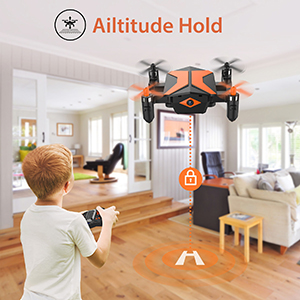
Image: A child operating the drone in headless mode, where the drone's direction follows the pilot's input regardless of its front orientation.
5.4 360° Flip
To perform a 360° flip, press the 360° Flip button on the remote, then quickly push the right joystick in the desired direction (forward, backward, left, or right). The drone will perform a flip in that direction.

Image: The drone performing a 3D flip, showcasing its acrobatic capabilities.
5.5 App Control and FPV
Download the "XT GO" app from your smartphone's app store. Connect your phone to the drone's Wi-Fi network (usually named "ATTOP-XXXX"). Once connected, you can view live FPV video, control the drone, and access advanced features.
- FPV Experience: The app displays a live video feed from the drone's camera, allowing you to see what the drone sees in real-time.
- Trajectory Flight: Within the app, draw a flight path on your screen. The drone will automatically follow the drawn path.
- Voice Control: Use voice commands through the app to control basic flight functions.
- AR Game Mode: Engage in augmented reality games that integrate the drone's camera feed.
- Gravity Sense Mode: Control the drone's movement by tilting your smartphone.
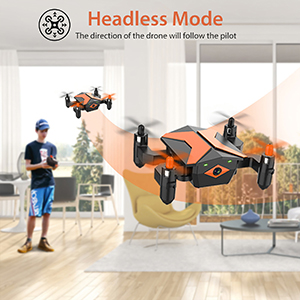
Image: A user viewing the drone's live FPV feed on a tablet, showing the drone flying over a rooftop with a cat.
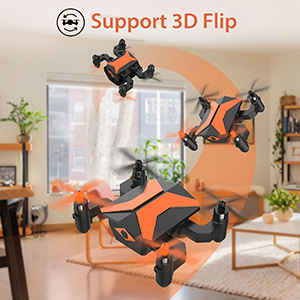
Image: A smartphone screen displaying the "XT GO" app interface with a drawn trajectory path for the drone to follow.

Image: A smartphone screen showing the AR Game mode, where virtual fighter planes are integrated into the live drone camera feed.
5.6 Photo and Video Recording
With your smartphone connected to the drone via the "XT GO" app, you can capture photos and record videos directly to your phone's storage. Use the dedicated buttons within the app interface for these functions.
6. Maintenance
6.1 Propeller Installation and Replacement
Ensure propellers are installed correctly. Each propeller is marked (e.g., A or B) and must match the corresponding motor arm. Incorrect installation will prevent the drone from flying properly. If a propeller is damaged, replace it with a spare from the package using the provided screwdriver.
6.2 Battery Care
- Always use the original charging cable.
- Avoid overcharging or completely draining the battery.
- Store the battery in a cool, dry place when not in use.
- If the drone's battery is low, operate the remote to return the drone home to prevent unexpected landings.
7. Troubleshooting
- Drone does not fly after charging: Ensure the battery is fully charged. Check that propellers are installed correctly and not obstructed. Re-pair and re-calibrate the drone and controller.
- Charging cable emits smoke: Immediately disconnect the charging cable from the power source and the drone. This indicates incorrect voltage or polarity. Only use the original 5V2A charging setup.
- Drone drifts during flight: Perform a calibration as described in Section 4.6. Check for any damaged propellers and replace if necessary.
- No FPV video on phone: Ensure your phone is connected to the drone's Wi-Fi network. Verify the "XT GO" app is open and has necessary permissions.
- Short flight time: Ensure the battery is fully charged. Flight time can be affected by aggressive flying, wind conditions, and continuous video recording.
8. Specifications
| Feature | Detail |
|---|---|
| Brand | ATTOP |
| Model Name | X-PACK 2 |
| Age Range (Description) | Kid |
| Color | Orange |
| Video Capture Resolution | 720p |
| Connectivity Technology | Wi-Fi |
| Skill Level | Beginner |
| Video Capture Format | MP4 |
| Control Type | Voice Control |
| Material | Plastic, Transparent Material |
| Product Dimensions | 2.1"L x 2.5"W x 1.2"H |
| Item Weight | 10.2 ounces |
| Rechargeable Battery Included | Yes (for drone) |
| Remote Control Included? | Yes |
9. Warranty and Support
For warranty information and customer support, please refer to the contact details provided on the product packaging or visit the official ATTOP website. Keep your purchase receipt for warranty claims.
For additional resources and product information, you may visit the ATTOP Store on Amazon.
Related documentsX-PACK 2


Ask a question about this manual
Ask about setup, troubleshooting, compatibility, parts, safety, or missing instructions. Manuals+ will review the question and use this page’s manual context to help answer it.