
1. Introduction
The TP-Link Archer TBE400E is a high-performance WiFi 7 BE6500 PCIe card designed to upgrade your desktop PC's wireless capabilities. It provides ultra-high-speed internet, reduced latency, and robust performance, even in congested network environments. Featuring Tri-Band Wi-Fi 7 technology and Bluetooth 5.4, this card ensures reliable and secure connections for both network and peripheral devices. It supports advanced features like Multi-Link Operation (MLO), OFDMA, MU-MIMO, and WPA3 encryption for enhanced efficiency and security. This manual provides detailed instructions for installation, operation, and maintenance of your Archer TBE400E.
2. Package Contents
Verify that all items are present in your package:
- Archer TBE400E PCIe WiFi Card
- Two (2) High-Performance Antennas
- Low-Profile Bracket (for small form factor PCs)
- Bluetooth Header Cable
- Quick Installation Guide / Resource CD (contains drivers)

Image: Contents of the Archer TBE400E package.
3. Specifications
| Brand | TP-Link |
| Model Number | Archer TBE400E |
| Hardware Interface | PCI Express (PCIe) |
| Data Link Protocol | Wi-Fi 7 (802.11be), Bluetooth 5.4 |
| Data Transfer Rate | Up to 6500 Mbps (Tri-Band: 6 GHz, 5 GHz, 2.4 GHz) |
| Compatible Devices | Desktop PC |
| Compatible OS | Windows 11 (64-bit) only |
| Product Dimensions | 4.8"L x 3.09"W x 0.85"H |
| Security | WPA3 |
| Antennas | 2x High-Performance Antennas |
4. Setup & Installation
Before beginning installation, ensure your computer is powered off and unplugged from the wall outlet. It is recommended to touch a grounded metal object to discharge any static electricity.
4.1. Driver Installation (Pre-installation)
It is highly recommended to download the latest drivers for the Archer TBE400E from the official TP-Link website before installing the hardware. This ensures you have the most up-to-date software for optimal performance and compatibility. The included resource CD may contain older drivers.
- Visit the official TP-Link support website.
- Search for "Archer TBE400E" and navigate to the support/download section.
- Download the latest Wi-Fi and Bluetooth drivers for Windows 11 (64-bit).
- Save the drivers to an accessible location on your computer, such as a USB drive.
4.2. Hardware Installation
- Power Off Your PC: Shut down your computer completely and unplug the power cable.
- Open PC Case: Remove the side panel of your computer case.
- Locate an Available PCIe Slot: Find an empty PCI Express x1 slot or larger (x4, x8, x16) on your motherboard.
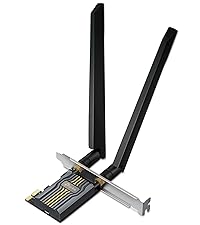
Image: Archer TBE400E PCIe card.
- Install the PCIe Card: Gently insert the Archer TBE400E into the chosen PCIe slot until it is firmly seated. Secure the card with a screw if your case requires it.

Image: Archer TBE400E installed in a desktop PC.
- Connect Bluetooth Header Cable: Connect one end of the provided Bluetooth header cable to the 4-pin Bluetooth header on the Archer TBE400E card. Connect the other end to an available F_USB header on your motherboard. This connection is essential for Bluetooth functionality.

Image: Bluetooth header cable connection.
- Attach Antennas: Screw the two high-performance antennas onto the antenna connectors on the back of the Archer TBE400E card. Adjust their orientation for optimal signal reception.

Image: Archer TBE400E with antennas attached.
- Close PC Case & Power On: Replace the side panel of your PC case, plug in the power cable, and power on your computer.
4.3. Software Driver Installation
After your PC boots up, Windows 11 may automatically detect the new hardware. However, it is crucial to install the drivers you downloaded earlier for full functionality and performance.
- Navigate to the location where you saved the downloaded drivers.
- Run the Wi-Fi driver installer first, following the on-screen prompts.
- After the Wi-Fi driver installation is complete, run the Bluetooth driver installer.
- Restart your computer when prompted to ensure all changes take effect.
Note: The Archer TBE400E is compatible only with Windows 11 (64-bit). It is not compatible with Windows 10 or earlier versions.

Image: Windows 11 compatibility notice.
5. Operation
5.1. Connecting to a Wi-Fi Network
- After driver installation and PC restart, click the Wi-Fi icon in the Windows 11 taskbar.
- Select your desired Wi-Fi network from the list of available networks.
- Enter the network security key (password) if prompted, then click "Connect".
- Your PC should now be connected to the Wi-Fi network.
The Archer TBE400E supports Tri-Band Wi-Fi (2.4 GHz, 5 GHz, and 6 GHz). For optimal performance, connect to the 5 GHz or 6 GHz band if your router supports it and your device is within range. Wi-Fi 7 features like Multi-Link Operation (MLO) will automatically optimize connections when paired with a compatible Wi-Fi 7 router.
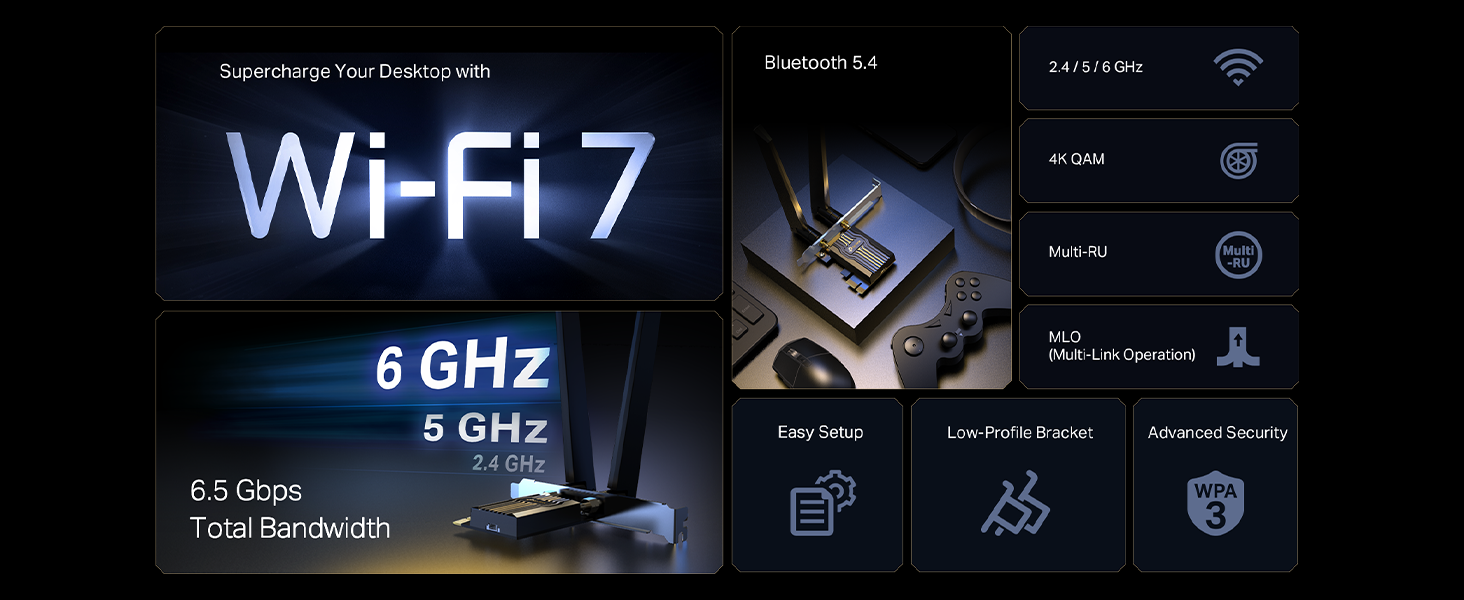
Image: Multi-Link Operation (MLO) for enhanced Wi-Fi performance.
The card also utilizes OFDMA and MU-MIMO technologies to improve network efficiency, allowing more devices to connect simultaneously without significant performance degradation.
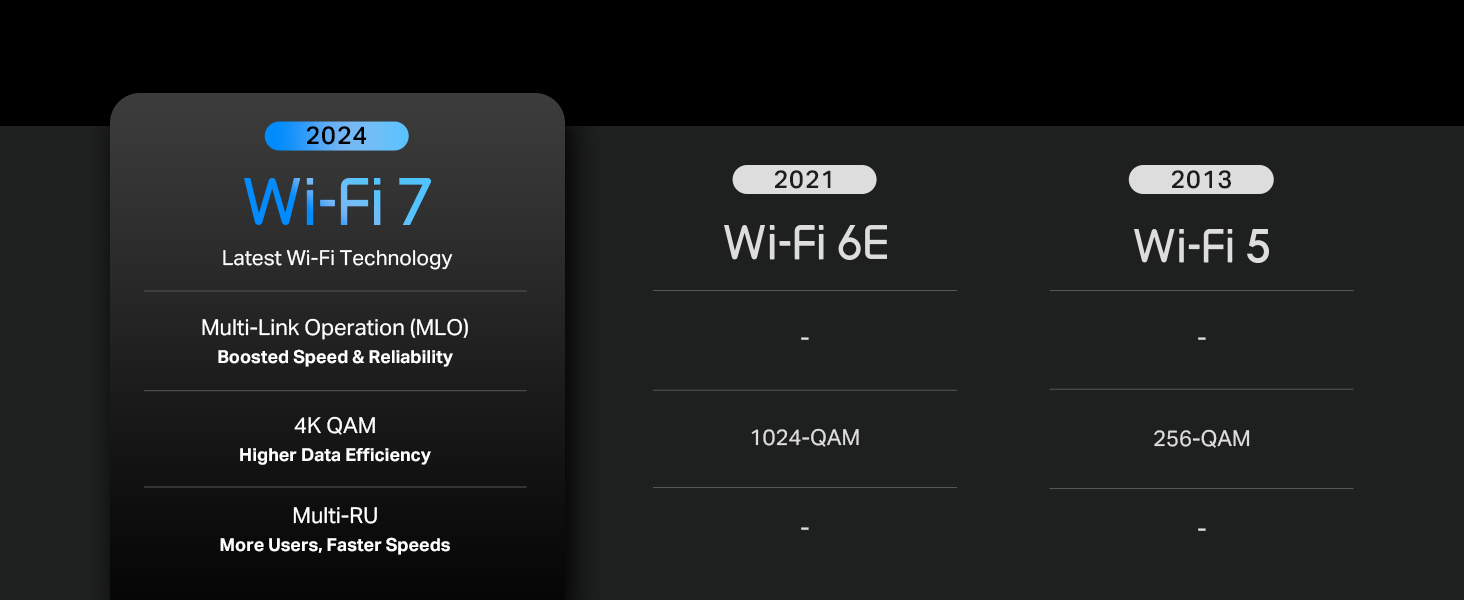
Image: Enhanced connectivity with MU-MIMO.
5.2. Pairing Bluetooth Devices
- Ensure your Bluetooth device is in pairing mode.
- On your Windows 11 PC, go to Settings > Bluetooth & devices.
- Turn on Bluetooth if it's off.
- Click "Add device" and select "Bluetooth".
- Select your device from the list and follow any on-screen prompts to complete pairing.
Bluetooth 5.4 provides improved reliability and security for connecting peripherals such as game controllers, headphones, keyboards, and mice.

Image: Bluetooth 5.4 for enhanced connectivity.
6. Maintenance
- Driver Updates: Regularly check the TP-Link support website for updated Wi-Fi and Bluetooth drivers. Keeping your drivers current ensures optimal performance, security, and compatibility.
- Antenna Position: Periodically check the orientation of your antennas. Adjust them to achieve the best signal strength, especially if you experience connectivity issues or move your PC.
- Physical Cleanliness: Ensure the PCIe card and its antennas remain free from dust buildup. If necessary, gently clean the exterior with a soft, dry cloth. Avoid using liquids or abrasive cleaners.
- System Updates: Keep your Windows 11 operating system updated to ensure compatibility and security with the Archer TBE400E.
7. Troubleshooting
7.1. Wi-Fi Connectivity Issues
- No Wi-Fi Networks Detected:
- Ensure the card is properly seated in the PCIe slot.
- Verify that the antennas are securely attached.
- Check Device Manager in Windows 11 to confirm the Wi-Fi adapter is recognized and enabled, and that drivers are installed correctly (no yellow exclamation marks).
- Restart your PC and your Wi-Fi router.
- Slow Wi-Fi Speeds:
- Ensure you are connected to the 5 GHz or 6 GHz band if available, as these offer higher speeds.
- Check for obstructions between your PC and the Wi-Fi router.
- Update your Wi-Fi drivers to the latest version from the TP-Link website.
- Confirm your router supports Wi-Fi 7 (802.11be) for optimal performance.
- Adjust antenna orientation for better signal reception.
- Frequent Disconnections:
- Update Wi-Fi drivers.
- Ensure your router's firmware is up to date.
- Try changing the Wi-Fi channel on your router to avoid interference.
- Check the physical connection of the PCIe card and antennas.
7.2. Bluetooth Issues
- Bluetooth Not Working/Devices Not Found:
- Verify that the Bluetooth header cable is correctly connected to both the Archer TBE400E card and an F_USB header on your motherboard. This is a common cause for Bluetooth issues.
- Ensure Bluetooth is enabled in Windows 11 Settings.
- Check Device Manager to confirm the Bluetooth adapter is recognized and enabled, and that drivers are installed correctly.
- Update your Bluetooth drivers to the latest version from the TP-Link website.
- Try restarting your PC.
- Poor Bluetooth Range/Connection:
- Ensure there are no major obstructions between your PC and the Bluetooth device.
- Keep the Bluetooth device close to your PC during use.
- Ensure the antennas are properly attached and oriented.
7.3. General Issues
- Not Compatible with Windows 10: This card is designed exclusively for Windows 11 (64-bit). It will not function correctly on Windows 10 or older operating systems.
8. Warranty & Support
Warranty: The TP-Link Archer TBE400E comes with a 2-Year Manufacturer Warranty. Please retain your proof of purchase for warranty claims.
Technical Support: For further assistance, driver downloads, or troubleshooting not covered in this manual, please visit the official TP-Link support website:
You can also find contact information for TP-Link customer service on their website.


