
1. Introduction
This manual provides detailed instructions for the proper use, setup, operation, and maintenance of your EBTOOLS Bluetooth Headset. Please read this manual thoroughly before using the product to ensure optimal performance and longevity.
2. Product Overview
2.1 Key Features
- Rotatable Microphone: Easily adjust the microphone to the optimal angle for clear voice capture.
- Bluetooth 5.0 Technology: Ensures faster, more efficient, and stable wireless connectivity with compatible devices.
- Comfortable Design: Single-ear design with padded ear cushion and flexible headband for extended wear without discomfort.
- Long Battery Life: Up to 17 hours of talk time and 200 hours of standby time on a 2-hour charge.
- Universal Compatibility: Works with laptops, cell phones, PCs, tablets, and other Bluetooth-enabled devices. Ideal for office, home, remote work, call centers, VoIP, and Skype.
2.2 Package Contents
Verify that all items are present in your package:
- EBTOOLS Bluetooth Headset
- Charging Base
- Micro USB Charging Cable
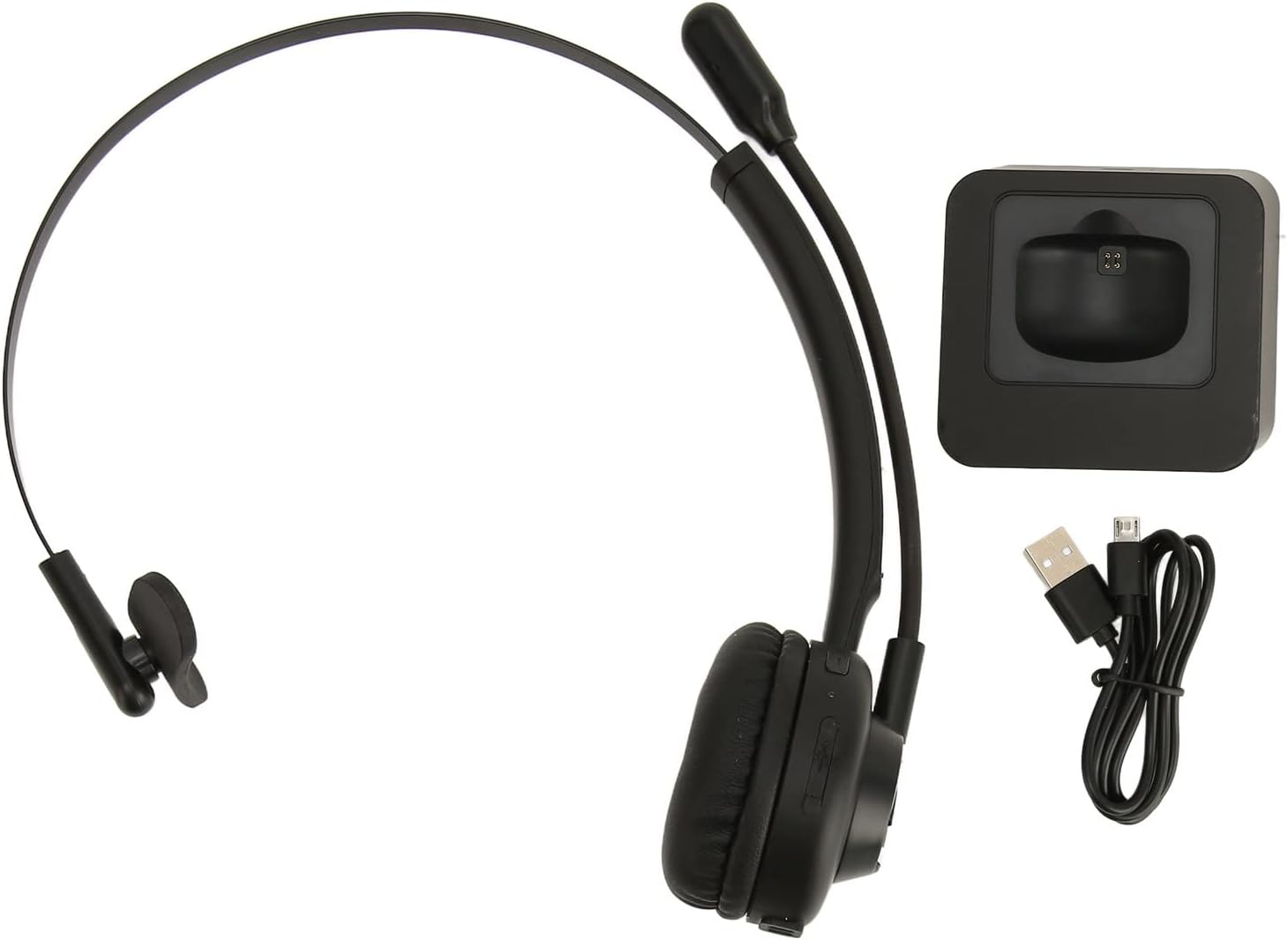
Image: The EBTOOLS Bluetooth Headset, its dedicated charging base, and a Micro USB charging cable, illustrating the complete package contents.
2.3 Headset Controls and Indicators

Image: A detailed diagram highlighting the Micro USB port, LED indicator, Volume Down button, Multifunctional button, and Volume Up button on the EBTOOLS Bluetooth Headset.
- Micro USB Port: For direct charging of the headset.
- LED Indicator: Displays power, charging, and pairing status.
- Volume - Button: Decreases audio volume.
- Multifunctional Button: Controls power, pairing, call answer/end, and music playback.
- Volume + Button: Increases audio volume.
3. Setup
3.1 Charging the Headset
Before first use, fully charge the headset. You can charge it using the included charging base or directly via the Micro USB port.
- Connect the Micro USB cable to the charging base and a power source (e.g., computer USB port, USB wall adapter).
- Place the headset onto the charging base, ensuring the charging contacts align. The LED indicator on the headset will show charging status.
- Alternatively, connect the Micro USB cable directly to the headset's Micro USB port and a power source.
- A full charge typically takes approximately 2 hours. The LED indicator will change color or turn off once fully charged.

Image: A close-up view of the headset's earcup, showing the charging contacts designed to connect with the charging base.
3.2 Pairing with a Bluetooth Device
To connect your headset to a device:
- Ensure the headset is turned off.
- Press and hold the Multifunctional Button for approximately 5-7 seconds until the LED indicator flashes red and blue alternately, indicating pairing mode.
- On your device (phone, PC, tablet), enable Bluetooth and search for new devices.
- Select "EBTOOLS Headset" (or similar name) from the list of available devices.
- Once connected, the LED indicator on the headset will typically flash blue slowly or turn solid blue.
- If prompted for a password, enter "0000".
3.3 Wearing the Headset
The headset is designed for comfort and flexibility.
- Adjust the flexible headband to fit comfortably over your head.
- The single ear design allows you to remain aware of your surroundings.
- Rotate the microphone boom to position it close to your mouth for optimal voice clarity. The microphone can be rotated 180 degrees to be worn on either the left or right ear.

Image: A person wearing the EBTOOLS Bluetooth Headset, demonstrating the comfortable fit and the adjustable, rotatable microphone positioned for clear communication.
4. Operating Instructions
4.1 Power On/Off
- Power On: Press and hold the Multifunctional Button for approximately 3 seconds until the LED indicator flashes blue.
- Power Off: Press and hold the Multifunctional Button for approximately 3-5 seconds until the LED indicator flashes red and then turns off.
4.2 Adjusting Volume
- Press the Volume + Button to increase the listening volume.
- Press the Volume - Button to decrease the listening volume.
4.3 Call Management
- Answer Call: Short press the Multifunctional Button when an incoming call rings.
- End Call: Short press the Multifunctional Button during a call.
- Reject Call: Press and hold the Multifunctional Button for approximately 2 seconds when an incoming call rings.
- Redial Last Number: Double-press the Multifunctional Button when not on a call.
4.4 Music Playback (if supported by device)
- Play/Pause: Short press the Multifunctional Button.
- Next Track: Press and hold the Volume + Button.
- Previous Track: Press and hold the Volume - Button.
4.5 Microphone Usage
The rotatable microphone ensures your voice is captured clearly.
- Adjust the microphone boom to be approximately 1-2 inches from your mouth.
- The microphone can be rotated 180 degrees to allow wearing the headset on either the left or right ear.

Image: A close-up view of the EBTOOLS headset's flexible microphone boom, highlighting its design for optimal voice pickup.
5. Maintenance
5.1 Cleaning
- Wipe the headset with a soft, dry, or slightly damp cloth.
- Do not use harsh chemicals, cleaning solvents, or strong detergents.
- Avoid getting moisture into any openings.
5.2 Battery Care
- Charge the headset regularly, even if not in frequent use, to maintain battery health.
- Avoid fully discharging the battery frequently.
- Store the headset in a cool, dry place away from extreme temperatures.
6. Troubleshooting
If you encounter issues with your headset, refer to the following common solutions:
| Problem | Possible Solution |
|---|---|
| Headset does not power on. | Ensure the headset is charged. Connect it to the charging base or directly via USB. |
| Cannot pair with device. | Ensure the headset is in pairing mode (LED flashing red/blue). Turn off and on your device's Bluetooth. Delete previous pairings on your device and try again. Ensure the headset is within range (typically 10 meters). |
| No sound or low volume. | Increase volume on both the headset and your connected device. Ensure the headset is selected as the audio output device on your computer or phone. Re-pair the headset. |
| Microphone not working. | Ensure the microphone is positioned correctly. Check microphone settings on your connected device to ensure the headset is selected as the input device. |
| Intermittent connection. | Move closer to your connected device. Avoid obstacles between the headset and device. Reduce interference from other wireless devices. |
7. Specifications
| Feature | Detail |
|---|---|
| Brand Name | EBTOOLS |
| Model Number | EBTOOLSrsgvuyg5fc |
| Connectivity Technology | Bluetooth 5.0 |
| Item Weight | 11.6 ounces |
| Package Dimensions | 7.09 x 6.69 x 2.36 inches |
| Talk Time | Up to 17 hours |
| Standby Time | Up to 200 hours |
| Charging Time | Approximately 2 hours |
8. Warranty and Support
For warranty information or technical support, please refer to the documentation included with your purchase or contact EBTOOLS customer service through the retailer where the product was purchased. Keep your proof of purchase for warranty claims.