
ULTIMEA U2601
ULTIMEA Aura A40 7.1ch Virtual Surround Sound Bar System User Manual
Model: U2601
Introduction
Thank you for choosing the ULTIMEA Aura A40 7.1ch Virtual Surround Sound Bar System. This manual provides essential information for setting up, operating, and maintaining your new audio system. Please read it thoroughly to ensure optimal performance and safe use.

Figure 1: ULTIMEA Aura A40 Sound System Components
What's in the Box
Verify that all components are present before beginning setup:
- 1 x Soundbar
- 1 x Subwoofer
- 4 x Surround Speakers
- 1 x Remote Control (Battery not Included)
- 1 x User Manual
- 1 x Rear Surround Cable (6m)
- 1 x Digital Optical Cable
- 1 x Front Left Surround Cable (2m)
- 1 x Front Right Surround Cable (2m)
- 1 x Power Adaptor for Soundbar
- 1 x Power Adaptor for Surround Speaker
- 12 x Wall Mount Kit
- 6 x Wall Bracket
- 6 x Mounting Screw on Speakers

Figure 2: Included components of the ULTIMEA Aura A40 system.
Setup
Speaker Placement
For optimal 7.1ch virtual surround sound, position the soundbar centrally below your TV. The subwoofer can be placed anywhere in the room, ideally near the soundbar. The four surround speakers should be distributed to create an immersive sound field. Two front surround speakers connect to the soundbar using the provided front surround cables (FR & FL). The two rear surround speakers connect with a rear surround cable, and the rear right speaker pairs wirelessly with the soundbar.
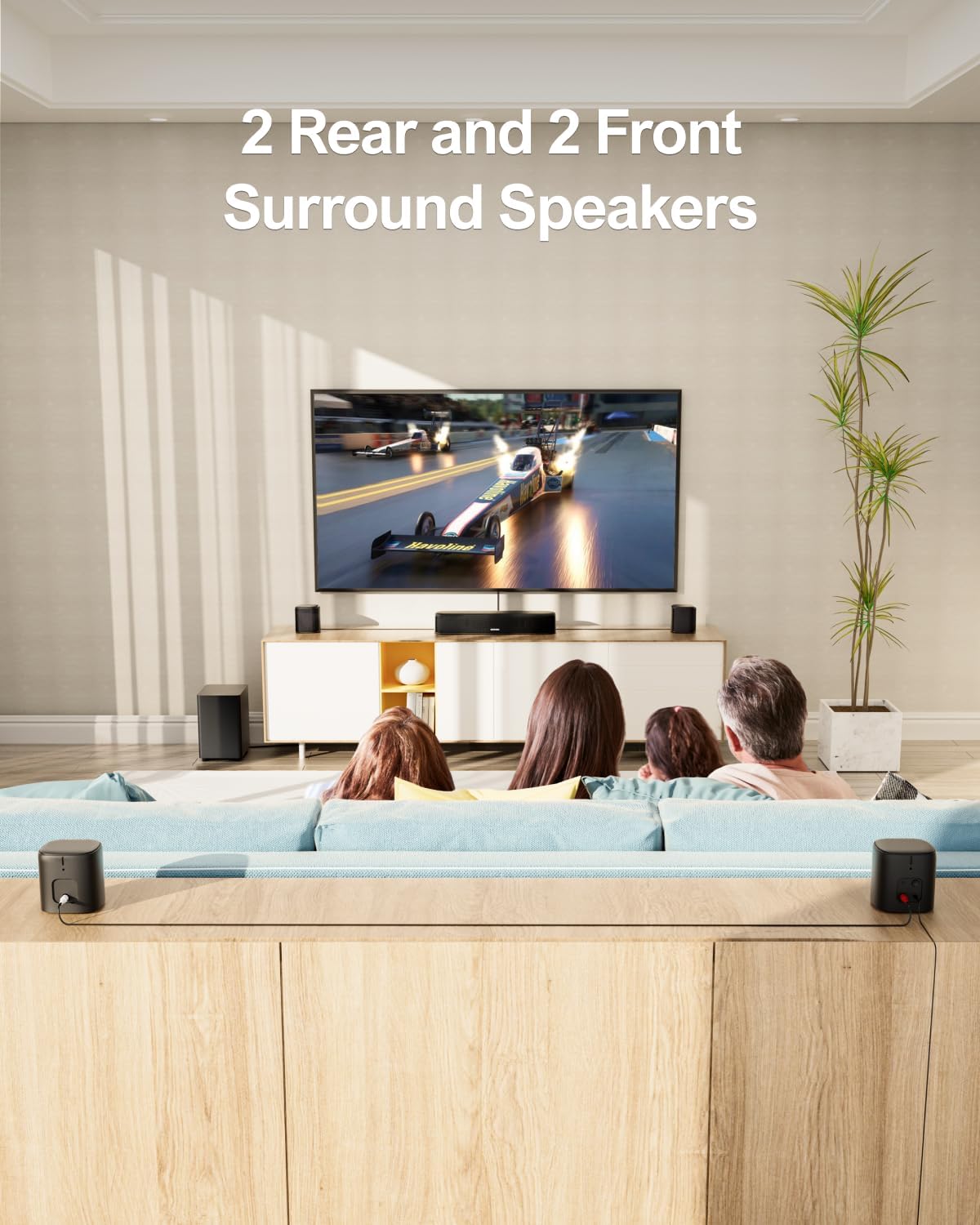
Figure 3: Recommended speaker placement for the Aura A40 system.

Figure 4: Internal driver configuration of the soundbar.
Connecting Your System
The Aura A40 offers multiple connectivity options. Please note that HDMI is not supported.
Optical Connection
- Insert one end of the Digital Optical Cable into your TV's OPTICAL OUT port.
- Insert the other end of the cable into the soundbar's OPTICAL port.
- On the remote control, press the "OPT" button to select the Optical input.

Figure 5: Optical connection steps.
AUX Connection
- Insert one end of an AUX cable (not included) into your TV's AUX OUT port.
- Insert the other end of the cable into the soundbar's AUX port.
- On the remote control, press the "AUX" button to select the AUX input.

Figure 6: AUX connection steps.
Bluetooth Connection
The soundbar supports Bluetooth 5.3 for wireless audio streaming from compatible devices.
- Ensure the soundbar is powered on.
- On your device (e.g., smartphone, tablet), enable Bluetooth and search for available devices.
- Select "Aura A40" from the list to pair.

Figure 7: Bluetooth 5.3 connectivity for stable audio streaming.
Wired Connection between 4 Surround Speakers
Connect the soundbar to the 2 front surround speakers using the front surround cables (FR & FL). For the 2 rear surround speakers, connect them with the rear surround cable. Power the rear right speaker to pair it wirelessly with the soundbar. If pairing fails, hold the SURROUND button on the remote for 5 seconds until "SUR" flashes. Next, hold the PAIR button on the rear right speaker for 5 seconds until its light starts flashing. Once paired, the light will remain on.

Figure 8: Wiring diagram for the ULTIMEA Aura A40 system.
Operating Your Sound System
Smart App Control
The ULTIMEA smart app provides comprehensive control over your 7.1ch virtual surround sound system. It allows you to switch between multiple EQ modes, adjust bands, and customize matrices to fine-tune treble, midrange, and bass tones. Regular OTA (Over-The-Air) upgrades ensure a seamless premium audio experience.

Figure 9: ULTIMEA App interface for 10-band equalizer settings.

Figure 10: ULTIMEA App interface for 121 preset EQ matrices.
Preset EQ Modes
Elevate your audio experience with 6 tailored EQ modes:
- Movie: Optimized for cinematic soundscapes.
- Music: Balanced audio for various music genres.
- Voice: Enhances dialogue clarity.
- Sport: Ideal for sports broadcasts.
- Game: Immersive sound for gaming.
- Night: Reduces dynamic range for late-night listening.
Adjustable Surround Levels
The Aura A40 allows for 13 adjustable surround levels, providing precise control over the audio projection from both front and rear speakers, enhancing depth and immersion.
Video 1: Overview of the Ultimea Aura A40 Surround Sound System, demonstrating its features and immersive audio capabilities.
Maintenance
To ensure the longevity and optimal performance of your ULTIMEA Aura A40 sound system, follow these maintenance guidelines:
- Cleaning: Use a soft, dry cloth to wipe down the surfaces of the soundbar, subwoofer, and satellite speakers. Avoid using abrasive cleaners, waxes, or solvents as they may damage the finish.
- Placement: Place the system on a stable, level surface away from direct sunlight, heat sources, and excessive moisture. Ensure adequate ventilation around all components to prevent overheating.
- Cables: Periodically check all cable connections to ensure they are secure and free from damage. Avoid bending or crimping cables sharply.
- Power: Disconnect the power supply during electrical storms or when the unit will be unused for extended periods.
Troubleshooting
If you encounter issues with your ULTIMEA Aura A40 system, refer to the following common problems and solutions:
| Problem | Possible Cause | Solution |
|---|---|---|
| No sound from speakers | Incorrect input selected; loose cables; power issue. | Verify the correct input source is selected. Check all cable connections (Optical, AUX, speaker wires). Ensure all components are powered on. |
| Rear speakers not pairing wirelessly | Pairing mode not activated; interference. | Hold the SURROUND button on the remote for 5s until "SUR" flashes. Then, hold the PAIR button on the rear right speaker for 5s until its light flashes. Ensure no strong interference sources are nearby. |
| Bluetooth connection unstable | Distance too far; interference; device issue. | Ensure your Bluetooth device is within 15 meters of the soundbar. Avoid obstacles between the device and soundbar. Try re-pairing the device. |
| Remote control not working | Dead batteries; obstructed sensor. | Replace batteries in the remote control. Ensure there are no obstructions between the remote and the soundbar's sensor. |
If the problem persists after trying these solutions, please contact ULTIMEA customer support for further assistance.
Specifications
| Feature | Description |
|---|---|
| Brand | ULTIMEA |
| Model Name | Aura A40 |
| Speaker Type | Surround Sound |
| Surround Sound Channel Configuration | 7.1 |
| Speaker Maximum Output Power | 330 Watts |
| Connectivity Technology | Bluetooth 5.3, Optical, AUX, USB (HDMI not supported) |
| Wireless Communication Technology | Bluetooth 5.3, App Control |
| Subwoofer Connectivity Technology | Wired |
| Bluetooth Range | 15 Meters |
| Controller Type | App, Remote Control |
| Product Dimensions | 15.75"D x 3.54"W x 2.76"H |
| Item Weight | 12.84 pounds |
| Material | Metal, Plastic |
| Color | Black |
| Special Features | 7.1 Channel Surround Sound System, Ultimea Smart App Control, 10 Band Equalizer Settings, 121 Preset Equalizer Matrices, Adjustable Bass&Midrange&Treble, Wired Subwoofer, BassMX Technology, 4 Surround Speakers, SurroundX Technology |
Warranty and Support
ULTIMEA is committed to providing quality products and excellent customer service. Your Aura A40 system comes with a limited warranty. For specific warranty details, please refer to the warranty card included in your product packaging or visit the official ULTIMEA website.
For any inquiries, technical support, or warranty claims, please contact ULTIMEA customer service. ULTIMEA offers 7/24 service and pre-sale consultation to ensure a worry-free experience.
You can also find additional information and support resources on the ULTIMEA Store on Amazon or download the official User Manual (PDF).