
Introduction
This manual provides comprehensive instructions for the installation, operation, maintenance, and troubleshooting of your Navycrest Q7 4K Dash Cam. Please read this manual carefully before use to ensure proper functionality and to maximize your device's lifespan. The Navycrest Q7 is designed to capture high-quality video footage from both the front and rear of your vehicle, offering enhanced safety and peace of mind on the road.
Package Contents
Before beginning installation, please verify that all items listed below are present in your package:
- Navycrest Q7 Dash Cam (Front Unit)
- Rear Camera
- 64GB Micro SD Card (pre-inserted into the Dash Cam)
- Car Charger (with extra USB port)
- Wiring Trim Tool
- Electrostatic Film
- Cable Management Clips
- Adhesive Pad
- User Manual
- Quick Start Guide
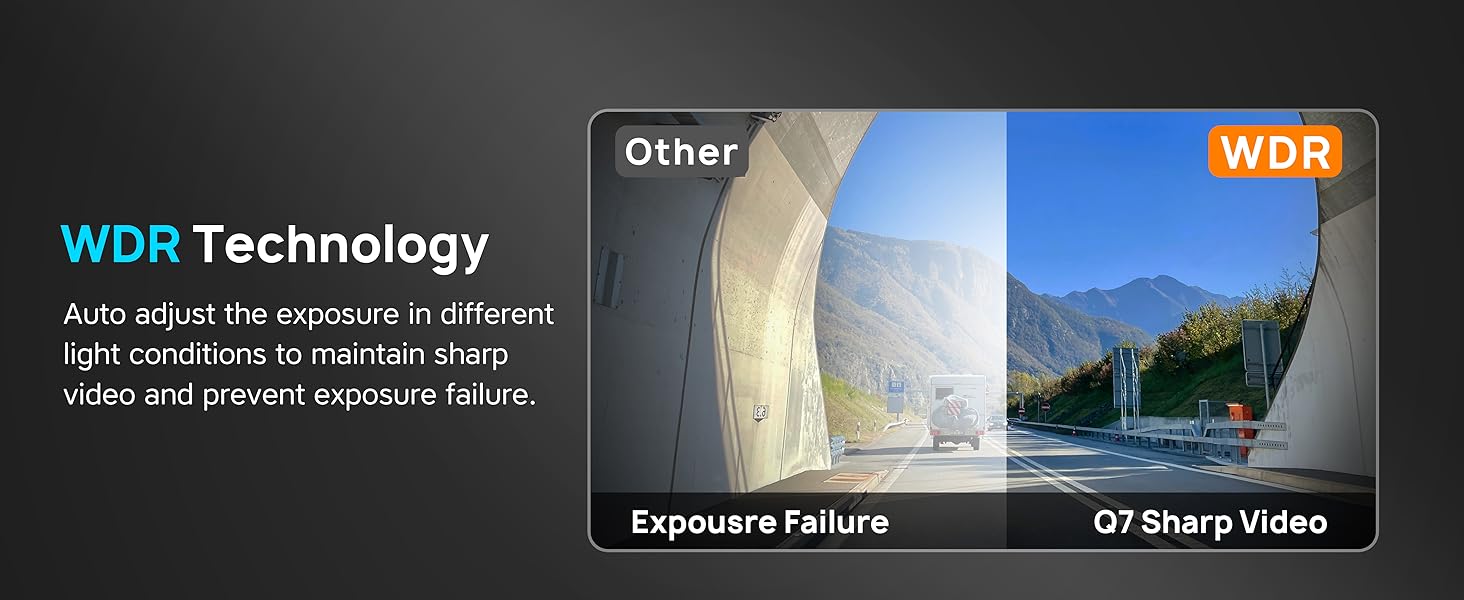
Image: All components included in the Navycrest Q7 Dash Cam package.
Setup
1. Front Camera Installation
- Clean the desired area on your front windshield, preferably behind the rearview mirror, to ensure a clear view and minimal obstruction.
- Apply the electrostatic film to the cleaned area. This helps in easy removal and prevents residue.
- Attach the front dash cam to the adhesive pad, then firmly press it onto the electrostatic film on your windshield. Ensure the lens has an unobstructed view of the road.
- Connect the Type-C power cable from the dash cam to the included car charger.
2. Rear Camera Installation
- Identify a suitable location on your rear windshield for the rear camera, ensuring a clear view.
- Clean the area and attach the rear camera using its adhesive.
- Route the rear camera cable to the front dash cam. Use the provided wiring trim tool to tuck the cable neatly along the vehicle's headliner and A-pillar to conceal it. Use cable management clips as needed.
- Connect the rear camera cable to the AV-in port on the main dash cam unit.
3. Power Connection
- Plug the car charger into your vehicle's cigarette lighter socket. The charger includes an extra USB port for charging other devices.
- The dash cam will power on automatically when your vehicle starts.

Image: Diagram illustrating the simple installation process for the front and rear dash cameras.
4. Initial Setup & App Connection
- Download the 'Pezzio' app from your smartphone's app store (available on iOS and Android).
- Turn on the dash cam's 5G WiFi hotspot. The WiFi name and default password can be found in the user manual.
- Connect your smartphone to the dash cam's WiFi network.
- Open the Pezzio app and follow the on-screen prompts to connect to your Q7 dash cam.
- Upon first use, the app will prompt you to format the 64GB SD card. Please confirm to proceed with formatting. This is crucial for optimal performance.

Image: The dash cam displaying 5G WiFi connectivity and a smartphone showing the Pezzio app interface.
Operating Instructions
Recording Modes
- Normal Recording: The dash cam automatically begins recording when your vehicle starts. It records in a dual-channel mode (4K front + 1080P rear) simultaneously.
- Loop Recording: When the 64GB memory card is full, the dash cam will automatically overwrite the oldest unlocked video files with new recordings, ensuring continuous operation.
- Gravity Sensor (G-Sensor): The built-in 3-axis gravity sensor detects sudden shakes or collisions. When triggered, it automatically locks the current video segment to prevent it from being overwritten, serving as crucial evidence in case of an incident.

Image: Illustration of seamless loop recording, showing older files being overwritten by new ones.

Image: Depiction of the G-Sensor automatically locking video upon collision detection and a button for manual video locking.
Parking Mode (Optional)
The Q7 dash cam supports 24-hour parking monitoring. To enable this feature, an additional Type-C hardwire kit (ASIN: B0BN829V8D) is required and sold separately. Once installed, the dash cam will enter parking mode after your car is turned off, offering two options:
- Parking Monitor: Automatically starts recording when a collision is detected while parked.
- Time-Lapse Recording: Continuously records at a low frame rate, providing extended surveillance with minimal power consumption.

Image: Visual representation of the dash cam's parking mode, showing a car being monitored at night with a lock icon indicating protection.
App Control & Features
The Pezzio app provides full control over your dash cam:
- Live View: Instantly view real-time footage from both the front and rear cameras on your smartphone.
- Settings Adjustment: Easily change video resolution (4K/1080P), loop recording duration (1/2/3/5 minutes), anti-flicker settings (50Hz/60Hz), time stamp, 24-hour time, collision sensing sensitivity (Off/Low/Medium/High), and automatic screen off time (Off/10s/30s/1min).
- File Management: Download recorded videos and snapshots directly to your phone's album. Edit and share content on social media.
- Voice Notifications: The dash cam provides voice reminders for status updates (e.g., "Start Recording," "Stop Recording," "Video Locked"), allowing you to stay focused on driving.

Image: A driver's perspective showing the compact dash cam with voice notification prompts on the screen.
Maintenance
General Care
- Keep the dash cam lenses clean using a soft, lint-free cloth. Avoid abrasive materials that could scratch the lens.
- Ensure the dash cam is securely mounted to prevent vibrations or accidental detachment.
- Avoid exposing the device to extreme temperatures for prolonged periods.
SD Card Management
- Regularly format the Micro SD card (at least once a month) through the Pezzio app to maintain optimal recording performance and prevent data corruption.
- Use a Class 10, U3 speed Micro SD card for best results. The Q7 supports up to 256GB.
Troubleshooting
If you encounter any issues with your Navycrest Q7 Dash Cam, please refer to the following common problems and solutions:
| Problem | Possible Cause | Solution |
|---|---|---|
| Dash Cam does not power on. | No power supply or faulty connection. | Ensure the car charger is properly connected to the cigarette lighter socket. Check the vehicle's power supply. |
| WiFi connection issues with the app. | Incorrect WiFi password or interference. | Verify the WiFi password. Ensure no other apps are interfering with the WiFi connection. Try restarting both the dash cam and your phone. |
| No rear camera image displayed. | Loose or incorrect rear camera connection. | Ensure the rear camera cable is fully and correctly inserted into the main dash cam's AV-in port. |
| Parking mode not working. | Hardwire kit not installed or faulty. | The 24-hour parking mode requires a separate Type-C hardwire kit (ASIN: B0BN829V8D). Ensure it is correctly installed. |
| Videos are being overwritten too quickly. | SD card is full or loop recording settings. | Format the SD card regularly. Adjust loop recording duration in the app settings. Ensure important videos are locked by the G-Sensor or manually. |
Specifications
| Feature | Detail |
|---|---|
| Model Name | Q7 |
| Product Dimensions | 2.76 x 6.3 x 2.36 inches |
| Item Weight | 10.6 ounces |
| Video Capture Resolution | 4K-2160P Front + 1080P Rear (Dual Lens) / 4K-2160P Single Front |
| Image Sensor | SONY IMX Sensor |
| Lens Aperture | F1.6 |
| Lens Construction | 6-Glass Lens |
| Night Vision Technology | Wide Dynamic Range (WDR) |
| Connectivity Technology | Wireless (Built-in 5G WiFi) |
| App Control | Yes (Pezzio App) |
| Loop Recording | Yes (Adjustable duration) |
| Gravity Sensing (G-Sensor) | Yes (3-axis, locks video on collision) |
| Parking Mode | 24-Hours (Requires optional Type-C Hardwire Kit) |
| Voice Notification | Yes |
| Included Memory Card | 64GB Card (pre-inserted) |
| Max Memory Disk Support | 256GB Max, Class 10, U3 speed Micro SD Card |
| Mounting Type | Stick Mount on Front Windshield, Removable Base |
| Operating Temperature | -4°F to 167°F |

Image: A detailed table outlining the technical specifications of the Navycrest Q7 Dash Cam.
Warranty & Support
Your Navycrest Q7 Dash Cam is covered by a one-year quality guarantee from the date of purchase. This warranty covers manufacturing defects and ensures the product meets quality standards.
For any technical assistance, questions, or issues, please contact Navycrest customer support. We provide 7*24 technical support with a commitment to respond within 12 hours.
Contact Email: support@pezzio.com
Please have your product model (Q7) and purchase details ready when contacting support for faster service.


