
1. Introduction and Overview
The EPOS IMPACT 460T is a Microsoft Teams Certified stereo USB headset designed for hybrid workers. Featuring dual-mic noise filtering, it ensures premium voice pickup in open office environments. Enjoy rich, clear sound through professional-grade speakers and stay comfortable all day with soft dual ear pads and a padded headband. The headset includes a dedicated Teams button, lift-to-mute functionality, and an LED mic mute indicator. It is compatible with EPOS Connect & Manager software for easy management and updates.
2. What's in the Box
- EPOS Impact 460T Headset
- USB-C to USB-A Adapter
- Protective Carry Pouch
- User Manual (this document)
- Safety Guide
- Compliance Sheet
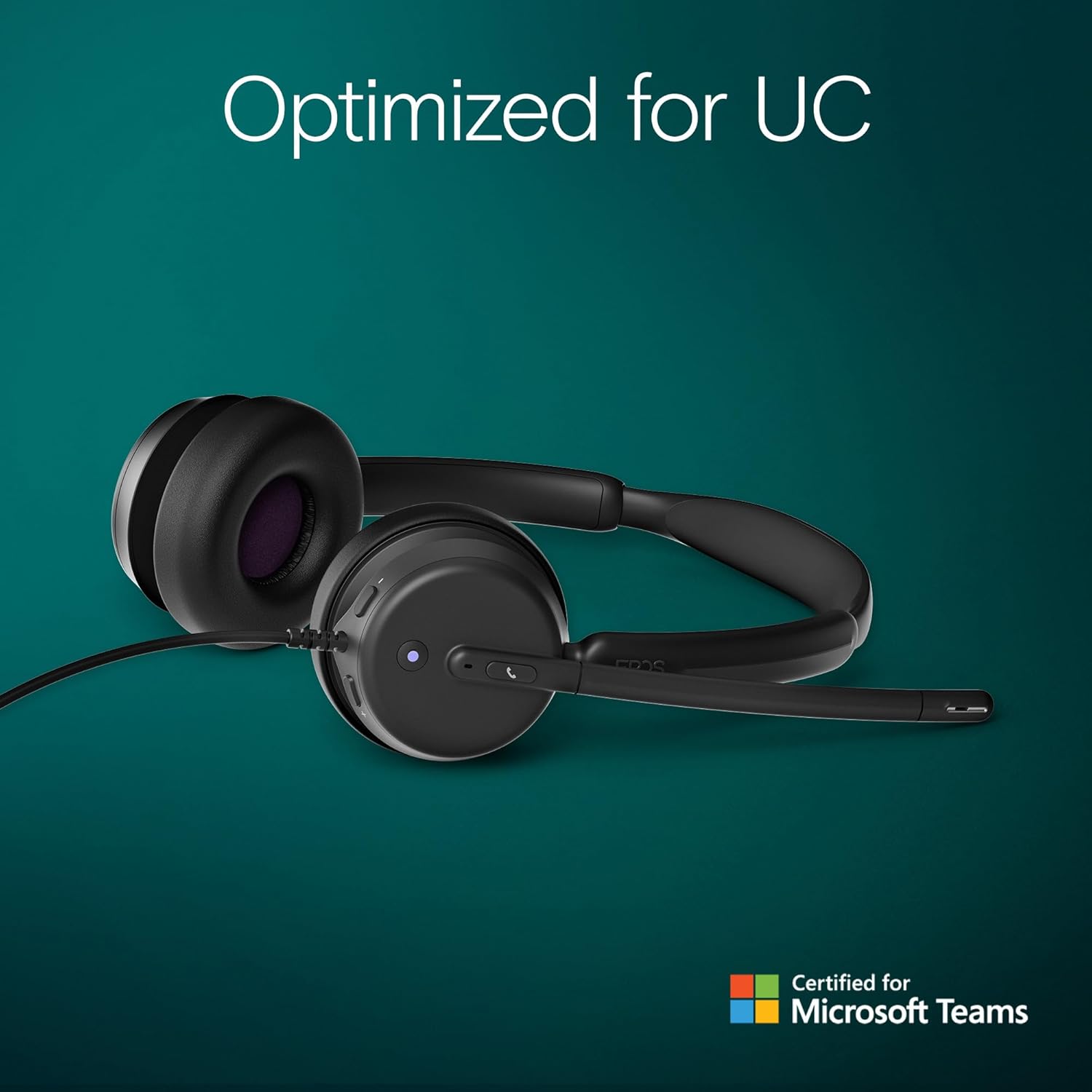
Figure 2.1: Included components with the EPOS Impact 460T headset.
3. Setup
- Connect the Headset: Plug the USB-C connector of the headset directly into a compatible USB-C port on your computer, laptop, tablet, or smartphone.
- Use USB-A Adapter (if needed): If your device only has USB-A ports, attach the provided USB-C to USB-A adapter to the headset's USB-C connector, then plug the adapter into your device's USB-A port.
- Plug-and-Play: The headset is designed for plug-and-play functionality. Your operating system should automatically detect and install the necessary drivers.
- Adjust Fit: Adjust the headband and microphone boom for a comfortable and secure fit. The ear cups are on-ear design with soft padding.
Video 3.1: An overview of the EPOS Impact 460T Headset, demonstrating its features and connectivity options.
4. Operating Instructions
4.1. Call Management
- Dedicated Teams Button: For Microsoft Teams users, a dedicated button allows for quick joining of calls and managing Teams functions.
- Answer/End Calls: Use the inline control unit or the dedicated call button on the headset to answer or end calls.
- Volume Control: Adjust the listening volume using the inline control unit.
- Mute Microphone:
- Lift-to-Mute: Simply lift the microphone boom arm upwards to mute your microphone.
- LED Indicator: An LED light on the microphone indicates its mute status, providing a visual cue.
4.2. Audio Quality
The headset features dual-mic noise filtering technology to ensure clear voice pickup, minimizing background noise in open office environments. Professional-grade speakers deliver rich, clear sound for both calls and multimedia.

Figure 4.1: Close-up of the headset's earcup showing control buttons and microphone.
5. Features
- Microsoft Teams Certified: Optimized for Microsoft Teams Open Office, ensuring seamless integration and enhanced call quality.
- Dual Noise-Canceling Mics: Advanced noise-filtering technology transmits your voice clearly, suppressing unwanted background noise.
- All-Day Comfort: Designed with dual noise-dampening ear pads, memory foam, and an ergonomic padded headband for extended wear.
- Hybrid-Ready Mobility: Fold-flat portability and durable materials make it suitable for both remote and in-office use. Includes a carry pouch for easy storage.
- ActiveGard Protection: Protects users from acoustic shock and sudden sound surges.
- Maximum Compatibility: Works with all major Unified Communications (UC) platforms, including Zoom.
- EPOS Software Support: Compatible with EPOS Connect & Manager for easy device management and firmware updates.
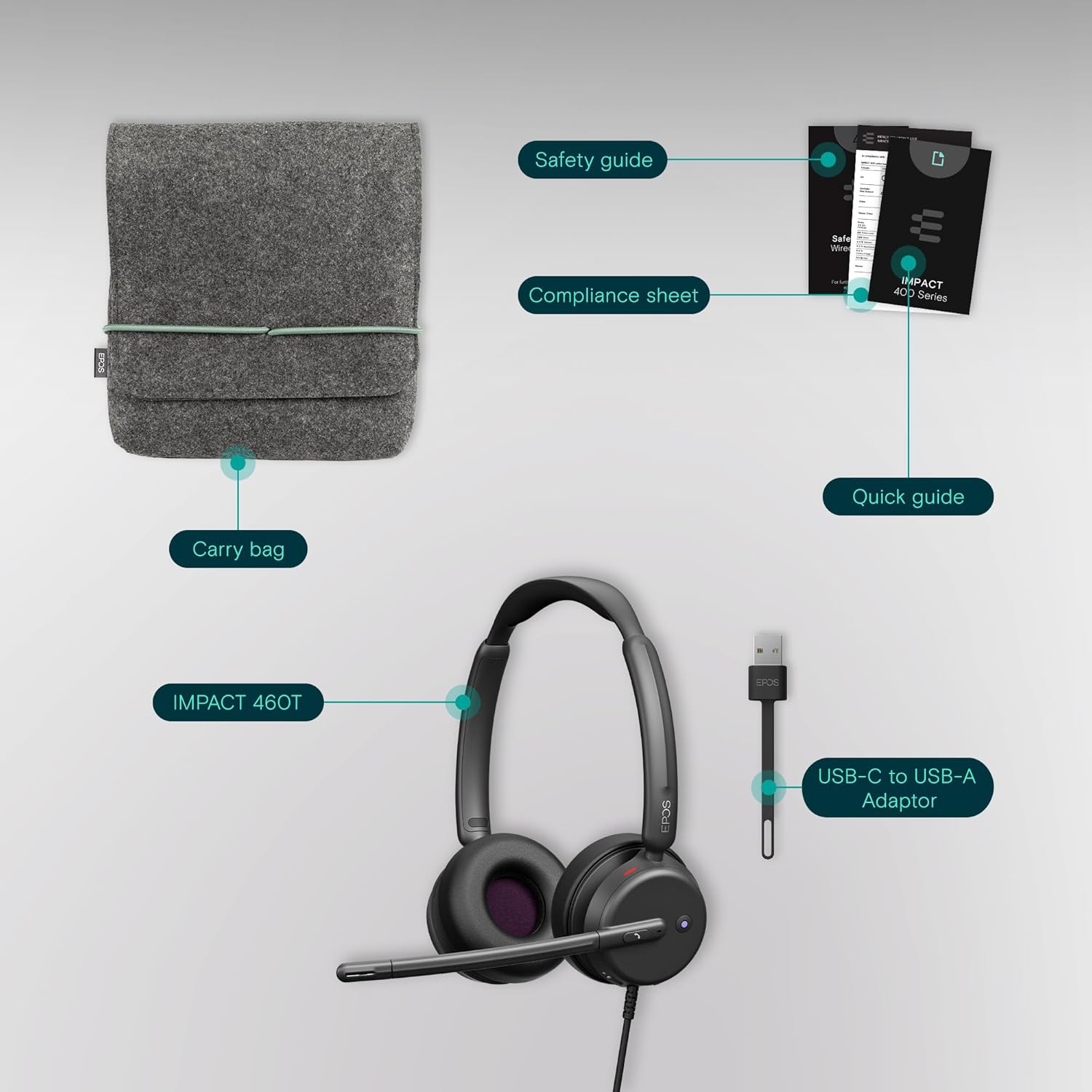
Figure 5.1: Advanced noise-filtering technology in action during a call.
6. Maintenance
- Cleaning: Use a soft, dry cloth to clean the headset. Avoid using harsh chemicals or abrasive materials.
- Ear Pads: Periodically check ear pads for wear and tear. Replacement ear pads may be available from EPOS support.
- Storage: When not in use, store the headset in the provided protective carry pouch to prevent damage and keep it clean.
- Cable Care: Avoid sharp bends or excessive pulling on the cable to prevent internal damage.
7. Troubleshooting
7.1. No Sound or Poor Sound Quality
- Check Connection: Ensure the USB-C (or USB-A with adapter) connector is fully inserted into your device.
- Volume Levels: Verify that the volume on the headset's inline control unit and your device's system volume are turned up.
- Default Device: Confirm that the EPOS Impact 460T is selected as the default audio input and output device in your operating system's sound settings and your communication application (e.g., Microsoft Teams, Zoom).
- Restart Application/Device: Close and reopen your communication application, or restart your computer/device.
7.2. Microphone Not Working
- Check Mute Status: Ensure the microphone boom is lowered and the LED mute indicator is off (not red). Check the mute button on the inline control unit.
- Default Microphone: Verify that the EPOS Impact 460T is selected as the default microphone in your operating system's sound settings and your communication application.
- Application Permissions: Ensure your communication application has permission to access the microphone.
8. Specifications
| Feature | Detail |
|---|---|
| Model Name | 460T |
| Connectivity Technology | Wired (USB-C, includes USB-A adapter) |
| Ear Placement | On Ear |
| Noise Control | Dual Noise-Canceling Mics, Passive Noise Control |
| Microphone | Lift-to-mute boom arm, LED mute indicator |
| Control Type | Volume Control, Call Button (inline remote) |
| Compatible Devices | Desktops, Laptops, Tablets, Smartphones |
| Recommended Uses | Calls, Home Office, Business, Remote Work |
| Weight | 13 ounces |
| Dimensions | 7.87 x 8.07 x 2.56 inches |
| Material | Plastic (with memory foam ear pads) |
9. Warranty and Support
The EPOS Impact 460T headset typically comes with a manufacturer's warranty. Please refer to the included warranty information in your product packaging for specific terms and duration. For technical support, driver updates, and device management, visit the official EPOS website or utilize the EPOS Connect & Manager software.
Additional protection plans may be available for purchase, offering extended coverage beyond the standard manufacturer's warranty. Check with your retailer for details.


