
1. Introduction
Thank you for choosing the Gofunly Kids Instant Camera. This camera is designed to provide children aged 3-12 with a fun and creative way to capture memories. Featuring instant black and white printing, 1080P video recording, and a variety of creative functions, it's an ideal tool for young photographers to explore their world.

Image: The Gofunly Kids Instant Camera in blue, demonstrating its instant print capability with a photo of a mother and child.
2. Package Contents
Please check the package to ensure all items are present:
- 1 x Gofunly Kids Instant Camera
- 1 x 32GB Memory Card
- 3 x Rolls of Printing Paper
- 5 x Color Pens
- 1 x Lanyard
- 1 x USB Cable
- 1 x Cartoon Stickers
- 1 x User Manual (this document)

Image: All components included in the Gofunly Kids Instant Camera package.
3. Setup Guide
3.1 Charging the Camera
Before first use, fully charge the camera. Connect the included USB cable to the camera's charging port and a USB power adapter (not included). The charging indicator will show the charging status. A full charge provides hours of usage thanks to the 1000mAh lithium-ion battery.
3.2 Inserting the Memory Card
The camera comes with a 32GB memory card. Locate the memory card slot, usually on the side of the camera. Insert the 32GB card into the slot until it clicks into place. This card allows you to store thousands of photos and videos.
3.3 Loading Printing Paper
The camera uses zero-ink thermal printing paper. Follow these steps to load a new roll:
- Gently pull open the paper compartment cover as shown in the image.
- Insert a new roll of printing paper, ensuring about 1-2 inches of paper extends out of the slot.
- Close the paper compartment cover firmly until it clicks.
- The camera is now ready to print.

Image: Step-by-step instructions for loading the thermal printing paper.

Image: Visual representation of the 8x zoom, USB charging, and 32GB card slot.
4. Operating Instructions
4.1 Basic Camera Functions
- Power On/Off: Press and hold the power button to turn the camera on or off.
- Taking Photos: In photo mode, press the shutter button to capture an image.
- Recording Videos: Switch to video mode and press the record button to start/stop recording 1080P videos.
- Navigation: Use the directional buttons to navigate menus and select options on the 2.0-inch screen.
4.2 Instant Printing
After taking a photo, you can instantly print it in black and white without ink. The camera will automatically print the captured image if the instant print function is enabled. You can also select photos from the album to print.
4.3 Advanced Features
- Digital Zoom: The camera supports 8x digital zoom. Use the zoom buttons to adjust the magnification before taking a photo.
- Timed Photos (Time Lapse): Set a timer (e.g., 3, 5, or 10 seconds) for delayed photo capture, allowing you to get into the frame.
- Continuous Shooting (Burst Mode): Capture a series of photos rapidly, ideal for action shots.
- Funny Frames & Filters: Enhance your photos with a variety of built-in frames and artistic filters.
- Puzzle Games: The camera includes three built-in puzzle games for entertainment.
- MP3 Playback: The camera supports MP3 playback. Refer to the on-screen menu for details on loading and playing music files.

Image: Key features of the Gofunly Kids Instant Camera.
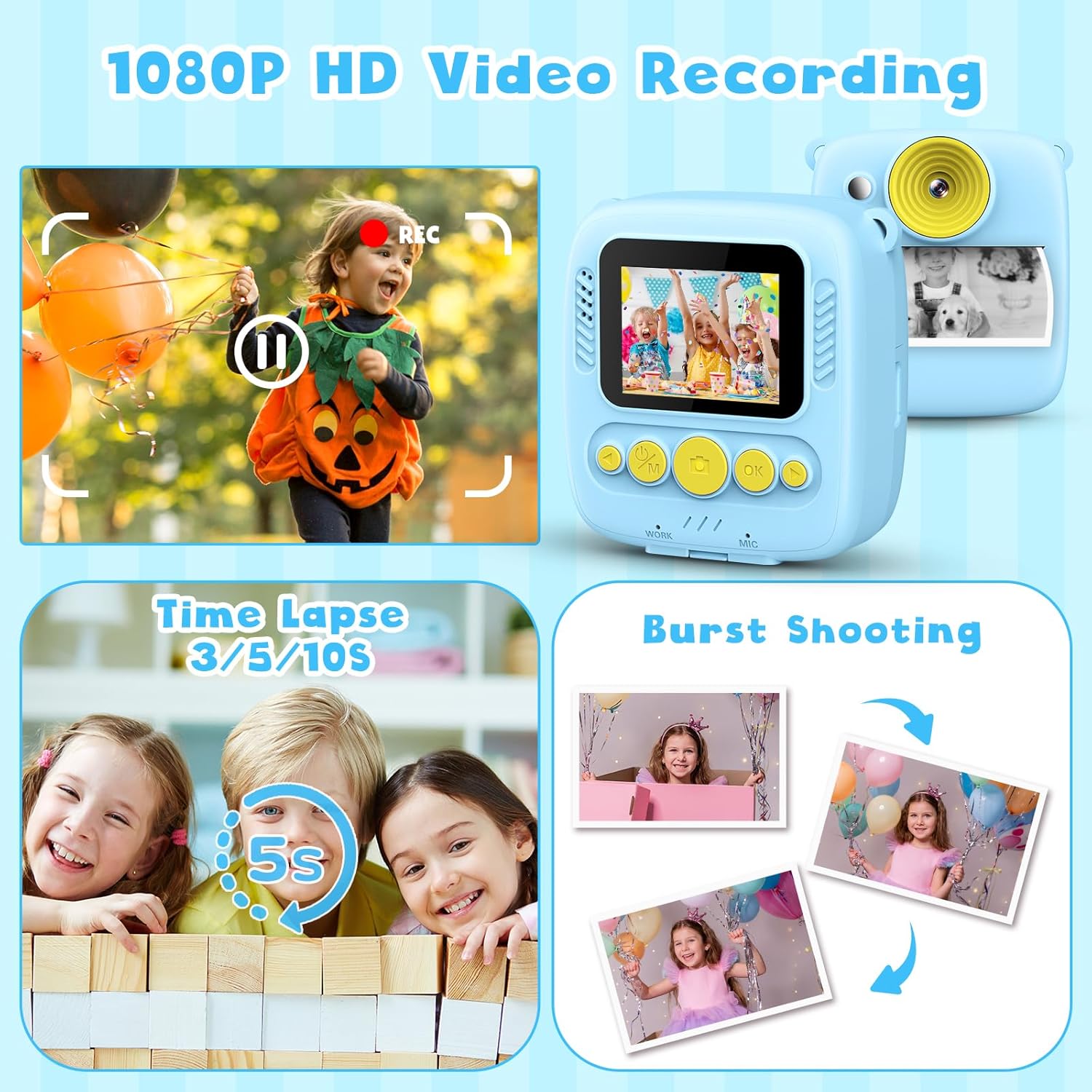
Image: Examples of 1080P video recording, time lapse, and burst shooting.

Image: The camera's music and puzzle game features.

Image: A selection of fun frames and filters available on the camera.
4.4 DIY Customization
After printing black and white photos, children can use the included color pens and cartoon stickers to decorate and personalize their prints, fostering creativity.

Image: Children can color their instant black and white photos using the provided pens.
4.5 Transferring Files
To transfer photos and videos to a computer, connect the camera using the USB cable. The camera will appear as a removable disk, allowing you to copy files. Alternatively, you can remove the 32GB memory card and use a card reader (not included) to access the files.
5. Maintenance
- Cleaning: Use a soft, dry cloth to clean the camera body. For the lens, use a specialized lens cleaning cloth. Do not use liquid cleaners.
- Battery Care: To prolong battery life, avoid fully discharging the battery frequently. Charge the camera regularly, even if not in use for extended periods.
- Paper Storage: Store printing paper in a cool, dry place away from direct sunlight to prevent degradation.
- General Care: Keep the camera away from water, extreme temperatures, and direct impact.
6. Troubleshooting
- Camera not turning on: Ensure the battery is charged. Connect the USB cable to charge for at least 30 minutes before attempting to power on again.
- Cannot print photos: Check if printing paper is loaded correctly and if there is enough paper. Ensure the instant print function is enabled in the settings.
- Poor print quality: Ensure the paper is loaded correctly and is not damaged. The camera uses thermal printing, so print quality is black and white and may vary slightly.
- Memory card error: Reinsert the memory card. If the issue persists, try formatting the card (this will erase all data) or try a different compatible memory card.
- Camera freezes: Press and hold the power button for 10-15 seconds to force a restart. If the issue continues, ensure the battery is charged and try again.
7. Specifications
| Feature | Detail |
|---|---|
| Model Name | Q1 |
| Brand | Gofunly |
| Screen Size | 2.0-inch |
| Effective Still Resolution | 12 MP |
| Video Resolution | 1080P |
| Optical Zoom | 8x |
| Battery | 1000mAh Lithium-Polymer (included) |
| Memory Card | 32GB (included) |
| Printing Technology | Zero Ink Thermal Printing |
| Supported File Format | JPEG |
| Item Weight | 350 Grams |
| Package Dimensions | 15.5 x 10.3 x 5.4 cm |
| Water Resistance | Not waterproof |
8. Warranty and Support
This Gofunly product comes with a 12-month warranty from the date of purchase. This warranty covers manufacturing defects and issues arising from normal use.
For any questions, technical support, or warranty claims, please contact Gofunly customer service through the platform where you purchased the product. Please have your purchase details and product model number (Q1) ready when contacting support.