
1. Introduction
This manual provides detailed instructions for the NOVOO RM10F 10-in-1 USB-C Dual HDMI Docking Station. This device expands a single USB-C port on your host computer into multiple connectivity options, including dual HDMI outputs, USB data ports, Ethernet, card readers, and power delivery. Please read this manual thoroughly before use to ensure proper operation and to maximize the product's capabilities.
2. Product Features
- 10-in-1 Connectivity: Expands one USB-C port to 10 ports.
- Dual HDMI Output: Supports single HDMI display up to 8K@30Hz or dual HDMI displays up to 4K@60Hz.
- High-Speed Data Transfer: 3x USB-A 3.0 ports and 1x USB-C 3.0 port with speeds up to 5Gbps.
- Gigabit Ethernet: Provides stable wired network connection at 10/100/1000 Mbps.
- Power Delivery (PD 100W): Supports up to 100W power input for charging your host device (charger not included).
- SD/TF Card Reader: Supports simultaneous reading and writing for SD and TF cards at up to 104MB/s.
- Plug and Play: No drivers required for most operating systems.

Figure 2.1: Overview of NOVOO RM10F Ports and Functions
3. Package Contents
- NOVOO RM10F 10-in-1 USB-C Dual HDMI Docking Station
- User Manual
4. Setup Instructions
- Connect to Host Device: Plug the integrated USB-C cable of the docking station into a full-featured USB-C or Thunderbolt 3/4 port on your laptop, tablet, or smartphone. Ensure the host device's USB-C port supports video output (DisplayPort Alternate Mode) and power delivery for full functionality.
- Connect External Displays: Connect your HDMI monitors to the HDMI 1 and/or HDMI 2 ports on the docking station using HDMI cables.
- Connect Power Adapter (Optional): For charging your host device and ensuring stable operation of all connected peripherals, connect a USB-C Power Delivery (PD) charger (up to 100W, not included) to the PD 100W USB-C input port on the docking station.
- Connect Peripherals:
- USB Devices: Plug USB-A peripherals (e.g., keyboard, mouse, external hard drive) into the USB-A 3.0 or USB-A 2.0 ports. Connect USB-C peripherals to the USB-C 3.0 data port.
- Ethernet: Connect an Ethernet cable from your router or modem to the RJ45 Gigabit Ethernet port on the docking station.
- Memory Cards: Insert SD or TF cards into the corresponding card reader slots.

Figure 4.1: Typical Setup with NOVOO RM10F Docking Station
5. Operating Instructions
5.1 Display Configuration
The docking station supports various display modes depending on your operating system and host device capabilities.
- Single HDMI Display: When only one HDMI port is connected, it supports resolutions up to 8K@30Hz.
- Dual HDMI Displays: When both HDMI ports are connected, they support resolutions up to 4K@60Hz simultaneously.
Windows Operating System:
Windows systems support both Mirror Mode and Extend Mode for multiple displays.
- Mirror Mode: All connected displays (laptop screen and external monitors) show the same content.
- Extend Mode: Each connected display can show different content, extending your desktop workspace.

Figure 5.1: Multiple Display Modes for Windows and macOS
macOS Operating System:
Due to macOS limitations (lack of Multi-Stream Transport - MST support), all extended displays connected via the docking station will show the same content (Mirror Mode). The laptop screen can be used as an independent display.
5.2 Data Transfer
The USB-A 3.0 and USB-C 3.0 ports offer data transfer speeds up to 5Gbps, suitable for external hard drives, USB flash drives, and other high-speed peripherals. The USB-A 2.0 ports provide speeds up to 480Mbps, ideal for keyboards, mice, and other standard USB devices.

Figure 5.2: USB 5Gbps Data Transfer
5.3 Ethernet Connection
Connect an Ethernet cable to the RJ45 port for a stable and fast wired network connection. The port supports 10/100/1000 Mbps speeds, providing a reliable alternative to Wi-Fi.

Figure 5.3: Gigabit Ethernet Port
5.4 SD/TF Card Reader
Insert your SD or TF (Micro SD) cards into the dedicated slots. The docking station supports simultaneous reading and writing for both card types, with transfer speeds up to 104MB/s.

Figure 5.4: SD/TF Card Reader
5.5 Power Delivery
The PD 100W USB-C port allows you to charge your host device while using the docking station. Connect a compatible USB-C PD power adapter (not included) to this port. The docking station will pass through up to 87W of power to your laptop, reserving some power for its own operation and connected peripherals.

Figure 5.5: Power Delivery Connection
6. Compatibility
The NOVOO RM10F docking station is designed for wide compatibility with various devices and operating systems that feature a full-featured USB-C port (supporting DisplayPort Alternate Mode and Power Delivery).
6.1 Compatible Devices:
- MacBook 12" (2015/2016/2017), MacBook Pro 13"/15" (2016-2021), MacBook Air (2018/2019 and newer)
- Mac Mini (2018/2019 and newer), iMac (2018/2019 and newer)
- iPad Air (newer versions), iPhone 15 series (iPhone 15, 15 Max, 15 Pro)
- Dell XPS 13/15, Dell Latitude 13 7000/E7370L
- Lenovo Yoga 720-13IKB/900-13ISK/910/920/930
- Microsoft Surface Book 2/Surface Go/Surface Laptop 3
- HP Spectre x2/x360/Elite x2 1012/Elitebook Folio G1/ZBook 15 G3/Laptop 13-af001TU/Probook 450 G5/6/7
- ASUS Zenbook UX330UA
- Steam Deck and other devices with full-featured USB-C ports.
6.2 Compatible Operating Systems:
- Windows 11 / 10 / 8.1 / 8 / 7 / XP / Vista
- macOS
- Linux
- Chrome OS
- Android
- iOS
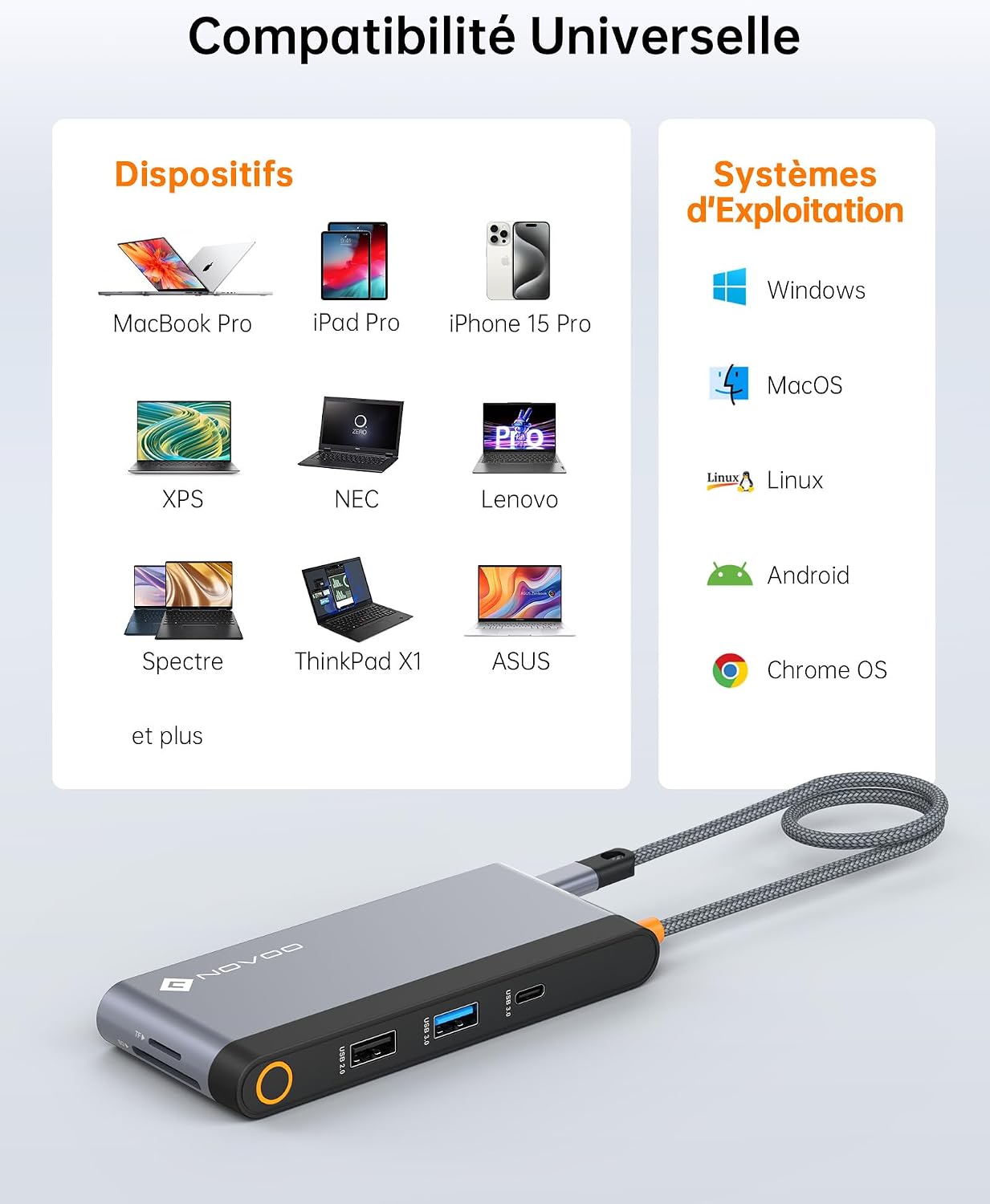
Figure 6.1: Universal Compatibility
7. Troubleshooting
- No Display Output:
- Ensure your host device's USB-C port supports DisplayPort Alternate Mode (video output). Not all USB-C ports support this feature.
- Check all cable connections (USB-C to host, HDMI to monitors).
- Verify monitor input sources are correctly selected.
- Try connecting one HDMI monitor at a time to isolate the issue.
- Restart your host device.
- Display Flickering or Instability:
- Ensure you are using high-quality HDMI cables.
- Reduce the display resolution or refresh rate to see if stability improves.
- Ensure the docking station is receiving sufficient power, especially when multiple devices are connected. Connect a PD charger if not already.
- Slow Data Transfer Speed:
- Ensure you are using the USB 3.0 ports for high-speed devices.
- Check the USB cable quality of your peripheral.
- Avoid connecting multiple power-hungry devices simultaneously without external power to the docking station.
- Host Device Not Charging:
- Ensure a compatible USB-C Power Delivery (PD) charger is connected to the docking station's PD port.
- Verify the wattage of your PD charger is sufficient for your laptop (e.g., 65W, 100W).
- Check if your host device's USB-C port supports Power Delivery input.
- Ethernet Connection Issues:
- Check the Ethernet cable connection to both the docking station and your router/modem.
- Verify your network settings on your host device.
- Try connecting the Ethernet cable directly to your host device (if applicable) to rule out network issues.
- macOS Dual Display Limitation:
- As noted in Section 5.1, macOS does not support MST. Therefore, all external monitors connected via the docking station will display the same content (mirror mode). This is a system limitation, not a product defect.
8. Specifications
| Model Number | RM10F (NHM10S-MA00) |
| Brand | NOVOO |
| Material | Aluminium |
| Connectivity | USB Type-C (Host Connection) |
| Ports | 2x HDMI, 1x RJ45 Gigabit Ethernet, 3x USB-A 3.0, 1x USB-A 2.0, 1x USB-C 3.0 (Data), 1x USB-C PD 100W, 1x SD Card Reader, 1x TF Card Reader |
| HDMI Output | Single HDMI: Up to 8K@30Hz Dual HDMI: Up to 4K@60Hz |
| USB Data Transfer | USB-A 3.0 / USB-C 3.0: Up to 5Gbps USB-A 2.0: Up to 480Mbps |
| Ethernet Speed | 10/100/1000 Mbps |
| Card Reader Speed | SD/TF: Up to 104MB/s |
| Power Delivery | Up to 100W input (for charging host device) |
| Cable Length | 40 cm (1.3 ft) |
| Operating System Support | Windows, macOS, Linux, Chrome OS, Android, iOS |
9. Maintenance
- Keep the docking station away from water, fire, and corrosive liquids.
- Avoid extreme temperatures and direct sunlight.
- Do not disassemble the product. Unauthorized repairs will void the warranty.
- Clean the device with a soft, dry cloth. Avoid using harsh chemicals.
- Disconnect the docking station when not in use for extended periods.
10. Warranty and Support
The NOVOO RM10F 10-in-1 USB-C Dual HDMI Docking Station comes with a 2-year warranty from the date of purchase. This warranty covers manufacturing defects and malfunctions under normal use.
For technical support, warranty claims, or any questions regarding your product, please contact NOVOO customer service through the retailer where you purchased the product or visit the official NOVOO website for contact information.