
1. Product Overview
The GUOANVISION S100 is an advanced outdoor PTZ (Pan-Tilt-Zoom) security camera featuring a unique dual-lens system. It combines a fixed wide-angle lens with a rotatable tracking lens to provide comprehensive surveillance without blind spots. Equipped with 6MP resolution, AI human detection, automatic tracking, two-way audio, and IP66 waterproofing, this camera is designed for robust outdoor monitoring.

Figure 1: GUOANVISION S100 Dual Lens Outdoor PTZ Security Camera
2. Package Contents
Before proceeding with installation, please verify that all components are present in your package:
- GUOANVISION S100 Outdoor PTZ Camera
- Mounting Bracket
- Power Adapter (Corded Electric)
- Mounting Screws and Wall Plugs
- Waterproof Caps for Connectors
- User Manual
Video 1: Unboxing and Package Contents of the GUOANVISION S100 Camera.
3. Setup Guide
3.1 Physical Installation
The GUOANVISION S100 camera supports both wall and ceiling mounting. Choose a location that provides optimal coverage and a stable Wi-Fi signal.
- Attach Mounting Bracket: Secure the mounting bracket to the camera using the provided screws.
- Mark Drilling Points: Hold the camera with the attached bracket against the desired installation surface. Mark the drilling points.
- Drill Holes: Drill holes at the marked positions and insert the wall plugs.
- Mount Camera: Align the bracket with the drilled holes and secure the camera using the mounting screws.
- Connect Power: Connect the power adapter to the camera and plug it into a power outlet. Ensure the connection is secure and protected from weather using the waterproof caps.

Figure 2: Illustration of wall and ceiling mounting options.
3.2 App Installation and Pairing
To control and monitor your camera, download the iCSee app from your smartphone's app store (available for Android and iOS).
- Download App: Scan the QR code in the included user manual or search for 'iCSee' in your app store.
- Register Account: Open the iCSee app and follow the on-screen instructions to register a new account or log in if you already have one.
- Enable Bluetooth & Wi-Fi: Ensure your smartphone's Bluetooth and 2.4GHz Wi-Fi are enabled.
- Add Device: In the app, tap the '+' icon to add a new device. The app should automatically detect the camera via Bluetooth. Confirm the device.
- Connect to Wi-Fi: Select your 2.4GHz Wi-Fi network and enter the password. The camera will connect to your network.
- Insert MicroSD Card (Optional): For local recording, insert a MicroSD card (up to 128GB) into the designated slot on the camera.

Figure 3: Visual guide for iCSee app installation and device pairing.
Video 2: Detailed steps for connecting the camera to the iCSee app.
4. Operating Instructions
4.1 Live View and Dual Screen Monitoring
Access the live feed from your camera through the iCSee app. The S100 features a dual-screen display, allowing you to view both the fixed wide-angle lens and the rotatable PTZ lens simultaneously.

Figure 4: Simultaneous display of both camera lenses in the iCSee app.
4.2 PTZ Control
The lower lens of the camera can be controlled remotely via the app, offering a horizontal pan of 350° and a vertical tilt of 90°.
- Pan/Tilt: Use the directional controls in the app to adjust the camera's viewing angle.
- Preset Positions: Save frequently monitored areas as preset positions for quick navigation.

Figure 5: Diagram illustrating the 350° pan and 90° tilt functionality.
4.3 AI Human Detection & Auto-Tracking
The camera utilizes AI to accurately detect human movement and automatically track the subject within its field of view. This minimizes false alarms from animals or environmental factors.
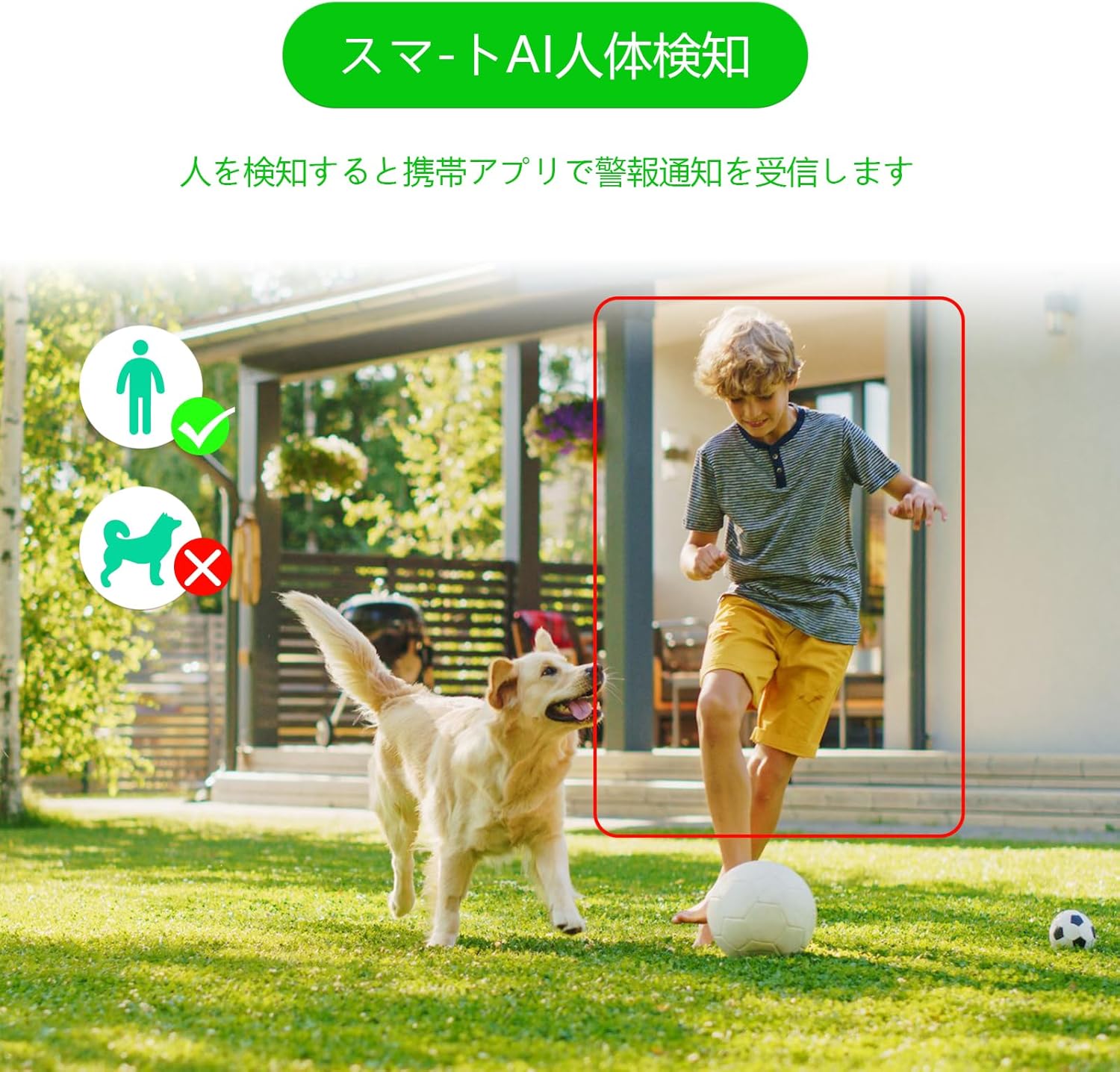
Figure 6: AI human detection feature, focusing on human figures.
Video 3: Demonstration of the camera's automatic motion tracking feature.
4.4 Night Vision Modes
The S100 offers multiple night vision modes to suit different lighting conditions:
- Infrared Mode: Standard black and white night vision.
- Full-Color Mode: Utilizes built-in lights to provide color images even in low light.
- Smart Mode: Automatically switches between infrared and color night vision based on detected motion.

Figure 7: Comparison of infrared, smart, and full-color night vision modes.
Video 4: Demonstration of the camera's night vision capabilities in various settings.
4.5 Two-Way Audio & Alarm Functions
Communicate with visitors or deter intruders using the built-in microphone and speaker. The camera also features a light and sound alarm that can be triggered upon detection of suspicious activity.
- Two-Way Talk: Use the app to speak through the camera's speaker and listen through its microphone.
- Light & Sound Alarm: Configure the camera to activate flashing blue/red lights and an audible siren when human motion is detected at night.

Figure 8: Illustrates the two-way audio feature for remote communication.
5. Maintenance
Regular maintenance ensures optimal performance and longevity of your GUOANVISION S100 camera.
- Cleaning: Periodically wipe the camera lens and body with a soft, damp cloth to remove dust and dirt. Avoid abrasive cleaners.
- Firmware Updates: Check the iCSee app regularly for available firmware updates. Keeping the firmware updated ensures you have the latest features and security enhancements.
- Connection Check: Periodically verify the power and network connections to ensure they are secure and free from damage.
- SD Card Management: If using a MicroSD card, ensure it is functioning correctly and has sufficient storage space. Format the card through the app if necessary.
6. Troubleshooting
If you encounter issues with your camera, refer to the following common problems and solutions:
- Camera Offline:
- Check power supply: Ensure the camera is properly connected to power.
- Check Wi-Fi connection: Verify your Wi-Fi network is active and the camera is within range. Re-pair the camera if necessary.
- Router settings: Ensure your router is broadcasting a 2.4GHz Wi-Fi signal.
- No Recording/SD Card Not Detected:
- Ensure MicroSD card is correctly inserted.
- Check if the MicroSD card is damaged or full. Format it via the app or replace it.
- Verify recording settings in the iCSee app.
- Poor Image Quality:
- Clean the camera lens.
- Ensure adequate lighting, especially for color night vision.
- Check network stability; a weak Wi-Fi signal can affect streaming quality.
- False Alarms:
- Adjust AI human detection sensitivity in the app.
- Ensure the camera is positioned to minimize detection of non-human movement (e.g., swaying branches).
7. Specifications
| Feature | Detail |
|---|---|
| Brand | GUOANVISION |
| Model Name | S100 |
| Recommended Use | Baby Monitor, Pet Monitor, Indoor Security, Outdoor Security |
| Connectivity | Wired, Wi-Fi (2.4GHz) |
| Features | HD Resolution, Dual Lens, PTZ, AI Human Detection, Auto-Tracking, Two-Way Audio, Light/Sound Alarm |
| Indoor/Outdoor Use | Indoor, Outdoor |
| Compatible Devices | Smartphone (iOS, Android) |
| Power Source | Corded Electric |
| Connection Protocol | ONVIF |
| Mounting Type | Wall Mount, Ceiling Mount (Screw-in) |
| Product Exterior Material | Plastic |
| Waterproof Rating | IP66 |
| Alarm Type | Audio & Motion (Light & Sound) |
| Effective Still Resolution | 6 MP (2x 3MP lenses) |
| Management Method | App (iCSee) |
| Batteries Required | No |
| Video Encoding Format | MPEG-4 |
| Video Capture Format | MP4 |
| Night Vision Range | 15 meters |
| Night Vision | Color Night Vision, Infrared, Smart Mode |
| IR LEDs | 8 |
| Product Size | 22.9 x 12.7 x 22.9 cm |
| Max Flash Memory Support | 128 GB (MicroSD) |
8. Warranty & Support
GUOANVISION is committed to providing high-quality products and excellent customer service. If you have any questions, concerns, or encounter product defects during the warranty period, please do not hesitate to contact us.
8.1 Contact Information
- Email Support: support@guoanvision.net (24-hour response)
- Amazon Customer Service: Navigate to 'Customer Service' > 'Your Orders' > 'Sold by' > 'Ask a question' for assistance with your purchase.
We will respond promptly to provide warranty service and support.