
Yintiny TMB8
Yintiny TMB8 Rechargeable Leather CD Player User Manual
Comprehensive instructions for setup, operation, and maintenance of your Yintiny TMB8 CD Player.
Product Overview
The Yintiny TMB8 is a versatile and portable CD player designed for various audio playback needs. It features a vintage leather-look design and supports multiple connectivity options, including CD playback, Bluetooth transmission, USB, and 3.5mm AUX audio output. This manual provides detailed instructions to help you maximize your listening experience.
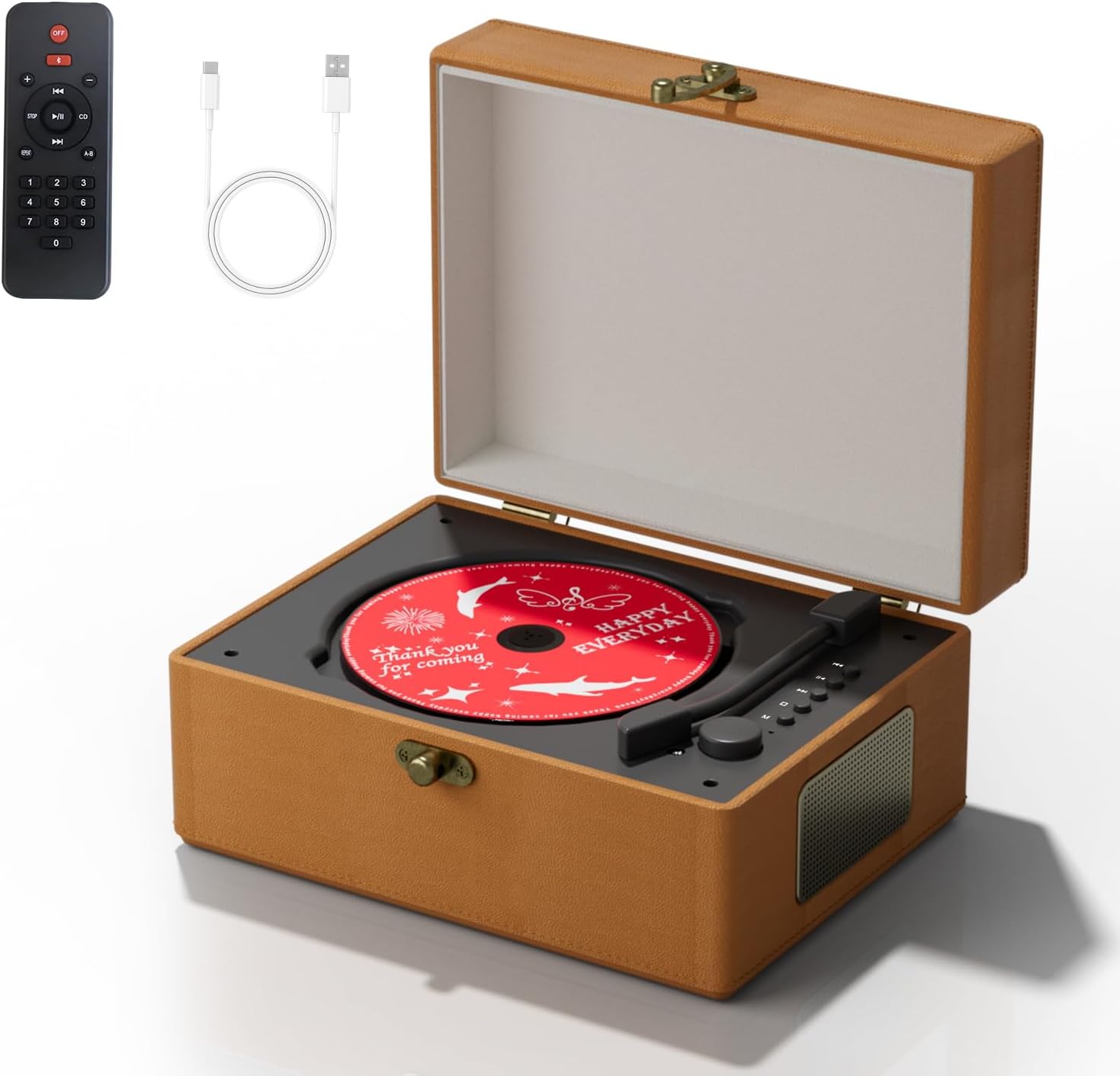
Image: The Yintiny TMB8 Rechargeable Leather CD Player in brown, shown with its remote control and charging cables.
What's in the Box
- Yintiny TMB8 CD Player
- Standard Packaging
- Basic Remote Control
- Charging Cable
- User Manual (this document)
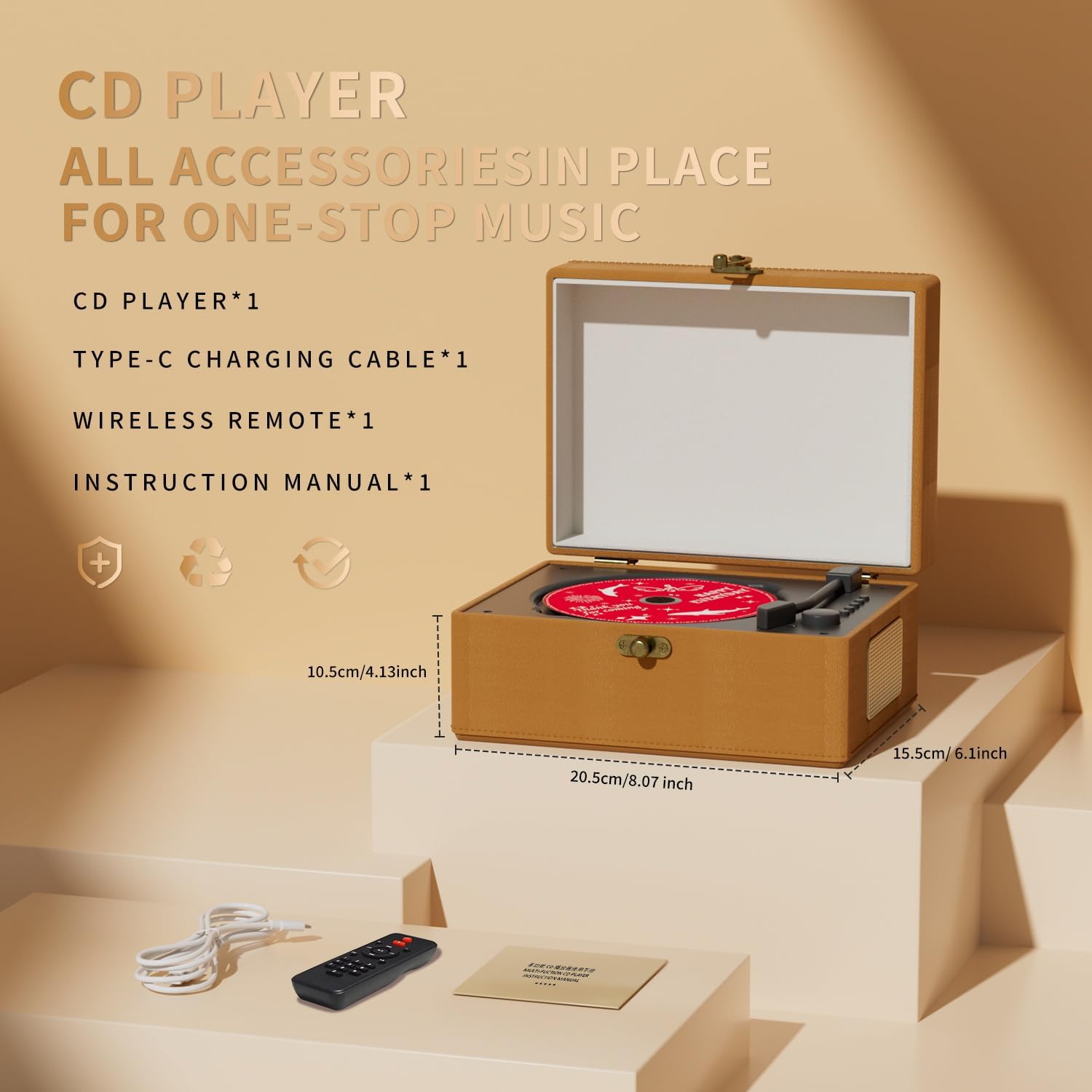
Image: A visual representation of the Yintiny TMB8 CD Player along with its included accessories: a Type-C charging cable, wireless remote, and instruction manual. Product dimensions are also indicated.
Setup
1. Charging the Device
The Yintiny TMB8 CD Player is equipped with a built-in Lithium Ion battery. Before first use, ensure the device is fully charged.
- Connect the provided charging cable to the charging interface on the back of the CD player.
- Connect the other end of the charging cable to a compatible USB power adapter (not included).
- The indicator light will show charging status. Charge until the light indicates a full charge (typically 2-4 hours).
- For optimal battery life, unplug the device once fully charged.
2. Powering On/Off
To power on or off the device, locate the volume control knob which also functions as the power switch.
- Power On: Long press the volume control knob for 3 seconds. The indicator light will illuminate.
- Power Off: Long press the volume control knob for 3 seconds. The indicator light will turn off.

Image: A visual guide demonstrating how to power on/off and adjust the volume using the main control knob on the Yintiny TMB8 CD Player.
Operating Instructions
1. CD Playback
The Yintiny TMB8 supports CD-R, CD-RW, CD-MP3, and CD-WMA formats.
- Open the top lid of the CD player.
- Carefully place a CD onto the spindle, ensuring it is seated correctly.
- Move the tone arm-like lever over the CD. This action initiates playback.
- To stop playback, move the lever back to its resting position.
- Use the control buttons (Previous, Play/Pause, Next, Stop) on the device or remote for track navigation and playback control.
- Adjust volume using the rotary knob or remote control.
Video: A demonstration of the Yintiny TMB8 CD Player in operation, highlighting its Bluetooth transmitter capabilities and compact design. The video shows a CD being played and the device's functionality.
Video: A user demonstrating the vintage-style CD player, showing how to place a CD and initiate playback. The video highlights the device's aesthetic and basic functionality.
2. Bluetooth Transmission (Connecting to External Bluetooth Speakers/Headphones)
The CD player can transmit audio to external Bluetooth-enabled devices.
- Ensure the CD player is powered on and no CD is actively playing.
- Put your external Bluetooth speaker or headphones into pairing mode.
- On the CD player's remote control, press the Bluetooth button for 1-2 seconds. The indicator light on the CD player will flash, indicating pairing mode.
- Once successfully paired, the indicator light will become solid, and audio from the CD player will transmit to your external device.
3. Bluetooth Receiver (Playing Audio from Your Phone)
The CD player can also receive audio from your smartphone or other Bluetooth devices, acting as a speaker.
- Ensure the CD player is powered on.
- On your smartphone or Bluetooth device, search for available Bluetooth devices and select "Yintiny TMB8" (or similar name).
- Once connected, you can play audio from your device through the CD player's speakers.
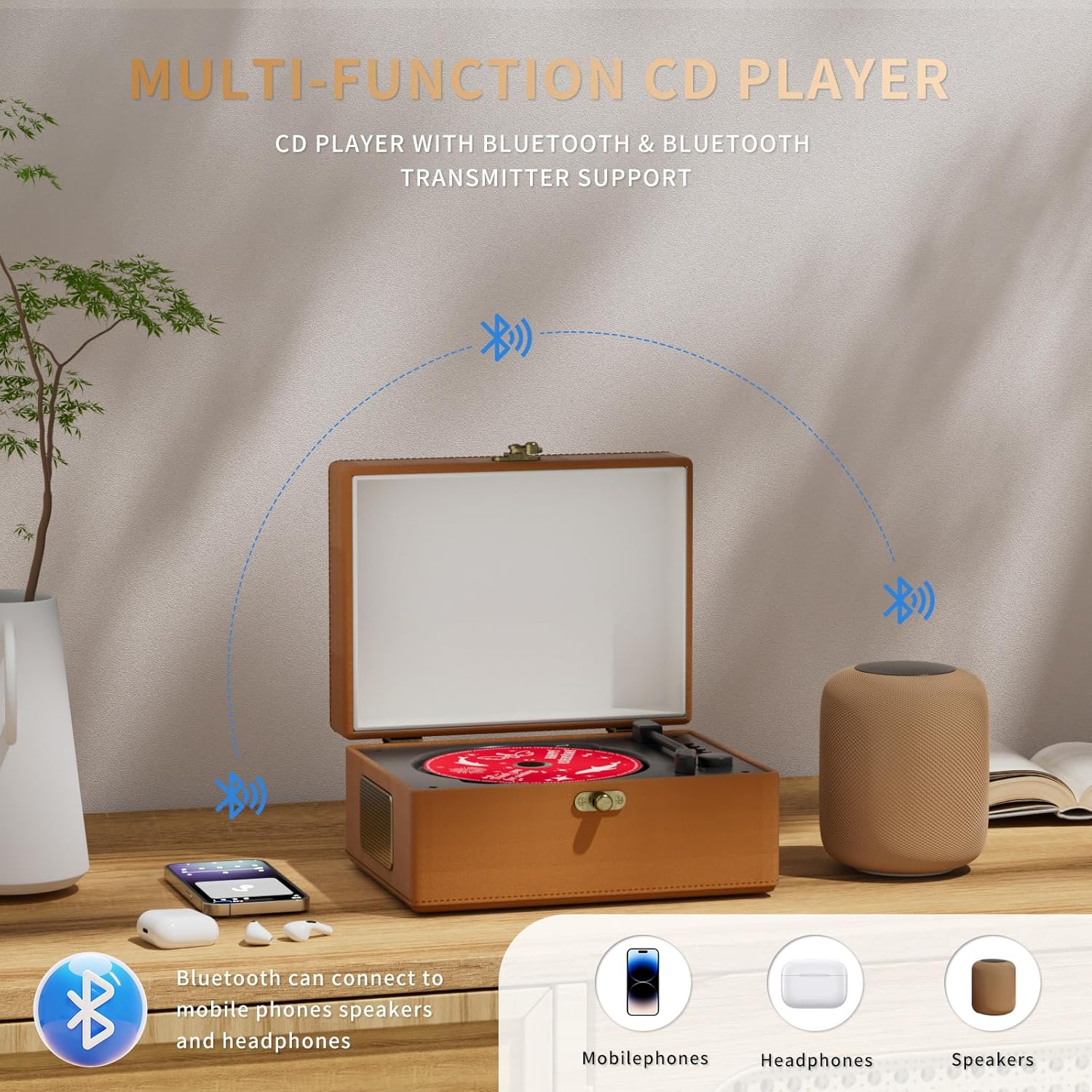
Image: The Yintiny TMB8 CD Player illustrating its multi-device Bluetooth connectivity, showing how it can connect to mobile phones, headphones, and external speakers for versatile audio playback.
4. USB Playback
Insert a USB flash drive into the USB interface on the back of the device to play audio files directly.
5. AUX Audio Output
Connect external audio devices using a 3.5mm AUX cable (not included) to the AUX audio output port.
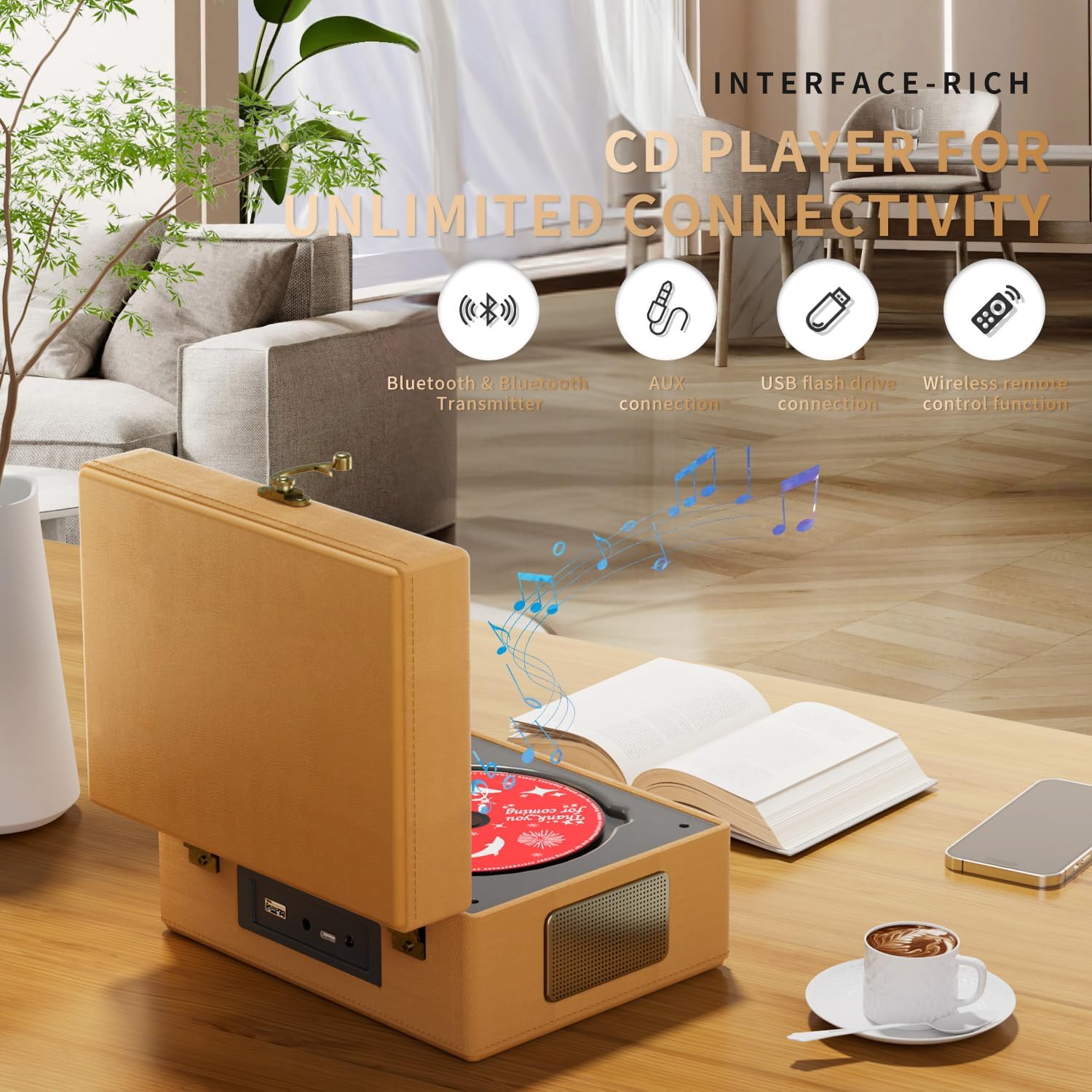
Image: The Yintiny TMB8 CD Player showcasing its rich interface options, including Bluetooth, AUX connection, USB flash drive connection, and wireless remote control functionality.

Image: Detailed view of the Yintiny TMB8 CD Player's features, including the singing arm switch for power on/off, high-precision reading laser head, rich physical function buttons, and various interface options for expanded music space.
Maintenance
- Cleaning: Use a soft, dry cloth to clean the exterior of the device. Do not use liquid cleaners or abrasive materials.
- CD Care: Handle CDs by the edges to avoid fingerprints and scratches. Store CDs in their cases when not in use.
- Storage: When not in use for extended periods, store the CD player in a cool, dry place.
- Battery: To maintain battery health, avoid fully discharging the battery frequently. Charge the device regularly, even if not in constant use.
Troubleshooting
| Problem | Possible Cause | Solution |
|---|---|---|
| Device does not power on. | Low battery or no power. | Charge the device using the provided charging cable. Ensure the power adapter is working. |
| CD does not play or skips. | CD is dirty, scratched, or incorrectly placed. | Clean the CD with a soft cloth. Ensure the CD is placed correctly on the spindle and the tone arm is positioned over it. Try a different CD. |
| No sound from speakers. | Volume is too low or muted. External Bluetooth device connected. | Increase the volume. Disconnect any external Bluetooth devices if you want to use the internal speakers. |
| Cannot connect via Bluetooth. | Device not in pairing mode or too far from the source. | Ensure the CD player is in Bluetooth pairing mode (flashing indicator light). Move devices closer. Ensure no CD is playing when attempting to pair for transmission. |
Specifications
- Brand: Yintiny
- Model Number: TMB8
- Product Dimensions: 10 x 6.5 x 4.53 inches
- Item Weight: 2.33 pounds
- Batteries: 1 Lithium Ion battery (included)
- Connectivity Technology: Auxiliary, Bluetooth
- Supported Audio Formats: WMA, CD-R, CD-RW, CD-MP3
Warranty and Support
For warranty information or technical support, please refer to the contact details provided in your product packaging or visit the official Yintiny website. Keep your purchase receipt for warranty claims.
Related documentsTMB8

Ask a question about this manual
Ask about setup, troubleshooting, compatibility, parts, safety, or missing instructions. Manuals+ will review the question and use this page’s manual context to help answer it.