
1. Product Overview
The DEWIN GRD9L-W-2P-30mA is a 2-pole WiFi Smart Residual Current Circuit Breaker (RCCB) designed for electrical protection and remote control. It operates on AC 220V and features a 30mA leakage current sensitivity and a 63A rated current. This device offers both manual and app-controlled operation, allowing for remote management of your electrical circuits. It is suitable for various applications including home grids, smart homes, and new energy systems.

Image: DEWIN WiFi Smart Circuit Breaker highlighting remote control capabilities.

Image: Various application environments for the smart circuit breaker.
2. Safety Information
Warning: Installation and maintenance of this device must be performed by a qualified electrician in accordance with local electrical codes and regulations. Failure to do so may result in electric shock, fire, or other serious injury.
- Always disconnect power at the main circuit breaker before installing or servicing the device.
- Ensure proper wiring connections to prevent short circuits or malfunctions.
- Do not operate the device if it appears damaged.
- This device is designed for indoor use in dry environments unless otherwise specified.
3. Product Components and Dimensions
The circuit breaker features a robust PC + copper construction and is designed for 35mm DIN rail installation. Key components include the operating handle, status indicator, working mode selection switch, and locking device.

Image: Labeled components and functions diagram of the circuit breaker.

Image: Product dimensions and a summary of technical specifications.
4. Technical Specifications
| Specification | Value |
|---|---|
| Product Name | WIFI Smart Circuit Breaker |
| Material | PC + Copper |
| Poles | 2P |
| Supply Terminal | A1 / A2 |
| Rated Voltage | AC 220V |
| Power Consumption | Max 1 VA (standby), Max 20VA (action) |
| Voltage Tolerance | -10%, +10% |
| Indicator Light | Red and Green LED |
| Action Time | ≤1s |
| Closing Operation | Manual APP recovery after trip |
| Mechanical Life | 10,000 times |
| Electrical Life | 4,000 times |
| Operating Temperature | -20°C to +55°C |
| Installation | 35mm DIN Rail |
| Leakage Current | 30mA |
| Rated Current | 63A |
5. Installation
This device is designed for mounting on a standard 35mm DIN rail. Ensure all power is disconnected before proceeding with installation.
- Mounting: Securely attach the circuit breaker to a 35mm DIN rail within your electrical panel.
- Wiring: Connect the incoming live (L) and neutral (N) wires to the top terminals (marked '1' and 'N' respectively). Connect the outgoing live (L) and neutral (N) wires to the bottom terminals (marked '2' and 'N' respectively). Ensure all connections are tight and secure.
- Auxiliary Power (A1/A2): Connect the auxiliary power supply to terminals A1 and A2 as indicated. This powers the smart functions of the device.
- Grounding: Ensure proper grounding of the electrical system.
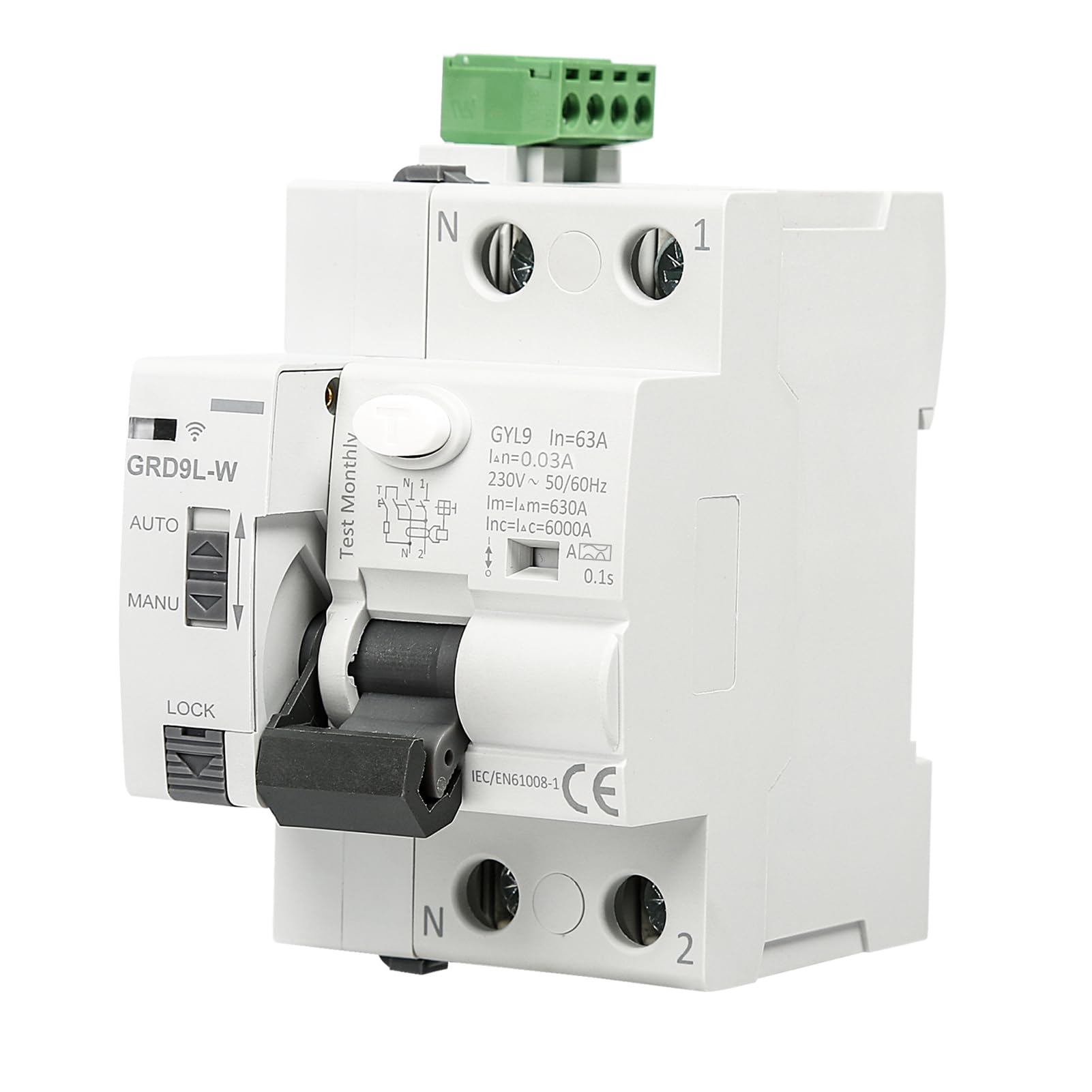
Image: Front view illustrating wiring points and controls.

Image: Angled view highlighting the connection terminals.
6. Operation
6.1 Manual Operation
The operating handle allows for manual control of the circuit breaker. Push the handle up to the 'ON' position to close the circuit and down to the 'OFF' position to open it. In case of an electrical fault (overload, short circuit, or leakage), the breaker will trip, moving the handle to an intermediate position or fully down.
6.2 Operating Modes (AUTO/MANU)
The device features a mode selection switch:
- AUTO Mode: In this mode, the circuit breaker can be controlled remotely via the mobile application for both closing and opening operations.
- MANU Mode: In this mode, remote control instructions from the application are invalid. The circuit breaker can only be controlled manually using the physical operating handle.
6.3 Status Indicators
The integrated LED indicator provides visual feedback on the device's status:
- Green LED (Solid): Indicates a smooth and stable WiFi connection.
- Red LED (Solid): Indicates that the circuit breaker has tripped due to a malfunction (e.g., leakage, overload).
Image: Functions diagram illustrating operational states and indicators.
7. WiFi and App Control
The DEWIN Smart Circuit Breaker can be controlled remotely via a mobile application, offering convenience and enhanced monitoring capabilities. To use this feature:
- Download the App: Scan the QR code on the device or visit https://smartapp.tuya.com/tuyasmart to download the Tuya Smart app.
- Register/Log In: Create an account or log in to the Tuya Smart app.
- Add Device: Follow the in-app instructions to add your DEWIN Smart Circuit Breaker. This typically involves putting the device into pairing mode (refer to the app for specific steps, usually pressing a button for a few seconds).
- Connect to WiFi: Ensure your mobile device is connected to a 2.4GHz WiFi network. The app will guide you through connecting the circuit breaker to your home WiFi network.
- Remote Control: Once connected, you can remotely monitor the status of the circuit breaker, turn it ON/OFF, and manage settings from anywhere with an internet connection.
Note: When the circuit breaker trips due to a fault, manual app intervention is required to restore the closure. This is not an auto-reclosing breaker.
8. Maintenance
The DEWIN Smart Circuit Breaker requires minimal maintenance. Regular checks can help ensure its longevity and proper function:
- Visual Inspection: Periodically inspect the device for any signs of physical damage, loose connections, or discoloration.
- Cleaning: If necessary, gently clean the exterior of the device with a dry, soft cloth. Do not use abrasive cleaners or solvents.
- Function Test: It is recommended to periodically test the leakage protection function using the 'Test Monthly' button on the device, if available. Refer to the device markings for specific test instructions.
9. Troubleshooting
If you encounter issues with your DEWIN Smart Circuit Breaker, refer to the following common troubleshooting steps:
- Device not powering on: Check the main power supply and ensure all wiring connections are secure. Verify the auxiliary power (A1/A2) is correctly connected.
- Circuit breaker trips frequently: This indicates an electrical fault (overload, short circuit, or leakage). Identify and resolve the underlying electrical issue before attempting to reset the breaker. Consult a qualified electrician if needed.
- Cannot connect to WiFi:
- Ensure your router is broadcasting a 2.4GHz WiFi signal.
- Verify the WiFi password is correct.
- Move the device closer to the WiFi router or consider a WiFi extender.
- Reset the device to factory settings (refer to app instructions or device manual for specific reset procedure) and attempt pairing again.
- App control not working in AUTO mode: Ensure the mode selection switch on the device is set to 'AUTO'. Check WiFi connectivity (green LED should be solid).
- Red LED is on: This indicates a trip. Investigate the cause of the trip (e.g., appliance malfunction, wiring issue) and resolve it before manually resetting the breaker via the app or handle.
10. Warranty and Support
For warranty information and technical support, please refer to the documentation provided with your purchase or contact DEWIN customer service through their official channels. Keep your purchase receipt as proof of purchase for warranty claims.