
Nulea KM75
Nulea KM75 Advanced Ergonomic Wireless Keyboard and Mouse Combo User Manual
Model: KM75
Introduction
This manual provides detailed instructions for the setup, operation, and maintenance of your Nulea KM75 Advanced Ergonomic Wireless Keyboard and Mouse Combo. Please read this manual thoroughly before using the product to ensure optimal performance and longevity.
Package Contents
- Nulea KM75 Ergonomic Wireless Keyboard
- Nulea Ergonomic Wireless Mouse
- 2.4G USB Receiver (shared for keyboard and mouse)
- USB-C Charging Cable
- User Manual (this document)
Product Overview
Keyboard Features
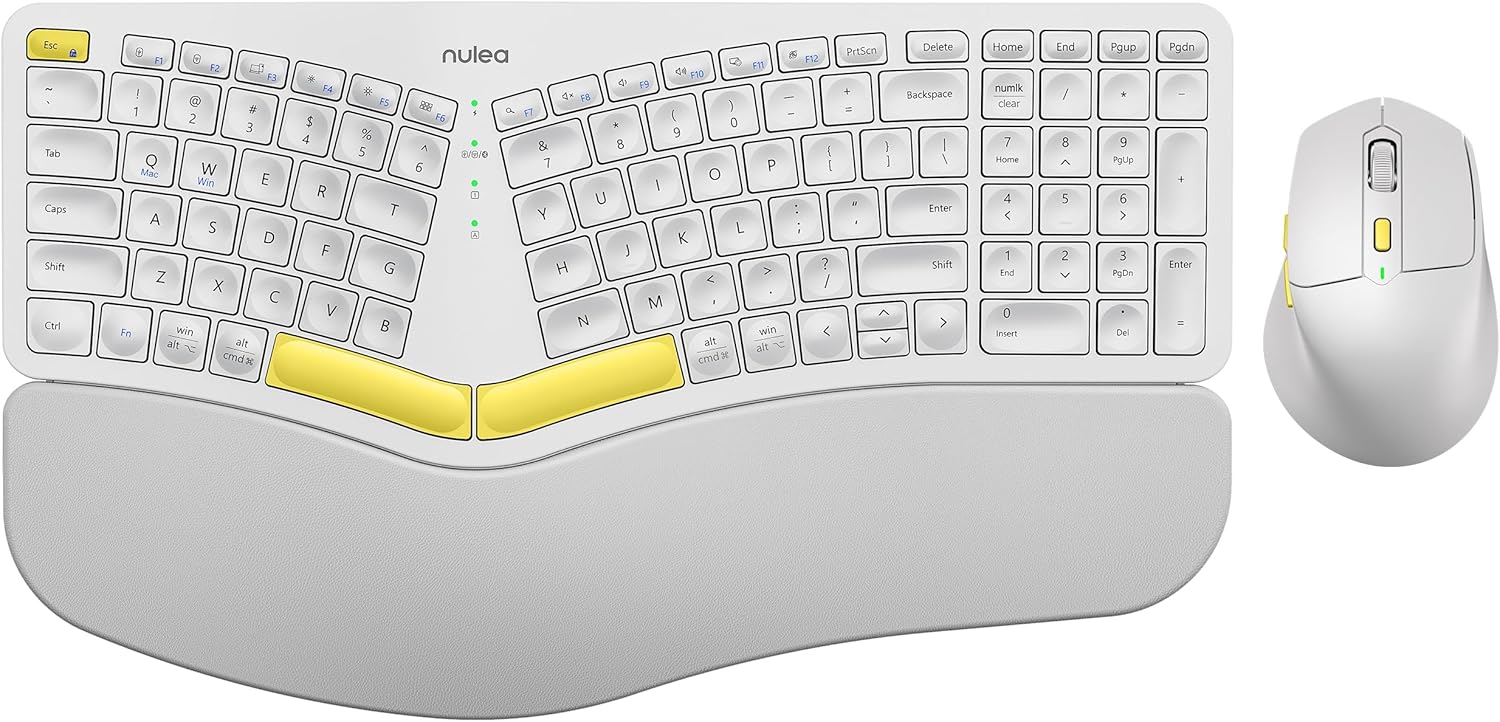
Image: The Nulea KM75 ergonomic keyboard and mouse combo. The keyboard features a curved and split layout with an integrated palm rest, and the mouse is sculpted for comfort. Both are white with yellow accents.
- Ergonomic Curved and Split Key-frame: Designed to position wrists and forearms naturally.
- Integrated Palm Rest: Features a soft memory foam layer for wrist support.
- Adjustable Tilt Design: Allows for optimal keyboard positioning.
- Multi-Device Connectivity: Supports USB cable, 2.4G USB receiver, and Bluetooth.
- Rechargeable Battery: 500mAh capacity with USB-C charging.
- Auto-Sleep Mode: Conserves power after 30 minutes of inactivity.
Mouse Features

Image: A close-up of the Nulea ergonomic mouse, showing its sculpted design for a natural hand posture with integrated palm and thumb rests. The mouse is white with yellow accents.
- Ergonomic Sculpted Design: Integrated palm and thumb rests for natural hand position.
- Adjustable DPI Settings: For precise cursor control.
- Forward/Backward Buttons: For convenient web navigation.
- Multi-Device Connectivity: Supports 2.4G USB receiver and Bluetooth.
- Rechargeable Battery: 300mAh capacity with USB-C charging.
- Auto-Sleep Mode: Conserves power after 30 minutes of inactivity.
Setup
1. Charging the Devices
Before initial use, fully charge both the keyboard and mouse using the provided USB-C cable. Connect the USB-C end to the device and the USB-A end to a power source (e.g., computer USB port, USB wall adapter).

Image: Illustration showing the keyboard and mouse connected via USB-C cables for charging. The keyboard has a 500mAh battery and the mouse has a 300mAh battery.
The indicator lights will show charging status and turn off when fully charged. A full charge provides approximately two months of operation.
2. Connecting via 2.4G USB Receiver
- Locate the 2.4G USB receiver. It is typically stored in a compartment on the underside of the mouse.
- Insert the USB receiver into an available USB-A port on your computer.
- Turn on the keyboard and mouse using their respective power switches.
- For the keyboard, press Fn + F2 to select 2.4G mode.
- For the mouse, switch the mode selector on the bottom to 2.4G.
- The devices should connect automatically.

Image: A close-up of the underside of the mouse, showing the storage compartment for the 2.4G USB receiver.
3. Connecting via Bluetooth
- Turn on the keyboard and mouse.
- For the keyboard, press Fn + F3 to select Bluetooth mode. The indicator light will blink, indicating pairing mode.
- For the mouse, switch the mode selector on the bottom to Bluetooth. The indicator light will blink.
- On your device (computer, tablet, smartphone), enable Bluetooth and search for new devices.
- Select "Nulea Keyboard" and "Nulea Mouse" from the list of available devices to pair.
- Follow any on-screen prompts to complete the pairing process.
4. Connecting via Wired Mode
- Connect the USB-C charging cable to the keyboard or mouse and the USB-A end to your computer.
- For the keyboard, press Fn + F1 to select wired mode.
- For the mouse, switch the mode selector on the bottom to wired mode.
- The devices will function as wired peripherals.

Image: Diagram illustrating the simple connectivity options for the Nulea KM75. Pressing Fn+F1 connects via wired, Fn+F2 via 2.4G, and Fn+F3 via Bluetooth, allowing connection to multiple devices like PCs, laptops, and mobile devices.
5. Switching Between Devices
The Nulea KM75 combo supports multi-device connectivity. You can switch between up to three connected devices (one wired, one 2.4G, one Bluetooth) by pressing the corresponding function keys on the keyboard (Fn + F1/F2/F3) and adjusting the mode selector on the mouse.
Operating Instructions
Keyboard Usage
- Ergonomic Design: The curved and split key-frame is designed for natural hand and wrist positioning. Allow some time to adapt to this layout for optimal comfort.
- Adjustable Tilt Legs: Located on the underside of the keyboard, these legs allow you to adjust the typing angle for personalized comfort.

Image: A user demonstrating the adjustable tilt legs of the Nulea KM75 keyboard, showing how to customize the typing angle for ergonomic comfort.
- Function Keys (Fn): Many keys have secondary functions accessible by holding down the Fn key and pressing the desired function key (e.g., media controls, volume). Refer to the keycap legends for specific functions.
Mouse Usage
- DPI Adjustment: Use the DPI switch button, usually located near the scroll wheel, to cycle through different sensitivity levels (DPI). This allows for precise control or faster cursor movement.

Image: A close-up of the Nulea ergonomic mouse, highlighting the DPI switch key and indicator light for adjusting cursor sensitivity.
- Side Buttons: The side buttons (typically on the left for right-handed users) are often pre-programmed for forward and backward navigation in web browsers or file explorers.
Maintenance
- Cleaning: Use a soft, dry cloth to clean the surfaces of the keyboard and mouse. For stubborn dirt, a slightly damp cloth with mild soap can be used, ensuring no liquid enters the device. Avoid harsh chemicals or abrasive materials.
- Battery Care: To prolong battery life, avoid fully discharging the devices frequently. Recharge when the low battery indicator appears. Store in a cool, dry place if not used for extended periods.
- Storage: When not in use, store the USB receiver in its designated compartment on the mouse to prevent loss.
Troubleshooting
- Device not connecting:
- Ensure both the keyboard and mouse are powered on.
- Verify the correct connection mode (2.4G, Bluetooth, Wired) is selected on both devices and your computer.
- For 2.4G, ensure the USB receiver is securely plugged into a working USB port.
- For Bluetooth, ensure Bluetooth is enabled on your device and the devices are in pairing mode. Try re-pairing if necessary.
- Ensure the devices are charged.
- Try restarting your computer and the devices.
- Lag or intermittent connection:
- Move the devices closer to the USB receiver or your computer to reduce interference.
- Avoid placing the receiver near other wireless devices or large metal objects.
- Ensure batteries are sufficiently charged.
- Keys not responding or mouse not moving:
- Check battery levels and recharge if necessary.
- Ensure the devices are properly connected (see "Device not connecting" above).
- Clean any debris from around the keys or mouse sensor.
Specifications
| Feature | Detail |
|---|---|
| Brand | Nulea |
| Model | KM75 |
| Connectivity | Bluetooth, 2.4G USB, Wired (USB-C) |
| Keyboard Battery | 500mAh Lithium |
| Mouse Battery | 300mAh Lithium |
| Compatible OS | Windows, Mac OS, Android |
| Special Features | Ergonomic design, Curved/Split key-frame, Integrated palm rest, Adjustable tilt, Adjustable mouse DPI |
| Item Weight | 4.2 pounds (combined) |
| Package Dimensions | 16.97 x 11.69 x 2.05 inches |
Warranty and Support
Nulea products are designed for reliability and performance. For warranty information, technical support, or customer service inquiries, please refer to the contact details provided on the Nulea official website or your purchase documentation. Please retain your proof of purchase for warranty claims.
Ask a question about this manual
Ask about setup, troubleshooting, compatibility, parts, safety, or missing instructions. Manuals+ will review the question and use this page’s manual context to help answer it.