
SUAAT S10
SUAAT S10 10-inch Android 14 Tablet User Manual
Model: S10
1. Introduction
This manual provides comprehensive instructions for the setup, operation, maintenance, and troubleshooting of your SUAAT S10 Android 14 Tablet. Please read this manual carefully before using your device to ensure proper functionality and to maximize your user experience.
2. Package Contents
Verify that all items listed below are included in your package. If any items are missing or damaged, please contact SUAAT customer support.
- SUAAT S10 Tablet
- Tablet Case
- Bluetooth Keyboard
- Mouse
- Type-C to USB Adapter
- Type-C Data Cable
- European Standard Charger
- OTG Adapter
- Screen Protector
- Instruction Manual (this document)

Figure 2.1: Included Package Contents
3. Product Overview
The SUAAT S10 tablet features a 10.1-inch IPS display, an Octa-Core processor, and runs on Android 14. It is designed for versatile use, from entertainment to productivity.
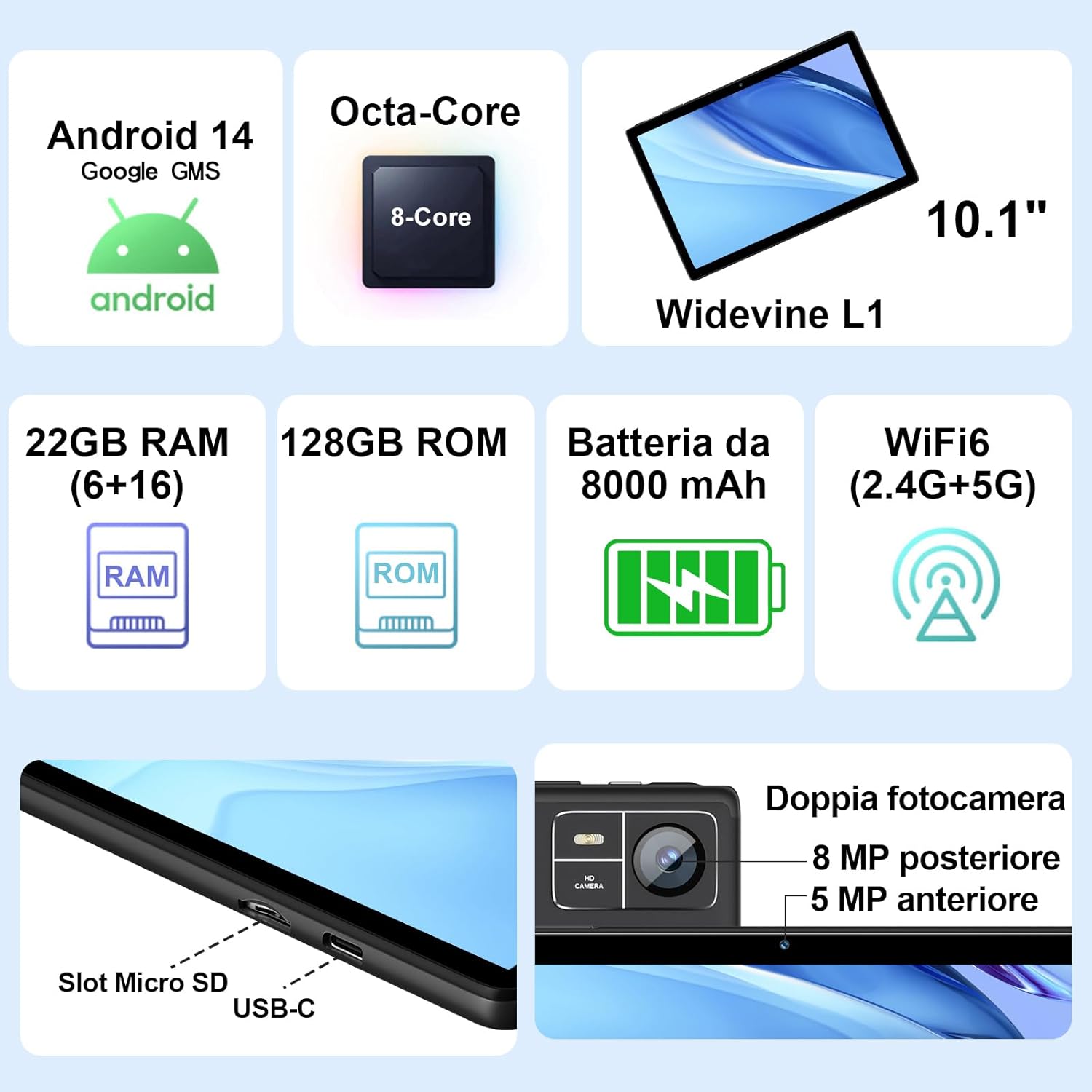
Figure 3.1: Key Features and Ports
3.1 Physical Features
- Display: 10.1-inch IPS screen (1280 x 800 resolution)
- Cameras: 5 MP Front Camera, 8 MP Rear Camera
- Ports: USB Type-C, MicroSD Card Slot
- Buttons: Power Button, Volume Up/Down
4. Setup
4.1 Initial Charging
Before first use, fully charge your tablet using the provided Type-C data cable and European standard charger. The battery indicator on the screen will show charging status.
4.2 Power On/Off
- To Power On: Press and hold the Power button until the SUAAT logo appears.
- To Power Off: Press and hold the Power button until the power options appear, then select "Power off".
- To Restart: Press and hold the Power button until the power options appear, then select "Restart".
4.3 Initial Setup Wizard
Upon first power-on, the tablet will guide you through the initial setup process:
- Select your preferred language.
- Connect to a Wi-Fi network.
- Sign in with your Google account or create a new one. This is necessary to access the Google Play Store and other Google services.
- Set up screen lock (PIN, pattern, or password).
- Review and accept Google services terms.
4.4 Inserting a MicroSD Card
The tablet supports MicroSD cards up to 1TB for expanded storage.
- Locate the MicroSD card slot on the side of the tablet.
- Gently insert the MicroSD card into the slot until it clicks into place. Ensure the card is oriented correctly.
- To remove, gently push the card in until it springs out.
4.5 Connecting Accessories (Keyboard and Mouse)
The included Bluetooth keyboard and mouse can be easily paired with your tablet.
- Go to Settings > Connected devices > Bluetooth on your tablet.
- Turn on the Bluetooth keyboard and mouse. Put them into pairing mode (refer to their individual manuals if needed).
- On the tablet, tap "Pair new device" and select the keyboard or mouse from the list of available devices.
- Follow any on-screen prompts to complete the pairing process.

Figure 4.1: Tablet with Keyboard and Mouse
5. Operating the Tablet
5.1 Android 14 Features
Your SUAAT S10 tablet runs on the latest Android 14 operating system, offering enhanced privacy, customizable themes, and improved performance.
- GMS Certified: Pre-installed Google Play Store allows easy download of your favorite apps.
- Privacy & Security: Enhanced privacy controls to manage app permissions and data access.
- Customization: Personalize themes and app icons.
- Productivity Features: Supports multi-users, multi-windows, and split-screen functionality for efficient multitasking.
- Parental Controls: Tools to manage content and screen time for children.
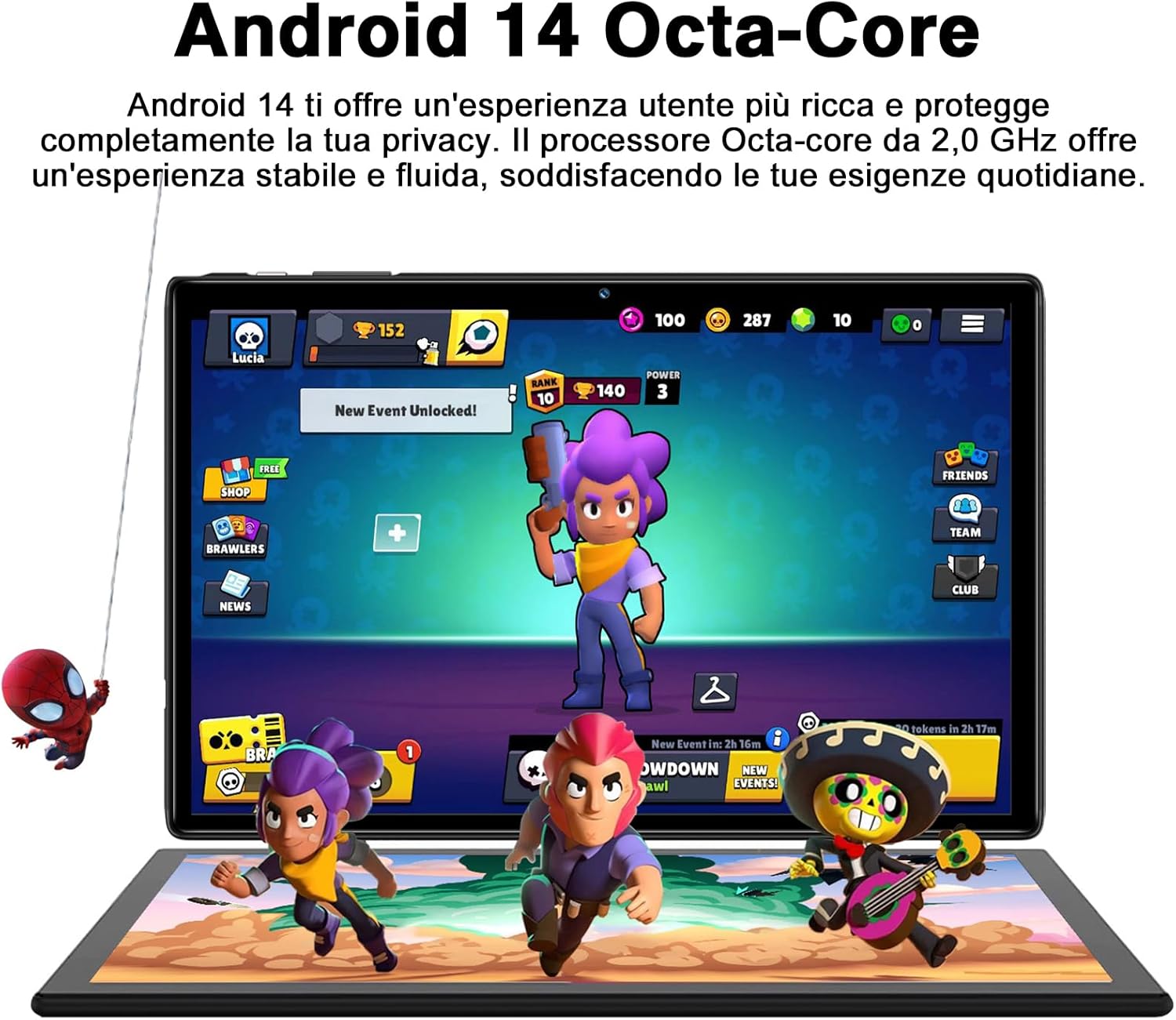
Figure 5.1: Android 14 Interface with Gaming Example
5.2 Display Features
The 10.1-inch IPS display provides clear visuals and rich colors.
- IPS Technology: Offers wide viewing angles and accurate color reproduction.
- WideVine L1 Support: Enables high-definition video streaming (up to 1280p) from platforms like YouTube and Netflix.

Figure 5.2: Displaying Apps on the IPS Screen
5.3 Camera Usage
The tablet is equipped with a 5 MP front camera and an 8 MP rear camera for photos and video calls.
- Open the Camera app from the home screen or app drawer.
- Switch between front and rear cameras using the camera icon.
- Tap the shutter button to take a photo or start/stop video recording.
- Explore various camera modes and editing options within the app.
5.4 Connectivity
- Wi-Fi: Supports 2.4GHz and 5GHz Wi-Fi for fast and stable internet connection. Access Wi-Fi settings via Settings > Network & internet > Internet.
- Bluetooth 5.0: Connect to Bluetooth headphones, speakers, printers, and other devices. Manage connections via Settings > Connected devices > Bluetooth.
- OTG (On-The-Go): Use the included OTG adapter to connect USB flash drives, external hard drives, or other USB peripherals.
- GPS: Integrated GPS for navigation and location-based services.
- FM Radio: Built-in FM receiver for listening to radio broadcasts.
5.5 Accessibility Features
The tablet includes features to assist users with different needs:
- Select to Speak: When enabled (Settings > Accessibility > Select to Speak), you can tap text on the screen, and the tablet will read it aloud.
- TalkBack: Provides spoken feedback for all actions and screen elements, allowing navigation without visual input. Supports Braille displays via Bluetooth. Enable via Settings > Accessibility > TalkBack.
5.6 File Transfer
You can easily transfer files between your tablet and other devices like computers or mobile phones.
- Via USB: Connect the tablet to a computer using the Type-C data cable. On the tablet, select "File transfer" from the USB connection options in the notification panel.
- Via Bluetooth: Pair with another Bluetooth-enabled device and use the file sharing option.
6. Maintenance
6.1 Cleaning
To clean your tablet, use a soft, lint-free cloth. For stubborn smudges, slightly dampen the cloth with water or a screen cleaner. Avoid using harsh chemicals or abrasive materials.
6.2 Battery Care
The 8000mAh battery provides extended usage. To prolong battery life:
- Avoid extreme temperatures.
- Do not let the battery completely drain frequently.
- Use the original charger and cable.
- Close unused apps running in the background.
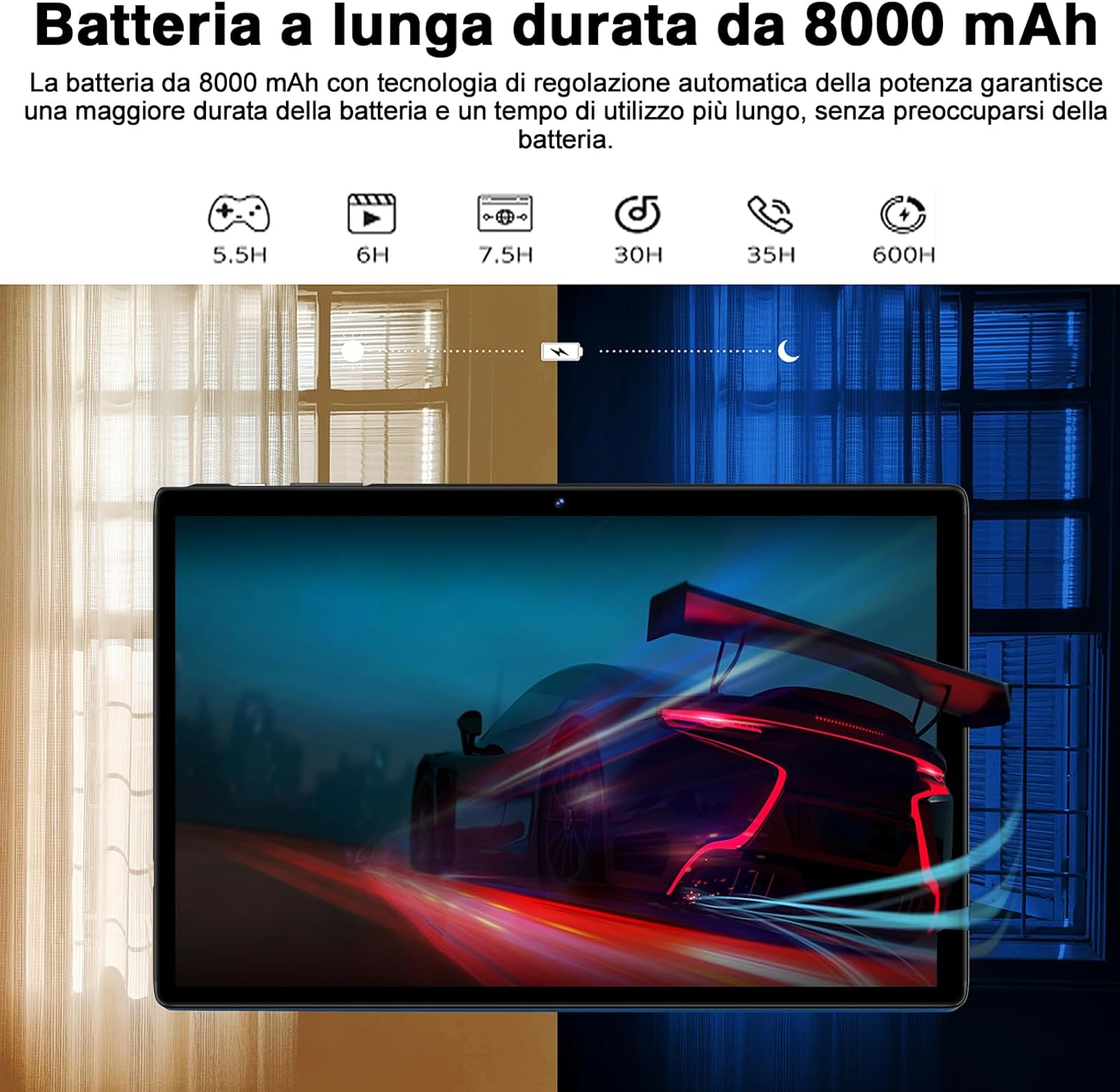
Figure 6.1: 8000mAh Battery Life Overview
6.3 Software Updates
Regularly check for system updates to ensure optimal performance and security. Go to Settings > System > System update.
7. Troubleshooting
| Problem | Possible Cause / Solution |
|---|---|
| Tablet does not turn on. | Battery might be depleted. Connect the charger and try again after a few minutes. If it still doesn't turn on, press and hold the power button for 10-15 seconds to force a restart. |
| Wi-Fi connection issues. | Ensure Wi-Fi is enabled. Restart your router and the tablet. Forget the network and reconnect. Check if other devices can connect to the same Wi-Fi. |
| Apps are crashing or freezing. | Close background apps. Clear the app's cache (Settings > Apps > [App Name] > Storage & cache > Clear cache). Update the app to the latest version. Restart the tablet. |
| Slow performance. | Close unused apps. Clear cache and temporary files. Uninstall unnecessary apps. Ensure sufficient storage space. Restart the tablet regularly. |
| Bluetooth device not pairing. | Ensure Bluetooth is enabled on both devices. Put the accessory in pairing mode. Make sure devices are within range. Restart both devices. |
8. Specifications
| Feature | Detail |
|---|---|
| Brand | SUAAT |
| Model | S10 |
| Operating System | Android 14 |
| Processor | Octa-Core, 2.0 GHz (Unisoc) |
| RAM | 22 GB (6GB physical + 16GB expansion) |
| Internal Storage (ROM) | 128 GB |
| Expandable Storage | Up to 1 TB via MicroSD card |
| Battery Capacity | 8000 mAh |
| Display Type | IPS |
| Screen Size | 10.1 inches |
| Display Resolution | 1280 x 800 pixels |
| Front Camera | 5 MP |
| Rear Camera | 8 MP |
| Wi-Fi | 2.4 GHz + 5 GHz (802.11ax) |
| Bluetooth | Bluetooth 5.0 |
| Interfaces | Type-C, MicroSD Card Slot |
| Special Features | GMS Certified, WideVine L1, OTG, FM Receiver, GPS |
| Dimensions (L x W x H) | 24.31 x 0.99 x 16.1 cm |
| Weight | 480 grams |
9. Warranty and Support
9.1 Warranty Information
SUAAT offers a 2-year European standard warranty for each tablet PC. This warranty covers manufacturing defects and ensures your product functions as intended under normal use.
9.2 Customer Support
SUAAT has over 15 years of experience in tablet manufacturing and sales, backed by a professional technical support and assistance team. We are committed to providing excellent pre-sales advice and after-sales service, including product technical support.
If you require any assistance or have questions, please do not hesitate to contact us. We aim to respond within 24 hours and provide satisfactory service.
For support, please refer to the contact information provided on the product packaging or SUAAT's official website.
10. Important Safety Information
- Do not expose the tablet to extreme temperatures, direct sunlight, or high humidity.
- Avoid dropping or subjecting the tablet to severe impact.
- Do not attempt to disassemble or repair the tablet yourself. This will void the warranty.
- Use only original or certified compatible chargers and accessories.
- Keep the tablet away from water and other liquids.
- Dispose of the tablet and its battery responsibly according to local regulations.
Related documentsS10


Ask a question about this manual
Ask about setup, troubleshooting, compatibility, parts, safety, or missing instructions. Manuals+ will review the question and use this page’s manual context to help answer it.