
1. Introduction
This manual provides essential information for setting up, operating, maintaining, and troubleshooting your MSI Prestige 13 AI+ Evo laptop. Designed for business professionals and users seeking high performance in a portable form factor, this laptop features an Intel Core Ultra 7 processor, Intel Arc Graphics, a 13.3-inch 2.8K OLED display, 32GB LPDDR5x RAM, and a 2TB NVMe SSD, running on Windows 11 Home.

Image: The MSI Prestige 13 AI+ Evo laptop, showcasing its sleek design and vibrant display.
2. Package Contents
Verify that all items are present in your product packaging:
- MSI Prestige 13 AI+ Evo Notebook
- Power Adapter (Charger)
- User Manual (this document)
If any items are missing or damaged, please contact your retailer or MSI customer support.
3. Setup
3.1 Initial Power-On
- Connect the Power Adapter: Plug the power adapter into the laptop's charging port (USB Type-C with PD 3.0 Charging) and then into a power outlet.
- Open the Laptop: Carefully lift the display lid.
- Power On: Press the power button, typically located on the keyboard deck. The laptop will begin its initial boot sequence.
3.2 Windows 11 Home Setup
Upon first boot, you will be guided through the Windows 11 Home setup process. Follow the on-screen instructions to configure your language, region, network settings, and user account.
Important Note: Some users have reported issues with initial Wi-Fi setup during the Windows 11 installation, potentially causing the update process to stall. If you encounter this, consider connecting a USB-C to Ethernet adapter for a wired internet connection to complete the updates successfully.
4. Operating Your Laptop
4.1 Power Management
- Power On: Press the power button.
- Sleep Mode: Close the lid or select "Sleep" from the Start Menu.
- Shut Down: Select "Shut down" from the Start Menu.
- Restart: Select "Restart" from the Start Menu.
4.2 Display
Your laptop features a 13.3-inch 2.8K OLED display with a resolution of 2880x1800 pixels. This OLED panel delivers stunning visuals with true blacks and vibrant colors, enhancing your viewing experience for both work and entertainment. The display operates at a 60Hz refresh rate.

Image: The laptop's 2.8K OLED display showcasing dynamic and vibrant colors.
4.3 Keyboard and Touchpad
The laptop is equipped with a comfortable, backlit keyboard for typing in various lighting conditions. The precision touchpad supports multi-touch gestures for intuitive navigation. Refer to Windows settings for customizing touchpad gestures.
4.4 Ports and Connectivity
The MSI Prestige 13 AI+ Evo offers a comprehensive selection of ports for your productivity needs:
- USB Type-C (Thunderbolt 4 / DP / PD 3.0 Charging): Two ports for high-speed data transfer, display output, and power delivery.
- USB 3.2 Gen 1 Type-A: One port for connecting standard USB devices.
- HDMI 2.1: Supports up to 8K resolution at 60Hz or 4K at 120Hz for external displays.
- microSD Card Reader: For convenient data transfer from memory cards.
- Audio Combo Jack: For connecting headphones or headsets.
- Kensington Lock Slot: For physical security.
Wireless connectivity includes the latest Wi-Fi 7 for fast and reliable internet access, and Bluetooth for connecting peripherals.

Image: Diagram illustrating the various input/output ports on the MSI Prestige 13 AI+ Evo laptop.
4.5 Webcam and Audio
The laptop features an IR 5MP camera with Spatial Array Microphone and 3D Noise Reduction+ technology, designed to enhance video call quality in various lighting conditions. For privacy, a physical webcam shutter is integrated. The system also supports Windows Hello for secure facial recognition login and is FIDO certified.
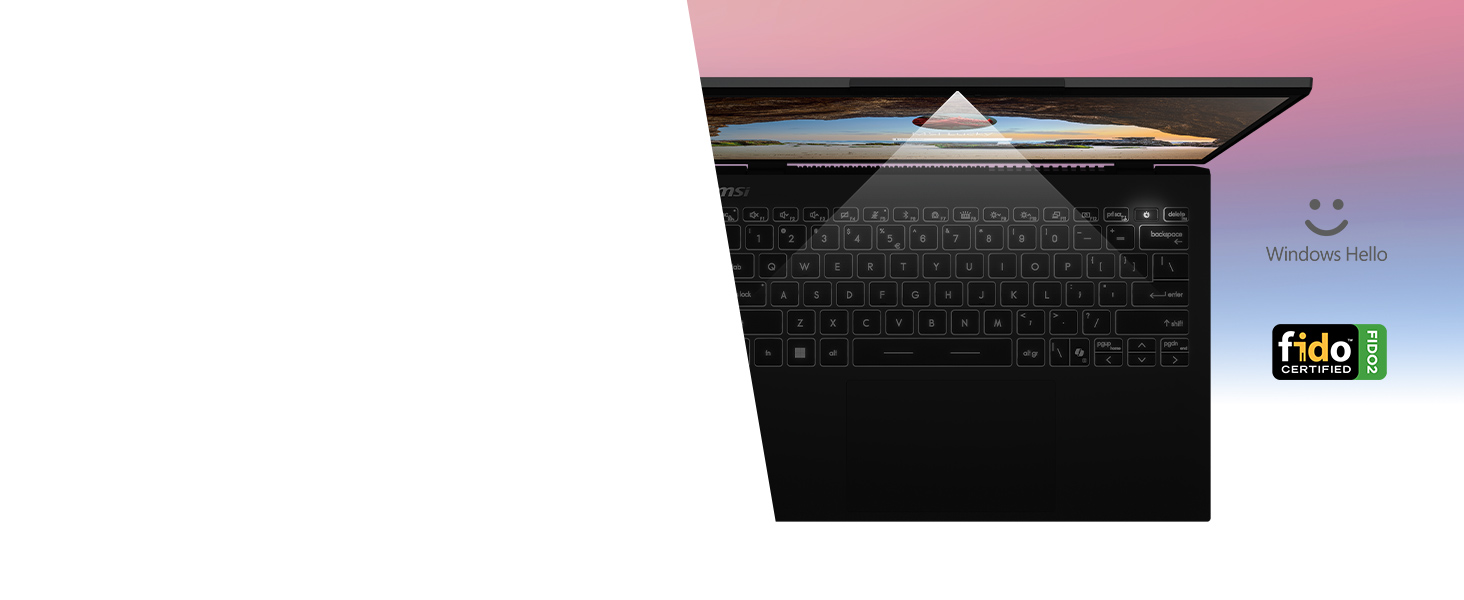
Image: The laptop's webcam area, highlighting features like Spatial Array Microphone, IR 5MP Camera, and 3D Noise Reduction+ for improved video conferencing.
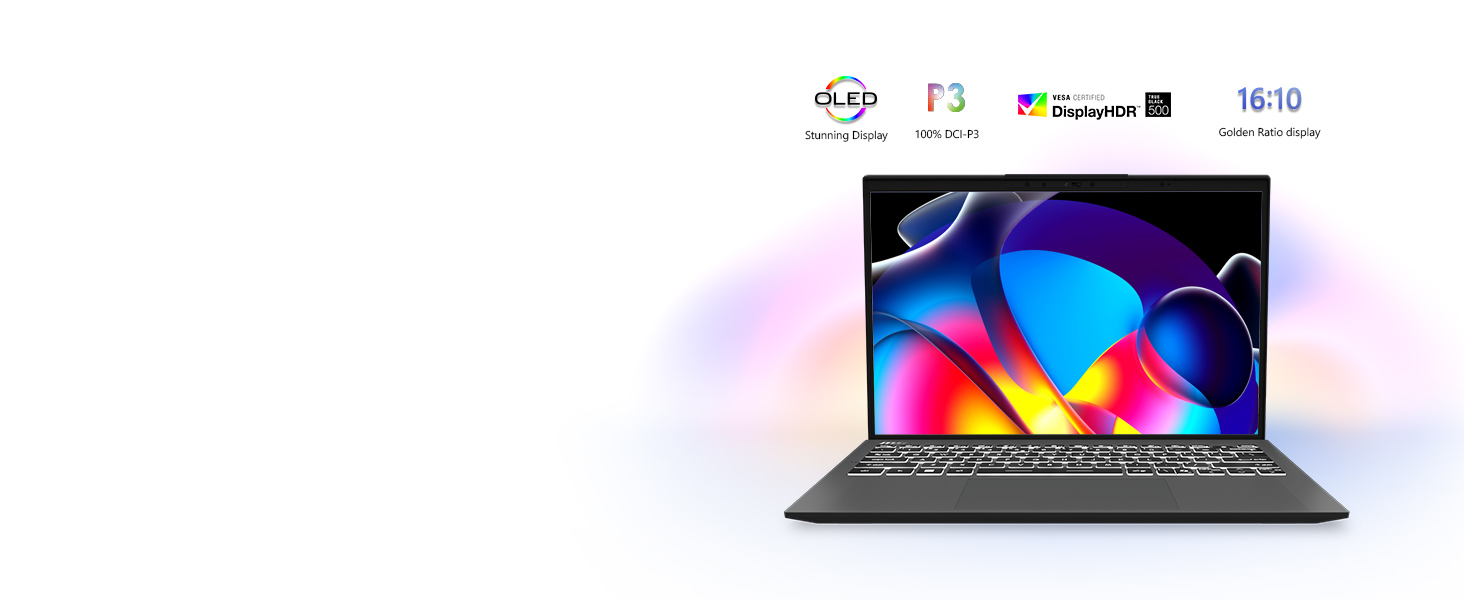
Image: A close-up view of the integrated physical webcam shutter, providing enhanced privacy.
4.6 AI Features
Powered by the Intel Core Ultra 7 processor with integrated NPU (Neural Processing Unit), the Prestige 13 AI+ Evo is designed to accelerate AI workloads. This enables features such as AI Painter, Live Translation, and Filter Effects, enhancing productivity and creativity with improved efficiency and speed.

Image: Visual representation of AI-powered features like AI Painter, Live Translation, and Filter Effects, alongside key specifications.

Image: Diagram illustrating the Intel Core Ultra 7 processor with its integrated NPU, highlighting its role in accelerating AI tasks.
5. Maintenance
5.1 Cleaning
- Screen: Use a soft, lint-free cloth lightly dampened with water or a screen cleaner. Avoid harsh chemicals.
- Keyboard and Chassis: Use a soft cloth. For dust in crevices, use compressed air.
5.2 Battery Care
- Avoid extreme temperatures.
- For optimal long-term health, avoid consistently discharging the battery to 0% or keeping it at 100% for extended periods.
- If storing the laptop for a long time, charge the battery to around 50-60%.
5.3 Software Updates
Regularly update your Windows operating system, drivers, and MSI software (e.g., MSI Center S) to ensure optimal performance, security, and access to the latest features.
6. Troubleshooting
- Laptop not powering on: Ensure the power adapter is securely connected to both the laptop and a working power outlet. Try a different outlet if necessary.
- Stuck during initial Windows setup (Wi-Fi issue): If the setup process stalls during Wi-Fi configuration or updates, try connecting a USB-C to Ethernet adapter for a wired internet connection to proceed.
- Poor Wi-Fi range or connectivity: Ensure your router is functioning correctly and within range. Update Wi-Fi drivers. Consider repositioning the laptop or router.
- Display issues (no image, flickering): Restart the laptop. If connected to an external monitor, try disconnecting it. Check display settings in Windows.
- Slow performance: Close unnecessary applications. Check for background processes. Ensure sufficient free storage space. Run a system scan for malware.
For persistent issues, consult the MSI support website or contact customer service.
7. Specifications
| Feature | Detail |
|---|---|
| Brand | MSI |
| Model Name | Prestige 13 AI+ Evo A2VMG-019US |
| Item Model Number | PRE13EVOA2019 |
| Operating System | Windows 11 Home |
| Screen Size | 13.3 Inches |
| Screen Resolution | 2880 x 1800 pixels (2.8K OLED) |
| Processor | Intel Core Ultra 7 (2.2 GHz) |
| RAM | 32 GB LPDDR5 |
| Hard Drive | 2 TB NVMe SSD (PCIE x 4) |
| Graphics Coprocessor | Intel Arc Graphics |
| Wireless Type | 802.11ax (Wi-Fi 7), Bluetooth |
| USB Ports | 2x Thunderbolt 4 (USB-C), 1x USB 3.0 (USB-A) |
| HDMI Port | HDMI 2.1 |
| Special Features | Backlit Keyboard, Fingerprint Reader, HD Audio, Lightweight |
| Item Weight | 5.48 pounds |
| Product Dimensions (LxWxH) | 11.77 x 0.67 x 8.27 inches |
| Color | Gray |
| Batteries | 1 Lithium Polymer battery (included) |
Note: Specifications are subject to change without prior notice. For the most up-to-date information, please refer to the official MSI website.
8. Warranty and Support
Your MSI Prestige 13 AI+ Evo laptop comes with a standard manufacturer's warranty. Please refer to the warranty card included in your package or visit the official MSI website for detailed warranty terms and conditions, including coverage period and service procedures.
For technical support, driver downloads, or further assistance, please visit the official MSI support website:
When contacting support, please have your laptop's model number (PRE13EVOA2019) and serial number ready.


