
1. Introduction
This manual provides essential information for the proper use and care of your SUAAT S3 10-inch Android 14 Tablet. Please read this manual thoroughly before operating the device to ensure optimal performance and longevity. Keep this manual for future reference.
2. Package Contents
Verify that all items listed below are included in your package. If any items are missing or damaged, please contact customer support.
- SUAAT S3 Tablet
- Tablet Case
- Screen Protector Film
- Keyboard
- Mouse
- Type-C to USB Adapter (OTG)
- Type-C Cable
- European Standard Charger
- SIM Ejector Pin
- User Manual

Image 2.1: All items included in the SUAAT S3 Tablet package.
3. Product Overview
The SUAAT S3 tablet features a sleek design with a 10-inch display and a robust set of accessories to enhance your user experience.

Image 3.1: SUAAT S3 Tablet and its accessories.
Key Features:
- Operating System: Android 14
- Processor: Octa-core 1.8 GHz (A523)
- RAM: 20GB (6GB physical + 14GB expansion)
- ROM: 128GB
- Display: 10.1-inch IPS, 1280 x 800 pixels
- Connectivity: Dual-band WiFi (2.4G/5G), Bluetooth 5.0
- Battery: 6000 mAh
- Certification: GMS Certified, Widevine L1
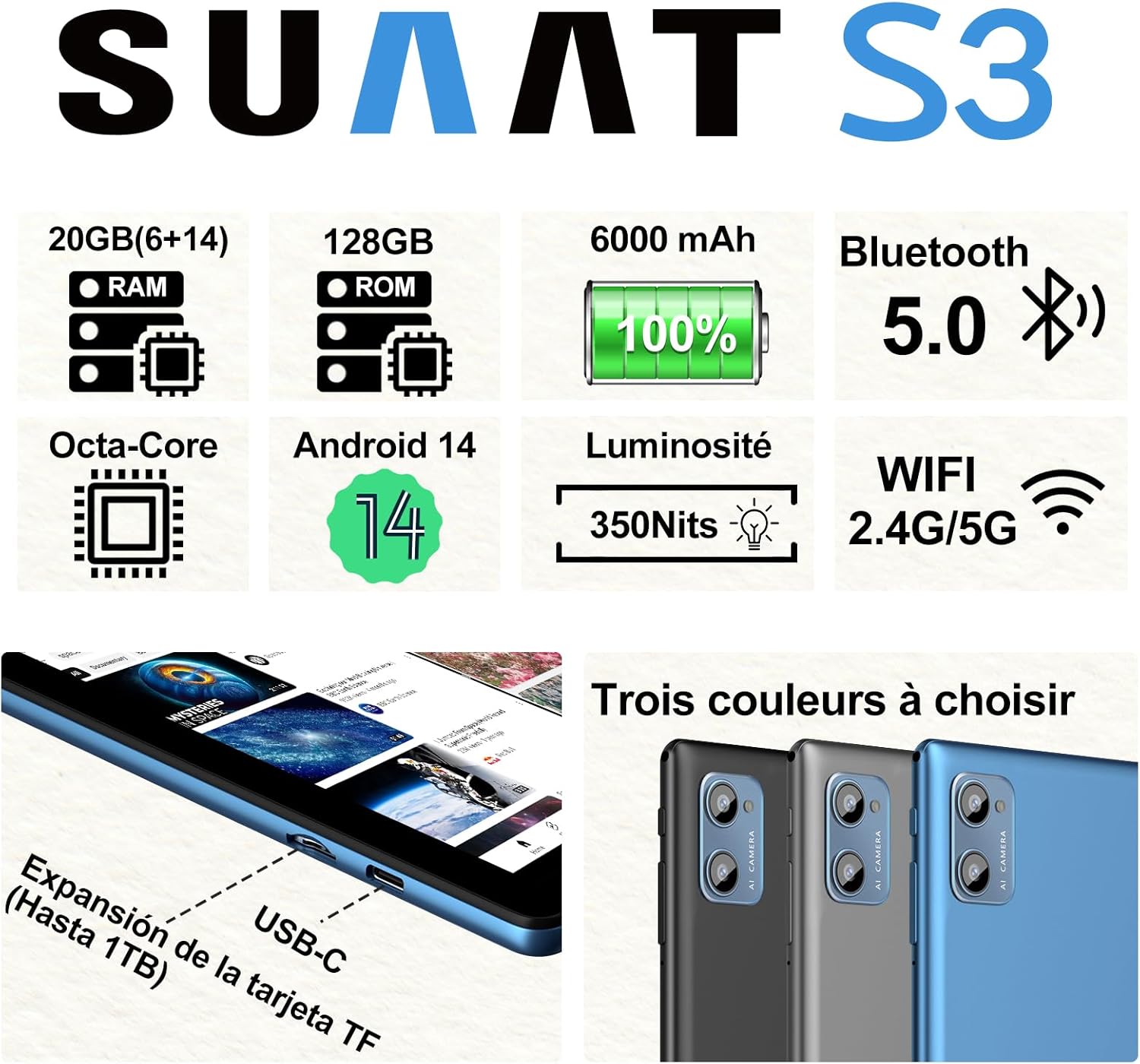
Image 3.2: SUAAT S3 Tablet key specifications.
4. Initial Setup
4.1 Charging the Tablet
Before first use, fully charge the tablet using the provided Type-C cable and European standard charger. The charging port is located on the side of the tablet.

Image 4.1: Tablet charging via USB-C.
4.2 Powering On/Off
- To Power On: Press and hold the Power button until the screen lights up.
- To Power Off: Press and hold the Power button, then select 'Power off' from the options on the screen.
- To Restart: Press and hold the Power button, then select 'Restart' from the options.
4.3 Initial Configuration
Upon first power-on, follow the on-screen prompts to set up your tablet. This includes selecting your language, connecting to a Wi-Fi network, setting up your Google account, and configuring security options.
5. Operating Instructions
5.1 Android 14 Features
Your SUAAT S3 tablet runs on Android 14, offering enhanced privacy, customization, and productivity features:
- Parental Controls: Manage screen time, app access, and content filters for children.
- Multi-Account Mode: Create separate user profiles for different users, each with their own apps, settings, and data.
- Split Screen Mode: Use two applications simultaneously by dividing the screen.
- Custom Themes: Personalize your tablet's appearance with various themes and wallpapers.
- Widgets: Add calendar, weather, and other widgets to your home screen for quick information access.

Image 5.1: Tablet in split-screen mode.
5.2 Basic Navigation
- Home Screen: Swipe left or right to navigate between home screens.
- App Drawer: Swipe up from the bottom of the screen to access all installed applications.
- Notifications & Quick Settings: Swipe down from the top of the screen to view notifications and access quick settings toggles.
- Recent Apps: Tap the square navigation button (or swipe up and hold from the bottom if using gesture navigation) to see recently opened applications.
6. Connectivity
6.1 Wi-Fi Connection
The tablet supports dual-band Wi-Fi (2.4G and 5G) for faster and more stable internet connectivity.
- Go to Settings > Network & internet > Wi-Fi.
- Toggle Wi-Fi On.
- Select your desired network from the list and enter the password if required.
6.2 Bluetooth Devices
Connect Bluetooth accessories like the included keyboard and mouse, or headphones, using Bluetooth 5.0.
- Go to Settings > Connected devices > Bluetooth.
- Toggle Bluetooth On.
- Ensure your Bluetooth device is in pairing mode.
- Select the device from the 'Available devices' list to pair.
6.3 Headphone Jack
A 3.5mm headphone jack is provided for wired audio connections.
7. Display and Multimedia
7.1 10.1-inch IPS Display
The tablet features a 10.1-inch IPS display with a resolution of 1280 x 800 pixels, offering clear and vibrant visuals with wide viewing angles.

Image 7.1: 10.1-inch IPS Display.
7.2 Widevine L1 Support
With Widevine L1 support, the tablet can stream high-definition content from popular streaming services, providing a clear and immersive viewing experience.
7.3 GMS Certification
The tablet is GMS (Google Mobile Services) certified, ensuring full access to the Google Play Store and all Google applications, along with robust security and privacy features.
8. Storage and Performance
8.1 RAM and ROM
The SUAAT S3 comes with 20GB of RAM (6GB physical + 14GB virtual expansion) and 128GB of internal storage (ROM). This ample memory allows for smooth multitasking and storage of numerous applications, videos, images, and files.

Image 8.1: Tablet showcasing large memory for apps and media.
8.2 Octa-Core Processor
Equipped with an Octa-core 1.8 GHz A523 processor, the tablet delivers stable and responsive performance for everyday tasks, gaming, and multimedia consumption.
8.3 Expandable Storage
The tablet supports expandable storage via a TF (microSD) card, allowing you to increase storage capacity up to 1TB for even more files and media.
9. Battery Management
9.1 Battery Capacity
The SUAAT S3 is powered by a 6000 mAh battery, providing extended usage time. Actual battery life may vary based on usage patterns and settings.
9.2 Charging Guidelines
- Use only the original charger and cable provided with the tablet.
- Avoid exposing the tablet to extreme temperatures during charging.
- Do not leave the tablet charging for excessively long periods after it has reached 100% to prolong battery health.
10. Maintenance
10.1 Cleaning the Tablet
- Use a soft, lint-free cloth to clean the screen and body of the tablet.
- For stubborn smudges, slightly dampen the cloth with water or a screen cleaner. Avoid harsh chemicals.
- Ensure the tablet is powered off and unplugged before cleaning.
10.2 Storage
When not in use for extended periods, store the tablet in a cool, dry place. Avoid direct sunlight and extreme temperatures.
10.3 Software Updates
Regularly check for and install software updates to ensure your tablet has the latest features, security patches, and performance improvements. Go to Settings > System > System update.
11. Troubleshooting
If you encounter issues with your SUAAT S3 tablet, refer to the following common solutions:
| Problem | Possible Solution |
|---|---|
| Tablet does not power on | Ensure the battery is charged. Connect the charger and wait a few minutes before attempting to power on again. |
| Screen is unresponsive | Restart the tablet. If the issue persists, perform a factory reset (data will be lost). |
| Cannot connect to Wi-Fi | Check if Wi-Fi is enabled in settings. Restart your router. Ensure you are entering the correct password. |
| Bluetooth device not pairing | Ensure Bluetooth is enabled on both devices and the accessory is in pairing mode. Try restarting both devices. |
| Apps are crashing or slow | Close background apps. Clear app cache (Settings > Apps > [App Name] > Storage > Clear cache). Ensure sufficient storage space. |
| Battery drains quickly | Reduce screen brightness. Disable unused features like Wi-Fi or Bluetooth. Close background apps. Check for power-intensive apps. |
If these solutions do not resolve the issue, please contact SUAAT customer support.
12. Specifications
| Feature | Detail |
|---|---|
| Brand | SUAAT |
| Model Number | S3 |
| Operating System | Android 14 |
| Processor | A523 Octa-core 1.8 GHz |
| RAM | 20 GB (6GB installed) |
| Storage (ROM) | 128 GB |
| Expandable Storage | Up to 1 TB via TF card |
| Screen Size | 10.1 Inches |
| Screen Resolution | 1280 x 800 pixels |
| Wireless Connectivity | Wi-Fi (802.11n, 2.4G/5G Dual-band) |
| Bluetooth | Bluetooth 5.0 |
| Connector Type | USB-C |
| Headphone Jack | 3.5mm |
| Battery Capacity | 6000 mAh |
| Dimensions (L x W x H) | 17 x 12 x 0.8 cm |
| Weight | 1.28 kilograms |
| Included Accessories | Keyboard, Mouse, Protective Case, Screen Protector |
13. Warranty and Support
SUAAT provides professional technical support and customer service for your S3 tablet. If you require assistance, have questions, or encounter any issues not covered in this manual, please contact our customer support team. Refer to your purchase documentation for specific warranty terms and contact information.


