
1. Introduction
This manual provides essential instructions for setting up, operating, and maintaining your SUAAT S10 10-inch Android 14 Tablet. Please read this manual thoroughly before using your device to ensure proper functionality and to maximize its lifespan. The SUAAT S10 tablet features an Octa-Core processor, 22GB RAM, 128GB ROM (expandable to 1TB), 5G+2.4G WiFi, Bluetooth 5.0, an 8000mAh battery, and an 8MP rear camera with a 5MP front camera.
2. Package Contents
Verify that all items listed below are present in your product package:
- SUAAT S10 Tablet
- Bluetooth Keyboard
- Wireless Mouse
- Protective Case
- Screen Protector (Tempered Glass)
- USB Type-C Charging Cable
- Power Adapter
- OTG Adapter
- SIM Ejector Pin (for microSD card slot)
- User Manual

Figure 2.1: Included accessories with the SUAAT S10 tablet.
3. Initial Setup
3.1 Charging the Tablet
Before first use, fully charge the tablet. Connect the USB Type-C charging cable to the tablet's charging port and the power adapter to a wall outlet. The charging indicator will show the charging status. A full charge typically takes several hours.
3.2 Powering On/Off
- To Power On: Press and hold the Power button until the screen lights up.
- To Power Off: Press and hold the Power button, then select "Power off" from the options on the screen.
- To Restart: Press and hold the Power button, then select "Restart" from the options on the screen.
3.3 Connecting to Wi-Fi
- Go to Settings > Network & internet > Wi-Fi.
- Toggle Wi-Fi On.
- Select your desired Wi-Fi network from the list.
- Enter the network password if prompted, then tap Connect.
3.4 Pairing Bluetooth Accessories (Keyboard & Mouse)
- Ensure the Bluetooth keyboard and mouse are powered on and in pairing mode (refer to their respective manuals for specific instructions).
- On your tablet, go to Settings > Connected devices > Bluetooth.
- Toggle Bluetooth On.
- Tap Pair new device.
- Select the keyboard or mouse from the list of available devices and follow any on-screen prompts to complete pairing.

Figure 3.1: SUAAT S10 tablet with keyboard and mouse accessories.
4. Operating the Tablet
4.1 Android 14 Interface
Your SUAAT S10 tablet runs on Android 14, offering a user-friendly interface. Navigate by tapping, swiping, and pinching the screen. The home screen provides quick access to applications and widgets. Swipe down from the top for notifications and quick settings.

Figure 4.1: Android 14 operating system on SUAAT S10.
4.2 Using the Cameras
The tablet is equipped with an 8MP rear camera and a 5MP front camera. Open the Camera application to capture photos and videos. Tap the screen to focus and press the shutter button to take a picture.

Figure 4.2: Camera features and sample images.
4.3 Media Consumption
The 10-inch display with 1920x1200 resolution and Widevine L1 support provides an optimal viewing experience for videos and other media. The 8000mAh battery supports extended usage for video playback, music, and gaming.

Figure 4.3: High-definition display of the SUAAT S10 tablet.
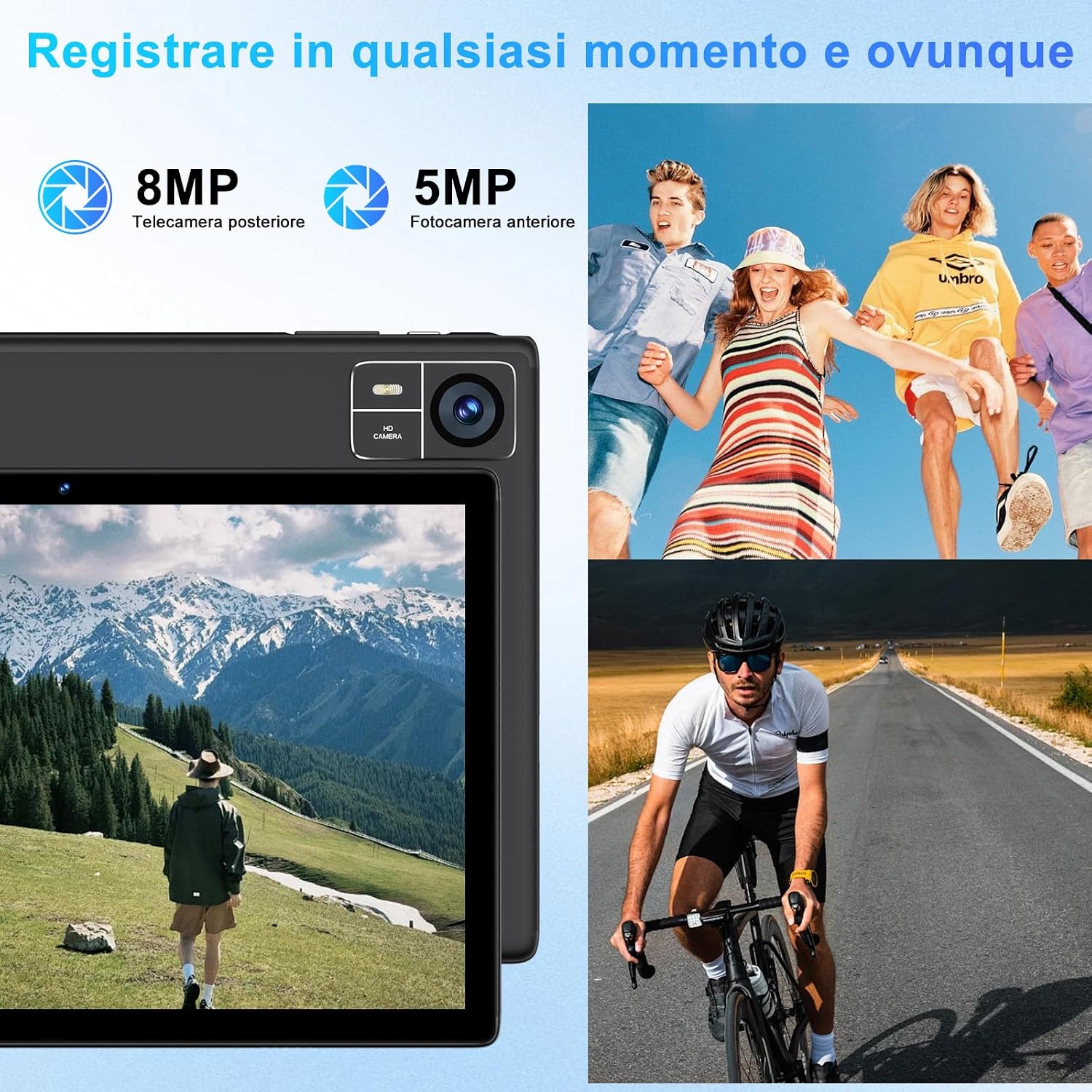
Figure 4.4: 8000mAh battery for extended use.

Figure 4.5: Tablet performance for media and applications.
5. Maintenance
5.1 Cleaning the Tablet
Use a soft, lint-free cloth to clean the screen and body of the tablet. Avoid using harsh chemicals or abrasive materials, which can damage the screen coating or finish. For stubborn smudges, slightly dampen the cloth with water or a screen-specific cleaning solution.
5.2 Battery Care
- Avoid exposing the tablet to extreme temperatures (hot or cold), as this can degrade battery performance.
- Do not leave the tablet fully discharged for extended periods.
- For optimal battery longevity, avoid constantly charging the tablet to 100% or letting it frequently drop to 0%.
5.3 Software Updates
Regularly check for and install software updates to ensure your tablet has the latest features, security patches, and performance improvements. Go to Settings > System > System update.
6. Troubleshooting
6.1 Tablet Not Turning On
- Ensure the tablet is sufficiently charged. Connect it to the charger for at least 30 minutes.
- Press and hold the Power button for 10-15 seconds to perform a forced restart.
6.2 Wi-Fi Connectivity Issues
- Check if Wi-Fi is enabled in Settings.
- Restart your Wi-Fi router and the tablet.
- Forget the network in Settings > Network & internet > Wi-Fi, then reconnect.
6.3 Slow Performance
- Close unnecessary background applications.
- Clear cache data for frequently used apps in Settings > Apps > [App Name] > Storage & cache.
- Ensure sufficient storage space is available. Delete unused files or apps.
- Restart the tablet.
6.4 Bluetooth Accessories Not Connecting
- Ensure the accessories are charged and in pairing mode.
- Check if Bluetooth is enabled on the tablet.
- Unpair and re-pair the accessories.
- Restart both the tablet and the accessories.
7. Specifications
| Feature | Specification |
|---|---|
| Brand | SUAAT |
| Model Number | S10 |
| Operating System | Android 14 |
| Processor Brand | Unisoc Octa-Core (2.0 GHz) |
| RAM | 22GB (Note: This typically includes virtual RAM expansion. Actual physical RAM may be lower.) |
| Internal Storage | 128GB |
| Expandable Storage | Up to 1TB via TF card (microSD) |
| Screen Size | 10 Inches |
| Display Resolution | 1920x1200 pixels (FHD) |
| Rear Camera | 8MP |
| Front Camera | 5MP |
| Battery Capacity | 8000mAh |
| Wireless Connectivity | 5G+2.4G WiFi (802.11ac, 802.11b, 802.11g, 802.11n), Bluetooth 5.0 |
| Connectivity Type | USB Type-C |
| Dimensions (L x W x H) | 17 x 12 x 0.8 cm |
| Special Features | Widevine L1 Support, Includes Keyboard and Mouse |
8. Warranty and Support
SUAAT is committed to providing professional technical assistance and 24-hour after-sales service. For any issues, questions, or warranty claims, please contact SUAAT customer support through the official channels provided with your purchase or on the SUAAT brand website.

Figure 8.1: SUAAT customer support details.

