
1. Introduction
This manual provides essential instructions for the setup, operation, and maintenance of your Dpofirs 5G MiFi 6 Mobile Hotspot Router. This portable device offers high-speed 5G connectivity, allowing up to 16 devices to connect simultaneously. It features a built-in SIM card slot and supports both 2.4GHz and 5.8GHz Wi-Fi 6 bands.
Please read this manual thoroughly before using the device to ensure optimal performance and safety.
2. Package Contents
- 1 x Dpofirs 5G MiFi 6 Mobile Hotspot Router
- 1 x USB Type-C Cable
- 1 x User Manual (this document)
Note: A SIM card is not included and must be purchased separately from your mobile network provider.
3. Device Overview

Figure 1: Front view of the Dpofirs 5G MiFi 6 Mobile Hotspot Router, showing LED indicators for signal strength and power.

Figure 2: Side view of the device, highlighting the USB Type-C charging port.

Figure 3: Top view showing the power button and WPS button.

Figure 4: The mobile hotspot device shown alongside its USB Type-C charging cable.
4. Setup
4.1. Charging the Device
- Connect the provided USB Type-C cable to the charging port on the device.
- Connect the other end of the USB cable to a compatible USB power adapter (not included) or a computer's USB port.
- The LED indicator will show charging status. Ensure the device is fully charged before first use.
4.2. Inserting a SIM Card
The Dpofirs 5G MiFi 6 Mobile Hotspot Router supports a hot-swappable SIM card function. Ensure the device is powered off before inserting or removing the SIM card for best practice.
- Locate the SIM card slot on the side of the device.
- Gently insert your activated Nano-SIM card into the slot with the gold contacts facing down and the notched corner aligned correctly.
- Push the SIM card in until it clicks into place.
4.3. Powering On/Off
- To Power On: Press and hold the Power button (refer to Figure 3) for approximately 3 seconds until the LED indicators light up.
- To Power Off: Press and hold the Power button for approximately 3 seconds until the LED indicators turn off.
5. Operating Instructions
5.1. Connecting Devices to the Hotspot
The hotspot supports connecting up to 16 devices simultaneously via Wi-Fi 6 (802.11 a/b/g/n/ac/ax) on both 2.4GHz and 5.8GHz bands.
- Ensure the hotspot is powered on and has an active SIM card with a data plan.
- On your Wi-Fi enabled device (phone, tablet, laptop, etc.), search for available Wi-Fi networks.
- Select the network name (SSID) of your Dpofirs hotspot. The default SSID and password are usually found on a label inside the device or on the packaging.
- Enter the Wi-Fi password when prompted.
- Your device should now be connected to the internet via the hotspot.
5.2. Using WPS (Wi-Fi Protected Setup)
WPS allows for a quick and easy connection to your Wi-Fi network without entering the password manually.
- Press the WPS button on the hotspot (refer to Figure 3).
- Within 2 minutes, activate WPS on your client device (e.g., by pressing the WPS button on a Wi-Fi adapter or selecting the WPS option in your device's Wi-Fi settings).
- The devices will automatically connect.
5.3. Monitoring Device Status
The user-friendly LED lights on the device provide visual feedback on its status:
- Signal Strength Indicator: Shows the current cellular network signal strength.
- 4G/5G Indicator: Indicates the active network type (4G or 5G).
- Wi-Fi Indicator: Shows Wi-Fi activity.
- Battery Indicator: Displays the current battery level.
6. Maintenance
- Cleaning: Use a soft, dry cloth to clean the device. Avoid liquid cleaners or abrasive materials.
- Storage: Store the device in a cool, dry place away from direct sunlight and extreme temperatures.
- Battery Care: To prolong battery life, avoid fully discharging the battery frequently. Charge the device regularly.
- Protection: The device has an IP67 protective rating, making it resistant to dust and water immersion up to 1 meter for 30 minutes. However, avoid intentional exposure to water or harsh environments.
7. Troubleshooting
- No Internet Connection:
- Ensure the SIM card is correctly inserted and activated with a data plan.
- Check the signal strength indicator. If signal is weak or absent, move to an area with better network coverage.
- Restart the hotspot and your connected device.
- Cannot Connect to Wi-Fi:
- Verify the Wi-Fi password.
- Ensure the hotspot's Wi-Fi is enabled (check Wi-Fi indicator).
- Try connecting using WPS.
- Restart both the hotspot and the client device.
- Slow Connection Speed:
- Check the signal strength.
- Reduce the number of connected devices.
- Ensure no background applications are consuming excessive bandwidth on connected devices.
- Device Not Powering On:
- Ensure the battery is charged. Connect to a power source and wait a few minutes before attempting to power on again.
- Try a different USB Type-C cable and power adapter.
8. Specifications
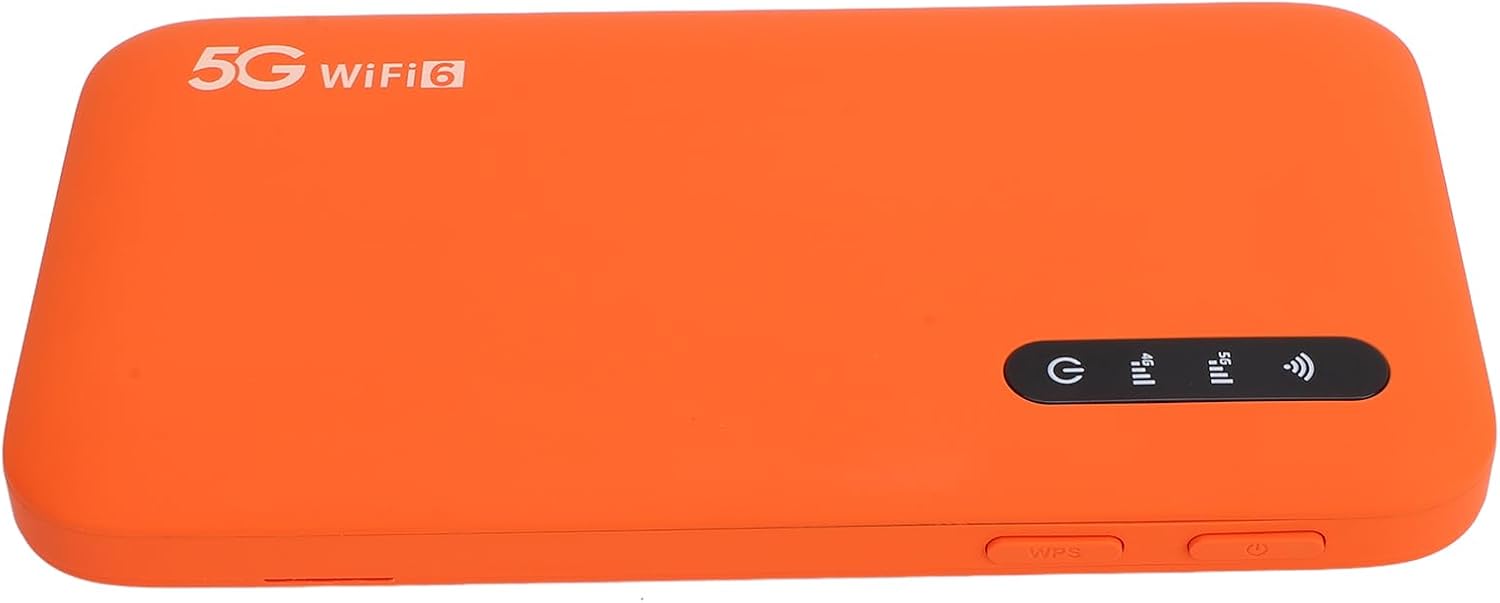
Figure 5: Dimensions of the Dpofirs 5G MiFi 6 Mobile Hotspot Router.
| Feature | Specification |
|---|---|
| Product Material | ABS |
| Dimensions (L x W x H) | Approx. 136 x 72 x 16mm (5.35 x 2.83 x 0.63 inches) |
| Item Weight | 9.7 ounces |
| Battery | Built-in Polymer Lithium Battery 6100mAh |
| Memory | LPDDR4X 4GB RAM + NAND 2GB ROM |
| Charging Port | USB Type-C |
| SIM Card Slot | Yes (Nano-SIM, card not included) |
| Cellular Network | 3GPP Rel.15, 5G NR, SA/NSA, Sub 6G/LTE Category 18 |
| 5G NR Band | FDD: N1/N3/N28, TDD: N41/N78 |
| 4G Band | FDD: B1/B3/B5/B8, TDD: B34/B38/B39/B40/B41 |
| 3G Band | B1 |
| Wi-Fi Band | WIFI6 2.4GHz, 5.8GHz |
| Wi-Fi Protocol | 802.11 a/b/g/n/ac/ax |
| NR Rate | 2.77Gbps (DL), 1.25Gbps (UL) |
| Max Wi-Fi Connections | Up to 16 Devices Simultaneously |
| IP Rating | IP67 (Dust and water resistant) |
| Operating System | Linux |
9. Warranty and Support
For warranty information and customer support, please refer to the documentation provided at the time of purchase or contact Dpofirs customer service directly. Keep your purchase receipt as proof of purchase.
For further assistance, visit the official Dpofirs website or contact their support channels.