
Introduction
This manual provides comprehensive instructions for the setup, operation, and maintenance of your Onn. 4-Piece Gaming Starter Kit. This kit includes a customizable gaming keyboard, a 7-button gaming mouse, an adjustable gaming headset, and an anti-fray mouse pad. Please read this manual thoroughly before using the product to ensure optimal performance and longevity.
Package Contents
Verify that all items listed below are present in your package:
- Customizable Full-Size RGB Gaming Keyboard
- 7-Button Gaming Mouse
- Adjustable Gaming Headset with Microphone
- Anti-Fray Gaming Mouse Pad
- User Manual (this document)

Image: All components of the Onn. 4-Piece Gaming Starter Kit, including the keyboard, mouse, headset, and mouse pad, laid out separately on a white background.
Setup Instructions
1. Gaming Keyboard Setup
- Locate an available USB port on your computer.
- Plug the USB connector of the gaming keyboard into the USB port.
- The operating system will typically install the necessary drivers automatically.
- For advanced customization of G-keys and LED lighting, refer to the manufacturer's website for any optional software downloads.
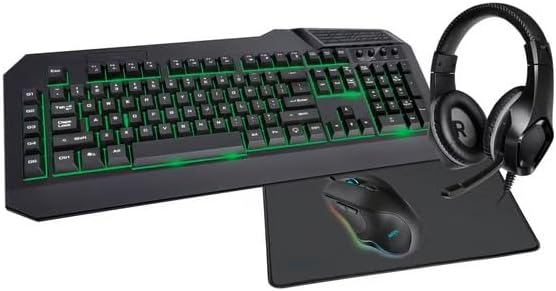
Image: The Onn. gaming keyboard with green LED backlighting, alongside the gaming mouse, headset, and mouse pad, illustrating the kit's integrated appearance.
2. Gaming Mouse Setup
- Locate an available USB port on your computer.
- Plug the USB connector of the gaming mouse into the USB port.
- The mouse should be recognized by your system.
- For programming the 7 buttons and customizing profiles, check the manufacturer's website for dedicated software.
3. Gaming Headset Setup
- The headset features two 3.5mm audio jacks (one for audio output, one for microphone input) and a USB connector for LED lighting.
- Plug the green 3.5mm jack into your computer's audio output port (usually marked with a headphone icon).
- Plug the pink 3.5mm jack into your computer's microphone input port (usually marked with a microphone icon).
- If your computer has a single combined 3.5mm audio jack, use the included Y-splitter adapter to connect both headset jacks to the single port.
- Plug the USB connector into an available USB port on your computer to power the headset's LED lighting.
- Adjust the headset's volume control located on the cable to your preferred level.
- Adjust the microphone position for clear communication.

Image: Close-up view of the headset's dual 3.5mm audio jacks (for audio and microphone) and the USB connector for LED power, along with a Y-splitter adapter.
4. Mouse Pad Placement
- Place the anti-fray mouse pad on a flat, stable surface where you intend to use your mouse.
- Ensure the surface is clean and free of debris for optimal mouse tracking.
Operating Instructions
Gaming Keyboard Functions
- Standard Typing: Use the keyboard as a standard input device for typing.
- Customizable G-Keys: The keyboard features dedicated G-keys. These keys can be programmed for specific in-game actions, macros, or shortcuts using the optional software from the manufacturer.
- LED Lighting: The keyboard includes customizable RGB LED backlighting. Specific key combinations (often Fn + a function key) or the optional software can be used to cycle through lighting modes, adjust brightness, or select specific colors. Refer to the software interface for detailed customization options.
Gaming Mouse Functions
- Standard Navigation: Use the left and right click buttons and scroll wheel for general computer navigation.
- Programmable Buttons: The mouse has 7 programmable buttons. These can be assigned various functions, macros, or key binds through the optional software to enhance gameplay.
- DPI Adjustment: The mouse features adjustable DPI (Dots Per Inch) settings, allowing you to change cursor sensitivity on the fly. There is typically a dedicated button on the mouse to cycle through preset DPI levels. Higher DPI means faster cursor movement.
- Customizable Profiles: Create and save up to 5 customizable profiles using the optional software, allowing quick switching between different button configurations and DPI settings for various games or applications.
Gaming Headset Functions
- Audio Output: Provides stereo audio for games, music, and other media.
- Microphone Input: Enables voice communication in games, voice chat applications, or for recording. Ensure the microphone is positioned correctly near your mouth.
- In-line Volume Control: Use the physical dial on the headset cable to adjust the audio volume.
- Microphone Mute Switch: An in-line switch allows you to quickly mute or unmute the microphone.
- LED Lighting: The headset features LED lighting powered via its USB connection. This lighting is typically static or cycles automatically and cannot be customized.
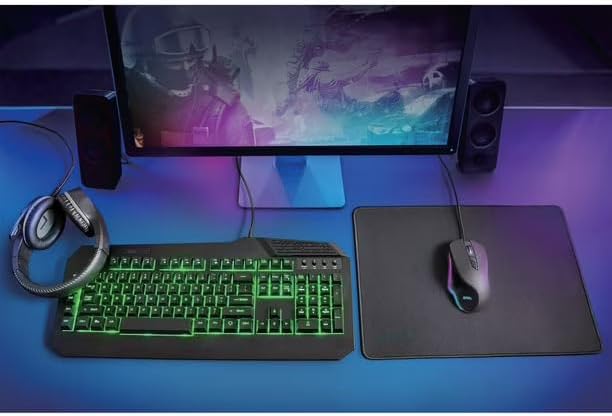
Image: A complete gaming setup featuring the Onn. keyboard with green backlighting, mouse, and headset, positioned in front of a monitor displaying a game, demonstrating the kit in an operational environment.
Maintenance
- Cleaning:
- Keyboard: Use a soft, dry cloth to wipe the surface. For dust between keys, use compressed air. Avoid liquid cleaners directly on the keyboard.
- Mouse: Wipe with a soft, slightly damp cloth. Ensure no moisture enters the internal components. Clean the optical sensor area gently.
- Headset: Wipe earcups and headband with a soft, dry cloth. Do not immerse in water.
- Mouse Pad: Can be gently hand-washed with mild soap and water, then air-dried completely.
- Storage: Store all components in a cool, dry place away from direct sunlight and extreme temperatures.
- Cable Management: Avoid sharp bends or kinks in cables to prevent damage.
Troubleshooting
- Device Not Recognized:
- Ensure USB cables are securely plugged into working USB ports.
- Try a different USB port on your computer.
- Restart your computer.
- Check your computer's Device Manager to see if the device is listed or has driver issues.
- Keyboard Keys Not Responding:
- Check for physical obstructions under the keys.
- Ensure the keyboard is properly connected.
- If specific keys are not working, it might indicate a hardware issue.
- Mouse Cursor Not Moving/Erratic:
- Ensure the mouse is properly connected.
- Clean the optical sensor on the underside of the mouse.
- Ensure the mouse pad surface is clean and even.
- Try adjusting the DPI settings.
- No Audio from Headset:
- Check if the green 3.5mm audio jack is fully inserted into the correct port.
- Ensure the in-line volume control is turned up.
- Verify audio output settings in your computer's sound control panel.
- Test with another audio device to confirm computer's audio output is working.
- Microphone Not Working:
- Check if the pink 3.5mm microphone jack is fully inserted into the correct port.
- Ensure the in-line microphone mute switch is not engaged.
- Verify microphone input settings in your computer's sound control panel and in any communication software (e.g., Discord, Zoom).
- Ensure the microphone is positioned correctly.
- LED Lighting Not Working:
- For keyboard, ensure it is connected and try cycling through lighting modes.
- For headset, ensure the USB connector is plugged into a working USB port.
- Check if any software settings are disabling the lighting.
Specifications
| Feature | Detail |
|---|---|
| Brand | Wireless Warehouse (Onn.) |
| Model Number | ONA23HO011C |
| Kit Components | Gaming Keyboard, Gaming Mouse, Gaming Headset, Mouse Pad |
| Keyboard Type | Full-Size, Mechanical |
| Keyboard Features | Customizable RGB LED Lighting, Customizable G-Keys |
| Mouse Buttons | 7 Programmable Buttons |
| Mouse Detection Technology | Optical |
| Mouse Features | Adjustable DPI, 5 Customizable Profiles |
| Headset Features | Adjustable, LED Lighting, Integrated Microphone, In-line Volume/Mute |
| Connectivity | USB (Keyboard, Mouse, Headset LED), 3.5mm Audio Jacks (Headset Audio/Mic) |
| Compatible Devices | Personal Computer |
| Material Type | Plastic |
| Power Source | Corded Electric (USB Powered) |
| Batteries Required | No |
| Parcel Dimensions | 53.2 x 26.7 x 13 cm |
| Item Weight | 2.71 kg |
Warranty and Support
For warranty information, please refer to the documentation provided at the time of purchase or visit the official website of Wireless Warehouse or your retailer. For technical support or further assistance, please contact the customer service department of Wireless Warehouse or your product retailer.
Manufacturer: Wireless Warehouse
Place of Business: China