
Wireless Warehouse ONA23HO018C
Onn. RGB Mechanical Compact Tenkeyless Gaming Keyboard
Model: ONA23HO018C | Brand: Wireless Warehouse
Introduction
Thank you for choosing the Onn. RGB Mechanical Compact Tenkeyless Gaming Keyboard. This manual provides essential information for setting up, operating, maintaining, and troubleshooting your new keyboard. Designed for optimal gaming performance, this keyboard features responsive mechanical switches, customizable RGB lighting, and a durable, compact design.
Safety Information
- Keep the keyboard away from liquids and excessive moisture to prevent damage.
- Avoid extreme temperatures. Do not expose the keyboard to direct sunlight or heat sources.
- Do not attempt to disassemble or modify the keyboard. This may void the warranty and cause damage.
- Use only a dry, soft cloth for cleaning. Avoid abrasive cleaners or solvents.
- Ensure the USB cable is not pinched or tangled to prevent damage to the cable or port.
Package Contents
Please check the package contents to ensure all items are present:
- Onn. RGB Mechanical Compact Tenkeyless Gaming Keyboard (Model: ONA23HO018C)
- Integrated USB Cable (6 ft./1.8 m)
- User Manual (this document)
Setup
Unpack the Keyboard:
Carefully remove the keyboard from its packaging.

Image: Top-down view of the Onn. RGB Mechanical Compact Tenkeyless Gaming Keyboard, showing the 87-key layout.
Connect to Your Device:
Locate an available USB port on your computer or laptop. Insert the USB connector of the keyboard's integrated cable into the USB port. The keyboard is plug-and-play and does not require additional drivers for basic functionality.
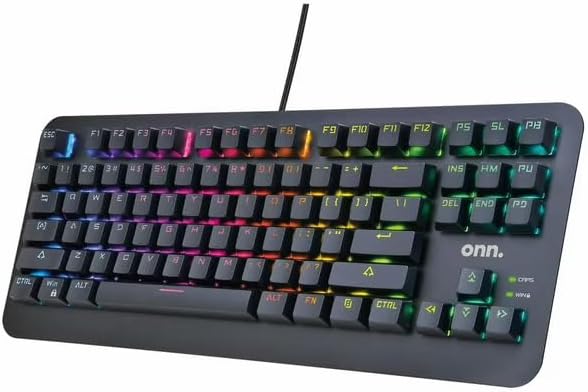
Image: The Onn. RGB Mechanical Compact Tenkeyless Gaming Keyboard with its RGB backlighting active, connected to a device.
Adjust Keyboard Feet (Optional):
On the underside of the keyboard, you will find two foldable feet. You can extend these feet to adjust the typing angle for improved ergonomics.
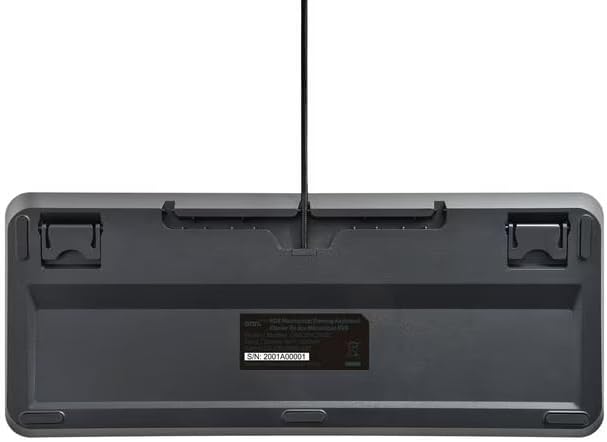
Image: Underside of the keyboard, highlighting the two foldable feet that can be extended for an angled typing position.
Operating Instructions
Basic Functionality
The Onn. RGB Mechanical Gaming Keyboard functions as a standard USB keyboard. Simply connect it to your computer, and it will be ready for use. The 87-key layout provides all essential keys for typing and gaming in a compact form factor.
RGB Backlighting Control
This keyboard features customizable RGB backlighting with multiple lighting modes. Use the function keys (Fn) in combination with specific keys to control the lighting effects.
- Fn + [Key]: Specific key combinations will cycle through various lighting modes, adjust brightness, or change color patterns. Refer to the keycap legends for specific lighting control functions (e.g., Fn + INS, HM, PU, DEL, END, PD).
- Brightness Adjustment: Typically controlled by Fn + Up/Down arrow keys or similar combinations.
- Speed Adjustment: Typically controlled by Fn + Left/Right arrow keys for dynamic lighting effects.

Image: A close-up of the keyboard's keycaps, showing the clear legends and the mechanical switch design underneath.
Anti-Ghosting and N-Key Rollover
The keyboard is equipped with anti-ghosting technology, ensuring that multiple simultaneous key presses are registered accurately. This is crucial for fast-paced gaming where complex key combinations are common.

Image: The Onn. RGB Mechanical Gaming Keyboard integrated into a typical gaming setup, alongside a gaming mouse and headphones, demonstrating its compact size and illuminated keys.
Maintenance
Cleaning the Keyboard
- Disconnect the keyboard from your computer before cleaning.
- Use a soft, lint-free cloth slightly dampened with water or a mild cleaning solution to wipe down the keycaps and chassis.
- For dust and debris between keys, use compressed air or a small brush.
- Do not spray cleaning solutions directly onto the keyboard.
- Ensure the keyboard is completely dry before reconnecting it.
Storage
When not in use for extended periods, store the keyboard in a cool, dry place, away from direct sunlight and extreme temperatures.
Troubleshooting
| Problem | Possible Cause | Solution |
|---|---|---|
| Keyboard not responding | Loose USB connection, faulty USB port, driver issue. | Ensure the USB cable is securely plugged in. Try a different USB port. Restart your computer. |
| RGB lighting not working | Lighting mode turned off, brightness set to minimum. | Press Fn + lighting control keys to cycle through modes or increase brightness. |
| Keys not registering or ghosting | Software conflict, physical debris under keycap. | Ensure no background applications are interfering. Clean the keyboard with compressed air. |
Specifications
- Model Name: onn. RGB Mechanical Keyboard
- Model Number: ONA23HO018C
- Keys: 87 (Tenkeyless)
- Switch Type: Mechanical (Blue switches, tactile and clicky)
- Backlighting: RGB, customizable
- Anti-Ghosting: Yes
- Connectivity: USB (Corded Electric)
- Cable Length: 6 ft. / 1.8 m
- Material: Metal (backplate)
- Compatible Devices: Laptop, PC
- Dimensions (approx.): 37.06 x 15.29 x 3.99 cm
- Weight (approx.): 700 g

Image: Side profile of the keyboard, illustrating its ergonomic angle and the height of the mechanical keycaps.
Warranty and Support
For warranty information and technical support, please contact Wireless Warehouse customer service. Keep your purchase receipt as proof of purchase for warranty claims.
- Brand: Wireless Warehouse
- Manufacturer: Wireless Warehouse
- Contact Information: Please refer to the contact details provided on the product packaging or the official Wireless Warehouse website for the most up-to-date support information.
Ask a question about this manual
Ask about setup, troubleshooting, compatibility, parts, safety, or missing instructions. Manuals+ will review the question and use this page’s manual context to help answer it.