
1. Introduction
This manual provides detailed instructions for the setup, operation, and maintenance of your Doslnlya GF12 Multifunction 12 Channel Audio Mixer. Please read this manual thoroughly before using the device to ensure proper functionality and to maximize its performance. Retain this manual for future reference.

Image 1.1: Front view of the Doslnlya GF12 Multifunction 12 Channel Audio Mixer, showcasing its 12 input channels, faders, knobs, and central display screen.
2. Product Overview
2.1 Key Features
- 12 Independent Audio Input Channels: Connect multiple audio sources such as microphones, instruments, and other audio devices.
- Independent Channel Adjustment: Each channel features preset gain control, audio balance control, EQ (equalizer), send effects (reverb, delay), and channel volume control.
- 7-Segment Equalizer Control: A balanced total volume adjustment for fine-tuning audio, providing accurate and clear sound quality.
- 99 DSP Effect Processor: Offers 99 digital signal processing effects to adapt to various audio environments and performance needs.
- USB/Bluetooth Functionality: Supports USB interface storage devices for playback and recording, and simple Bluetooth connectivity for music streaming.
- HD Dynamic Spectrum Display: Accurately shows the peak beat of the music and provides clear visual feedback, even in bright outdoor light.
- Individual Mute Buttons: Each channel is equipped with an independent mute button with an LED indicator.
2.2 Control Panel Layout
The GF12 mixer features a comprehensive control panel designed for intuitive operation. Familiarize yourself with the various inputs, outputs, and controls as illustrated below.

Image 2.1: Detailed diagram of the GF12 mixer's control panel, highlighting key components such as XLR/6.5 dual interfaces, gain adjustment, EQ knobs (treble, middle, bass), AUX controls, FX effect volume, sound balance, mute switches, monitoring switches, and volume faders.
Key components include:
- XLR/6.5 Dual Interface: For connecting microphones and instruments.
- Gain Adjustment: Controls the input sensitivity for each channel.
- Treble, Middle Tone, Bass Adjustment: 3-band equalizer for shaping the sound of each channel.
- AUX1/AUX2 Auxiliary Control Output: Sends signals to external effects processors or monitor mixes.
- FX Effect Volume Control: Adjusts the amount of effect applied to each channel.
- Sound Balance Control: Pans the sound left or right in the stereo field.
- Mute Switch: Silences individual channels.
- Monitoring Switch: Routes the channel signal to the headphones for pre-fader listening.
- Volume Fader: Controls the output level of each channel.
- Main Output Fader: Controls the overall output level.
- Reverberation Volume Pusher: Adjusts the overall reverb level.
- MP3 Volume Pusher: Controls the volume of the MP3 player.
- USB Flash Drive/Mobile OTG: Port for USB media.
- Effect Selection Switch: Navigates through the 99 DSP effects.
- Main Output 7-Stage Equalization: Graphic equalizer for the main mix.
3. Setup
3.1 Power Connection
- Ensure the mixer's power switch is in the OFF position.
- Connect the provided power adapter to the mixer's power input.
- Plug the power adapter into a standard 110V AC power outlet.
- Turn on the mixer using the power switch. The display and indicators will illuminate.
3.2 Connecting Audio Sources
The GF12 supports various audio input types:
- Microphones/Instruments: Use XLR or 1/4 inch (6.5mm) cables to connect microphones or instruments to the input channels (CH1-CH12).
- Line-Level Devices: Connect devices like keyboards or media players to the 1/4 inch line inputs.
- Tape Stereo Input: Use RCA cables to connect external audio sources such as CD players or tape decks to the TAPE IN (REC) ports.

Image 3.1: Close-up of the mixer's rear panel showing the TAPE STEREO INPUT (RCA), DUAL AUX AUXILIARY OUTPUT (XLR), and CANON/6.5 COMBINED INTERFACE (XLR/TRS combo jacks) for versatile connectivity.
3.3 Connecting Output Devices
- Main Output: Connect your main speakers or power amplifier to the LEFT and RIGHT MAIN OUT XLR or 1/4 inch jacks.
- Monitor/Headphone Output: Connect headphones to the PHONE jack for monitoring.
- AUX Outputs: Use AUX1 and AUX2 outputs to send signals to stage monitors or external effects processors.
- Active Subwoofer/Rebound Speaker: Connect to the dedicated MONO output or RETURN/PHONE output for separate volume control.

Image 3.2: Illustration showing the mixer's output connected to an active subwoofer and a rebound speaker, demonstrating the individually selectable control volume interface.
3.4 Bluetooth Connection
- Press the USB/BT button on the mixer's control panel.
- On your Bluetooth-enabled device (e.g., smartphone, tablet), search for available devices.
- Select "BT-Audio" from the list to pair.
- Once connected, you can stream audio from your device to the mixer.

Image 3.3: The mixer's HD dynamic spectrum display showing active Bluetooth connection and audio levels, alongside features like independent power supply and shunt mute control.
3.5 USB Playback/Recording
- Insert a USB flash drive into the USB port on the mixer.
- The mixer will automatically detect the USB device.
- Use the MP3 operation knob and function mode selection to navigate and play audio files.
- For recording, ensure your USB drive has sufficient space. The mixer supports direct recording to USB.
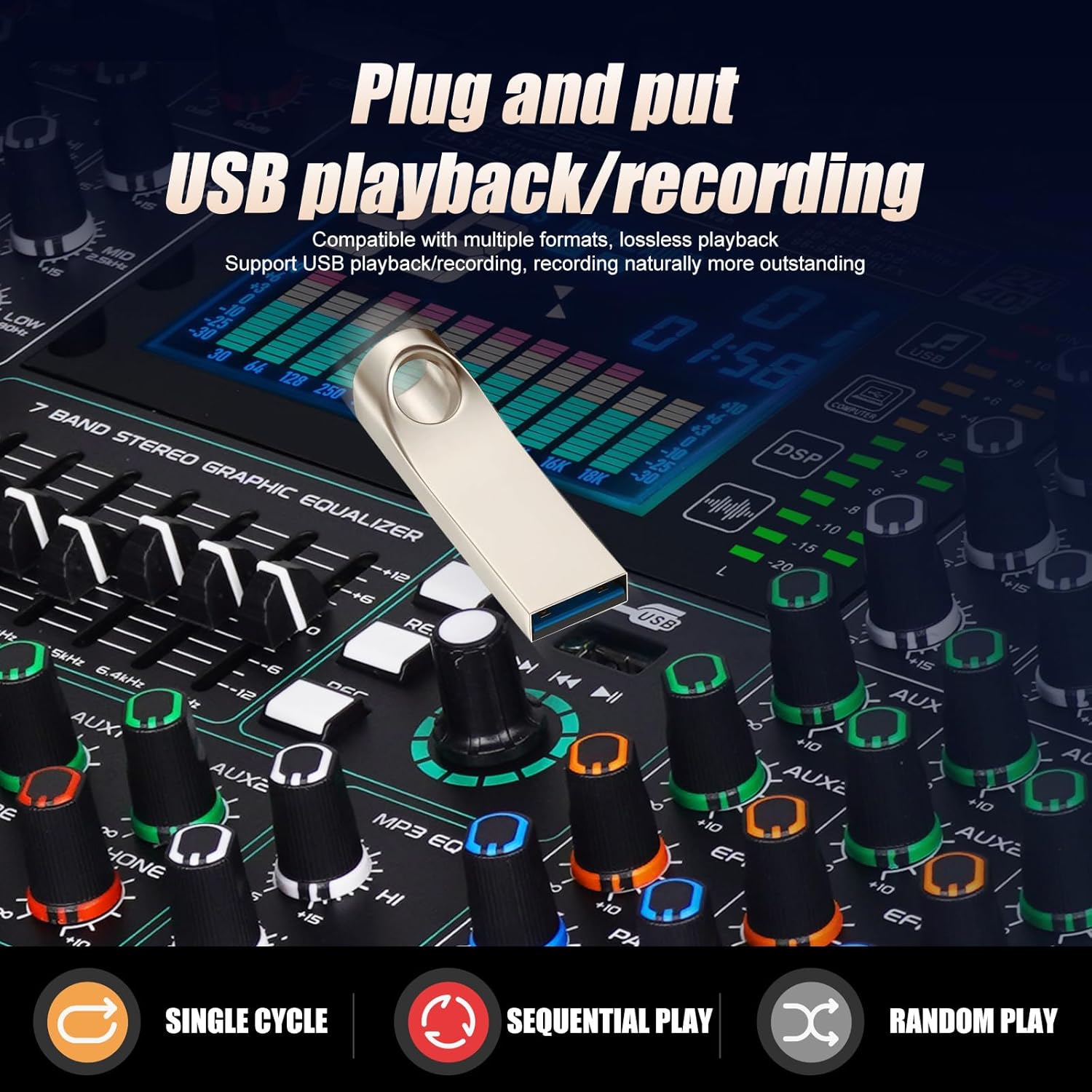
Image 3.4: The mixer's display showing USB playback interface with a USB drive connected, illustrating lossless audio connection.

Image 3.5: A USB flash drive inserted into the mixer's USB port, indicating support for USB playback and recording of multiple audio formats.
4. Operating Instructions
4.1 Channel Adjustment
Each of the 12 channels offers individual control over various parameters:
- Gain: Adjust the GAIN knob to set the input level for each microphone or instrument. Aim for a strong signal without clipping (distortion).
- Equalization (EQ): Use the HIGH, MID, and LOW knobs to adjust the treble, midrange, and bass frequencies for each channel.
- AUX Sends: The AUX1 and AUX2 knobs control the amount of signal sent from each channel to the respective auxiliary outputs.
- FX Send: The FX knob controls the amount of signal sent to the internal DSP effects processor.
- Pan: The PAN knob adjusts the stereo position (left to right) of the channel's signal in the main mix.
- Volume Fader: Use the channel fader to control the individual volume of each input in the main mix.
- Mute: Press the MUTE button to silence a channel. The LED indicator will change color (e.g., red for muted, blue for active).

Image 4.1: Detailed view of the individual mute buttons for each channel, showing LED indicators that change color to signify active or muted status.
4.2 Using the 7-Segment Equalizer
The main output features a 7-segment graphic equalizer to fine-tune the overall sound of your mix. Adjust the faders for each frequency band to shape the master output to suit your environment or preference.
4.3 Applying DSP Effects
The GF12 includes 99 built-in DSP effects. To select and apply an effect:
- Use the EFFECT SELECTION switch or knob to browse through the available effects (01-99). The display will show the selected effect number.
- Adjust the FX knob on individual channels to send the desired amount of signal to the effects processor.
- Control the overall effect return level using the dedicated REVERBERATION VOLUME PUSHER.

Image 4.2: The mixer's digital effects display showing the selected effect number (e.g., 99) and a dynamic spectrum analyzer, along with a list of effect categories like Reverb, Echo, Chorus, Flange, Tremolo, and MultiFX.
5. Maintenance
- Cleaning: Use a soft, dry cloth to clean the mixer's surface. Avoid abrasive cleaners or solvents.
- Dust Protection: Keep the mixer covered when not in use to prevent dust accumulation, which can affect faders and knobs.
- Storage: Store the mixer in a cool, dry place away from direct sunlight and extreme temperatures.
- Cable Management: Ensure cables are neatly organized and not under strain to prevent damage to connectors.
6. Troubleshooting
| Problem | Possible Cause | Solution |
|---|---|---|
| No sound output |
|
|
| Distorted sound |
|
|
| Bluetooth not connecting |
|
|
| Knobs/faders feel loose | Normal characteristic for this product's design. | This is generally a cosmetic observation and does not typically affect functionality. Handle with care during transport and operation. |
7. Specifications
- Model: GF12
- Brand: Doslnlya
- Number of Channels: 12
- Item Weight: 15.27 pounds (6.93 kg)
- Product Dimensions: 15.35"D x 17.12"W x 3.93"H (39cm D x 43.5cm W x 10cm H)
- Voltage: 110 Volts
- UPC: 762736654307

Image 7.1: Diagram illustrating the dimensions of the Doslnlya GF12 mixer: 54cm width, 39cm depth, and 10cm height. Note: The image indicates a weight of 8.05kg, while product specifications state 15.27 pounds (~6.93kg).
8. Warranty and Support
Specific warranty details are not provided in the product information. For warranty inquiries and technical support, please contact Doslnlya customer service through their official channels or the retailer where the product was purchased.
You can visit the Doslnlya Store on Amazon for more information and contact options.