
ORICO 9928RU3
ORICO RAID HDD Enclosure 3.5-inch 2-Bay 9928RU3 User Manual
Model: 9928RU3 | Brand: ORICO
1. Introduction
Thank you for choosing the ORICO 9928RU3 2-Bay RAID HDD Enclosure. This device is designed to provide a reliable and efficient solution for your data storage needs, supporting both 2.5-inch SSD/HDD and 3.5-inch HDD with advanced RAID functionality. Please read this manual carefully to ensure proper installation and operation.

Image 1.1: Front view of the ORICO 9928RU3 2-Bay RAID HDD Enclosure, showcasing its sleek silver design and two drive bays.
2. Key Features
- High Capacity Storage: Supports up to 22TB per drive, totaling 44TB for extensive data storage requirements.
- Efficient Data Management: Offers PM (Port Multiplier), RAID 0, RAID 1, and SPAN (JBOD) modes for flexible data organization and protection. This is ideal for video editing and critical data backup.
- 2.5/3.5-inch Drive Compatibility: Includes brackets to securely mount both 3.5-inch HDDs and 2.5-inch SSD/HDDs. A 48W external power supply ensures stable operation even with multiple disks.
- Superior Heat Dissipation: Constructed with an aluminum alloy body and equipped with a 40mm silent fan, along with front and rear ventilation holes, to effectively dissipate heat. This maintains low operating temperatures and prevents performance degradation.
- 5Gbps Data Transfer: Features a USB 3.0 interface compatible with SATA 6Gbps and supports the UASP acceleration protocol, delivering transfer speeds up to 235MB/s for rapid backups and file transfers.
- Stylish and Functional Design: The silver-white aluminum alloy casing complements any desktop setup. Non-slip feet provide stability, and individual LED indicators for each disk slot offer clear operational status.

Image 2.1: Illustration of the ORICO 9928RU3's large storage capacity, indicating support for up to 44TB total.
3. Setup Guide
3.1 Package Contents
Please verify that all items are present in the package:
- ORICO 9928RU3 2-Bay RAID HDD Enclosure
- USB 3.0 Data Cable
- 12V/4A Power Adapter
- HDD Mounting Screws
- Screwdriver
- User Manual
3.2 HDD/SSD Installation
- Gently pull the handle of the drive bay to open it.
- For 2.5-inch SSD/HDD, attach the provided bracket to the drive using screws. For 3.5-inch HDD, the bracket may not be necessary.
- Slide the prepared drive into the open bay until it is firmly seated.
- Secure the drive within the bay using the provided screws.
- Close the drive bay by pushing the handle back into place.

Image 3.1: Detailed view of installing a hard drive into the ORICO 9928RU3 enclosure, showing the spring-loaded switch and screw fixation points.
3.3 RAID Mode Configuration
The ORICO 9928RU3 supports multiple RAID modes configured via DIP switches located on the rear panel. Important: Always back up your data before changing RAID modes, as this process will erase all data on the drives.
- PM (Port Multiplier): Each drive is recognized as an independent disk.
- RAID 0 (Striping): Combines drives for maximum speed and capacity, but offers no data redundancy.
- RAID 1 (Mirroring): Duplicates data across drives for redundancy, protecting against single drive failure. Capacity is limited to the smallest drive.
- SPAN (JBOD - Just a Bunch Of Disks): Concatenates drives to form one large volume without performance or redundancy benefits.
Refer to the diagram below for DIP switch settings for each RAID mode:
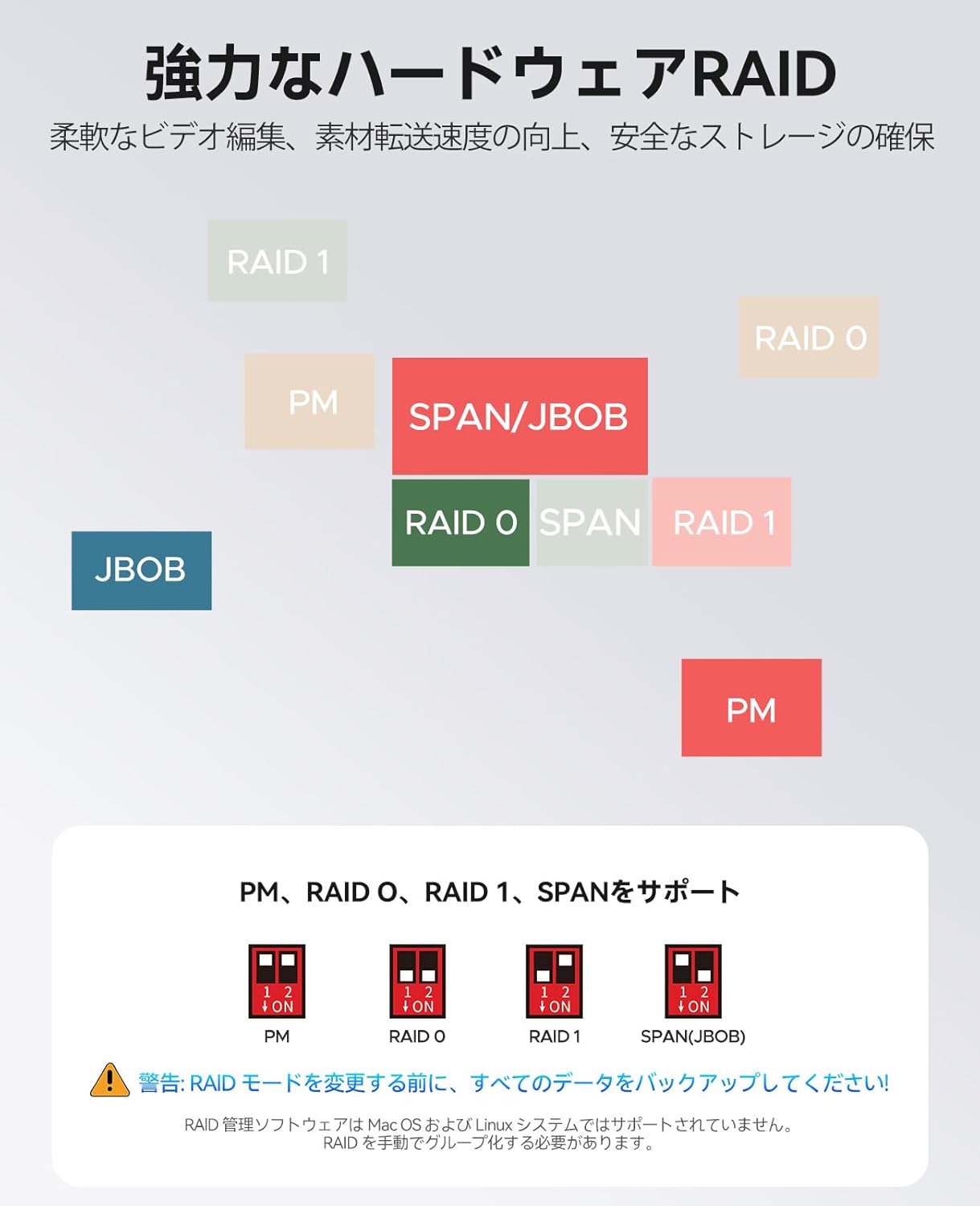
Image 3.2: Diagram illustrating the DIP switch configurations for PM, RAID 0, RAID 1, and SPAN (JBOD) modes.
3.4 Power and Computer Connection
- Connect the 12V/4A power adapter to the DC input port on the rear of the enclosure and then to a power outlet.
- Connect the USB 3.0 data cable from the enclosure's USB 3.0 port to an available USB port on your computer.
- Power on the enclosure using the power button.

Image 3.3: The ORICO 9928RU3 connected to its 48W external power adapter and a computer via USB, ensuring stable data flow.
4. Operating Instructions
4.1 Power On and Drive Recognition
Once connected and powered on, your operating system should detect the enclosure and its installed drives (or RAID volume, depending on your configuration). The LED indicators on the front panel will illuminate to show the status of each drive bay.
4.2 Data Transfer
Utilize the USB 3.0 connection for high-speed data transfer. The enclosure supports UASP (USB Attached SCSI Protocol) for optimized performance, reaching speeds up to 235MB/s for both reading and writing data.

Image 4.1: The ORICO 9928RU3 connected to a computer, demonstrating its 5Gbps data transfer capability for efficient file management.
5. Maintenance
5.1 Heat Dissipation
The enclosure features an aluminum alloy body and an integrated 40mm silent fan to maintain optimal operating temperatures. Ensure that the front and rear ventilation holes are not obstructed to allow for proper airflow.

Image 5.1: Illustration of the ORICO 9928RU3's cooling system, highlighting the internal fan and airflow for efficient heat dissipation.
5.2 Cleaning
To clean the exterior of the enclosure, use a soft, dry cloth. Avoid using liquid cleaners or abrasive materials that could damage the finish.
6. Troubleshooting
- Drives Not Recognized:
- Ensure the enclosure is powered on and connected correctly to your computer.
- Verify that the drives are properly seated in their bays.
- Check the RAID mode settings via the DIP switches. If you changed modes, ensure the drives are initialized or formatted as required by the new mode (this will erase data). - Slow Transfer Speeds:
- Confirm that the enclosure is connected to a USB 3.0 port on your computer.
- Ensure your operating system and drivers support UASP for optimal performance. - Difficulty Removing Drives:
- If a drive feels stuck, try gently tilting the drive bay handle slightly up or down while pulling it out. This can help disengage any internal catches. - Fan Noise:
- The enclosure includes an internal cooling fan. Some users may perceive a high-pitched noise during operation. This is a characteristic of the fan and is generally within normal operating parameters. Ensure ventilation is not obstructed.
7. Specifications
| Model | 9928RU3 |
| Brand | ORICO |
| Compatible Devices | Desktop, Laptop |
| Color | Silver |
| Material | Aluminum |
| Product Dimensions (L x W x H) | 23.7 x 13.5 x 9 cm |
| Product Weight | 2.43 kg |
| Other Features | Built-in fan |
| Power Supply Type | Rear Mount (External 12V/4A, 48W adapter) |
| USB Ports | 1 (USB 3.0) |
| Hard Disk Form Factor | 3.5 inches (supports 2.5 inches with bracket) |
| RAID Modes Supported | PM, RAID 0, RAID 1, SPAN (JBOD) |
| Interface | USB 3.0 (SATA 6Gbps compatible), UASP support |
| Max Transfer Speed | Up to 235MB/s (Read/Write) |
| Max Capacity | 22TB per drive, 44TB total |
8. Warranty and Support
For warranty information and technical support, please refer to the documentation included with your purchase or visit the official ORICO website. If you encounter any issues not covered in this manual, please contact ORICO customer service for assistance.
Related documents9928RU3


Ask a question about this manual
Ask about setup, troubleshooting, compatibility, parts, safety, or missing instructions. Manuals+ will review the question and use this page’s manual context to help answer it.