
CCYLEZ CCYLEZ6gksbyu8q1
CCYLEZ 16MP Digital Camera with Microphone User Manual
Model: CCYLEZ6gksbyu8q1
Introduction
Thank you for purchasing the CCYLEZ 16MP Digital Camera. This manual provides detailed instructions on how to set up, operate, and maintain your camera to ensure optimal performance. This camera is designed for capturing high-resolution photos and 1080P videos, featuring a 16X digital zoom, a 2.4-inch display, and a professional external microphone for enhanced audio recording. Please read this manual thoroughly before using the product.
Safety Information
- Do not expose the camera to water or moisture.
- Avoid dropping the camera or subjecting it to strong impacts.
- Keep the camera away from extreme temperatures and direct sunlight.
- Use only approved accessories and power adapters.
- Do not attempt to disassemble or repair the camera yourself. Contact customer support for assistance.
- Keep out of reach of children.
Package Contents
Please check the box for the following items:
- 1 x CCYLEZ Digital Camera
- 1 x Camera Accessory (Strap)
- 1 x Dust Cover
- 2 x Instruction Manuals
- 1 x Professional Microphone
- 1 x USB Cable
- 1 x Sound Cable

Image: All included components, including the camera, microphone, cables, and dust cover.
Product Overview
Front View
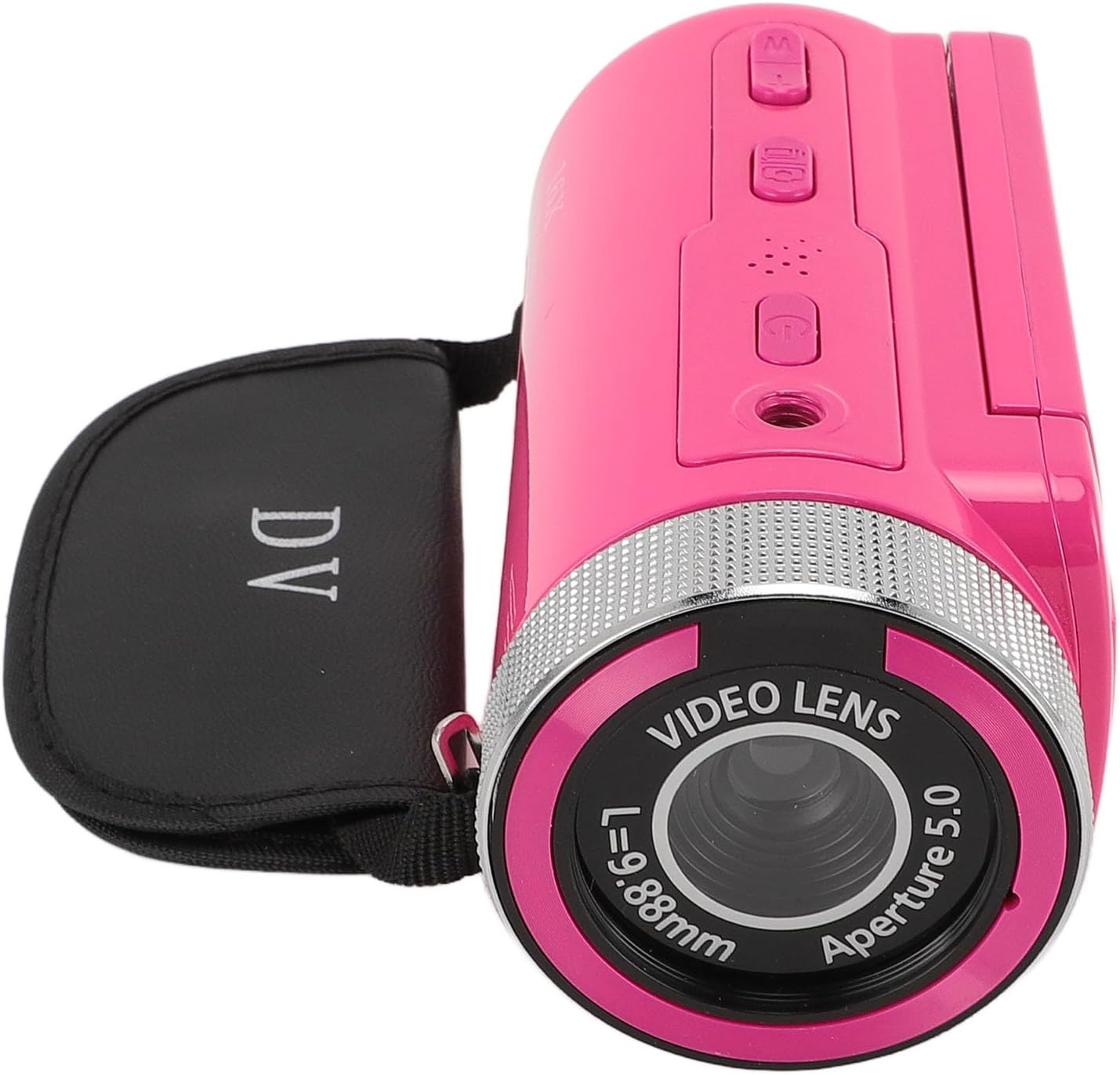
Image: The front of the camera, highlighting the video lens, aperture, and the 16X Digital Zoom label.
- Video Lens: Captures images and videos.
- Microphone Mount: Point for attaching the external microphone.
- 16X Digital Zoom: Indicates the camera's digital zoom capability.
Rear View and Display

Image: The camera's rear, showing the open 2.4-inch display and control buttons.
- 2.4-inch HD Display: Swivel screen for viewing and framing shots.
- Power Button: Turns the camera on/off.
- Mode Button: Switches between photo and video modes.
- Navigation Buttons: For menu navigation and zoom control.
- Record/Shutter Button: Starts/stops video recording or takes a photo.
Setup
1. Charging the Battery
The camera comes with a built-in 1020mAh lithium battery. Before first use, ensure the battery is fully charged. Connect the camera to a power source using the provided USB cable. The charging indicator light will illuminate during charging and turn off when fully charged.
2. Inserting a Storage Card
This camera supports storage cards up to 128GB (not included). Locate the memory card slot, usually on the side or bottom of the camera. Insert the card with the metal contacts facing the correct direction until it clicks into place. To remove, gently push the card in until it springs out.
3. Attaching the Professional Microphone

Image: The camera with the external microphone securely attached, ready for use.
- Locate the microphone mount on top of the camera.
- Slide the microphone into the mount until it is secure.
- Connect the microphone's audio cable to the camera's microphone input jack (typically a 3.5mm port).
- Ensure the connection is firm for optimal audio capture.
4. Initial Power On
Press and hold the Power button for a few seconds to turn on the camera. The 2.4-inch HD display will light up. You may need to set the date and time during the first startup.
Operating Instructions
1. Powering On/Off
- To Power On: Press and hold the Power button.
- To Power Off: Press and hold the Power button again until the screen turns off.
2. Switching Modes (Photo/Video)
Press the Mode button to toggle between photo capture mode and video recording mode. The current mode will be indicated on the display.
3. Capturing Photos

Image: The camera's 2.4-inch HD display showing a clear image, demonstrating its photo capture capability.
- Ensure the camera is in photo mode.
- Frame your shot using the 2.4-inch display.
- Press the Shutter button to take a picture. The camera supports up to 16MP photos.
4. Recording Videos

Image: The camera in use, recording video with the attached microphone, highlighting its 1080P video resolution capability.
- Switch to video recording mode.
- Press the Record button to start recording. A red indicator or timer will appear on the screen.
- Press the Record button again to stop recording. The camera supports 1080P, 720P, and 480P video resolutions.
5. Using Digital Zoom
While in photo or video mode, use the zoom buttons (often integrated with navigation buttons) to zoom in or out. The camera features 16X digital zoom.
6. Menu Navigation
Press the Menu button to access camera settings. Use the navigation buttons to scroll through options and the OK/Shutter button to select. Settings include image resolution, video resolution, timestamp, exposure, and more.
7. Playback

Image: The camera's screen displaying a recorded video or photo during playback, showing people shaking hands.
- Press the Playback button (if available, or navigate via Menu) to review your captured photos and videos.
- Use the navigation buttons to scroll through files.
- Press the OK/Shutter button to play videos or view photos in full screen.
8. Connecting to a Computer
Connect the camera to your computer using the provided USB cable. The camera will typically appear as a removable disk, allowing you to transfer files. Ensure the camera is powered on when connected.
Maintenance
- Cleaning: Use a soft, dry cloth to clean the camera body. For the lens and screen, use a specialized lens cleaning cloth and solution. Avoid abrasive materials.
- Storage: When not in use, store the camera in a cool, dry place, away from dust and direct sunlight. Remove the memory card if storing for extended periods.
- Battery Care: Fully charge the battery before long-term storage and recharge every few months to maintain battery health.
Troubleshooting
| Problem | Possible Cause | Solution |
|---|---|---|
| Camera does not power on. | Low battery; faulty battery; power button issue. | Charge the battery fully. Ensure the power button is pressed correctly. |
| Cannot take photos/record videos. | No memory card; memory card full; incorrect mode. | Insert a memory card. Delete unnecessary files or replace the card. Switch to the correct mode. |
| Poor audio quality. | Microphone not connected properly; microphone settings. | Ensure the microphone is securely attached and connected. Check audio settings in the camera menu. |
| Camera freezes. | Software glitch; memory card issue. | Remove and reinsert the battery (if possible). Format the memory card (back up data first). |
Specifications
| Feature | Specification |
|---|---|
| Brand | CCYLEZ |
| Model Number | CCYLEZ6gksbyu8q1 |
| Effective Still Resolution | 16 MP |
| Video Resolution | 1080P, 720P, 480P |
| Digital Zoom | 16x |
| Screen Size | 2.4 Inches |
| Storage Card Support | Max 128GB (not included) |
| Battery | 1020mAh Lithium Battery (built-in) |
| Microphone | Professional Interview Microphone (external) |
| Connectivity Technology | USB |
| File Format (Video) | MP4 |
| File Format (Image) | JPEG |
| Bottom Interface | 1/4 standard screw hole |
Warranty and Support
This product comes with a standard manufacturer's warranty. For detailed warranty information, please refer to the separate warranty card included in your package or visit the official CCYLEZ website. If you encounter any issues or require technical assistance, please contact CCYLEZ customer support through their official channels.
For further assistance, please visit the CCYLEZ Store on Amazon.
Ask a question about this manual
Ask about setup, troubleshooting, compatibility, parts, safety, or missing instructions. Manuals+ will review the question and use this page’s manual context to help answer it.