
viqee S24U
viqee S24 Ultra 5G Cell Phone User Manual
Model: S24U
Brand: viqee
1. Introduction
This manual provides detailed instructions for the setup, operation, maintenance, and troubleshooting of your new viqee S24 Ultra 5G Cell Phone. Please read this manual thoroughly before using your device to ensure proper functionality and to maximize its features.
The viqee S24 Ultra is an advanced smartphone featuring Android 14, a large 6.8-inch display, 6GB RAM, 256GB internal storage, a powerful 6000mAh battery, and an integrated tool pen for enhanced productivity.

Figure 1.1: viqee S24 Ultra 5G Cell Phone. This image shows the front and back of the blue S24 Ultra smartphone, highlighting its sleek design and the included tool pen. The screen displays a vibrant beach scene.
2. Getting Started: Setup
2.1. Unboxing and Package Contents
Carefully unbox your viqee S24 Ultra and verify all components are present. The standard package includes:
- viqee S24 Ultra 5G Cell Phone
- Mobile Phone Cases (quantity may vary)
- Date line (USB cable)
- Charger (US, UK, AU, or EU type - one included)
- Screen protector
- Mobile manual (this document)
- Headset
- SIM Ejector Tool (Needle)
- USB OTG Adapter

Figure 2.1: Packing List. This image illustrates the various items included in the viqee S24 Ultra package, such as the phone, mobile cases, USB cable, charger, screen protector, manual, headset, and SIM ejector tool.
2.2. SIM Card and SD Card Installation
The S24 Ultra supports Dual SIM Dual Standby and a dedicated microSD card slot for expandable storage.
- Locate the SIM card tray on the side of the phone.
- Insert the SIM ejector tool into the small hole next to the tray and gently push until the tray pops out.
- Place your Nano-SIM cards (up to two) and/or a microSD card into the designated slots on the tray, ensuring correct orientation.
- Carefully reinsert the tray back into the phone until it clicks into place.

Figure 2.2: Dual SIM + Dedicated Micro SD Card Slot. This image shows the side of the phone with the SIM tray ejected, illustrating where to insert two SIM cards and a microSD card for expanded storage.
2.3. Initial Charging
Before first use, it is recommended to fully charge the device. Connect the USB cable to the phone's charging port and the other end to the provided charger. Plug the charger into a power outlet. The battery indicator on the screen will show charging progress.
2.4. Powering On/Off
- To Power On: Press and hold the Power button (usually on the right side) until the viqee logo appears.
- To Power Off: Press and hold the Power button until the power options menu appears, then select "Power off".
- To Restart: From the power options menu, select "Restart".
3. Operating Your Device
3.1. Android 14 Operating System
Your S24 Ultra runs on Android 14, offering an intuitive and customizable user experience. Navigate through the interface using touch gestures: tap to select, swipe to scroll, pinch to zoom.

Figure 3.1: Android 14 Interface. This image displays the home screen and various application icons, showcasing the Android 14 operating system's visual design and user interface.
3.2. Using the Tool Pen (Epen)
The integrated tool pen provides precise input for writing, drawing, and navigation. It is designed to offer a natural pen-to-paper feel.
- Removing the Pen: Gently pull the pen from its slot at the bottom of the phone.
- Basic Functions: Use the pen to tap, swipe, and select items on the screen.
- Note-taking and Drawing: Open compatible applications (e.g., a notes app or drawing app) to utilize the pen for handwriting, sketching, and annotations.
- Reinserting the Pen: Push the pen back into its slot until it clicks securely.

Figure 3.2: Epen Functionality. This image demonstrates the use of the tool pen for drawing on the phone's screen, highlighting its precision and integration.
3.3. Camera Features
The S24 Ultra is equipped with a 64MP front camera and a 12MP rear camera, featuring a 200MP sensor with upgradable Adaptive Pixel Technology for optimized imaging in various light conditions.
- Taking Photos/Videos: Open the Camera app and tap the shutter button.
- Modes: Explore various camera modes such as Portrait, Night, Panorama, and Pro mode for advanced settings.
- AI Features: Utilize AI scene detection, AI backlight photography, and AI portrait technology for enhanced photo quality.

Figure 3.3: Camera Features. This image highlights the phone's camera capabilities, including features like "Thin face," "Beauty," and "Whitening," demonstrating its advanced imaging options.
3.4. Connectivity
- 5G Mobile Data: The device supports 5G connectivity for fast transmission speeds and low latency. Ensure your SIM card and network provider support 5G.
- Wi-Fi: Connect to Wi-Fi networks via Settings > Network & internet > Wi-Fi.
- Bluetooth: Pair with Bluetooth devices via Settings > Connected devices > Bluetooth.
- GPS Navigation: The phone includes GPS for accurate positioning and navigation.
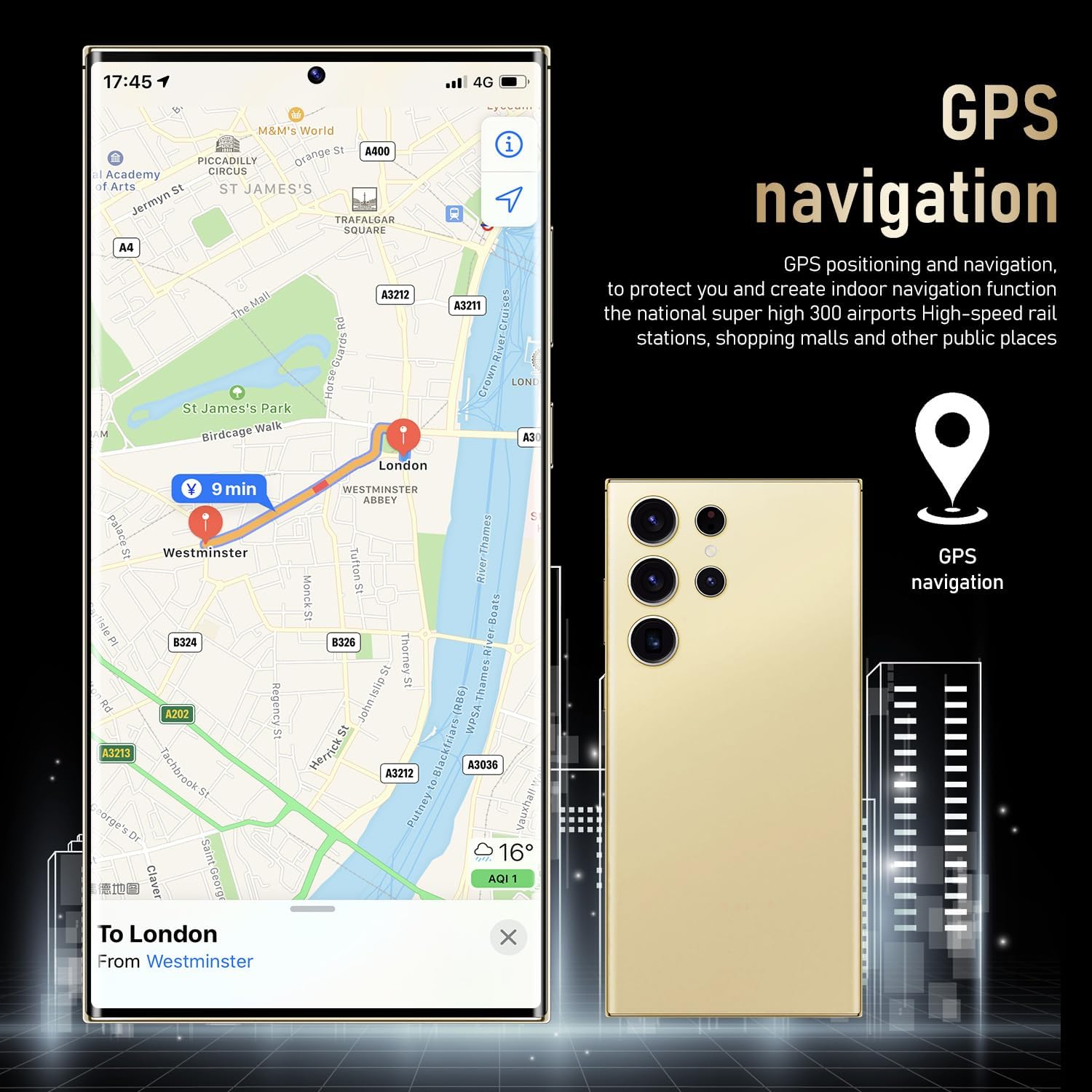
Figure 3.4: GPS Navigation. This image shows the phone displaying a map with GPS navigation, indicating its capability for precise location tracking and route guidance.
3.5. Storage Management
The S24 Ultra comes with 256GB of internal storage. You can expand this further using a microSD card. Regularly manage your storage by deleting unnecessary files, clearing app caches, and moving media to external storage.
4. Maintenance
4.1. Battery Care
The 6000mAh battery provides extended usage. To prolong battery life:
- Avoid extreme temperatures.
- Use the original charger and cable.
- Avoid completely draining the battery frequently.
- Enable battery saver mode when needed.
4.2. Cleaning Your Device
Use a soft, lint-free cloth to clean the screen and body of the phone. Avoid using harsh chemicals or abrasive materials. For stubborn smudges, slightly dampen the cloth with water or a screen cleaner designed for electronics.
4.3. Software Updates
Regularly check for and install software updates to ensure optimal performance, security, and access to new features. Go to Settings > System > System update to check for available updates.
5. Troubleshooting
This section addresses common issues you might encounter with your viqee S24 Ultra.
5.1. Common Issues and Solutions
| Problem | Possible Solution |
|---|---|
| Device not powering on | Ensure the battery is charged. Connect to charger for at least 15 minutes, then try powering on. If unresponsive, perform a forced restart (refer to device-specific instructions, usually holding power and volume down buttons). |
| Poor network connectivity (calls/data) | Check if SIM card is properly inserted. Verify your mobile plan supports 5G. Ensure you are in an area with network coverage. Restart the phone. Contact your carrier to confirm compatibility and service. |
| Apps crashing or freezing | Close and reopen the app. Clear the app's cache (Settings > Apps > [App Name] > Storage & cache > Clear cache). Update the app from the Google Play Store. If the issue persists, uninstall and reinstall the app. |
| Battery draining quickly | Reduce screen brightness. Close unused apps running in the background. Disable unnecessary features like Bluetooth or GPS when not in use. Check battery usage in Settings to identify power-hungry apps. |
| Touchscreen unresponsive or erratic | Restart the device. Ensure the screen is clean and dry. Remove any screen protectors or cases that might interfere. If the issue persists, it may indicate a hardware problem. |
5.2. Factory Reset
If you experience persistent software issues, a factory reset can resolve them by restoring the phone to its original state. Warning: This will erase all data on your phone. Back up important data before proceeding.
- Go to Settings > System > Reset options.
- Select "Erase all data (factory reset)".
- Confirm your decision and enter your PIN/pattern/password if prompted.
- The phone will restart and begin the reset process.
6. Specifications
Key technical specifications for the viqee S24 Ultra 5G Cell Phone:
| Feature | Detail |
|---|---|
| Model Name | S24U |
| Operating System | Android 14 |
| Screen Size | 6.8 Inches |
| Resolution | 2340 x 1080 |
| RAM Memory Installed Size | 6 GB |
| Memory Storage Capacity | 256 GB |
| Battery Capacity | 6000 mAh (Amp Hours) |
| Cellular Technology | 5G |
| Wireless Carrier | Unlocked |
| Connectivity Technologies | Wi-Fi, Bluetooth, GPS |
| Front Camera | 64MP (with 200MP sensor technology) |
| Rear Camera | 12MP |
| Audio Jack | 3.5 mm |
| Item Weight | 2.2 pounds (approx. 1000 grams) |
| Color | Blue (as per current variant) |
| Manufacturer | viqee |
7. Warranty and Support
For warranty information, technical support, or service inquiries, please contact viqee customer support directly. Refer to the contact information provided with your product packaging or visit the official viqee website.
Keep your proof of purchase for warranty claims.
Ask a question about this manual
Ask about setup, troubleshooting, compatibility, parts, safety, or missing instructions. Manuals+ will review the question and use this page’s manual context to help answer it.