
1. Introduction
Thank you for purchasing the Salange HY300Pro Mini Projector. This manual provides essential information for setting up, operating, and maintaining your projector. Please read it thoroughly before use to ensure optimal performance and longevity of your device.
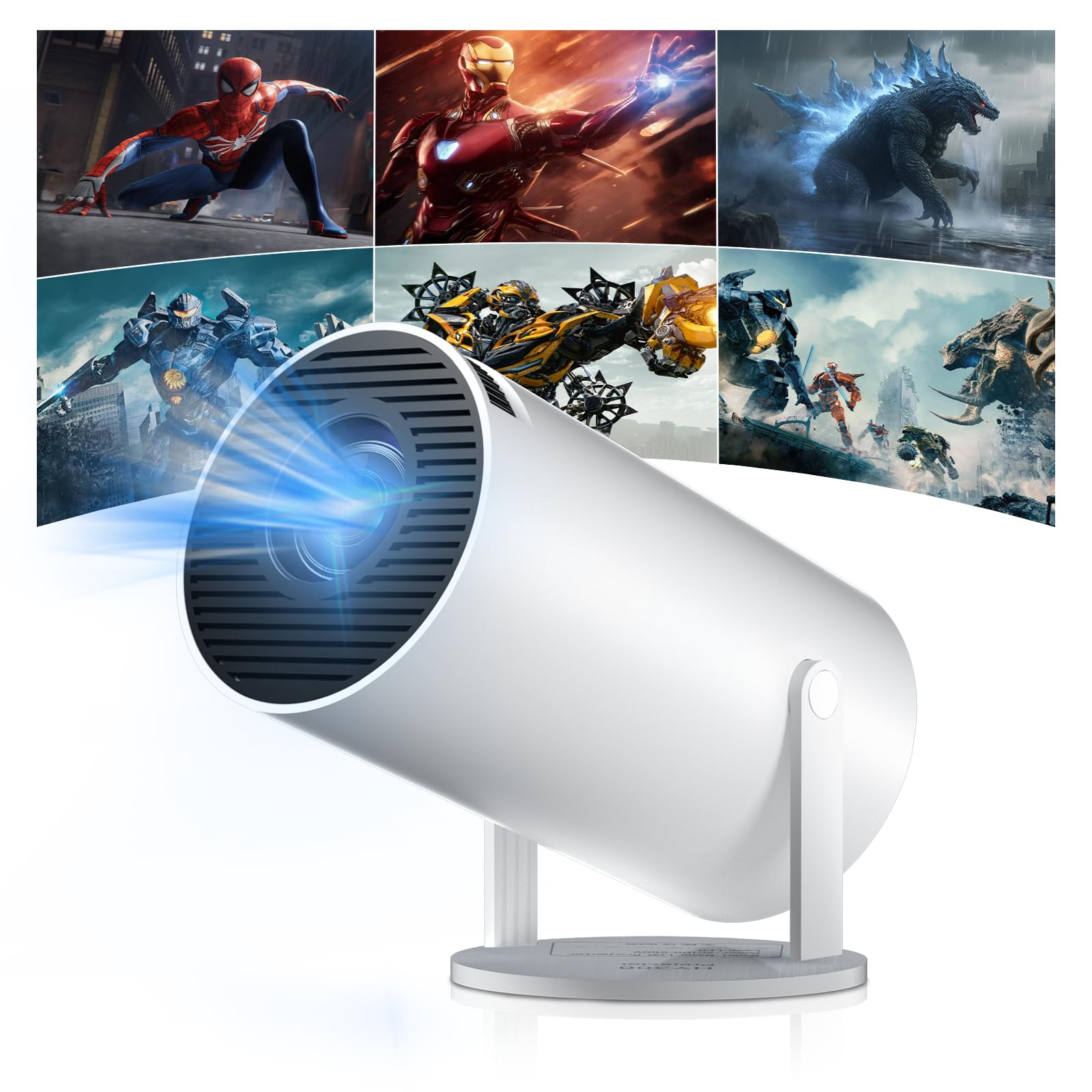
Figure 1: Salange HY300Pro Mini Projector
2. Product Overview
Key Features
- Dual-Band WiFi 6 & Bluetooth 5.4: Ensures fast and stable network connectivity and seamless audio pairing with external speakers or headphones.
- Android 11.0 Operating System: Supports installation of various applications directly on the projector for versatile entertainment and productivity.
- 4K Support & Native 720P Resolution: Delivers clear and vibrant images, supporting 1080P and 4K video playback.
- 180° Rotation: Flexible projection angles for various setups, including ceiling, wall, or angled surfaces.
- Automatic Keystone Correction & Manual Focus: Intelligently corrects image distortion and allows for fine-tuning clarity.
- Compact and Portable Design: Weighs only 700g, making it easy to transport for outdoor activities or different rooms.

Figure 2: Overview of Salange HY300Pro features including 8K support, WiFi 6, Bluetooth 5.4, 180° rotation, and auto keystone correction.
What's in the Box
- 1 x Salange HY300Pro Projector
- 1 x User Manual
- 1 x Power Cable
- 1 x Remote Control

Figure 3: Contents of the Salange HY300Pro package.
3. Setup
3.1 Unpacking and Placement
- Carefully remove all components from the packaging.
- Place the projector on a stable, flat surface. Ensure adequate ventilation around the device.
- The projector's 180° rotation feature allows flexible placement. Adjust the projector's angle to project onto a wall, ceiling, or screen as desired.

Figure 4: Projector demonstrating 180-degree rotation for various projection surfaces.
3.2 Power Connection
Connect the provided power cable to the projector's power input and then to a power outlet.
3.3 Initial Power On and Focus Adjustment
- Press the power button on the projector or the remote control to turn on the device.
- The projector features automatic keystone correction. It will intelligently detect and correct image distortion to ensure a square image.
- For fine-tuning the image clarity, use the manual focus adjustment ring on the projector.

Figure 5: Illustration of automatic keystone correction and manual focus adjustment.
3.4 Network Connection (WiFi)
- Navigate to the 'Settings' menu on the projector's home screen.
- Select 'Network & Internet' and enable Wi-Fi.
- Choose your desired Wi-Fi network from the list and enter the password if prompted. The projector supports dual-band 2.4G + 5G WiFi 6 for fast and stable connections.

Figure 6: Visual representation of the projector's WiFi 6 capabilities for ultra-fast streaming.
3.5 Bluetooth Pairing
- From the 'Settings' menu, select 'Connected Devices' or 'Bluetooth'.
- Enable Bluetooth and search for available devices.
- Select your Bluetooth speaker or headphones from the list to pair.

Figure 7: Projector connected to various Bluetooth audio devices.
3.6 Connecting External Devices
The projector supports HDMI and USB connections.
- HDMI: Connect your laptop, game console, Blu-ray player, or TV stick using an HDMI cable. Select the corresponding HDMI input source from the projector's input menu.
- USB: Insert a USB drive to play media files directly. Access the files through the media player application on the Android OS.
4. Operating Instructions
4.1 Navigating the Android OS
The Salange HY300Pro runs on Android 11.0, providing a smart TV experience.
- Use the remote control to navigate through the home screen, applications, and settings.
- The interface is intuitive, similar to an Android smartphone or tablet.

Figure 8: Projector displaying the Android OS home screen with various streaming apps.
4.2 App Management
You can install and manage applications directly on the projector.
- Access the app store (e.g., Google Play Store) to download streaming services, games, and productivity tools.
- To uninstall an app, go to 'Settings' > 'Apps' and select the desired app.
4.3 Screen Mirroring
Mirror your smartphone or tablet screen to the projector wirelessly.
- Ensure both your device and the projector are connected to the same Wi-Fi network.
- On the projector, select the screen mirroring function (e.g., 'Miracast', 'AirPlay', or 'Screen Share').
- On your smartphone/tablet, enable screen mirroring and select the projector from the list of available devices.
4.4 Picture and Sound Settings
Adjust various settings to optimize your viewing experience.
- Picture Settings: Access 'Settings' > 'Display' to adjust brightness, contrast, color, and aspect ratio.
- Sound Settings: Access 'Settings' > 'Sound' to adjust volume, sound mode, and output device.

Figure 9: Projector displaying a large image, illustrating its ability to create a home cinema experience.
5. Maintenance
5.1 Cleaning the Lens
Use a soft, lint-free cloth specifically designed for optical lenses to gently wipe the projector lens. Do not use abrasive cleaners or excessive force.
5.2 Ventilation
Ensure the projector's ventilation vents are clear of dust and obstructions. Blocked vents can lead to overheating and reduced performance. Periodically clean the vents with a soft brush or compressed air.
5.3 Storage
When not in use for extended periods, store the projector in a cool, dry place, away from direct sunlight and extreme temperatures. Use the original packaging or a protective case to prevent dust accumulation and damage.
6. Troubleshooting
| Problem | Possible Cause | Solution |
|---|---|---|
| No image displayed | Power cable disconnected; Incorrect input source; Projector in standby mode. | Check power connection; Select correct HDMI/USB input; Press power button to wake up. |
| Image is blurry | Focus not adjusted; Projector too far/close to screen. | Adjust manual focus ring; Ensure projector is within optimal projection distance. |
| No sound | Volume too low; Muted; Incorrect audio output selected; Bluetooth device not paired. | Increase volume; Unmute; Check audio settings; Re-pair Bluetooth device. |
| Wi-Fi/Bluetooth connection issues | Incorrect password; Out of range; Interference. | Verify password; Move closer to router/device; Reduce interference from other electronics. |
| Remote control not working | Dead batteries; Obstruction; Not paired. | Replace batteries; Remove obstructions; Re-pair remote if necessary. |
7. Specifications
| Feature | Detail |
|---|---|
| Brand | Salange |
| Model Number | X-HY300PRO |
| Series | Salange Mini Beamer |
| Color | White |
| Display Type | LCD |
| Native Resolution | 1280 x 720P |
| Max Display Resolution | 3840 x 2160 (4K Supported) |
| Connectivity Technology | Bluetooth, Wi-Fi (WiFi 6) |
| Hardware Interface | Bluetooth, HDMI, USB |
| Compatible Devices | Smartphones, Laptops, Game Consoles, Blu-ray Players, Media Players |
| Item Dimensions (L x W x H) | 9.5 x 9.5 x 15.7 centimeters |
| Special Features | Wi-Fi Compatible, Digital Keystone Correction, Lightweight, Portable, 180° Rotation |
| Recommended Uses | Business, Home Cinema, Gaming, Education |
| Form Factor | Portable |
| Mounting Type | Table Mount |
8. Warranty and Support
For warranty information and technical support, please refer to the documentation included with your purchase or visit the official Salange website. Keep your proof of purchase for warranty claims.


