
Introduction
The ZEBRONICS Sheer is a versatile rechargeable wireless mouse designed for comfort and efficiency. Featuring a transparent body with RGB LED lights, it offers dual connectivity modes (2.4GHz and Bluetooth) and silent operation. This manual provides detailed instructions for setting up, operating, and maintaining your ZEB-SHEER mouse.
Package Contents
- Mouse - 1 unit
- USB Nano Receiver - 1 unit
- Charging cable - 1 unit
- Quick User Guide - 1 unit
Product Overview
Familiarize yourself with the components of your ZEB-SHEER mouse.
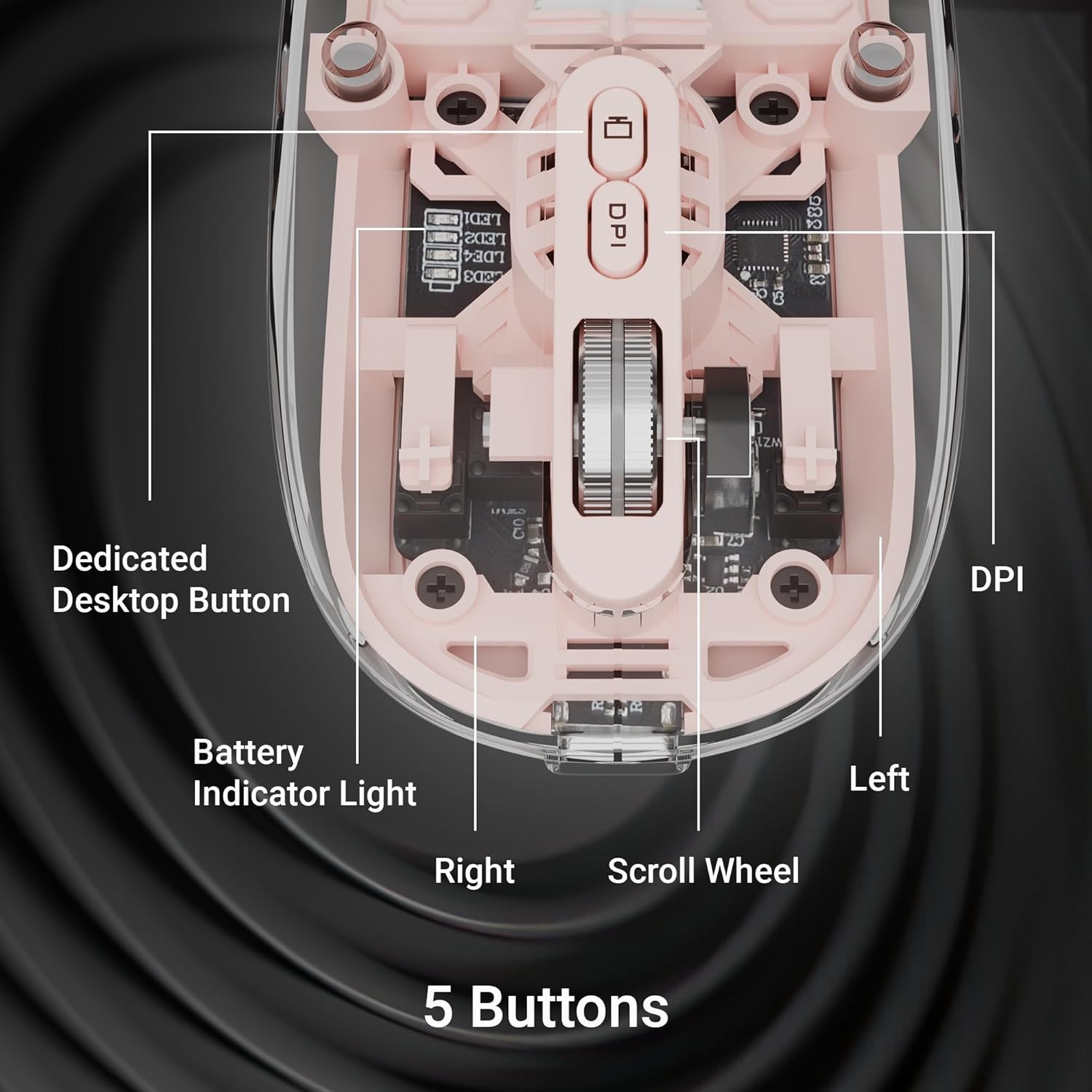
Image: Top view of the ZEB-SHEER mouse, highlighting the Left Click, Right Click, Scroll Wheel, DPI button, and Dedicated Desktop Button.

Image: Bottom view of the ZEB-SHEER mouse, showing the On/Off switch and the Mode Switch (2.4G, BT1, BT2).
Setup and Connectivity
The ZEB-SHEER mouse offers two primary connection methods: 2.4GHz wireless via USB nano receiver and Bluetooth.
1. 2.4GHz Wireless Connection
- Locate the USB nano receiver: The receiver is stored magnetically under the top panel of the mouse. Gently lift the top cover to access it.
- Insert the receiver: Plug the USB nano receiver into an available USB port on your computer or laptop.
- Power on the mouse: Flip the On/Off switch on the bottom of the mouse to the 'On' position.
- Select 2.4G mode: Use the Mode Switch on the bottom of the mouse to select '2.4G'. The mouse should automatically connect to your device.

Image: The ZEB-SHEER mouse with its top cover removed, revealing the USB nano receiver stored within.
2. Bluetooth Connection (BT1 / BT2)
The ZEB-SHEER supports two independent Bluetooth connections, allowing seamless switching between two devices.
- Power on the mouse: Ensure the On/Off switch on the bottom of the mouse is in the 'On' position.
- Select Bluetooth mode: Use the Mode Switch on the bottom of the mouse to select either 'BT1' or 'BT2'.
- Enter pairing mode: Press and hold the Mode Switch for a few seconds until the LED indicator on the mouse starts blinking, indicating it is in pairing mode.
- Pair with your device: On your computer, laptop, or Mac, go to Bluetooth settings and search for new devices. Select "ZEB-SHEER" from the list to pair.
- Switching between devices: To switch between BT1 and BT2, simply toggle the Mode Switch to the desired Bluetooth channel.

Image: The ZEB-SHEER mouse connected to both a laptop via 2.4GHz and a smartphone via Bluetooth, illustrating its dual mode capability.
Operating Instructions
DPI Adjustment
The ZEB-SHEER mouse features a 4-level DPI switch, allowing you to adjust cursor sensitivity for different tasks.
- Press the DPI button (located near the scroll wheel) to cycle through the available DPI settings: 800, 1200, 1600, and 2400.
- Each press will change the sensitivity, allowing you to find the optimal speed for your work or gaming.

Image: A visual representation of the ZEB-SHEER mouse's DPI levels, ranging from 800 to 2400.
Button Functions
The mouse is equipped with 5 buttons for enhanced functionality:
- Left Click: Standard selection and activation.
- Right Click: Context menu access.
- Scroll Wheel: Scroll up/down, and middle click for various functions.
- DPI Control Switch: Adjusts cursor sensitivity.
- Dedicated Desktop Button: Quickly minimizes all open windows to show the desktop.
Silent Operation
The ZEB-SHEER mouse features silent click buttons, providing a quiet working environment without disruptive clicking sounds.
Charging the Mouse
The mouse has a built-in rechargeable battery and supports Type-C charging.
- Connect the provided Type-C charging cable to the charging port on the front of the mouse.
- Plug the other end of the cable into a USB power source (e.g., computer USB port, wall adapter).
- The LED indicator will show charging status.

Image: The ZEB-SHEER mouse connected to a Type-C charging cable, illustrating the charging process.
Battery Indicator
The LED indicator on the mouse provides quick updates on battery life and connectivity status.
Maintenance
- Cleaning: Use a soft, dry cloth to clean the mouse. For stubborn dirt, slightly dampen the cloth with water or a mild cleaning solution. Avoid harsh chemicals.
- Storage: When not in use, store the USB nano receiver inside the mouse to prevent loss. Keep the mouse in a cool, dry place away from direct sunlight and extreme temperatures.
- Battery Care: Recharge the mouse regularly to maintain battery health. Avoid fully draining the battery frequently.
Troubleshooting
- Mouse not responding:
- Ensure the mouse is powered on.
- Check battery level and charge if necessary.
- For 2.4GHz mode, ensure the USB nano receiver is securely plugged into a working USB port and the mouse is set to '2.4G' mode.
- For Bluetooth mode, ensure Bluetooth is enabled on your device, the mouse is set to 'BT1' or 'BT2', and it is properly paired. Try re-pairing if connection is lost.
- Cursor movement is erratic or slow:
- Clean the optical sensor on the bottom of the mouse.
- Ensure you are using the mouse on a suitable surface (a mouse pad is recommended).
- Adjust the DPI setting using the DPI button on the mouse.
- Charging issues:
- Ensure the Type-C cable is correctly connected to both the mouse and the power source.
- Try a different USB port or power adapter.
- Verify the charging cable is not damaged.
Specifications
| Feature | Detail |
|---|---|
| Brand | ZEBRONICS |
| Model Number | ZEB-SHEER |
| Connectivity Technology | Wireless (2.4GHz, Bluetooth) |
| Movement Detection Technology | Optical |
| DPI Levels | 800, 1200, 1600, 2400 (Adjustable) |
| Number of Buttons | 5 (Left, Right, Scroll, DPI, Dedicated Desktop) |
| Power Source | Battery Powered (Rechargeable) |
| Charging Port | Type-C |
| Operating System Compatibility | Linux, Windows 7, Windows XP (and newer versions) |
| Item Weight | 72 g |
| Product Dimensions (LxWxH) | 11 x 5.7 x 0.1 cm |
Warranty and Support
For warranty information and technical support, please refer to the official ZEBRONICS website or contact their customer service. Keep your purchase receipt for warranty claims.
For further assistance, visit the ZEBRONICS Store.