
1. Introduction
Welcome to the artfone F20 Senior Flip Phone user manual. This guide provides detailed instructions on how to set up, operate, and maintain your new phone. The artfone F20 is designed for ease of use, featuring large buttons, a clear display, and essential functions for reliable communication.
Please read this manual carefully to ensure proper use and to get the most out of your device. Keep it for future reference.
2. Package Contents
Upon opening your artfone F20 package, please verify that all items listed below are present and in good condition:
- artfone F20 Senior Flip Phone
- Rechargeable Lithium-ion Battery
- USB Charging Cable
- Power Adapter
- User Manual
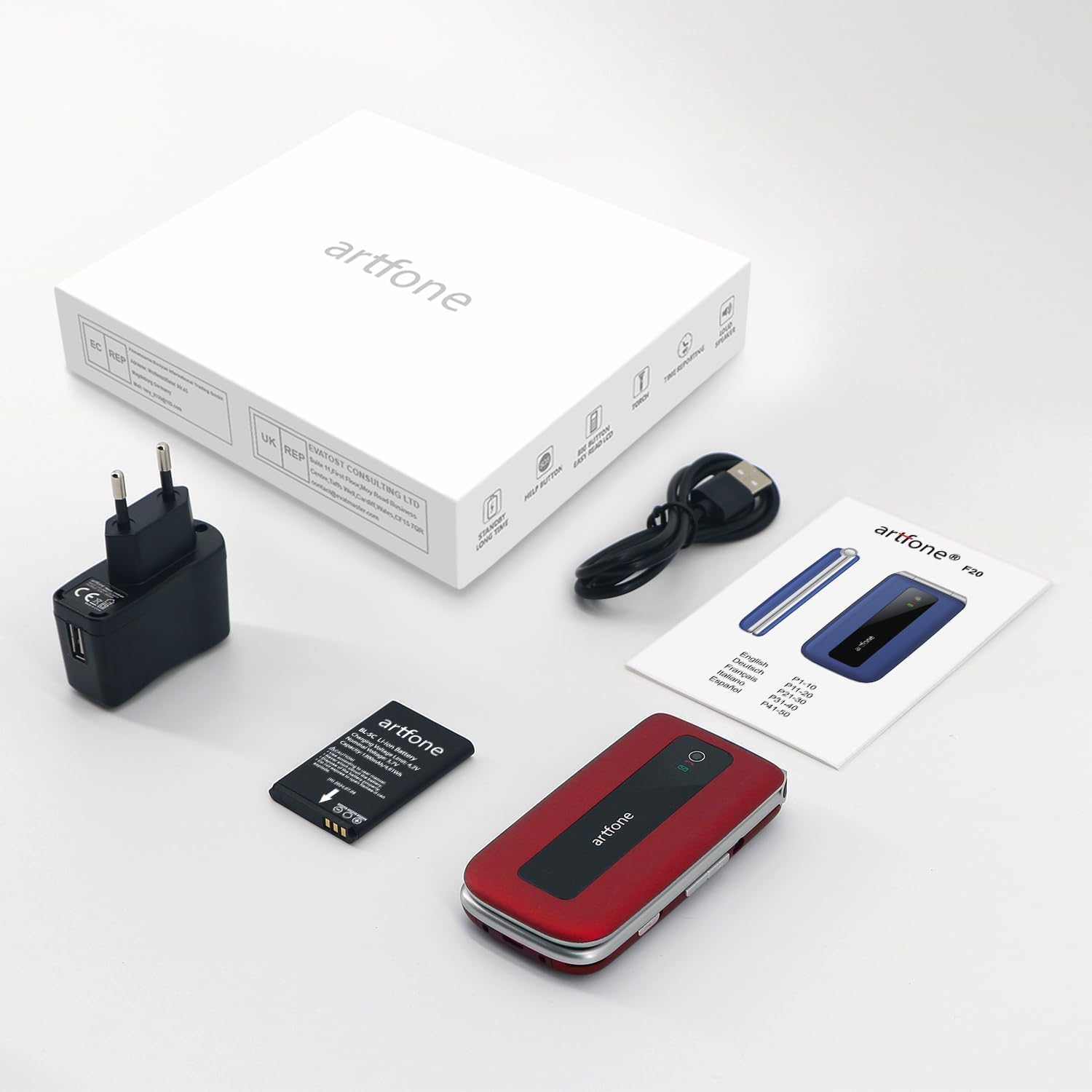
Image: The artfone F20 phone, charger, battery, and user manual laid out, representing the typical package contents.
3. Phone Overview
Familiarize yourself with the various parts of your artfone F20 phone:

Image: Multiple views of the artfone F20 flip phone, illustrating its design from the front, back, sides, and in both open and closed positions.
- Display Screen: 2.4-inch color display for menus, contacts, and messages.
- Keypad: Large, easy-to-read buttons for dialing and navigation.
- Navigation Keys: Central button for selection, directional keys for menu navigation.
- Call/End Buttons: Green button to make/answer calls, red button to end calls or power off.
- SOS Button: Dedicated button on the back for emergency calls.
- Flashlight: Integrated light for convenience.
- Volume Buttons: Located on the side for adjusting call and media volume.
- Charging Port: USB Type C port at the bottom for charging.
- Speaker/Receiver: For audio output during calls and media playback.

Image: A detailed view of the artfone F20's keypad, highlighting the large, well-spaced buttons for easy dialing and text input.
4. Setup
4.1 Battery Installation
- Remove the back cover of the phone by gently prying it open from the notch.
- Insert the Lithium-ion battery into the battery compartment, ensuring the gold contacts align with the phone's terminals.
- Replace the back cover, pressing firmly until it clicks into place.
4.2 SIM Card and Micro SD Card Installation
The artfone F20 supports dual SIM cards (2G) and a Micro SD card up to 32GB for expanded storage.
- With the battery removed, locate the SIM card slots and Micro SD card slot.
- Carefully insert your SIM card(s) into the designated slots, ensuring the cut corner aligns correctly.
- If desired, insert a Micro SD card into its slot.
- Reinstall the battery and back cover.
4.3 Initial Power On and Language Setting
- Press and hold the End Call/Power button (red button) until the screen lights up.
- The phone may prompt you to select a language. Use the navigation keys to select your preferred language (e.g., English) and press the central OK button to confirm.
- Enter your SIM PIN if prompted.
5. Operating Instructions
5.1 Making and Receiving Calls
- To Make a Call: Dial the number using the keypad and press the Call button (green button).
- To Answer a Call: When the phone rings, press the Call button (green button).
- To End a Call: Press the End Call button (red button).
5.2 Sending and Receiving SMS
- From the main menu, navigate to Messages.
- Select Write Message to compose a new SMS.
- Enter the recipient's number or select from contacts.
- Type your message and press Send.
5.3 Speed Dial
You can assign frequently called numbers to speed dial keys (2-9).
- Go to Settings > Speed Dial.
- Select a number key (e.g., '2') and assign a contact or enter a new number.
- To use speed dial, press and hold the assigned number key from the idle screen.
5.4 SOS Emergency Call Function
The SOS button allows you to quickly contact up to 5 pre-set family numbers in an emergency.

Image: A finger pressing the prominent SOS button located on the back of the artfone F20 flip phone, indicating its emergency call feature.
- Setting SOS Numbers: Go to Settings > SOS Settings. Add up to 5 emergency contact numbers.
- Using SOS: In an emergency, press and hold the SOS button on the back of the phone for a few seconds. The phone will automatically call the pre-set numbers in sequence until one answers, and also send an emergency SMS.
5.5 FM Radio
To listen to FM radio:
- Navigate to FM Radio from the main menu.
- You may need to connect headphones (not included) to act as an antenna.
- Use the navigation keys to scan for stations or manually tune to a frequency.
5.6 Flashlight
The built-in flashlight can be activated for convenience.
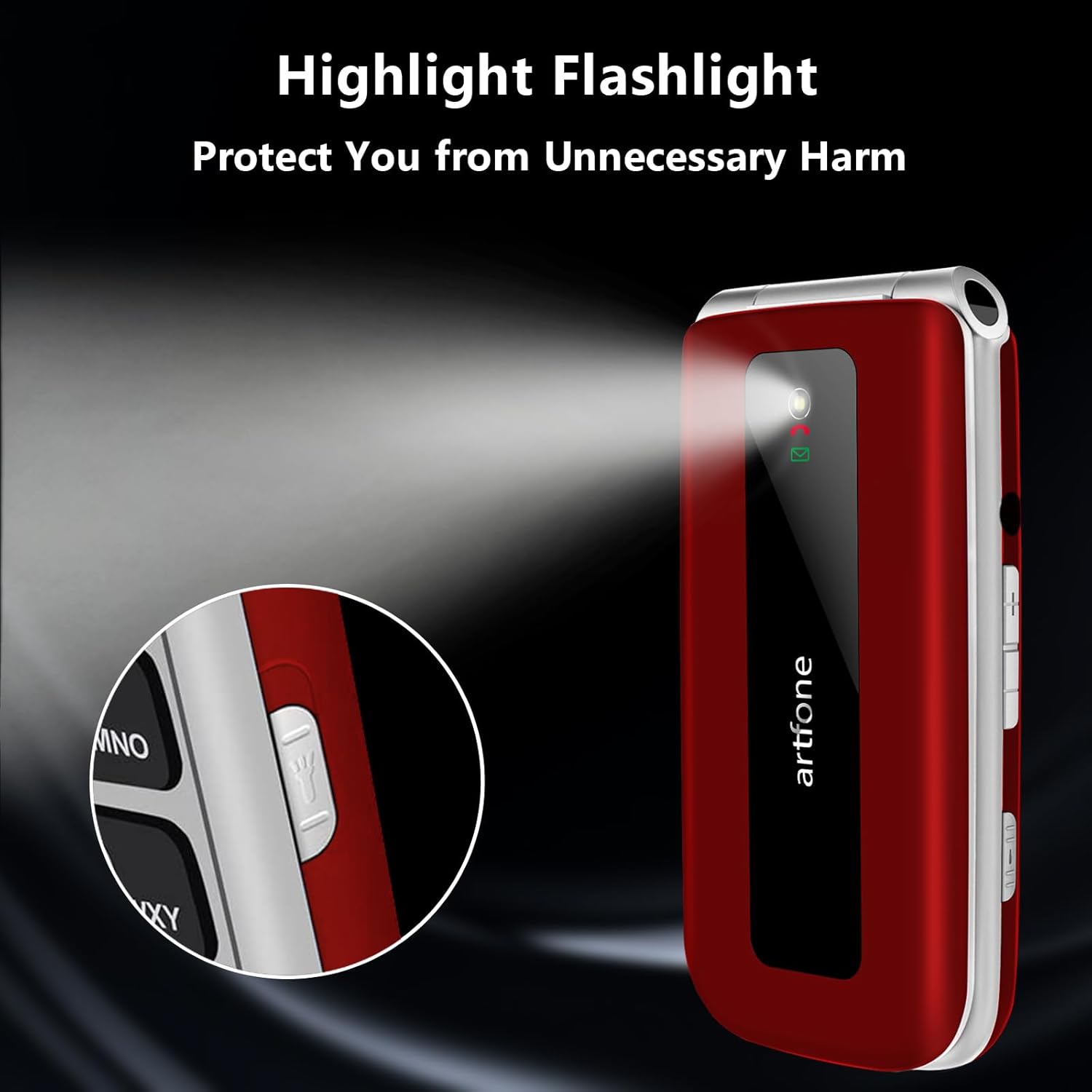
Image: The artfone F20 flip phone with its powerful flashlight activated, casting a bright beam of light.
To turn on/off the flashlight, locate the dedicated flashlight switch or button on the side of the phone, or access it through the phone's menu.
5.7 Other Functions
The artfone F20 includes several other useful functions:
- Bluetooth: For connecting to wireless headsets or other devices.
- Calendar: To keep track of dates and appointments.
- Calculator: For basic arithmetic.
- Alarm: Set multiple alarms for reminders.
- Audio Player/Video Player/Image Viewer: For multimedia playback and viewing files stored on the Micro SD card.
- Sound Recorder: To record voice notes.
- Airplane Mode: Disables all wireless communication.

Image: A visual representation of the artfone F20's user-friendly interface, displaying clear icons for various functions like contacts, messages, SOS, and settings.
6. Maintenance
6.1 Battery Care
- Charge the battery fully before first use.
- Avoid exposing the battery to extreme temperatures.
- Use only the original charger and cable provided with the phone.
- If the phone will not be used for an extended period, charge it periodically to maintain battery health.
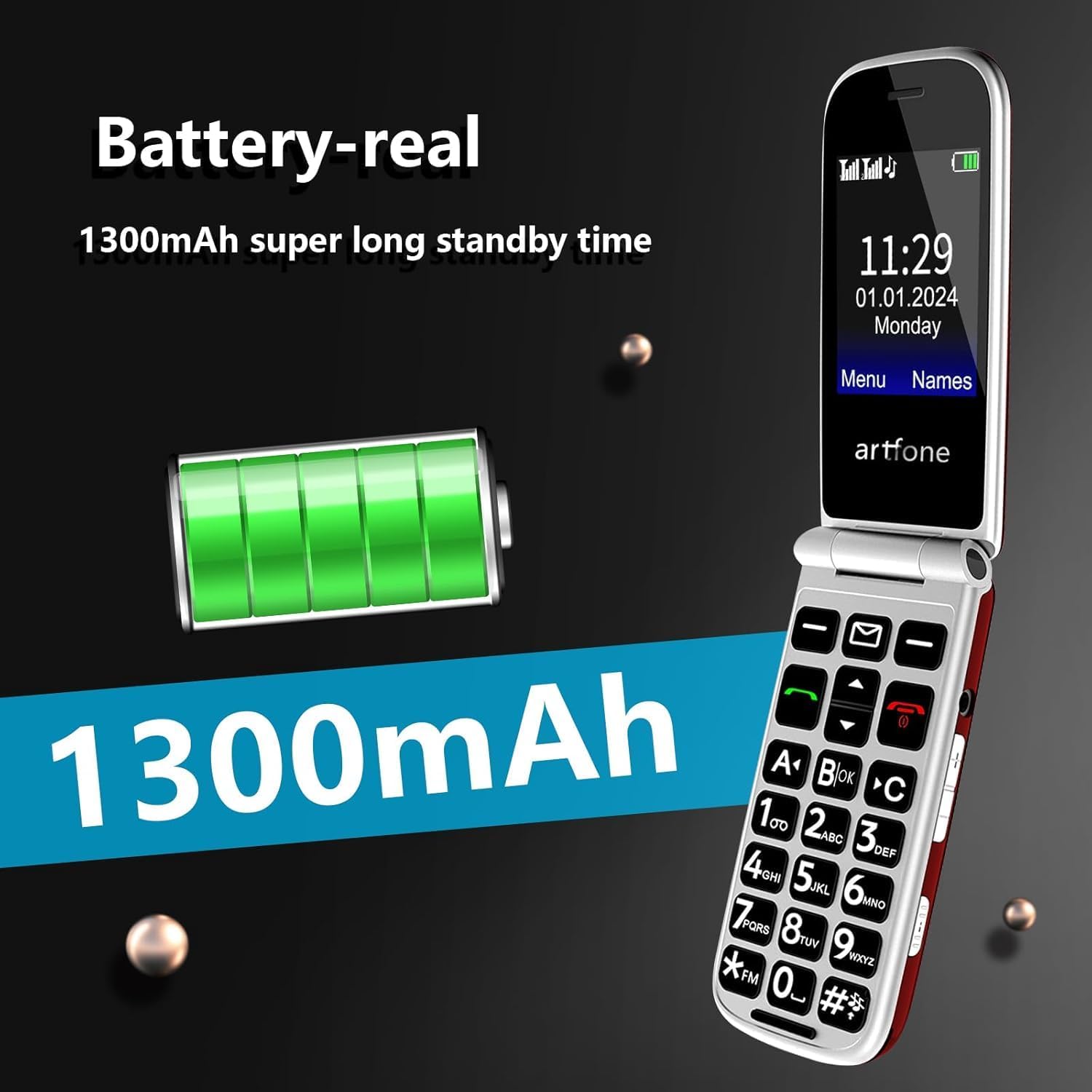
Image: An illustration highlighting the 1300mAh battery of the artfone F20, emphasizing its capacity for extended standby time.
6.2 Cleaning and Storage
- Wipe the phone with a soft, dry cloth. Do not use liquid cleaners or aerosols.
- Keep the phone away from dust, moisture, and direct sunlight.
- Avoid dropping the phone or subjecting it to strong impacts.
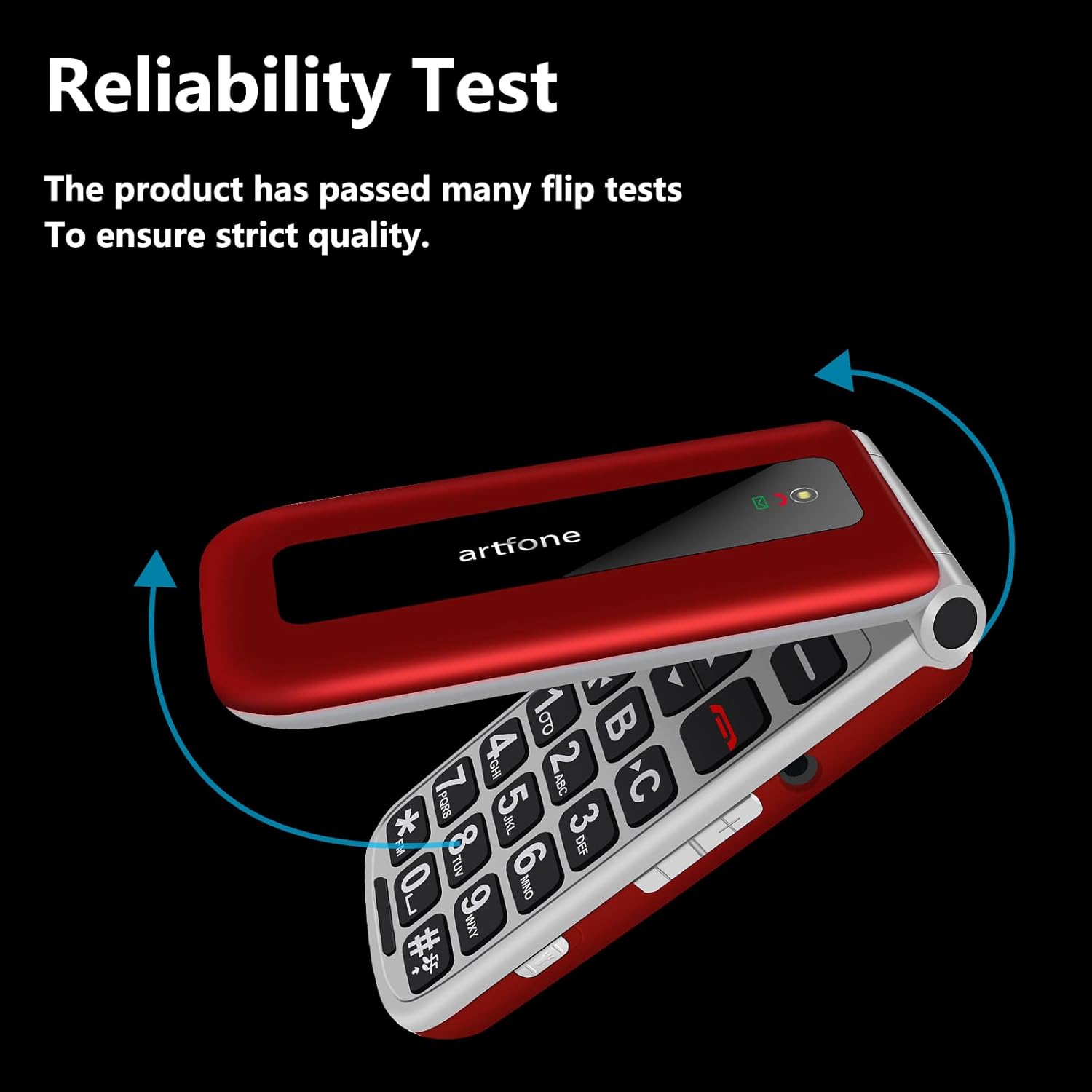
Image: The artfone F20 flip phone in motion, demonstrating its robust flip mechanism and indicating its reliability through testing.
7. Troubleshooting
If you encounter issues with your artfone F20, refer to the following common problems and solutions:
| Problem | Possible Solution |
|---|---|
| Phone does not power on | Ensure the battery is correctly installed and charged. Connect the charger and try again. |
| Cannot make or receive calls | Check if the SIM card is properly inserted and activated. Ensure you have network coverage. |
| Poor call quality | Move to an area with better network reception. Ensure the speaker/receiver is not obstructed. |
| SOS button not working | Verify that emergency contact numbers are correctly set in the SOS settings. |
| Battery drains quickly | Reduce screen brightness, close unused applications, or check for background processes. |
If the problem persists, please contact customer support.
8. Specifications
Key technical specifications for the artfone F20:
| Feature | Specification |
|---|---|
| Model Name | F20 |
| Brand | artfone |
| Operating System | artfone OS |
| Screen Size | 2.4 Inches |
| Screen Resolution | 320 x 240 |
| Cellular Technology | 2G |
| SIM Card Support | Dual SIM |
| Memory Card Support | Micro SD up to 32GB |
| Battery Capacity | 1300 mAh Lithium-ion |
| CPU Speed | 1000 MHz |
| RAM | 64 MB |
| Connectivity | USB Type C, Bluetooth |
| Special Features | SOS Button, Large Buttons, FM Radio, Flashlight, Speed Dial |
9. Warranty and Support
9.1 Warranty Information
Your artfone F20 phone comes with a standard manufacturer's warranty. Please refer to the warranty card included in your package for specific terms, conditions, and duration. Keep your proof of purchase for warranty claims.
9.2 Customer Support
If you have any questions, require technical assistance, or experience issues not covered in this manual, please contact artfone customer support. Contact details can typically be found on the manufacturer's website or on the packaging.
For the latest information and support, visit the official artfone website or the retailer's support page where you purchased the product.


