
VENTION ACXHB
VENTION Displaylink USB C and USB 3.0 to Dual 4K HDMI Adapter User Manual
Model: ACXHB
1. Product Overview
The VENTION Displaylink USB C and USB 3.0 to Dual 4K HDMI Adapter is designed to expand your display capabilities, allowing you to connect two external 4K@60Hz monitors to your computer via a single USB 3.0 or USB-C port. This adapter is equipped with a DisplayLink chip, which enables extended display functionality for various operating systems, including macOS (M1/M2/M3 chip models) and Windows, overcoming typical single-stream limitations.
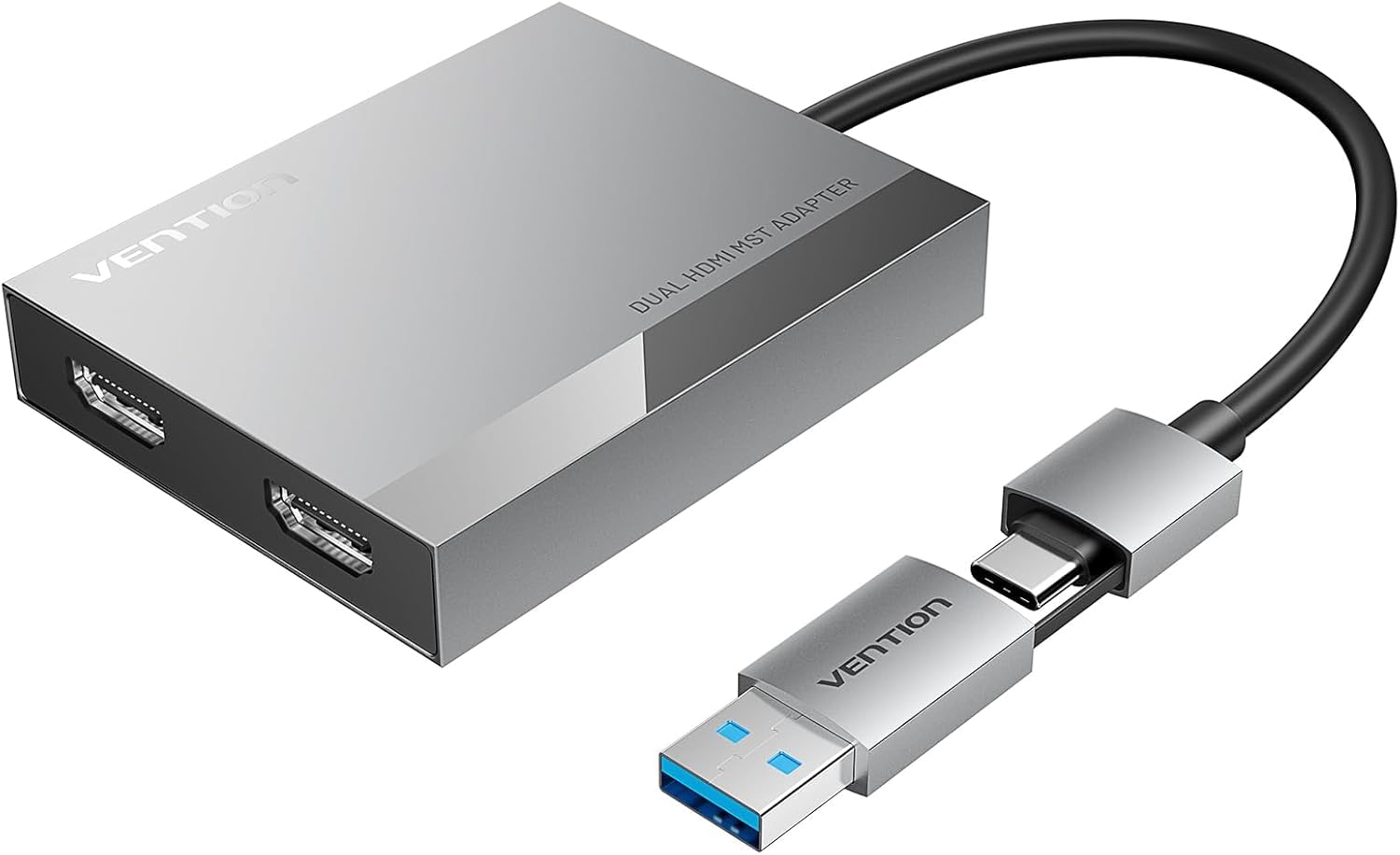
Image 1.1: The VENTION Displaylink USB C and USB 3.0 to Dual 4K HDMI Adapter, showcasing its compact design and dual HDMI ports.
2. Key Features
- Dual 4K@60Hz Monitor Support: Experience high-resolution visuals with support for two external displays, each up to 4096x2160@60Hz. This allows for a significantly expanded workspace.
- Wide Compatibility: Compatible with most USB 3.0 devices and a broad range of operating systems including Mac OS X 10.6 or higher, Windows XP/7 or higher, Ubuntu, Chrome OS, and Android systems.
- DisplayLink Chip Technology: Features the latest generation DisplayLink chip, enabling multi-stream (MST) display capabilities and breaking the single-stream limitation often found in macOS, especially for M1/M2/M3 MacBooks.
- USB-A/C Dual Ports: Equipped with both USB-A and USB-C connectors, providing versatile connectivity options for various laptops and devices.
- Aluminum Alloy Design: Constructed with a sturdy aluminum alloy shell for enhanced durability and efficient heat dissipation, ensuring stable performance during extended use.
- Multi-Monitor Productivity: Ideal for professionals, programmers, designers, and editors, allowing for extended, mirrored, or rotated display configurations to boost efficiency.
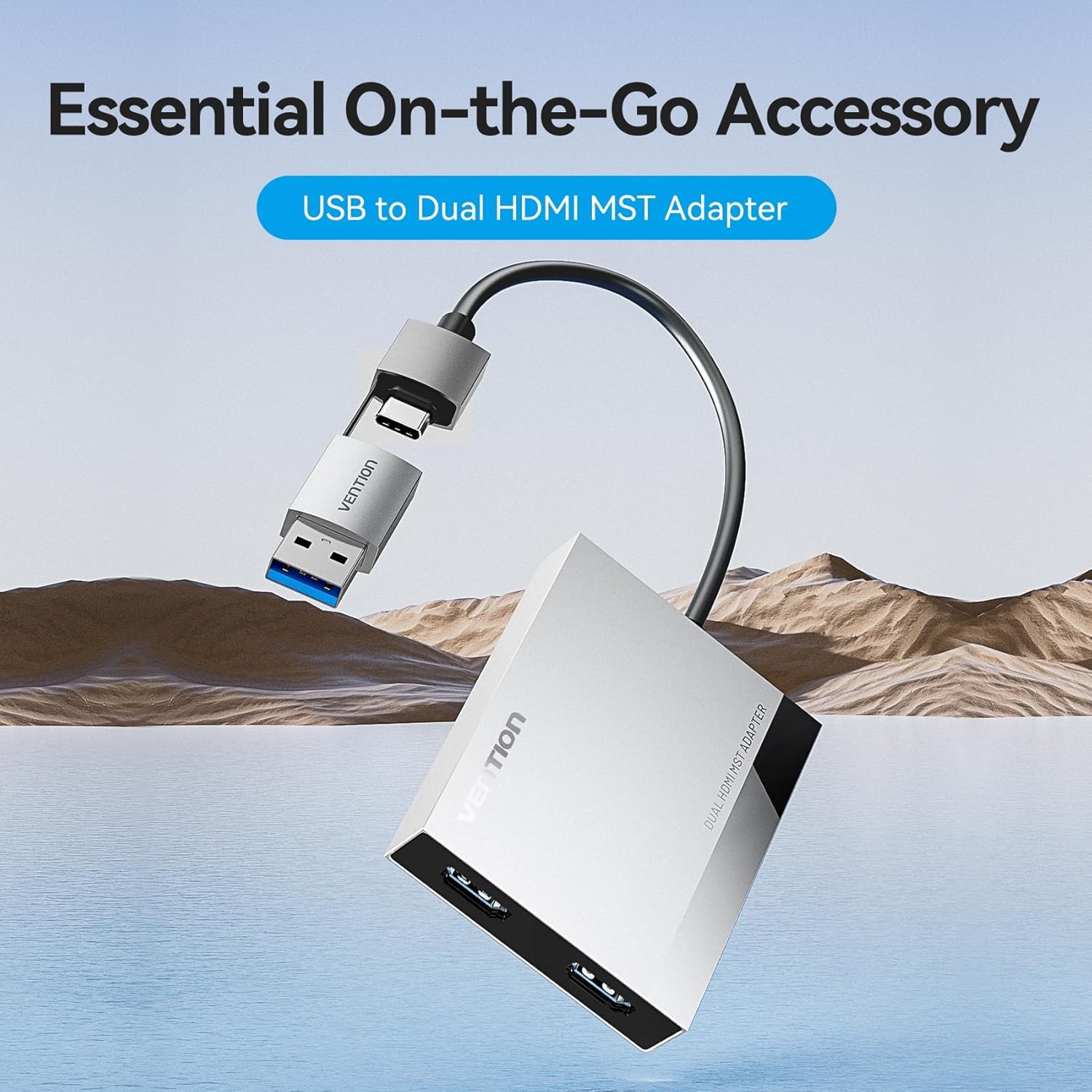
Image 2.1: The VENTION adapter positioned in a landscape, highlighting its portability and utility as an essential accessory.

Image 2.2: Visual representation of the adapter's compatibility with Apple M1, M2, and M3 chip MacBooks, featuring the internal DisplayLink chip for stable conversion.

Image 2.3: Close-up view of the adapter's versatile USB-A and USB-C dual ports, designed for effortless multi-device connectivity.

Image 2.4: Depiction of the adapter providing vivid 4K@60Hz output, suitable for enjoying high-definition content on external displays.
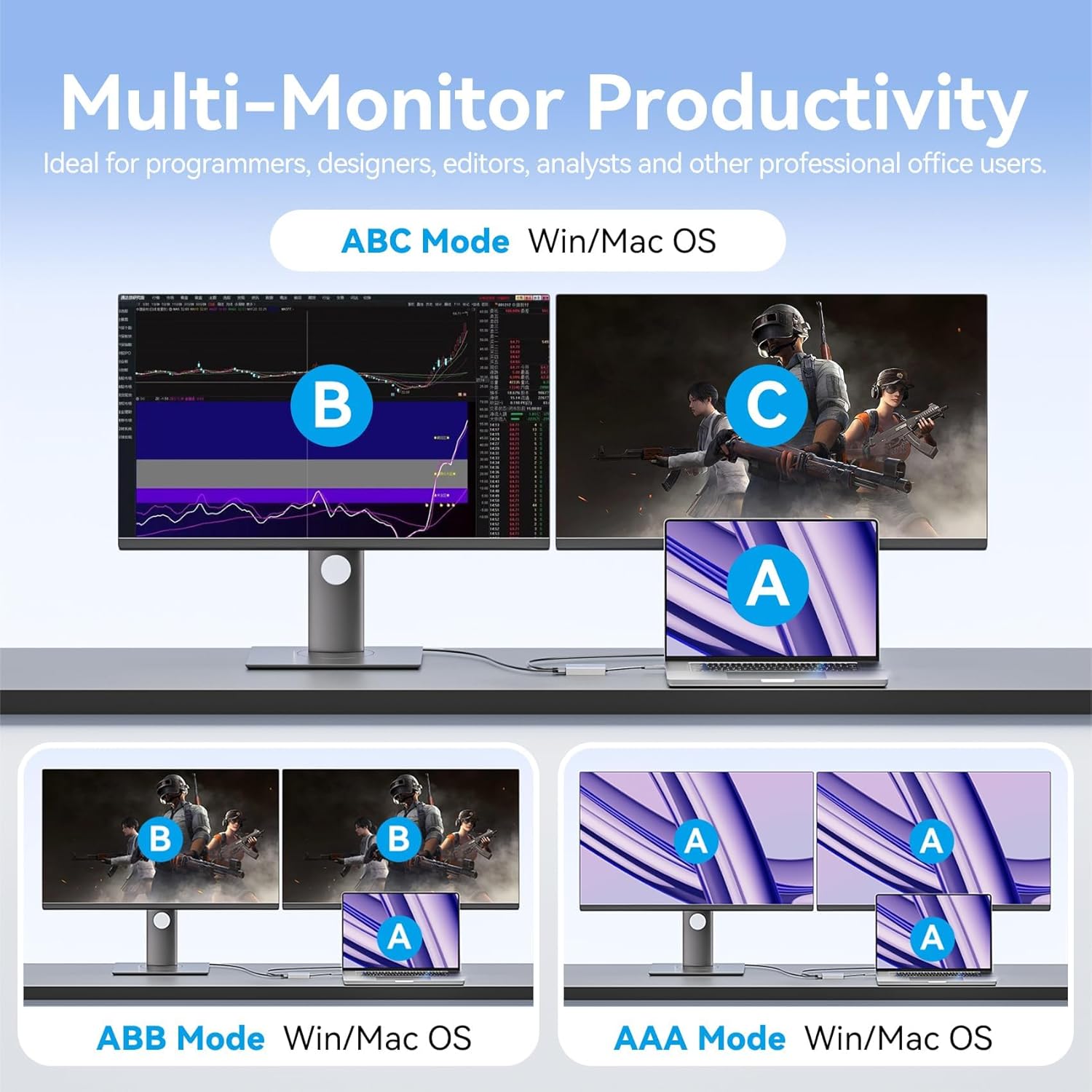
Image 2.5: Illustrations of various multi-monitor configurations (ABC, ABB, AAA modes) supported on Windows and Mac OS, enhancing productivity.

Image 2.6: The adapter's slim profile and powerful capabilities, highlighting its portable size and aluminum alloy shell for effective heat dissipation.

Image 2.7: A compatibility chart showing various source devices (PC, Laptop, AIO, Tablet/Phone) and display devices (Monitor, TV, Projector) supported, along with Windows, macOS, and Android operating systems.
Product Video
Video 2.1: An official product video demonstrating the VENTION Displaylink HDMI Docking adapter's features, including its design, connectivity, and multi-monitor capabilities.
3. Package Contents
Upon opening the package, please verify that all items listed below are present and in good condition:
- 1 x VENTION Displaylink USB C and USB 3.0 to Dual 4K HDMI Adapter (Model: ACXHB)
- 1 x Quick Start Guide
4. Specifications
| Brand | VENTION |
| Model Number | ACXHB |
| Product Dimensions | 6.38 x 4.96 x 0.94 inches |
| Item Weight | 7.4 ounces |
| Color | Gray |
| Hardware Interface | HDMI |
| Special Feature | Support MST for macOS, Fast Data Transfer |
| Compatible Devices | MacBook Pro 13"/14"/15"/16", MacBook Air, MacBook Retina, MacBook M1/M2/M3, HP Spectre x360/Pavilion/Envy, Dell XPS/Precision/Latitude, Lenovo ThinkPad/IdeaPad/Yoga/Flex, Surface Pro 7/7+/8/9, Surface Laptop 3/4/5/Go/Go 2/Studio/SE, Surface Go/Go 2/Go 3, LG Gram, Acer Aspire/Swift/Spin, ASUS Zenbook/Vivobook, and Most Windows systems with Windows 10 or newer / Most Chromebooks running ChromeOS 100 or newer. |
| Max Resolution (Single HDMI) | 4096x2160@60Hz |
| Max Resolution (Dual HDMI) | 4096x2160@60Hz |

Image 4.1: Detailed dimensions of the VENTION Displaylink USB C and USB 3.0 to Dual 4K HDMI Adapter.

Image 4.2: A comprehensive table outlining the technical specifications of the adapter, including material, interface, and display capabilities.
5. Setup and Installation
Before using the VENTION Displaylink adapter, it is crucial to install the appropriate DisplayLink driver for your operating system. This driver enables the multi-monitor functionality.
5.1 Driver Installation (General Steps)
- Visit the official DisplayLink website: www.displaylink.com
- Navigate to the "DOWNLOADS" section, typically located in the top right corner of the website.
- Select the correct operating system (Windows, macOS, Ubuntu, Chrome OS, Android) for your device.
- Download the latest DisplayLink driver. For macOS M1/M2/M3 users, ensure you download the dedicated driver version.
- Follow the on-screen instructions to complete the driver installation. This may involve accepting license agreements, running an installer, and potentially restarting your computer.
5.2 Driver Installation for Mac OS
For Mac OS users, follow these specific steps after downloading the DisplayLink Manager:
- Click on "Download" to initiate the download process for DisplayLink Manager.
- Once the download is complete, open the downloaded file and click "Accept" to proceed with the software license agreement.
- Open the downloaded package file and click "Continue" to start the installation.
- Follow the on-screen instructions to complete the installation. You may be prompted to enter your system password for authorization.

Image 5.1: Step-by-step visual guide for installing the DisplayLink driver on Mac OS systems.
5.3 Driver Installation for Windows
For Windows users, follow these specific steps after downloading the DisplayLink driver:
- Click on "Download" to initiate the download process for the Windows DisplayLink driver.
- Once the download is complete, open the downloaded file and click "Accept" to proceed with the software license agreement.
- Locate the downloaded package file and right-click on it. Select "Run as administrator" from the context menu.
- Grant system compatibility approval and follow the on-screen instructions to complete the installation.

Image 5.2: Step-by-step visual guide for installing the DisplayLink driver on Windows systems.
5.4 Connecting the Adapter
- Ensure the DisplayLink driver is successfully installed on your computer.
- Connect the USB-C or USB 3.0 end of the VENTION adapter to an available port on your laptop or computer.
- Connect your HDMI monitors to the HDMI ports on the VENTION adapter using standard HDMI cables.
- Power on your monitors. Your computer should detect the new displays.
6. Operating Instructions
Once the adapter is connected and drivers are installed, you can configure your display settings through your operating system.
6.1 Windows Display Settings
- Right-click on an empty area of your desktop and select "Display settings" or "Screen resolution".
- In the Display settings window, you will see representations of your connected displays (e.g., 1, 2, 3).
- Select each display and choose your preferred display mode:
- Extend these displays: Each monitor shows a different part of your desktop, expanding your workspace.
- Duplicate these displays: All monitors show the same content.
- Show only on 1/2/3: Only the selected monitor will be active.
- Adjust resolution, orientation, and scaling for each monitor as needed.
- Click "Apply" to save your changes.
6.2 Mac OS Display Settings
- Go to "System Settings" (or "System Preferences" on older macOS versions).
- Click on "Displays".
- Here you can arrange your displays by dragging them to the desired positions.
- For each display, you can set its resolution, refresh rate, and arrangement.
- To extend your desktop, ensure "Mirror Displays" is unchecked. To duplicate, check "Mirror Displays".
- For M1/M2/M3 MacBooks, the DisplayLink Manager application will provide additional options for managing the external displays. Ensure it is running in the background.
7. Compatibility
The VENTION Displaylink adapter is designed for broad compatibility across various devices and operating systems:
- Operating Systems:
- Windows 10 or newer (including Windows XP, 7, 8)
- Mac OS X 10.6 or higher (including M1/M2/M3 MacBooks with dedicated DisplayLink driver)
- Ubuntu
- Chrome OS 100 or newer
- Android systems
- Compatible Devices (Source):
- Laptops: MacBook Pro (13"/14"/15"/16"), MacBook Air, MacBook Retina, HP Spectre x360/Pavilion/Envy, Dell XPS/Precision/Latitude, Lenovo ThinkPad/IdeaPad/Yoga/Flex, Surface Laptop series, LG Gram, Acer Aspire/Swift/Spin, ASUS Zenbook/Vivobook.
- Tablets: Surface Pro series, Surface Go series.
- Desktops: PCs, All-in-One (AIO) computers.
- Compatible Devices (Display):
- Monitors
- Televisions (TVs)
- Projectors
Note: For optimal performance, especially with macOS M1/M2/M3 chips, ensure the latest DisplayLink driver is installed from the official DisplayLink website.
8. Troubleshooting
If you encounter issues while using the VENTION Displaylink adapter, please refer to the following common troubleshooting steps:
- No Display/Black Screen:
- Ensure the adapter is securely connected to both your computer and the monitors.
- Verify that the monitors are powered on and set to the correct HDMI input.
- Confirm that the DisplayLink driver is correctly installed and up to date. Reinstall if necessary.
- Try connecting one monitor at a time to isolate the issue.
- Test with different HDMI cables.
- Flickering or Unstable Display:
- Check for loose connections.
- Reduce the display resolution or refresh rate in your system's display settings.
- Ensure your computer's graphics drivers are up to date.
- Verify that the adapter is not overheating. The aluminum casing is designed for heat dissipation, but ensure proper airflow.
- "No Signal" Message on Monitor:
- Confirm the monitor's input source is set to the correct HDMI port.
- Ensure the DisplayLink driver is running and recognized by your system.
- Try restarting your computer with the adapter and monitors connected.
- Mac OS M1/M2/M3 Display Issues:
- Ensure you have downloaded and installed the specific DisplayLink driver for M1/M2/M3 chips.
- Verify that the DisplayLink Manager application is open and running in your menu bar.
- Check for any macOS updates that might affect DisplayLink functionality and update your DisplayLink driver accordingly.
- Adapter Not Recognized by Computer:
- Try connecting the adapter to a different USB 3.0 or USB-C port on your computer.
- Restart your computer.
- Ensure there are no physical damages to the adapter or its cable.
9. Maintenance
To ensure the longevity and optimal performance of your VENTION Displaylink adapter, follow these maintenance guidelines:
- Cleaning: Use a soft, dry, lint-free cloth to clean the adapter. Avoid using liquid cleaners, aerosols, or harsh chemicals.
- Storage: Store the adapter in a cool, dry place away from direct sunlight and extreme temperatures.
- Handling: Avoid dropping the adapter or subjecting it to strong impacts. Do not bend or twist the cable excessively.
- Ventilation: While the aluminum casing aids in heat dissipation, ensure the adapter is not covered or placed in an enclosed space during operation to allow for proper airflow.
- Cable Care: Always grasp the connector when plugging or unplugging the adapter; do not pull on the cable itself.
10. Warranty and Support
The VENTION Displaylink USB C and USB 3.0 to Dual 4K HDMI Adapter comes with a comprehensive warranty and dedicated technical support.
- Warranty: Enjoy 12-month replacements for any manufacturing defects or malfunctions.
- Technical Support: VENTION provides life-long technical support to assist you with any questions or issues you may encounter during the product's lifespan.
For warranty claims or technical assistance, please contact VENTION customer service through the retailer where you purchased the product or visit the official VENTION website for contact information.
Ask a question about this manual
Ask about setup, troubleshooting, compatibility, parts, safety, or missing instructions. Manuals+ will review the question and use this page’s manual context to help answer it.