
1. Introduction
This manual provides detailed instructions for the ACASIS 7-in-1 USB C Hub Multiport Adapter, Model DS-9901-SD. This device expands the connectivity of your USB-C enabled laptop or computer, offering a range of ports for data transfer, video output, and power delivery. Please read this manual thoroughly before using the product to ensure proper operation and longevity.

Image 1: The ACASIS 7-in-1 USB C Hub Multiport Adapter, showcasing its compact design and various ports.
2. Key Features
- 7-in-1 Connectivity: Integrates 2 USB-C 3.1 (10Gbps), 1 USB-A 3.1 (10Gbps), 1 HDMI 2.0 (4K@60Hz), 1 SD card reader, 1 TF card reader, and 1 PD 100W charging port.
- High-Speed Data Transfer: USB 3.1 ports support data transfer speeds up to 10Gbps for efficient file management.
- 4K@60Hz HDMI Output: Connect to external displays for high-resolution video output.
- Power Delivery 100W: Supports up to 100W power input for charging your host device (up to 90W output) while using other hub functions.
- Dual Card Reader: Simultaneously read and write data from SD and TF cards.
- Wide Compatibility: Compatible with various USB-C devices and operating systems including Windows, macOS, Linux, and Vista.
3. Product Overview
The ACASIS USB C Hub features a compact design with clearly labeled ports for easy identification and use. Below is a diagram illustrating the various interfaces:

Image 2: Diagram showing the layout of the 7-in-1 USB C Hub, including HDMI 2.0, TF 3.0, SD 3.0, USB-A 3.1 (10Gbps), two USB-C 3.1 (10Gbps), and PD 3.0 (100W Max) ports.
- HDMI 2.0 Port: Supports video output up to 4K resolution at 60Hz.
- TF 3.0 Card Slot: For TransFlash (microSD) memory cards.
- SD 3.0 Card Slot: For Secure Digital memory cards.
- USB-A 3.1 Port: For connecting USB-A devices, offering 10Gbps data transfer.
- USB-C 3.1 Ports (x2): For connecting USB-C devices, offering 10Gbps data transfer.
- PD 100W Port: USB-C port dedicated to power input for charging the host device. This port does not support data transfer.
4. Setup Instructions
- Connect the Hub to Your Device: Plug the integrated USB-C cable of the ACASIS hub into an available USB-C port on your laptop, MacBook, Mac mini, or other compatible host device.
- Power Connection (Optional): If your host device requires charging or if you are connecting power-intensive peripherals, connect a USB-C power adapter (up to 100W) to the PD 100W port on the hub.
- Connect Peripherals: Connect your desired devices (e.g., external monitor, USB drives, SD/TF cards) to the corresponding ports on the hub.
Watch this video for a visual guide on connecting the hub and its various functions:
Video 1: An overview of the ACASIS USB C Hub, demonstrating its various ports, connection to a laptop, and showcasing its 4K@60Hz HDMI output, 10Gbps data transfer, and 100W power delivery capabilities.
5. Operating Instructions
5.1. HDMI Video Output
Connect an HDMI cable from the hub's HDMI 2.0 port to your external monitor, TV, or projector. The hub supports resolutions up to 4K at 60Hz, providing a clear and smooth visual experience. Ensure your display device is set to the correct input source.

Image 3: A laptop connected to a large external monitor, displaying a 4K@60Hz image, facilitated by the ACASIS USB C Hub.
5.2. High-Speed Data Transfer
Utilize the USB-A 3.1 and two USB-C 3.1 ports for connecting external hard drives, SSDs, USB flash drives, or other data storage devices. These ports support data transfer speeds of up to 10Gbps, allowing for rapid copying of large files.
5.3. Power Delivery (PD) Charging
The dedicated PD 100W USB-C port allows you to charge your host device while simultaneously using other hub functions. Connect your original power adapter to this port. The hub can deliver up to 90W of power to your laptop. Note that this port is for power input only and does not support data transfer.

Image 4: A laptop connected to the ACASIS USB C Hub, which is then connected to a wall adapter, illustrating 100W Power Delivery charging.
5.4. SD/TF Card Reader
Insert your SD or TF (microSD) memory cards into the respective slots. The hub supports simultaneous reading and writing from both card types, with read/write speeds up to 80MB/s. This is ideal for transferring photos and videos from cameras or other devices.
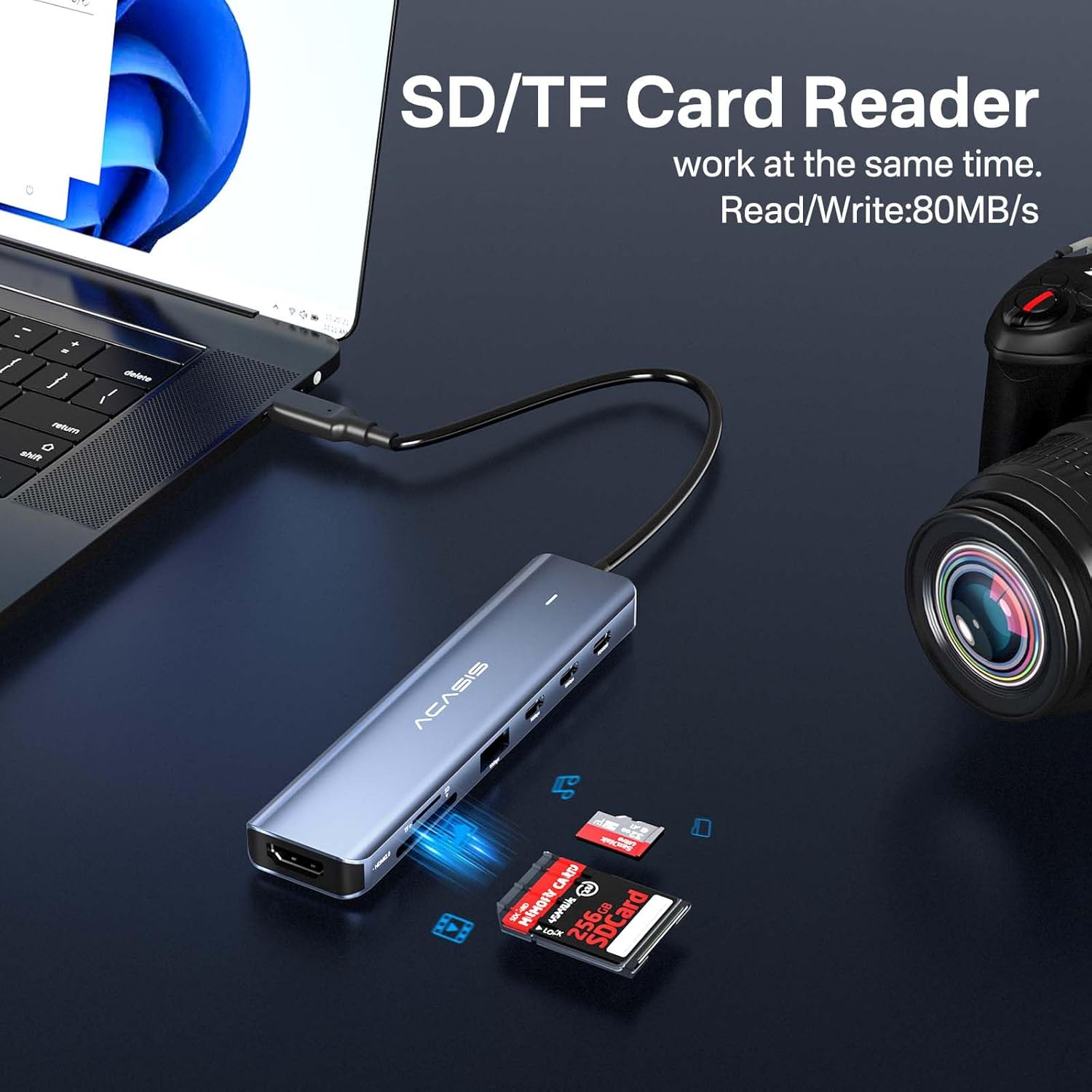
Image 5: The ACASIS USB C Hub with an SD card and a TF card inserted into their respective slots, indicating simultaneous read/write capability.
6. Compatibility
The ACASIS USB C Hub is designed for broad compatibility with various USB-C host devices and operating systems. It is a plug-and-play device, requiring no additional drivers for most functions.

Image 6: A visual representation of the ACASIS USB C Hub's wide compatibility with various USB-C host devices like MacBooks, iPads, Steam Deck, Nintendo Switch, ROG Ally, PS5, Samsung S22, iPhone 15, and operating systems including Windows, macOS, iPadOS, Linux, and Android.
- Compatible Devices: Laptops, MacBooks, Mac mini, iPads, Steam Deck, Nintendo Switch, ROG Ally, PS5, Samsung S22, iPhone 15, and other devices with a full-featured USB-C port.
- Supported Operating Systems: Windows, macOS, iPadOS, Linux, Android.
7. Technical Specifications
| Feature | Specification |
|---|---|
| Model Number | DS-9901-SD |
| Product Dimensions | 5.24 x 1.22 x 0.61 inches |
| Item Weight | 2.4 ounces |
| Input Connector | USB-C (Type-C) |
| Output Interfaces | 1x HDMI 2.0 (4K@60Hz) 2x USB-C 3.1 (10Gbps) 1x USB-A 3.1 (10Gbps) 1x SD 3.0 Card Reader 1x TF 3.0 Card Reader 1x PD 100W (Charging Only) |
| Power Delivery | Up to 100W input (90W output) |
| Data Transfer Speed | 10Gbps (USB 3.1 ports) |
| Card Reader Speed | Up to 80MB/s (SD/TF) |
| Material | Aluminum Alloy |
| Color | Blue |
8. Troubleshooting
- No Display Output via HDMI:
- Ensure your host device's USB-C port supports video output (DisplayPort Alternate Mode).
- Check all cable connections (USB-C from hub to device, HDMI from hub to display).
- Verify the external display is set to the correct HDMI input.
- Try a different HDMI cable or monitor to rule out compatibility issues.
- Slow Data Transfer Speed:
- Ensure the connected device (e.g., external SSD) supports USB 3.1 (10Gbps) speeds. Older USB 2.0 or 3.0 devices will operate at their respective maximum speeds.
- Avoid connecting multiple high-bandwidth devices simultaneously if experiencing slowdowns.
- Ensure your host device's USB-C port supports USB 3.1 Gen 2 for optimal performance.
- Host Device Not Charging via PD Port:
- Confirm your power adapter is connected to the PD 100W port on the hub.
- Ensure your power adapter provides sufficient wattage (e.g., 65W, 90W, 100W) for your host device.
- Verify your host device supports USB-C Power Delivery.
- The PD port is for power input only; it does not support data transfer.
- SD/TF Card Not Detected:
- Ensure the card is fully and correctly inserted into the appropriate slot.
- Check if the card is damaged or corrupted. Try another card if possible.
- Ensure your operating system has the necessary drivers (usually built-in).
9. Care and Maintenance
- Keep the hub away from water, moisture, and extreme temperatures.
- Avoid dropping or subjecting the hub to strong impacts.
- Clean the hub with a soft, dry cloth. Do not use liquid cleaners or aerosols.
- When not in use, store the hub in a cool, dry place.
10. Warranty and Support
ACASIS is committed to providing high-quality products and customer satisfaction. For any product-related inquiries, technical support, or warranty claims, please contact ACASIS customer service.
Email Support: support@acasis.com
Please refer to the official ACASIS website or product packaging for the most up-to-date warranty information.


