
1. Introduction
This manual provides essential information for the safe and efficient use of your Metzler VDM10 Video Intercom 2.0. Please read these instructions carefully before installation and operation, and retain them for future reference. The Metzler VDM10 is designed to enhance security and convenience for family homes, featuring a high-definition camera, RFID access, and smartphone integration.
2. Safety Information
Always observe the following safety precautions to prevent injury or damage to the device:
- Ensure all electrical connections are made by a qualified professional and comply with local electrical codes.
- Disconnect power before performing any installation, maintenance, or repair work.
- Do not expose the device to extreme temperatures, humidity, or direct water spray.
- Use only Metzler-approved accessories and replacement parts.
- Keep the device out of reach of children.
3. Package Contents
Verify that all components are present in the package:
- Outdoor station with HD camera
- Pro doorbell button(s) (2 for this model)
- 1 RFID card
- Surface and flush mounting box
- Mounting accessories
- User manual
4. Product Overview
The Metzler VDM10 Video Intercom 2.0 is a sophisticated entry system designed for modern homes. It integrates a high-resolution camera, a secure RFID reader for keyless entry, and robust LAN POE connectivity for reliable performance. The system supports communication with indoor stations and smartphone applications, allowing remote access and control.
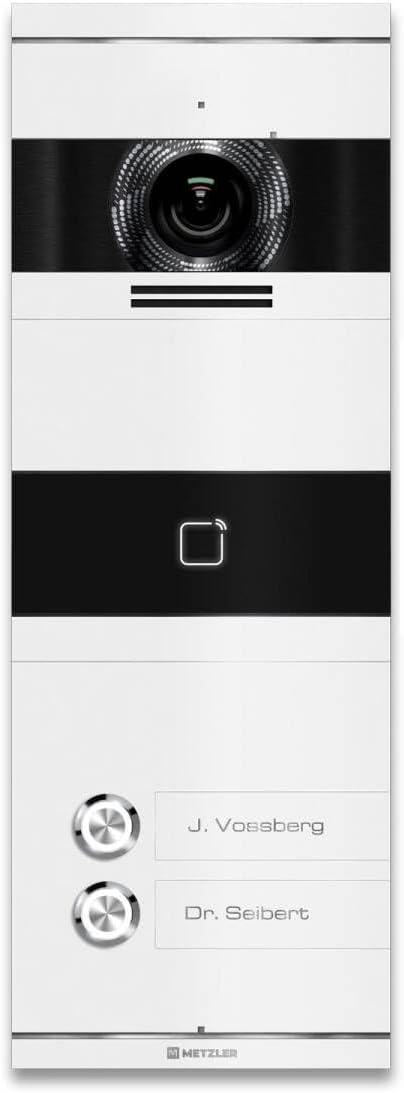
Figure 1: Front view of the Metzler VDM10 Video Intercom 2.0, displaying the integrated camera, RFID reader symbol, and two illuminated doorbell buttons with customizable nameplates.

Figure 2: Angled close-up view of the Metzler VDM10 intercom camera, showcasing the intricate lens design and the brushed metal finish around it.
5. Setup
5.1 Mounting the Outdoor Station
The Metzler VDM10 supports both surface and flush mounting using the provided universal mounting box. Choose a suitable location near your entrance, ensuring optimal camera visibility and accessibility for wiring.
- Select Mounting Type: Decide between surface or flush mounting based on your wall structure and aesthetic preference.
- Prepare the Mounting Location: For flush mounting, create an opening in the wall according to the dimensions of the mounting box. For surface mounting, ensure a flat, stable surface.
- Install Mounting Box: Securely fasten the mounting box to the wall using the provided screws and anchors.
- Wiring: Route the necessary cables (LAN/POE, power, door opener) through the mounting box.
- Attach Outdoor Station: Connect the cables to the outdoor station as per the wiring diagram (refer to the detailed diagram in the separate installation guide). Secure the outdoor station to the mounting box.

Figure 3: The Metzler VDM10 intercom seamlessly installed on a white exterior wall, adjacent to a contemporary dark grey entrance door, demonstrating its discreet and functional placement.
5.2 Power and Network Connection
The VDM10 supports Power over Ethernet (POE) for simplified installation, allowing both power and data to be transmitted over a single LAN cable. Alternatively, a separate power supply can be used.
- POE Connection: Connect a POE-enabled network switch or injector to the LAN port of the outdoor station using an Ethernet cable.
- Non-POE Connection: If not using POE, connect a 12V DC power adapter (not included) to the power input terminals and an Ethernet cable to a standard network switch.
5.3 Initial Configuration (Easy UI 2.0)
The VDM10 features Easy UI 2.0 for PC-free configuration. Refer to the separate network configuration guide for detailed steps on setting up network parameters, indoor station pairing, and smartphone app integration.
6. Operating Instructions
6.1 Receiving a Call
When a visitor presses a doorbell button on the outdoor station, a call will be initiated to the paired indoor stations and/or the configured smartphone application.
- Indoor Station: The indoor station will ring and display the video feed from the outdoor camera. You can answer the call, speak to the visitor, and open the door.
- Smartphone App: Your smartphone will receive a notification. Opening the app allows you to view the live video, communicate with the visitor, and remotely unlock the door.

Figure 4: A user interacting with the Metzler VDM10 intercom via a smartphone app, demonstrating the ability to see and communicate with a visitor, such as a delivery person, remotely.
6.2 Door Opening Function
The VDM10 allows for electronic door unlocking. This function can be activated from:
- Indoor Station: Press the designated unlock button on your Metzler indoor station during a call or in live view.
- Smartphone App: Tap the unlock icon within the smartphone application.
6.3 RFID Access
The integrated RFID reader provides convenient keyless entry.
- Register RFID Cards: Follow the instructions in the configuration guide to register your RFID cards with the system.
- Using RFID: Present a registered RFID card to the RFID reader area on the outdoor station. The door will unlock automatically.
7. Maintenance
Regular maintenance ensures optimal performance and longevity of your Metzler VDM10 intercom.
- Cleaning: Wipe the outdoor station with a soft, damp cloth. Do not use abrasive cleaners or solvents.
- Camera Lens: Gently clean the camera lens with a microfiber cloth to ensure clear image quality.
- Firmware Updates: Periodically check the Metzler website for firmware updates to ensure your system has the latest features and security enhancements.
8. Troubleshooting
If you encounter issues with your Metzler VDM10, refer to the following common problems and solutions:
| Problem | Possible Cause | Solution |
|---|---|---|
| No video feed | Network connection issue, power issue, camera fault. | Check LAN/POE connection. Verify power supply. Restart the system. |
| Door not unlocking | Wiring issue, incorrect settings, faulty door strike. | Check door strike wiring. Verify unlock settings in configuration. Test door strike independently. |
| RFID card not working | Card not registered, faulty card, RFID reader issue. | Ensure card is properly registered. Try another registered card. Contact support if issue persists. |
| No audio during call | Microphone/speaker issue, network latency. | Check network connection stability. Restart the system. |
If the problem persists after attempting these solutions, please contact Metzler customer support for further assistance.
9. Specifications
Detailed technical specifications for the Metzler VDM10 Video Intercom 2.0:
| Feature | Specification |
|---|---|
| Brand | Metzler |
| Model | VDM10 |
| Power Consumption | 4 Watts |
| Dimensions (L x W x H) | 0.05 x 13.3 x 37.8 cm (Product); 13.3 x 37.8 cm (Item) |
| Weight | 2.12 Kilograms |
| Material | Stainless Steel |
| Camera Type | HD Camera with Infrared Technology |
| Vision Area | 146° (Horizontal) x 82° (Vertical) |
| Special Features | RFID Reader |
| Certification | Easy UI 2.0 - PC-free Configuration |
| Compatible Devices | Metzler indoor stations |
| Power Source | Mains power (LAN POE supported) |
| Controller Type | Indoor station, smartphone app & PC + Mac |
| Fixing Type | Universal mounting box for surface and flush mounting |
| Installation Type | Mounting box for surface and flush mounting |

Figure 5: Field of view diagram for the VDM10, indicating a 146° horizontal and 82° vertical coverage. The diagram also suggests an optimal mounting height between 145 cm and 160 cm (measured from the top edge of the front plate) for comprehensive visitor visibility.
10. Warranty and Support
For warranty information, technical support, or service inquiries, please refer to the warranty card included with your product or visit the official Metzler website. Keep your purchase receipt as proof of purchase.


