
YUNZII B68
YUNZII B68 Wireless Mechanical Keyboard User Manual
Model: B68
Introduction
This manual provides detailed instructions for the setup, operation, maintenance, and troubleshooting of your YUNZII B68 Wireless Mechanical Keyboard. Please read this manual thoroughly before using the product to ensure proper functionality and longevity.

Image: The YUNZII B68 Wireless Mechanical Keyboard, showcasing its compact 65% layout and RGB backlighting.
Package Contents
Ensure all items are present in the package:
- YUNZII B68 Wireless Mechanical Keyboard
- Wired Cable (USB-C)
- 2.4GHz Wireless Receiver
- Extra Keycaps and Switches
- Keycap Puller
- User Manual (this document)
- Keyboard Dust Cover
Setup
1. Charging the Keyboard
Before initial use, fully charge the keyboard using the provided USB-C cable. Connect the cable to the keyboard's USB-C port and a power source (e.g., computer USB port, USB wall adapter). The keyboard has a 5000mAh battery.
2. Connectivity Modes
The YUNZII B68 supports three connectivity modes: Bluetooth (BT), 2.4GHz Wireless, and Wired (USB-C).

Image: Diagram illustrating the three connectivity modes: Bluetooth, 2.4GHz Wireless, and USB-C Wired, along with the mode switch on the keyboard.
2.1. Wired Mode (USB-C)
- Connect the provided USB-C cable to the keyboard's USB-C port and to your computer.
- Ensure the mode switch on the keyboard is set to "Line" (wired) mode.
- The keyboard will be recognized automatically by your computer.
2.2. 2.4GHz Wireless Mode
- Locate the 2.4GHz wireless receiver (dongle) included in the package.
- Plug the 2.4GHz receiver into an available USB port on your computer.
- Switch the mode selector on the keyboard to "2.4G".
- Press and hold Fn + R on the keyboard to enter pairing mode. The 'R' key will flash blue.
- The keyboard should connect automatically.
Image: Step-by-step guide for connecting the keyboard via 2.4GHz wireless mode, showing the mode switch, Fn+R key combination, and USB receiver insertion.
2.3. Bluetooth Mode (BT5.0)
The keyboard can connect to up to three Bluetooth devices.
- Switch the mode selector on the keyboard to "BT".
- Press and hold Fn + Q, Fn + W, or Fn + E for 3-5 seconds to select a Bluetooth channel. The Q/W/E key will flash with cyan/pink/yellow light, indicating pairing mode.
- On your device (computer, tablet, smartphone), open Bluetooth settings and search for "B68 3.0" or "B68 5.0".
- Select the keyboard to pair. The corresponding Q/W/E key will stop flashing upon successful connection.
- To switch between paired Bluetooth devices, press Fn + Q, Fn + W, or Fn + E briefly.

Image: Step-by-step guide for connecting the keyboard via Bluetooth, showing the mode switch, Fn+Q/W/E key combinations, and device pairing in system settings.
3. Operating System Switch (Win/Mac)
The keyboard has a switch to toggle between Windows and MacOS layouts. Locate the switch on the side or back of the keyboard and set it to your desired operating system.

Image: Close-up of the keyboard's side, showing the physical switch for Windows and Mac operating system modes.
Operating Instructions
1. Multifunction Knob
The knob located on the top right of the keyboard has dual functionality:
- Default Mode (Multimedia):
- Rotate to adjust volume (up/down).
- Press to mute/unmute audio.
- RGB Mode:
- Long-press the knob to switch to RGB mode.
- Rotate to change RGB backlight effects.
- Press to increase/decrease RGB brightness.

Image: Close-up of the multifunction knob, detailing its functions for multimedia control (volume, mute) and RGB lighting adjustments (effect, brightness).
2. RGB Backlighting Control
The keyboard features RGB backlighting with various effects and colors. Use the following Fn key combinations to control the lighting:
| Key Combination | Function |
|---|---|
| Fn + Backspace | Backlight Effect ON/OFF |
| Fn + | \ | Change Backlight Effect (15 default modes) |
| Fn + Enter | Change Backlight Color (8 colors) |
| Fn + Tab | White Light ON/OFF |
| Fn + ↑ / ↓ | Brightness ↑ / ↓ |
| Fn + ← / → | Blinking Speed ↑ / ↓ |
| Fn + Win | Lock Win Key |
| Fn + Right Alt | Check Battery Level (under wireless mode) |
| Fn + Caps Lock | Reset to factory settings |
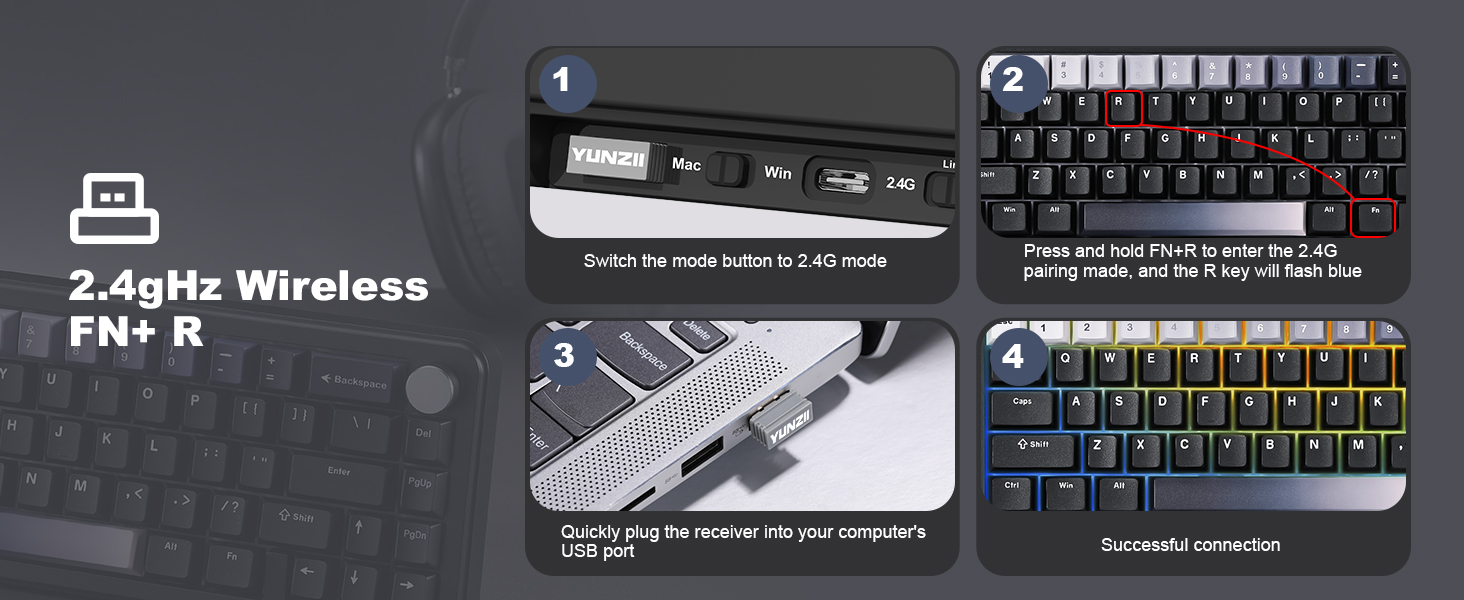
Image: Visual guide to RGB backlight control using Fn key combinations, showing various effects and brightness adjustments.
3. Windows Quick Start (Fn Key Functions)
The keyboard includes dedicated Fn key combinations for quick access to Windows functions:
- Fn + F1: Screen Brightness Down
- Fn + F2: Screen Brightness Up
- Fn + F3: Calculator
- Fn + F4: Computer (My Computer/This PC)
- Fn + F5: Player (Media Player)
- Fn + F6: Previous Song
- Fn + F7: Next Song
- Fn + F8: Play/Pause
- Fn + F9: Stop
- Fn + F10: Mute
- Fn + F11: Volume Down
- Fn + F12: Volume Up

Image: Diagram showing the Fn key combinations for various Windows quick functions, such as media control and volume adjustment.
4. Programmable Software
The YUNZII B68 keyboard supports programmable software for customizing key settings, RGB lighting, and macros. Note: This software is compatible only with Windows operating systems.
Download the software from the official YUNZII website. Once installed, you can:
- Remap keys
- Create custom RGB lighting effects
- Set up macros for complex commands

Image: Screenshot of the YUNZII keyboard's programmable software interface, showing options for key settings, RGB lighting, and macro customization.
Maintenance
1. Cleaning the Keyboard
- Use a soft, dry cloth to wipe the surface of the keyboard.
- For dust and debris between keycaps, use a can of compressed air.
- For deeper cleaning, keycaps can be removed.
2. Replacing Keycaps
The YUNZII B68 comes with a keycap puller and extra keycaps for customization. To replace keycaps:
- Gently attach the keycap puller to the keycap you wish to remove.
- Pull straight up to detach the keycap from the switch.
- Align the new keycap with the switch stem and press down firmly until it clicks into place.

Image: The keyboard with various keycaps, including gradient rainbow keycaps, and a keycap puller, demonstrating the customization options.
3. Replacing Switches (Hot-Swappable)
The YUNZII B68 features full-key hot-swappable sockets compatible with 3-pin and 5-pin mechanical switches. This allows for easy switch replacement without soldering.
- First, remove the keycap using the keycap puller.
- Use a switch puller (often included with extra switches or sold separately) to carefully grip the switch from its top and bottom clips.
- Gently pull the switch straight up to remove it from the PCB.
- Align the pins of the new switch with the holes on the PCB. Ensure the pins are straight to avoid bending.
- Press the new switch down firmly until it seats completely.

Image: Close-up of the keyboard's PCB with switches removed, showing the hot-swappable sockets and a Milk V2 linear switch, highlighting the ease of customization.
Troubleshooting
Keyboard Not Responding
- Check Connectivity: Ensure the keyboard is properly connected via USB-C, 2.4GHz receiver, or Bluetooth. Verify the mode switch is set correctly.
- Battery Level: The keyboard might be out of battery. Connect it to a power source using the USB-C cable to charge. Check battery level with Fn + Right Alt.
- Restart: Turn the keyboard off and on using the power switch. Restart your computer or device.
- Wired Mode Test: If wireless modes are not working, try connecting the keyboard directly via USB-C cable to rule out wireless interference or battery issues.
Bluetooth Connection Issues
- Re-pair: Remove the keyboard from your device's Bluetooth list and attempt to pair it again (see Setup section).
- Interference: Move the keyboard closer to your device and away from other wireless devices that might cause interference.
- Battery: Ensure the keyboard has sufficient charge.
2.4GHz Wireless Issues
- Receiver: Ensure the 2.4GHz receiver is securely plugged into a working USB port. Try a different USB port.
- Re-pair: Follow the 2.4GHz pairing steps again (Fn + R).
- Distance: Ensure the keyboard is within range of the receiver.
RGB Backlighting Not Working
- Turn On: Press Fn + Backspace to ensure the backlight is not turned off.
- Brightness: Increase brightness using Fn + ↑.
- Reset: Perform a factory reset by pressing Fn + Caps Lock.
Programmable Software Not Working
- Operating System: Confirm you are using a Windows operating system, as the software is not compatible with MacOS.
- Reinstallation: Try uninstalling and reinstalling the software from the official YUNZII website.
Specifications
| Feature | Detail |
|---|---|
| Brand | YUNZII |
| Model Number | B68 |
| Connectivity Technology | Bluetooth (BT5.0), 2.4GHz Wireless, USB-C Wired |
| Compatible Devices | Gaming Console, Laptop, PC, Smartphone, Tablet |
| Compatible Operating Systems | Windows (10+), MacOS |
| Keyboard Layout | 65% Compact (66 keys + 1 knob), QWERTY |
| Switch Type | Linear (Milk V2 Switch) |
| Hot-Swappable | Yes, supports 3-pin and 5-pin switches |
| Keycaps | Double Shot PBT Keycaps (Cherry Profile) |
| Backlighting | Full RGB, South-Facing LEDs |
| Battery Capacity | 5000mAh |
| Special Features | Gasket Mounted, Programmable Keys, Rechargeable, Ergonomic, Multifunction Knob |
| Product Dimensions (L x W x H) | 12.8" x 4.6" x 1.7" |
| Enclosure Material | Plastic |

Image: Exploded view diagram of the keyboard's gasket mount structure, showing the multiple layers of sound-absorbing foam and components for a quiet and smooth typing experience.
Warranty Information
For specific warranty details, please refer to the warranty card included with your product or contact the seller directly. Warranty terms may vary based on region and retailer.
Customer Support
If you encounter any issues or have questions regarding your YUNZII B68 Wireless Mechanical Keyboard, please contact YUNZII Customer Support through the platform where you purchased the product. For Amazon purchases, you can typically find seller contact information on the product page or through your order history.

Image: A graphic detailing how to contact Yunzii Keyboard customer support via Amazon, including steps for before and after placing an order.
Instructional Videos
Below are official instructional videos to assist with your YUNZII B68 keyboard.
B68 Wireless Mechanical Keyboard Overview
Video: An overview of the YUNZII B68 Wireless Mechanical Keyboard, demonstrating its features and design.
Unboxing of YUNZII B68 Wireless Mechanical Keyboard
Video: A detailed unboxing of the YUNZII B68 Wireless Mechanical Keyboard, showing all included accessories and initial impressions.
Typing Sound of B68 Wireless Keyboard
Video: Demonstration of the typing sound produced by the YUNZII B68 Wireless Mechanical Keyboard, highlighting its creamy sound profile.
Related documentsB68


Ask a question about this manual
Ask about setup, troubleshooting, compatibility, parts, safety, or missing instructions. Manuals+ will review the question and use this page’s manual context to help answer it.