
AGM M8 FLIP
AGM M8 FLIP 4G User Manual
Your comprehensive guide to the AGM M8 FLIP 4G Rugged Basic Flip Phone.
1. Product Overview
The AGM M8 FLIP 4G is a rugged basic flip phone designed for durability and simplicity. It features 4G connectivity, a powerful 104dB speaker, large fonts and buttons for ease of use, and essential functions like an SOS side key and speed dial. This phone is built to withstand challenging environments, being waterproof, dust-proof, and drop-proof.
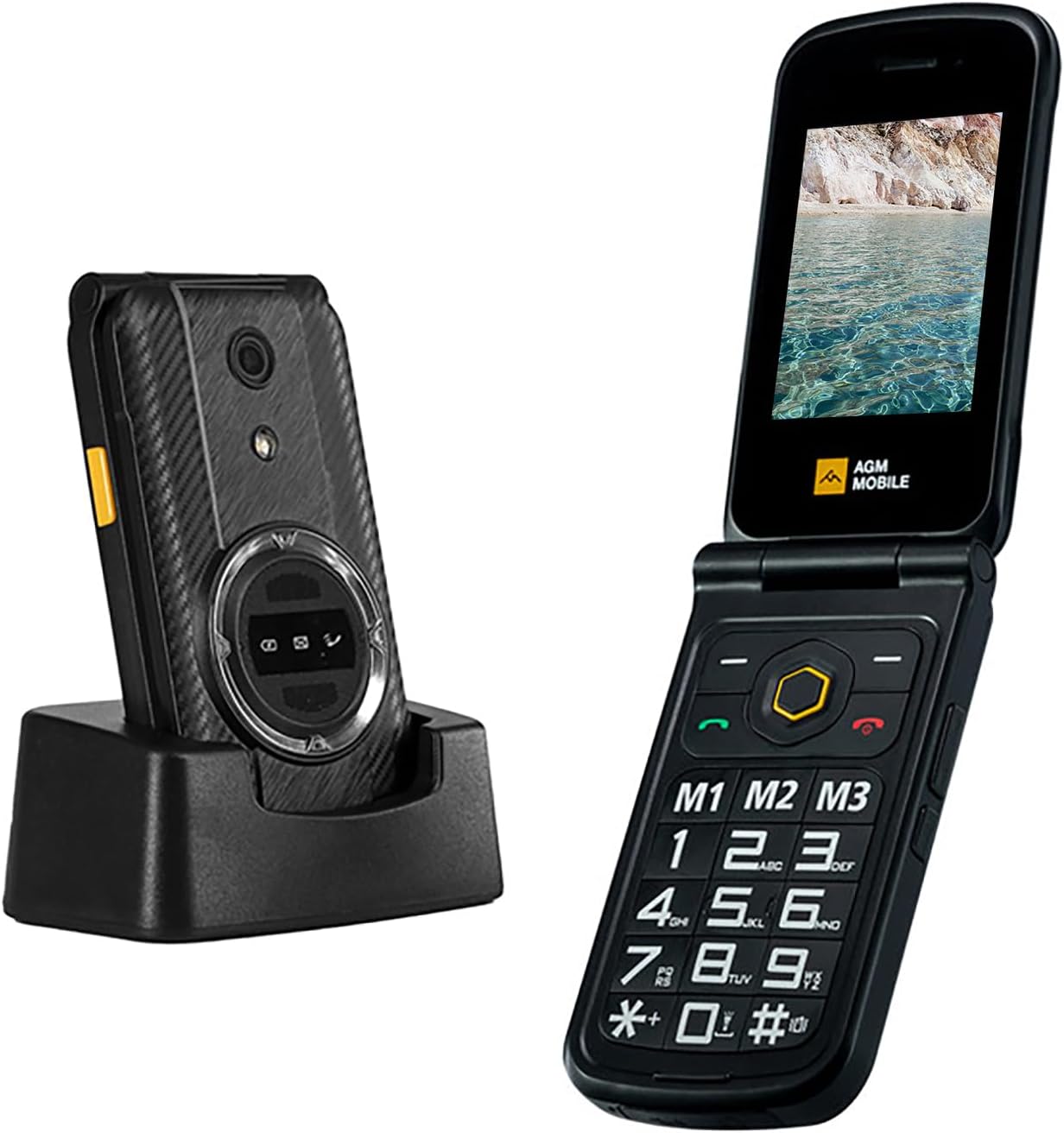
Figure 1: The AGM M8 FLIP 4G phone shown both open and closed, alongside its charging dock.
2. Setup and Initial Use
2.1 SIM Card Installation and Activation
The AGM M8 FLIP 4G supports dual SIM cards for increased flexibility. Follow these steps for proper installation and activation:
- SIM Card Activation: If you have a new SIM card, activate it in another phone before inserting it into the M8 FLIP. This prevents potential recognition issues.
- Proper Installation: Gently open the SIM slot and carefully place the SIM card inside. Avoid applying excessive force to prevent damage to the slot, which could lead to SIM detection problems.
- Dual SIM Functionality: The phone supports two SIM cards simultaneously. Note that when two SIM cards are inserted, only one can utilize 4G connectivity at a time.

Figure 2: The internal view of the AGM M8 FLIP 4G, showing the dual SIM card slots and battery compartment.
2.2 Charging the Device
Use the original power adapter and USB cable provided with your M8 FLIP to ensure proper charging and compatibility. The phone features a 1500mAh battery, providing approximately 7 hours of call time and up to 2 weeks of standby time.

Figure 3: Illustration highlighting the 1500mAh battery capacity and estimated usage times for the AGM M8 FLIP 4G.
3. Operating Instructions
3.1 Basic Call and Text Functions
The AGM M8 FLIP 4G is designed for straightforward communication. Its large fonts and oversized keypad make dialing and texting easy. SMS and MMS support T9 input for efficient messaging.

Figure 4: The AGM M8 FLIP 4G displaying its large 2.8-inch screen and oversized keypad for improved readability and ease of use.
3.2 SOS Side Key
For emergencies, the programmable SOS side button can quickly call emergency services or pre-selected contacts. Press and hold the SOS button for 3-5 seconds to activate this feature.

Figure 5: A hand demonstrating the location and use of the dedicated SOS side key on the AGM M8 FLIP 4G.
3.3 Speed Dial
Set up speed dial shortcuts for frequently called contacts. Simply press and hold the designated button (M1, M2, M3) to instantly dial a stored number.

Figure 6: Close-up of the AGM M8 FLIP 4G keypad, highlighting the M1, M2, and M3 buttons designated for speed dial functions.
3.4 Powerful Speaker and FM Radio
The M8 FLIP features a powerful 104dB speaker, ensuring clear audio even in noisy environments. It also includes a built-in FM radio and music player for entertainment without internet connectivity.

Figure 7: The rear of the AGM M8 FLIP 4G, emphasizing its powerful 104dB speaker for loud and clear audio output.
4. Maintenance and Durability
The AGM M8 FLIP 4G is engineered for rugged use, meeting high standards for water, dust, and shock resistance.
- Waterproof (IP68 & IP69K): The phone is protected against immersion in water and high-pressure, high-temperature water jets.
- Dust-Proof (IP68 & IP69K): Designed to be completely protected against dust ingress.
- Drop-Proof (MIL-STD-810G): Meets military standard for shock resistance, capable of withstanding drops and impacts.

Figure 8: Visual representation of the AGM M8 FLIP 4G's rugged capabilities, including resistance to water, drops, and dust.
5. Troubleshooting
This section provides solutions to common issues you might encounter with your AGM M8 FLIP 4G.
5.1 Phone Will Not Charge
- Check the Charger: Ensure you are using the original charger and charging cable that came with your M8 FLIP to guarantee compatibility.
- Perform a Factory Reset:
- Reset the M8 FLIP to factory settings.
- The default password for resetting is 1234.
- After the reset is complete, restart the phone.

Figure 9: Visual guide for troubleshooting charging problems with the AGM M8 FLIP 4G.
5.2 Accidental SOS Side Key Activation
- After accidentally pressing the SOS side key, stop the alarm by pressing the red hang-up button.
- Press the 'Main' button, select 'Settings'. Scroll down to find 'SOS settings', tap on 'SOS Status', and select 'Off'.
- Return to the previous screen, tap on 'Emergency alert', and select 'Off'. This will prevent the alarm from sounding if the SOS side key is accidentally pressed again.

Figure 10: Instructions for disabling accidental SOS side key activations on the AGM M8 FLIP 4G.
5.3 Unwanted Button Sounds
- Select a Profile Mode: Press the 'Main' button, select 'Profiles', and choose 'Silent' from the options. This will stop the button sounds.
- Customize Your Profile: In the 'Profiles' menu, press 'Options' to further customize a profile according to your preferences.

Figure 11: Guide to managing button sounds on the AGM M8 FLIP 4G.
5.4 SIM Card Not Read
- Activate the SIM Card: Ensure your SIM card is activated by testing it in another phone first.
- Insert the SIM Card Correctly: When inserting the SIM card into the M8 FLIP, carefully open the SIM card slot and gently place the SIM card inside. Be cautious not to apply excessive force to avoid damaging the slot, which may prevent the SIM card from being read.
- Check Compatibility: Reach out to AGM support to verify whether your SIM card's carrier is compatible with the M8 FLIP.

Figure 12: Steps to resolve issues with the AGM M8 FLIP 4G not recognizing the SIM card.
6. Specifications
| Feature | Detail |
|---|---|
| Model | M8 FLIP |
| Operating System | Mocor(RTOS) |
| Display Size | 2.18 Inches |
| Resolution | 320 x 240 |
| RAM Memory | 48 MB |
| Flash Memory | 128 MB |
| Digital Storage Capacity | 48 MB (Expandable) |
| Battery Capacity | 1500 mAh Lithium-Ion |
| Cellular Technology | 4G |
| Connectivity | Bluetooth, USB |
| Special Features | Basic Phone, Dual SIM, Expandable Memory, Rugged Body, Water Resistant, SOS Key, Speed Dial, FM Radio, Flashlight |
| Dimensions | 11.53 x 6.23 x 2.28 cm |
| Weight | 300 g |
7. Warranty and Support
For warranty information and technical support, please contact AGM Official. Our support team is available to assist with any questions regarding your device or network compatibility.
You can find more information and contact details on the official AGM Mobile website or through your purchase platform.
- Online Support: Visit the AGM Mobile Store on Amazon for product details and support resources.
- Email Support: global@agmmobile.com
Related documentsM8 FLIP


Ask a question about this manual
Ask about setup, troubleshooting, compatibility, parts, safety, or missing instructions. Manuals+ will review the question and use this page’s manual context to help answer it.