
Introduction
This manual provides comprehensive instructions for the ALLIMITY RMF-TX500E Voice Search Remote Control. This remote is designed as a replacement for various Sony 4K HD Smart TV models, offering full functionality including voice search capabilities. Please read this manual carefully to ensure proper setup and operation.
Package Contents
- 1 x ALLIMITY RMF-TX500E Voice Search Remote Control
- (Batteries are not included and must be purchased separately)
Setup
1. Battery Installation
The RMF-TX500E remote control requires two AAA batteries (not included). Follow these steps to install them:
- Locate the battery compartment cover on the back of the remote control.
- Slide the cover downwards or press the latch (if present) to open the compartment.
- Insert two AAA batteries, ensuring the positive (+) and negative (-) terminals align correctly with the markings inside the compartment.
- Replace the battery compartment cover by sliding it back into place until it clicks securely.
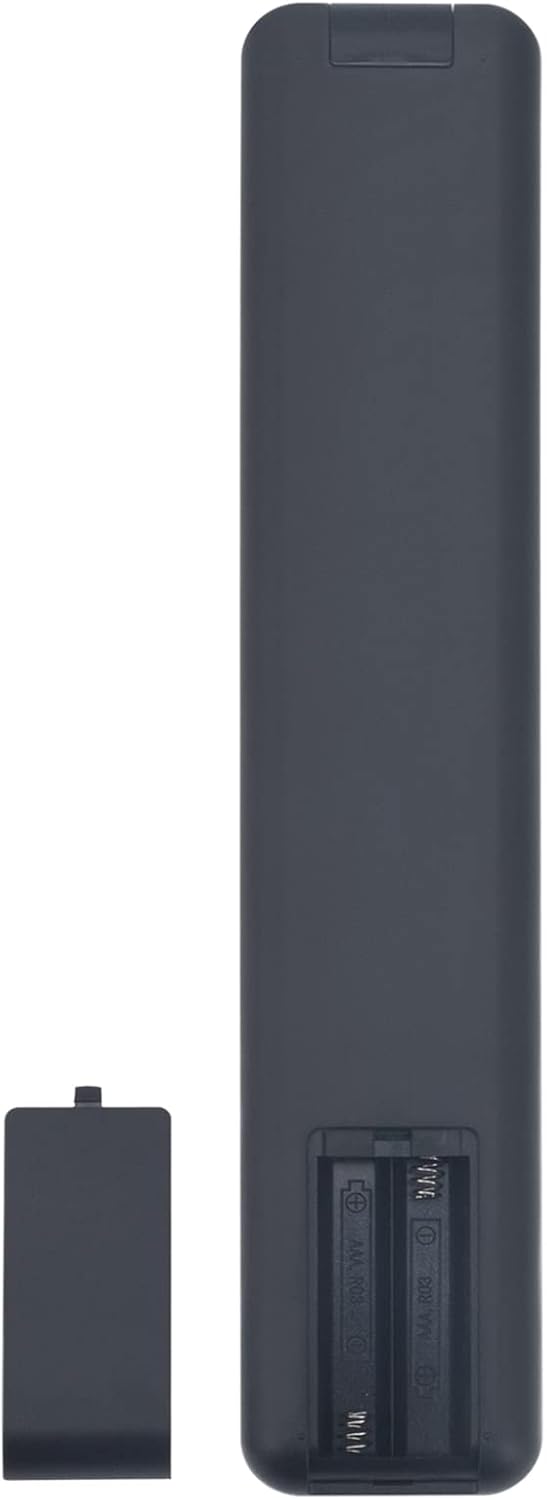
Image: Back view of the remote control with the battery compartment open, illustrating where to insert AAA batteries.
2. Pairing with Your Sony Smart TV
This voice replacement remote control requires pairing with your Sony Smart TV before use. Follow these steps to initiate pairing:
- Ensure your Sony TV is powered on. If not, press the Power key on the remote control to turn on the TV.
- Press and hold the VOL- (Volume Down) key and the Google Assistant key (microphone icon) simultaneously for 2 seconds.
- The remote will initiate the pairing process with your TV. This transaction occurs in the background, and no further setup is typically required.
- Once paired, the remote control should be fully functional, including voice search.

Image: Front view of the remote control, showing the layout of buttons including the Google Assistant and Volume Down keys used for pairing.
Operating Instructions
The ALLIMITY RMF-TX500E remote control provides intuitive access to your Sony Smart TV's functions. Below are common button functions:
- Power (⏻): Turns the TV on or off.
- Number Keys (0-9): Direct channel selection.
- Google Play / Netflix: Dedicated buttons for quick access to these streaming services.
- GUIDE: Displays the electronic program guide.
- REC LIST: Accesses recorded content list.
- Directional Pad (Up, Down, Left, Right) & Enter: Navigates menus and confirms selections.
- BACK: Returns to the previous screen or menu.
- HOME: Accesses the TV's main home screen.
- TV: Switches to TV input.
- AUDIO: Adjusts audio settings or selects audio tracks.
- VOL+ / VOL-: Increases or decreases volume.
- CH+ / CH-: Changes channels up or down.
- Mute: Mutes or unmutes the TV sound.
- HELP: Accesses the TV's help menu.
- REC: Starts recording (if supported by TV and connected device).
- Play/Pause/Stop/Fast Forward/Rewind: Media playback controls.
- EXIT: Exits current menu or application.
- Google Assistant (Microphone icon): Activates voice search and commands. Press and speak into the remote.

Image: Angled front view of the remote control, providing a clear view of all operational buttons.
Maintenance
Battery Replacement
When the remote control's performance degrades or it stops responding, it is likely time to replace the batteries. Follow the battery installation steps outlined in the "Setup" section. Always replace both batteries at the same time with new AAA alkaline batteries for optimal performance.
Cleaning
To clean the remote control, gently wipe its surface with a soft, dry cloth. For stubborn dirt, slightly dampen the cloth with water or a mild, non-abrasive cleaner. Avoid using harsh chemicals or abrasive materials, as these can damage the remote's finish or internal components.
Storage
Store the remote control in a cool, dry place away from direct sunlight and extreme temperatures. If the remote will not be used for an extended period, it is recommended to remove the batteries to prevent leakage and potential damage.
Troubleshooting
| Problem | Possible Cause | Solution |
|---|---|---|
| Remote not responding to TV. |
|
|
| Voice search not working. |
|
|
| Buttons are sticky or unresponsive. |
|
|
Specifications
| Model Number | RMF-TX500E |
| Brand | ALLIMITY |
| Compatible Devices | Sony 4K HD Smart Televisions |
| Dimensions (L x W x H) | 6 x 2 x 0.5 inches (approximately) |
| Item Weight | 2.86 ounces (without batteries) |
| Power Source | 2 x AAA Batteries (not included) |
| Special Feature | Ergonomic design, Voice Search |
| Color | Black |
Compatible Sony TV Models
The ALLIMITY RMF-TX500E remote control is compatible with a wide range of Sony 4K HD Smart TV models, including but not limited to the following series:
- KD-85XH9096, KD-75XH9299, KD-75XH9296, KD-75XH9288, KD-75XH9096, KD-75XH9005
- KD-65XH9299, KD-65XH9296, KD-65XH9288, KD-65XH9096, KD-65XH9077, KD-65XH9005
- KD-55XH9299, KD-55XH9296, KD-55XH9288, KD-55XH9096, KD-55XH9077, KD-55XH9005
- KD-85ZH8, KD-75ZH8
- KD-65XH95 series, KD-55XH95 series, KD-75XH9505, KD-65XH9505, KD-55XH9505
- KD-85XH90 series, KD-75XH92 series, KD-75XH90 series
- KD-65XH92 series, KD-65XH90 series, KD-55XH92 series, KD-55XH90 series
If your Sony TV model is not listed, please refer to your TV's original manual or contact ALLIMITY customer support for compatibility verification.
Warranty and Support
For warranty information or technical support regarding your ALLIMITY RMF-TX500E remote control, please refer to the seller's return policy or contact ALLIMITY customer service directly through their official channels. Please have your product model number (RMF-TX500E) and purchase details ready when contacting support.