
1. Introduction
This manual provides detailed instructions for the Rapoo E9350L Multi-Device Wireless Keyboard. The E9350L is an ultra-thin, 99-key keyboard designed for seamless switching between up to four devices across various operating systems including Windows, Mac OS, Linux, and Chrome OS. It features low-profile chiclet keycaps for comfortable and quiet typing, a compact layout with a numeric keypad, and a long-lasting rechargeable battery.
2. What's in the Box
- 1 x E9350L Wireless Keyboard
- 1 x Charging Cable (USB-C)
- 1 x User Guide
3. Setup
3.1 Initial Charging
Before first use, fully charge the keyboard using the provided USB-C cable. Connect the USB-C end to the keyboard's charging port and the USB-A end to a power source (e.g., computer USB port, USB wall adapter). The battery indicator light will show charging status.
3.2 Connecting to Devices
The E9350L supports connection via 2.4GHz wireless (using a USB receiver) and Bluetooth 5.0/4.0. It can connect to up to four devices simultaneously.
3.2.1 2.4GHz Wireless Connection
- Locate the 2.4GHz USB receiver, typically stored in a compartment on the keyboard or included separately.
- Plug the USB receiver into an available USB port on your computer or device.
- Turn on the keyboard. It should automatically connect to the receiver.
3.2.2 Bluetooth Connection (for up to 3 devices)
- Turn on the keyboard.
- Press and hold the Bluetooth pairing key (usually indicated by a Bluetooth icon or a number like '1', '2', or '3' on the F-keys) for 3-5 seconds until the indicator light flashes rapidly. This indicates pairing mode.
- On your device (computer, tablet, smartphone), go to Bluetooth settings and search for new devices.
- Select "Rapoo E9350L" or a similar name from the list of available devices.
- Follow any on-screen prompts to complete the pairing process. The indicator light on the keyboard will become solid when connected.
- Repeat for additional Bluetooth devices using different Bluetooth pairing keys.

Figure 3.2.2: Multi-Device and Multi-OS Connectivity
4. Operating Instructions
4.1 Switching Between Connected Devices
To switch between your connected devices, simply press the corresponding device key (e.g., F1 for 2.4GHz, F2/F3/F4 for Bluetooth devices). The device indicator light will illuminate to show which device is currently active.
4.2 Multimedia Hotkeys
The keyboard features 12 multimedia hotkeys (F1-F12) that provide quick access to common functions. To use these functions, press the Fn key simultaneously with the desired F-key.
- Fn + F1: Previous Track
- Fn + F2: Play/Pause
- Fn + F3: Next Track
- Fn + F4: Mute
- Fn + F5: Volume Down
- Fn + F6: Volume Up
- Fn + F7: Home
- Fn + F8: Search
- Fn + F9: Email
- Fn + F10: Web Browser
- Fn + F11: My Computer
- Fn + F12: Calculator
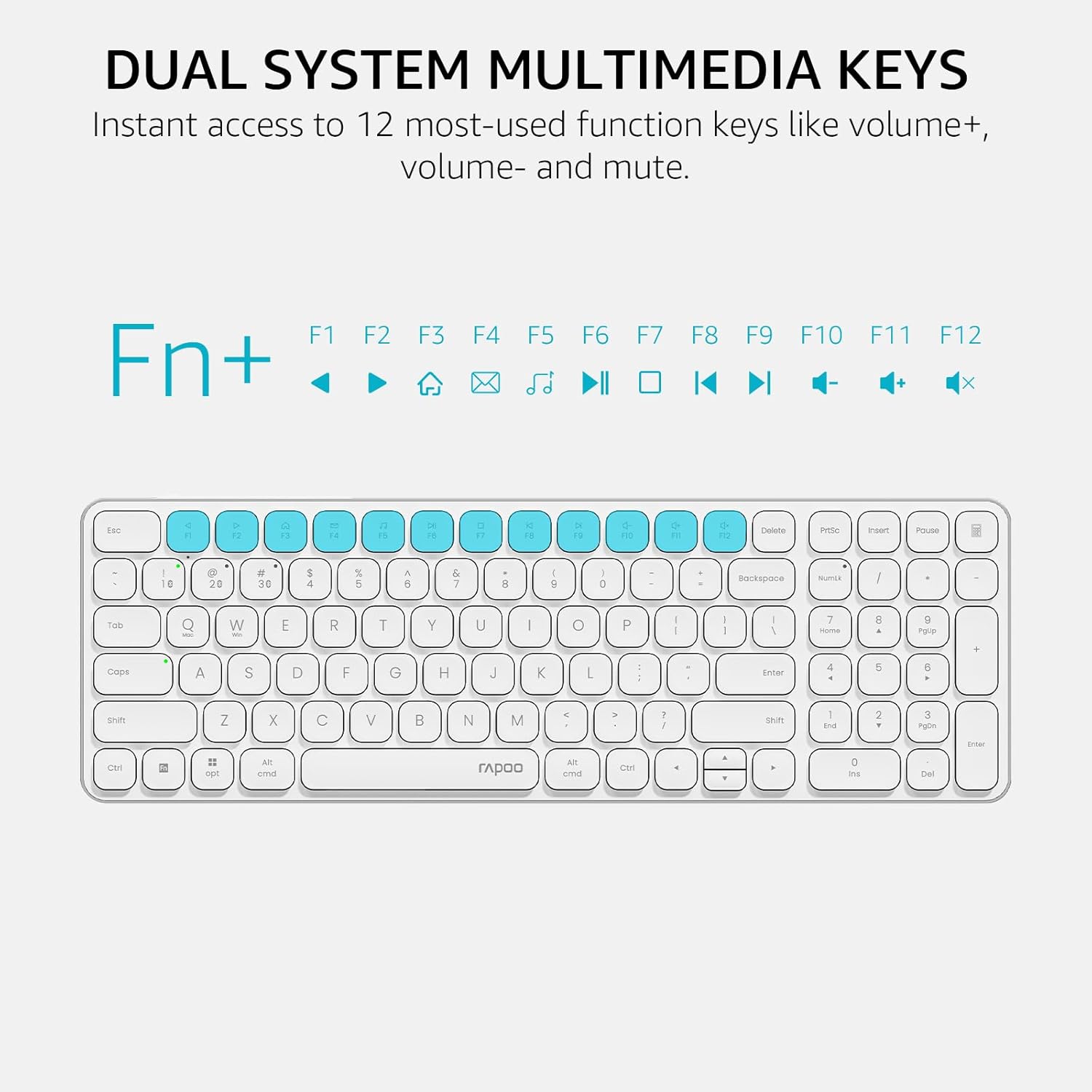
Figure 4.2: Dual System Multimedia Keys
4.3 Indicator Lights
The keyboard features indicator lights for device selection, capitalization (Caps Lock), and battery status.
- Device Indicator: Shows which of the 4 connected devices is currently active.
- Caps Lock Indicator: Illuminates when Caps Lock is enabled.
- Battery Indicator: Shows low battery warning and charging status.

Figure 4.3: Device and Capitalization Indicator Lights
5. Maintenance
5.1 Cleaning
To clean the keyboard, gently wipe the surface with a soft, damp cloth. For deeper cleaning between keys, use compressed air to remove dust and debris. Avoid using harsh chemicals or abrasive materials.
5.2 Battery Care
The E9350L features a rechargeable lithium polymer battery. To maximize battery life:
- Charge the keyboard fully before first use.
- Avoid completely draining the battery regularly.
- Store the keyboard in a cool, dry place if not used for extended periods.
- The keyboard supports fast charging, providing a full day's use with just 10 minutes of charging. A full charge can last up to 90 days.

Figure 5.2: 90-Day Rechargeable Battery
6. Troubleshooting
6.1 Keyboard Not Connecting
- Ensure the keyboard is turned on and fully charged.
- For 2.4GHz connection, verify the USB receiver is securely plugged into a working USB port.
- For Bluetooth connection, ensure Bluetooth is enabled on your device and the keyboard is in pairing mode (flashing indicator light). Try re-pairing the device.
- Try connecting to a different USB port or a different device to rule out port or device issues.
6.2 Typing Delays or Disconnections
- Check for interference from other wireless devices. Move the keyboard closer to the receiver/device.
- Ensure the keyboard battery is not low.
- Update Bluetooth drivers on your computer if applicable.
6.3 Multimedia Keys Not Working
- Ensure you are pressing the Fn key simultaneously with the desired F-key.
- Some operating systems may require specific driver updates or settings adjustments for multimedia keys.
7. Specifications
| Feature | Detail |
|---|---|
| Model Number | E9350L |
| Dimensions (L x W x H) | 14.29 x 4.69 x 0.51 inches (36.3 x 11.9 x 1.3 cm) |
| Item Weight | 12.9 ounces |
| Connectivity Technology | Bluetooth (5.0/4.0), RF (2.4GHz) |
| Number of Devices Supported | Up to 4 (1 x 2.4GHz, 3 x Bluetooth) |
| Key Layout | 99-Key Compact with Numeric Keypad |
| Key Type | Low-profile Chiclet |
| Battery Type | Rechargeable Lithium Polymer |
| Battery Life | Up to 90 days on a full charge |
| Compatible Devices | Laptop, PC, Projector, Smartphone, Tablet |
| Compatible OS | Windows, Mac OS, Linux, iOS, Android, Chrome OS |
| Material | Aluminum (frame) |

Figure 7.1: Product Dimensions
8. Warranty Information
For detailed warranty information, please refer to the official Rapoo website or contact Rapoo customer support. Keep your purchase receipt as proof of purchase for any warranty claims.
9. Support
If you encounter any issues or have questions regarding your Rapoo E9350L keyboard, please visit the official Rapoo support page or contact their customer service. You can find more information and resources on the Rapoo Store on Amazon.


