
1. Introduction
The LTC Nimbleback NB841 PRO is a 75% wireless mechanical keyboard designed for versatility and performance. It features a compact layout with 84 keys, a multifunctional display screen, and an intuitive control knob. The keyboard supports triple connectivity modes (2.4GHz wireless, Bluetooth, and USB-C wired) and includes a 3-layer silicone dampening structure for a quiet typing experience. Its hot-swappable PCB allows for easy customization of switches, and comprehensive software support enables personalized settings for lighting, macros, and display content.

Figure 1: LTC Nimbleback NB841 PRO Keyboard
2. Package Contents
Verify that all items are present in your package:
- 1 x NB841 Pro Keyboard
- 1 x User Manual
- 1 x 2-in-1 USB-C Cable
- 1 x 2-in-1 Keycap & Switch Puller
- 4 x Replaced Switches
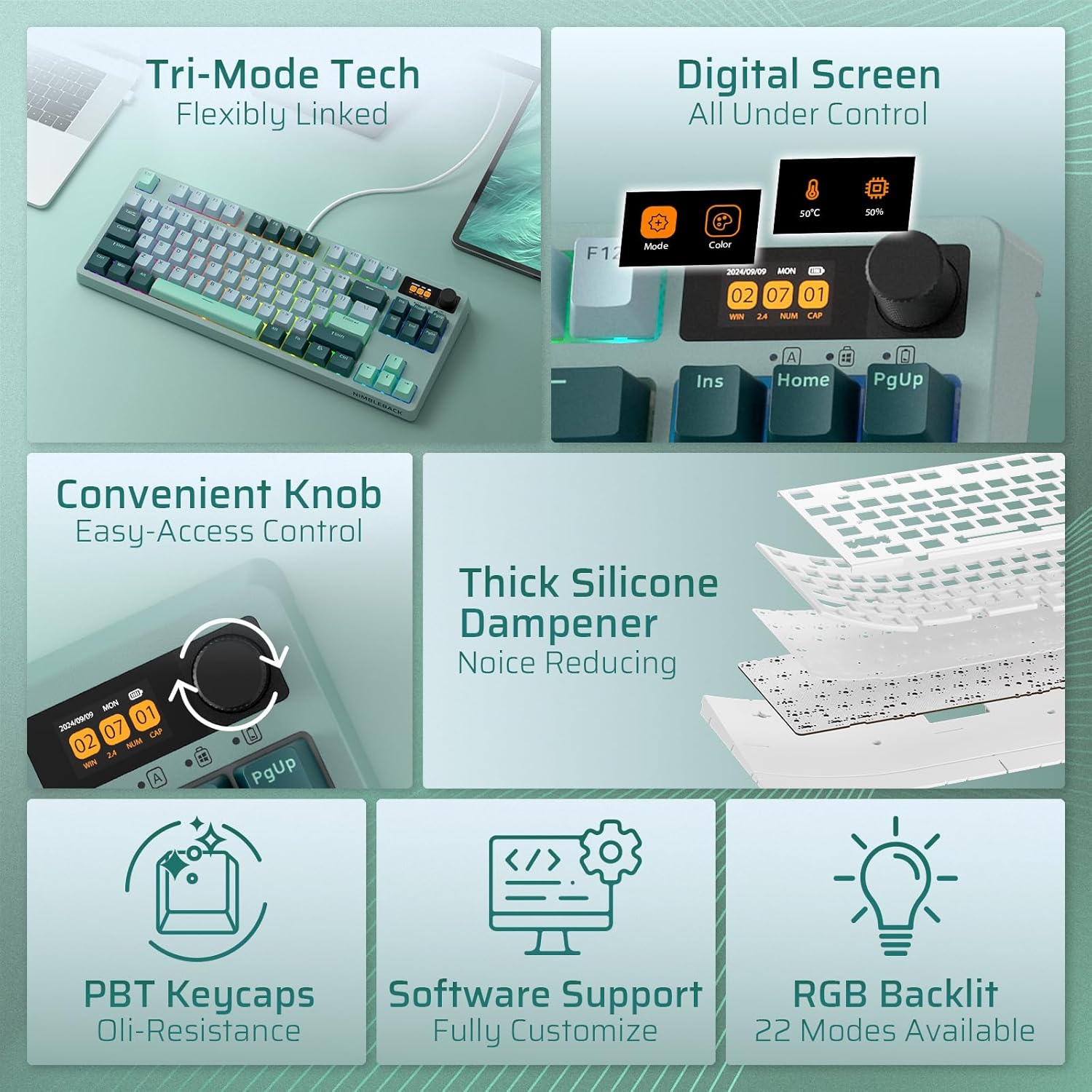
Figure 2: Key Features Overview
3. Setup
3.1. Connectivity Modes
The NB841 PRO supports three connection types: 2.4GHz wireless, Bluetooth 5.0, and USB-C wired. The mode switch is located on the bottom of the keyboard.
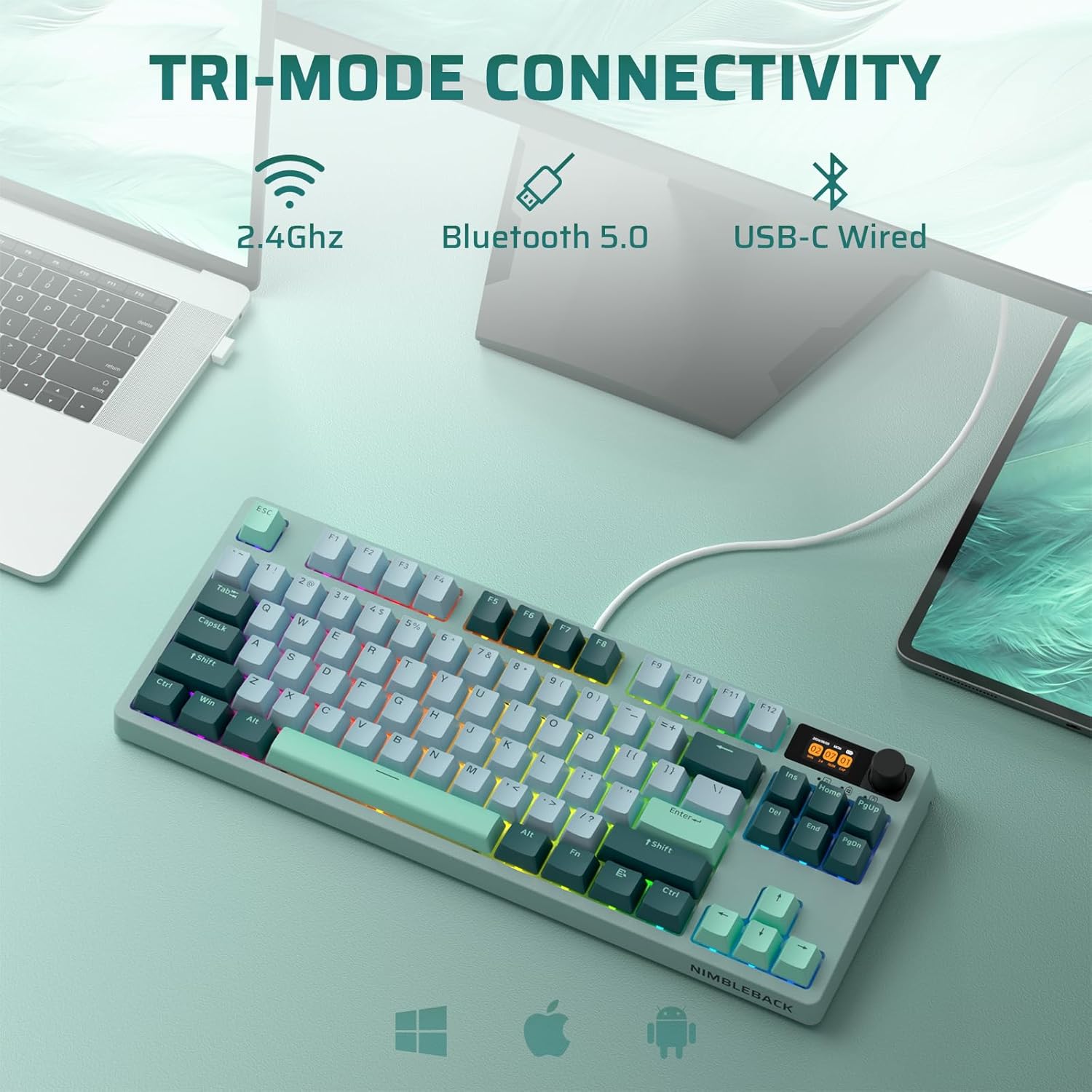
Figure 3: Tri-Mode Connectivity
3.1.1. 2.4GHz Wireless Connection
- Locate the 2.4G USB dongle stored magnetically in the slot on the bottom of the keyboard.
- Slide the mode switch on the keyboard bottom to the '2.4G' position.
- Plug the USB dongle into an available USB port on your computer.
- The keyboard will automatically connect. The display screen will indicate the 2.4G connection status.
3.1.2. Bluetooth Connection
- Slide the mode switch on the keyboard bottom to the 'BT' position.
- On your device (PC, Android, iOS, macOS), enable Bluetooth and search for new devices.
- Select 'LTC NB841 Pro' from the list of available devices to pair.
- The display screen will show the Bluetooth connection status.
3.1.3. USB-C Wired Connection
- Connect the provided USB-C cable to the keyboard's USB-C port.
- Connect the other end of the cable to an available USB port on your computer.
- Slide the mode switch on the keyboard bottom to the 'USB-C' position.
- The keyboard will function as a wired device and charge simultaneously.
4. Operating Instructions
4.1. Multifunctional Display Screen
The integrated display screen provides real-time information and customization options:
- Time & Date: Displays current time and date.
- Battery Status: Shows remaining battery life.
- Connectivity Mode: Indicates current connection (WIN/MAC layouts, 2.4G, BT, USB-C).
- Lighting Effects: Adjust RGB lighting effects, color, and speed.
- GIF Images: Showcase personalized GIF images.
- CPU Status: Monitor CPU temperature and usage (requires software).

Figure 4: Smart Digital Screen Functions
4.2. Intuitive Knob Control
The knob on the top right corner offers quick adjustments:
- Volume Control: Rotate to adjust system volume. Press to mute/unmute.
- Screen Menu Navigation: Press Fn + Knob to enter the screen menu. Rotate to select options, press to confirm.
- Backlight Adjustment: Adjust backlit brightness and speed.
- RGB Mode/Color: Cycle through RGB modes and colors.

Figure 5: Knob Control Functions
4.3. RGB Backlight Control
The keyboard features 22 modes of RGB lighting. Use the following key combinations for control:
- Fn + \|: Backlight On/Off
- Fn + ↑: Backlight Mode Switch
- Fn + ↓: Backlight Color Switch
- Fn + ←/→: Adjust Breathing Speed
- Fn + F5/F6: Backlight Brightness +/-
4.4. Hot-Swap PCB
The hot-swappable PCB allows you to change switches without soldering. It supports most 3-pin and 5-pin MX-style mechanical switches.
- Use the provided switch puller to carefully remove the keycap.
- Use the switch puller to gently extract the switch from the PCB.
- Align the pins of the new switch with the holes on the PCB.
- Press the new switch firmly until it clicks into place. Ensure pins are not bent.
- Replace the keycap.

Figure 6: Hot-Swap PCB Socket
4.5. Software Support
LTC provides comprehensive software for advanced customization. The software allows you to:
- Personalize GIF images for the display screen.
- Remap key combinations.
- Assign macros.
- Adjust backlight settings.
- Monitor CPU temperature.
The NB841 PRO software is compatible with Windows 7, 8, 10, 11, Android, iOS, and macOS. Please visit the official LTC website for software downloads and instructions.
5. Maintenance
To ensure the longevity and optimal performance of your keyboard, follow these maintenance guidelines:
- Cleaning: Regularly clean the keyboard with a soft, dry cloth. For deeper cleaning, remove keycaps using the provided puller and use compressed air to clear debris.
- Avoid Liquids: Do not expose the keyboard to liquids. In case of spills, immediately disconnect power and allow it to dry completely before use.
- Storage: Store the keyboard in a cool, dry place away from direct sunlight and extreme temperatures.
- Battery Care: For wireless modes, charge the keyboard regularly to maintain battery health. Avoid fully depleting the battery frequently.
6. Troubleshooting
If you encounter issues with your keyboard, refer to the following common solutions:
- Keyboard Not Responding:
- Ensure the keyboard is charged or connected via USB-C.
- Check the mode switch on the bottom of the keyboard to ensure it's set to the correct connection type (2.4G, BT, or USB-C).
- For 2.4G, ensure the dongle is securely plugged in. For Bluetooth, re-pair the device.
- Keys Not Registering or Repeating:
- Clean around the affected key to remove any debris.
- If using hot-swappable switches, try removing and re-inserting the switch, or replace it with one of the spare switches.
- Bluetooth Connection Issues:
- Ensure the keyboard is in Bluetooth pairing mode.
- Remove the keyboard from your device's Bluetooth list and attempt to re-pair.
- Ensure your device's Bluetooth is enabled and functioning correctly.
- Display Screen Not Working:
- Check battery level.
- Ensure the keyboard is powered on.
- If issues persist, try resetting the keyboard (refer to software or manufacturer's website for specific reset instructions).
- Software Connectivity Issues:
- Ensure the keyboard is connected via USB-C for software configuration.
- Download the latest software version from the official LTC website.
- Check for firewall or antivirus software blocking the application.
7. Specifications
| Feature | Detail |
|---|---|
| Product Dimensions | 12.64 x 5.24 x 1.65 inches (32.1 x 13.3 x 4.2 cm) |
| Item Weight | 2.6 pounds (1.18 kg) |
| Item Model Number | NB841 Pro |
| Connectivity Technology | Bluetooth, RF (2.4GHz), USB-C |
| Keyboard Description | Mechanical, 75% Layout (84 Keys) |
| Backlighting | RGB (22 modes), South-Facing LED |
| Special Features | Programmable Keys, Rechargeable, Volume Roller, Display Screen, Hot-Swappable PCB, 3-Layer Dampener, Double-Shot PBT Keycaps, 2-Stage Adjustable Feet |
| Compatible Devices | PC (Win7/8/10/11), Android, iOS, macOS |
| Batteries | 1 Lithium Polymer battery (included) |

Figure 7: 3-Layer Silicone Sound Dampener

Figure 8: Physical Features
8. Warranty and Support
LTC products come with a manufacturer's warranty. For detailed warranty information, technical support, or service inquiries, please visit the official LTC website or contact their customer support. Keep your purchase receipt for warranty claims.
