1. Introduction
This manual provides detailed instructions for the CMARS Stylus Pen, designed for use with compatible iPad models. Please read this manual thoroughly to ensure proper operation and to maximize your experience with the stylus pen.

Image 1.1: CMARS Stylus Pen and accessories.
2. Package Contents
Upon opening your CMARS Stylus Pen package, you should find the following items:
- 1 x CMARS Stylus Pen
- 1 x USB Type-C Charging Cable
- 4 x Replacement Pen Tips

Image 2.1: The CMARS Stylus Pen, charging cable, and extra tips as received in the package.
3. Compatibility
The CMARS Stylus Pen is specifically designed for Apple iPad models released from 2018 to 2025. Please verify your iPad model before use.
3.1. Compatible Models
- iPad Air 11-inch & 13-inch (M2/M3)
- iPad Pro 11-inch & 13-inch (M4)
- iPad 6th, 7th, 8th, 9th, 10th Generation (A16)
- iPad Pro 11-inch 1st, 2nd, 3rd, 4th Generation
- iPad Pro 12.9-inch 3rd, 4th, 5th, 6th Generation
- iPad Air 3rd, 4th, 5th Generation
- iPad Mini 5th, 6th, 7th Generation (A17 Pro)
3.2. Incompatible Models
This stylus is NOT compatible with:
- iPad models released before 2018
- Any iPhone models
- Any Android devices
- Other touchscreen devices from different brands (e.g., Surface, Chromebook, Kobo, Lenovo, Huawei)

Image 3.1: Visual guide to compatible and incompatible iPad models.

Image 3.2: Guide to identifying your iPad model.
4. Setup
4.1. Power On/Off
To power on the stylus, double-tap the top of the pen. The blue indicator lights will illuminate. To power off, double-tap the top of the pen again; the lights will turn off.
Video 4.1: Demonstration of turning the CMARS Stylus Pen on and off by double-tapping the top.
4.2. Charging
The stylus pen charges via a USB Type-C port. Connect the provided USB Type-C cable to the pen and a power source. A full charge takes approximately 35 minutes and provides 8-9 hours of continuous use. The battery level indicator (four blue lights) will flash when the battery is low and show approximate power levels.

Image 4.2: Fast charging and battery indicator details.
4.3. Pairing (No Bluetooth Required)
The CMARS Stylus Pen does not require Bluetooth pairing. Simply double-tap the top to turn it on, and it is ready for use.
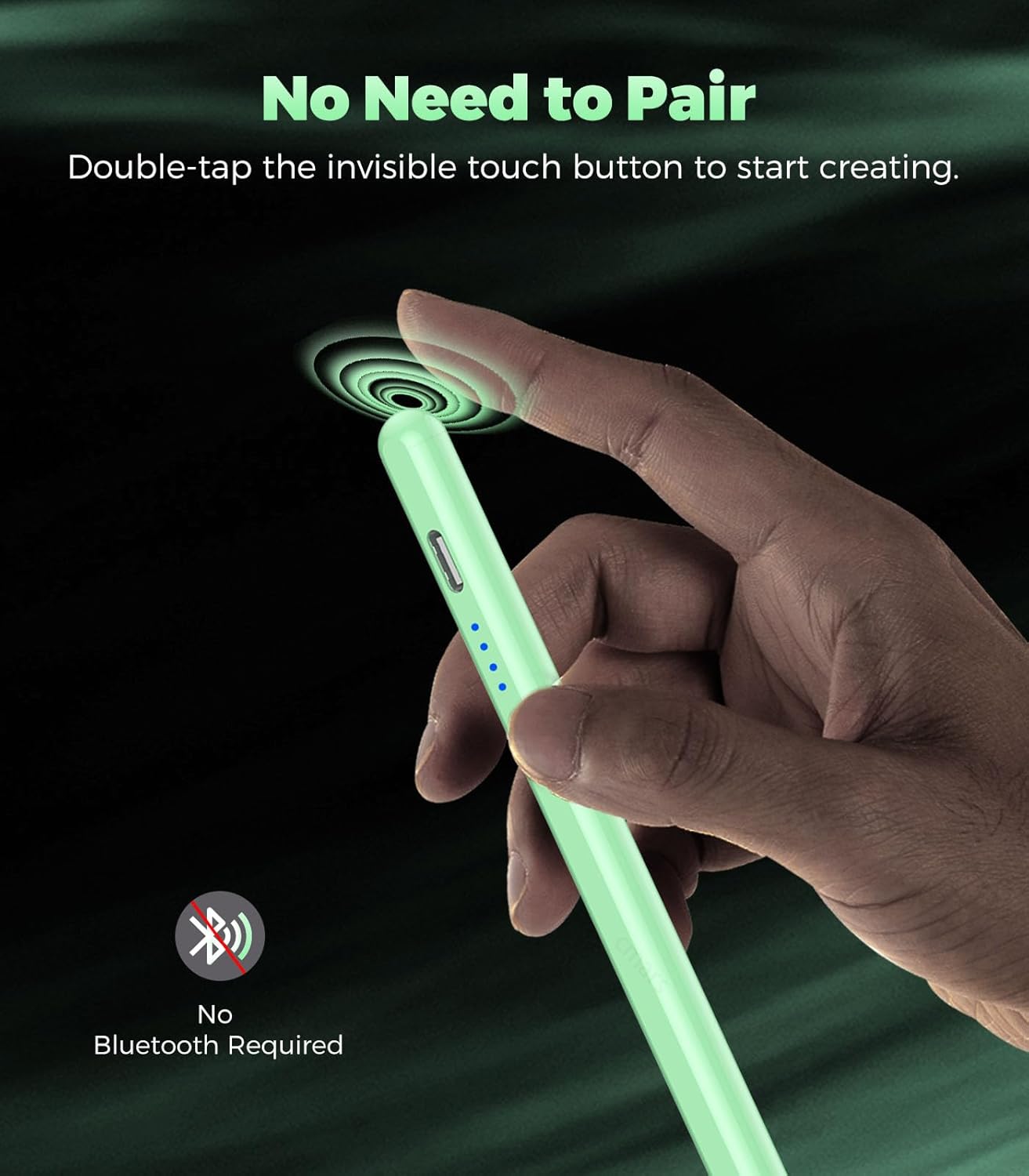
Image 4.3: The stylus pen does not require Bluetooth pairing.
4.4. Initial iPad Settings
If you have previously connected an Apple Pencil to your iPad, you must adjust your iPad settings to ensure proper functionality of the CMARS Stylus Pen:
- Go to Settings > Bluetooth.
- Locate your previously paired Apple Pencil and tap the "i" icon next to it.
- Select Forget This Device.
- Then, go to Settings > Apple Pencil and turn off the option "Only Draw with Apple Pencil".

Image 4.4: Adjusting iPad settings for stylus compatibility.
5. Operating Instructions
The CMARS Stylus Pen offers a natural writing and drawing experience on your compatible iPad. Here are some key functions:
5.1. Basic Usage
Use the stylus for writing notes, sketching, marking documents, and navigating your iPad's interface. The 1.5mm ultra-fine tip ensures smooth and precise strokes without lag or breakpoints.

Image 5.1: Precision and smoothness of the stylus tip.
5.2. Quick Screenshot
To take a quick screenshot, swipe the stylus up from the lower-left corner of the screen at a 45-degree angle.

Image 5.2: Performing a quick screenshot.
5.3. Quick Memo
Double-tap the lock screen with the stylus to directly enter the Notes interface for quick memo-taking.

Image 5.3: Accessing Quick Memo.
5.4. Smart Doodle (Shape Recognition)
When drawing common shapes in Apple Notes, hold the stylus for 2 seconds on the last stroke, and the shape will automatically transform into a regular, perfected version.

Image 5.4: Using the Smart Doodle feature.
5.5. Scratch to Delete Word
If you make a mistake while writing, you can cross out the word with the stylus, and it will be deleted directly.

Image 5.5: Deleting text with the scratch gesture.
6. Features
6.1. Palm Rejection
The stylus features palm rejection technology, allowing you to rest your palm on the iPad screen naturally while writing or drawing without causing unintended marks or interference. No special gloves are required.
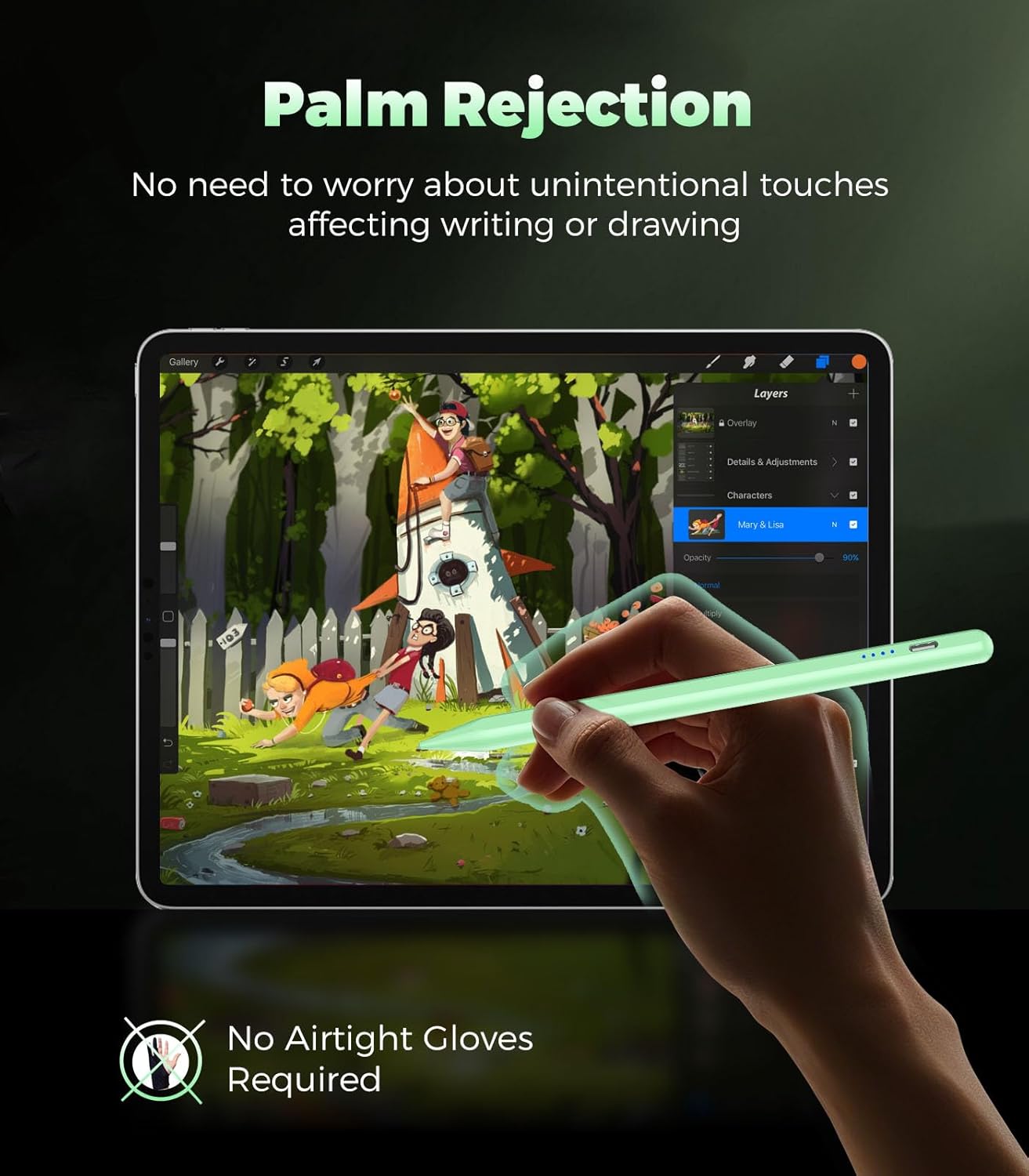
Image 6.1: Palm rejection in action.
6.2. Tilt Sensitivity
The stylus supports tilt sensitivity, enabling you to draw lines of varying thickness and create shading effects by tilting the pen at different angles, similar to a traditional pencil. Note: This stylus does NOT support pressure sensitivity.

Image 6.2: Tilt sensitivity for varied line thickness.
6.3. Magnetic Adsorption
The stylus can magnetically attach to the side of compatible iPad models, providing convenient storage and reducing the risk of misplacing the pen. Note: Non-magnetic tablets will not support this feature.

Image 6.3: Magnetic attachment to iPad.
6.4. Automatic Power Saving
To conserve battery life, the stylus will automatically power off after five minutes of inactivity.
7. Troubleshooting
If you encounter issues with your CMARS Stylus Pen, please refer to the following common solutions:
- Stylus not turning on: Ensure the stylus is charged. Double-tap the top of the pen firmly to activate it.
- Stylus not responding on iPad:
- Verify your iPad model is compatible (refer to Section 3).
- Check iPad settings: Go to Settings > Bluetooth and ensure no Apple Pencil is connected. If one is, select "Forget This Device."
- Go to Settings > Apple Pencil and turn off "Only Draw with Apple Pencil."
- Ensure the stylus is powered on (blue indicator lights visible).
- Inaccurate or skipping lines: Ensure the pen tip is securely attached. If the tip is worn, replace it with one of the provided spare tips.
- Short battery life: Ensure the stylus is fully charged. Avoid extreme temperatures during use and storage.
8. Specifications
| Feature | Detail |
|---|---|
| Brand | CMARS |
| Model | B0DDSZTCDQ |
| Color | Green |
| Material | Aluminum |
| Item Weight | 1.37 ounces |
| Package Dimensions | 7.87 x 2.09 x 0.59 inches |
| Battery Type | 1 Lithium Ion battery (included) |
| Charging Time | Approx. 35 minutes for full charge |
| Working Time | 8-9 hours (continuous use) |
| Automatic Shut-off | 5 minutes of inactivity |
| Charging Port | USB Type-C |
| Special Features | Palm Rejection, Tilt Sensitivity, Magnetic Adsorption, No Bluetooth Required |
9. Maintenance
To ensure the longevity and optimal performance of your CMARS Stylus Pen, follow these maintenance guidelines:
- Cleaning: Wipe the stylus body with a soft, dry cloth. Avoid using harsh chemicals or abrasive materials.
- Tip Replacement: If the pen tip becomes worn or damaged, gently twist it off and replace it with a new one from the provided spares. Ensure the new tip is securely fastened.
- Storage: Store the stylus in a cool, dry place. When not in use, attach it magnetically to your compatible iPad to prevent loss.
- Charging: Charge the stylus using the provided USB Type-C cable. Avoid overcharging or completely draining the battery for extended periods.
10. Warranty and Support
Specific warranty information is not provided in this manual. For detailed warranty terms, technical support, or customer service inquiries, please refer to the product packaging or contact CMARS customer support directly through their official channels.


