
1. Introduction
The MCHOSE G3 Ultra is a high-performance wireless gaming mouse designed for precision and flexibility. It features a symmetrical design, a 26,000 DPI optical sensor, and tri-mode connectivity (2.4G RF, Bluetooth, and Wired). With an 8KHz polling rate and a lightweight 64g build, it offers responsive and comfortable gaming sessions. The mouse also boasts an extended battery life of up to 130 hours.

Figure 1: MCHOSE G3 Ultra Wireless Gaming Mouse (White)
2. Product Overview
Familiarize yourself with the components and indicators of your MCHOSE G3 Ultra mouse.

Figure 2: MCHOSE G3 Ultra Component Diagram. Key components include the DPI Indicator Light, DPI Switch, 2.4G Indicator Light, BT1 Indicator Light, BT2 Indicator Light, ON/OFF Switch, and Receiver Organiser.

Figure 3: Underside of the G3 Ultra mouse, showing the optical sensor, ON/OFF switch, and receiver storage compartment.
3. Setup
3.1 Charging the Mouse
Before first use, fully charge the mouse using the provided USB-C cable. Connect the cable to the mouse's front port and to a USB power source. The DPI indicator light will show charging status.

Figure 4: MCHOSE G3 Ultra mouse being charged via USB-C cable.
3.2 Power On/Off
Locate the ON/OFF switch on the underside of the mouse (refer to Figure 3). Slide the switch to 'ON' to power on the mouse and to 'OFF' to power it down.
3.3 Connecting the Mouse (Tri-Mode)
The G3 Ultra supports three connection modes: 2.4G RF Wireless, Bluetooth, and Wired USB-C.
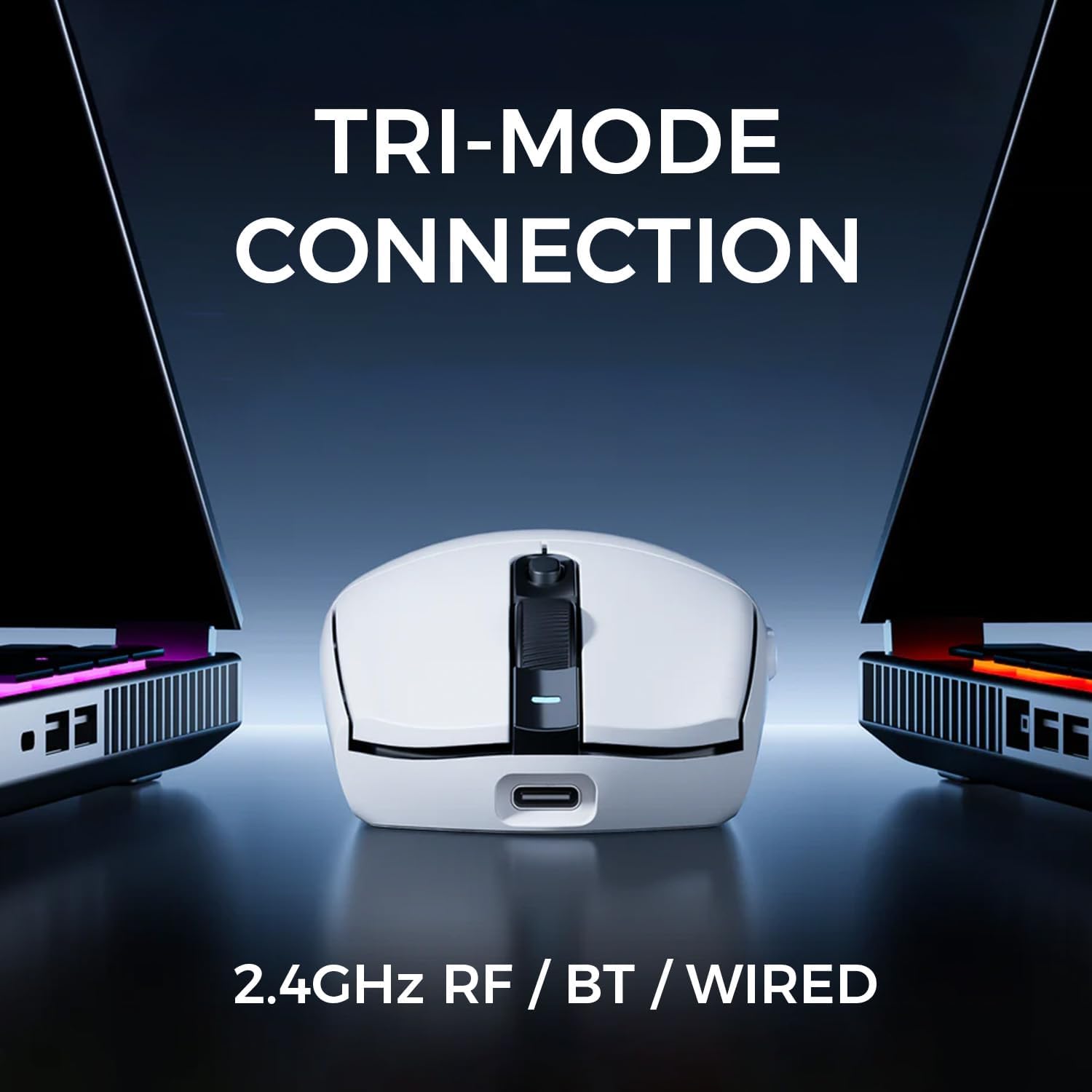
Figure 5: Tri-Mode Connection options: 2.4GHz RF, Bluetooth, and Wired.
3.3.1 2.4G RF Wireless Connection
- Remove the USB receiver from the storage compartment on the underside of the mouse.
- Plug the USB receiver into an available USB port on your computer.
- Turn on the mouse using the ON/OFF switch. The 2.4G indicator light will illuminate, indicating a successful connection.
3.3.2 Bluetooth Connection
- Turn on the mouse.
- Press and hold the DPI switch (refer to Figure 2) for 3 seconds to enter Bluetooth pairing mode. The BT1 or BT2 indicator light will flash.
- On your computer or device, go to Bluetooth settings and search for 'MCHOSE G3 Ultra'.
- Select the mouse to pair. The indicator light will become solid once connected.
- To switch between BT1 and BT2 profiles, briefly press the DPI switch.
3.3.3 Wired Connection
- Connect the provided USB-C cable to the front port of the mouse.
- Connect the other end of the cable to a USB port on your computer.
- The mouse will automatically switch to wired mode and begin charging.
4. Operation
4.1 DPI Adjustment
The MCHOSE G3 Ultra features a dedicated DPI switch (refer to Figure 2) to cycle through different DPI sensitivity levels. Each press of the DPI switch will change the sensitivity, indicated by the DPI indicator light changing color or flashing pattern.
4.2 Polling Rate
The mouse supports an 8KHz polling rate for ultra-fast response times in wireless and wired modes. This high polling rate ensures smooth and precise cursor movement.

Figure 6: The G3 Ultra supports an 8KHz polling rate for enhanced responsiveness.
4.3 Button Functions
The mouse includes standard left and right click buttons, a scroll wheel, and two side buttons. These buttons are designed with an independent button pressure system for tactile feedback.

Figure 7: Internal view highlighting the Independent Button Pressure System for consistent click feel.
4.4 Battery Status Indicator
The DPI indicator light also serves as a battery status indicator. Refer to the product's full software or specific documentation for detailed light patterns indicating battery levels.
5. Maintenance
5.1 Cleaning
To clean your mouse, use a soft, dry, lint-free cloth. For stubborn dirt, slightly dampen the cloth with water. Avoid using harsh chemicals, solvents, or abrasive materials, as these can damage the mouse's surface or internal components.
5.2 Battery Care
To maximize battery life, avoid fully discharging the mouse frequently. Charge the mouse when the battery indicator suggests a low level. Store the mouse in a cool, dry place when not in use for extended periods.
6. Troubleshooting
- Mouse not responding: Ensure the mouse is powered on. Check the connection mode (2.4G, BT, Wired) and ensure it matches your computer's connection. For 2.4G, ensure the USB receiver is securely plugged in. For Bluetooth, re-pair the device. For wired, check the USB-C cable connection.
- Cursor movement is erratic or slow: Clean the optical sensor on the underside of the mouse. Ensure the mousepad or surface is clean and suitable for optical mouse tracking. Check DPI settings and adjust if necessary.
- Mouse not charging: Ensure the USB-C cable is properly connected to both the mouse and the power source. Try a different USB port or charging adapter.
- Bluetooth connection issues: Ensure your device's Bluetooth is enabled. Try removing the mouse from your device's Bluetooth list and re-pairing it. Ensure the mouse is in Bluetooth pairing mode (flashing BT indicator light).
7. Specifications
| Feature | Detail |
|---|---|
| Model Number | G3 Ultra |
| Brand | MCHOSE |
| Connectivity Technology | 2.4G RF, Bluetooth, Wired (USB-C) |
| Movement Detection Technology | Optical (PAW3395 sensor) |
| DPI | Up to 26,000 DPI |
| Polling Rate | Up to 8000Hz |
| Weight | 64g (2.26 ounces) |
| Battery Life | Up to 130 hours |
| Battery Type | 1 Lithium Ion battery (included) |
| Package Dimensions | 6.38 x 4.61 x 2.2 inches |
8. Warranty and Support
For warranty information and technical support, please refer to the documentation included with your product or visit the official MCHOSE website. You can also visit the MCHOSE Store on Amazon for additional product details and support resources.


