
1. Introduction
Thank you for choosing the MechLands Vibe99 Wireless Gaming Keyboard. This manual provides detailed instructions for setting up, operating, and maintaining your keyboard to ensure optimal performance and longevity. The Vibe99 features a compact 1800 layout, a 1.06-inch TFT screen, versatile tri-mode connectivity, and a gasket-mounted design for a premium typing experience.

Figure 1: MechLands Vibe99 Wireless Gaming Keyboard
2. What's in the Box
- Vibe99 Keyboard
- USB Cable
- User Manual
- Keycap Puller
Video 1: Unboxing of the MechLands Vibe99 Keyboard, showing the contents of the package.
3. Setup
3.1 Connectivity Modes
The Vibe99 keyboard supports three connectivity modes:
- USB-C Wired: Connect the keyboard directly to your device using the provided USB-C cable.
- 2.4GHz Wireless: Use the included 2.4GHz USB receiver for a stable wireless connection.
- Bluetooth 5.0: Pair with up to three Bluetooth-enabled devices.
To switch between modes, use the selector switch located on the keyboard. The 1.06-inch TFT screen will display the active connection mode.

Figure 2: Tri-Mode Connectivity Options
3.2 Device Compatibility
The Vibe99 is compatible with Windows, Mac, Android, and other operating systems. Ensure your device's Bluetooth is enabled for wireless connections.
3.3 Charging the Battery
The keyboard is equipped with a 4000mAh battery. Connect the USB-C cable to the keyboard and a power source to charge. The TFT screen will indicate the battery status.
4. Operating Instructions
4.1 1.06-inch TFT Interactive Screen
The integrated TFT screen provides real-time information and customization options. It can display:
- Battery status
- Current time
- Active connection mode
- GIF animations (user-uploadable)
Use the function keys in combination with the 'Fn' key to navigate and select options on the screen. Refer to the on-screen prompts for specific controls.

Figure 3: TFT Screen Functionality
4.2 RGB Backlighting
The Vibe99 features South-facing RGB lighting with 20 effects and 9 colors. You can adjust the effect, color, brightness, and speed directly via the TFT screen or through the dedicated software.
Video 2: Demonstration of how to change the RGB lighting effects on the MechLands Vibe99 Keyboard.

Figure 4: RGB Backlight Effects
4.3 Programmable Software
For advanced customization, download the dedicated software (Windows System only). This software allows for:
- Key Remapping
- Screen Setting adjustments
- Macro Editing
- Detailed Light Setting customization

Figure 5: Programmable Software Interface
4.4 Hot-Swappable PCB
The keyboard features a hot-swappable PCB, allowing you to change mechanical switches without soldering. This enables easy customization of your typing feel.
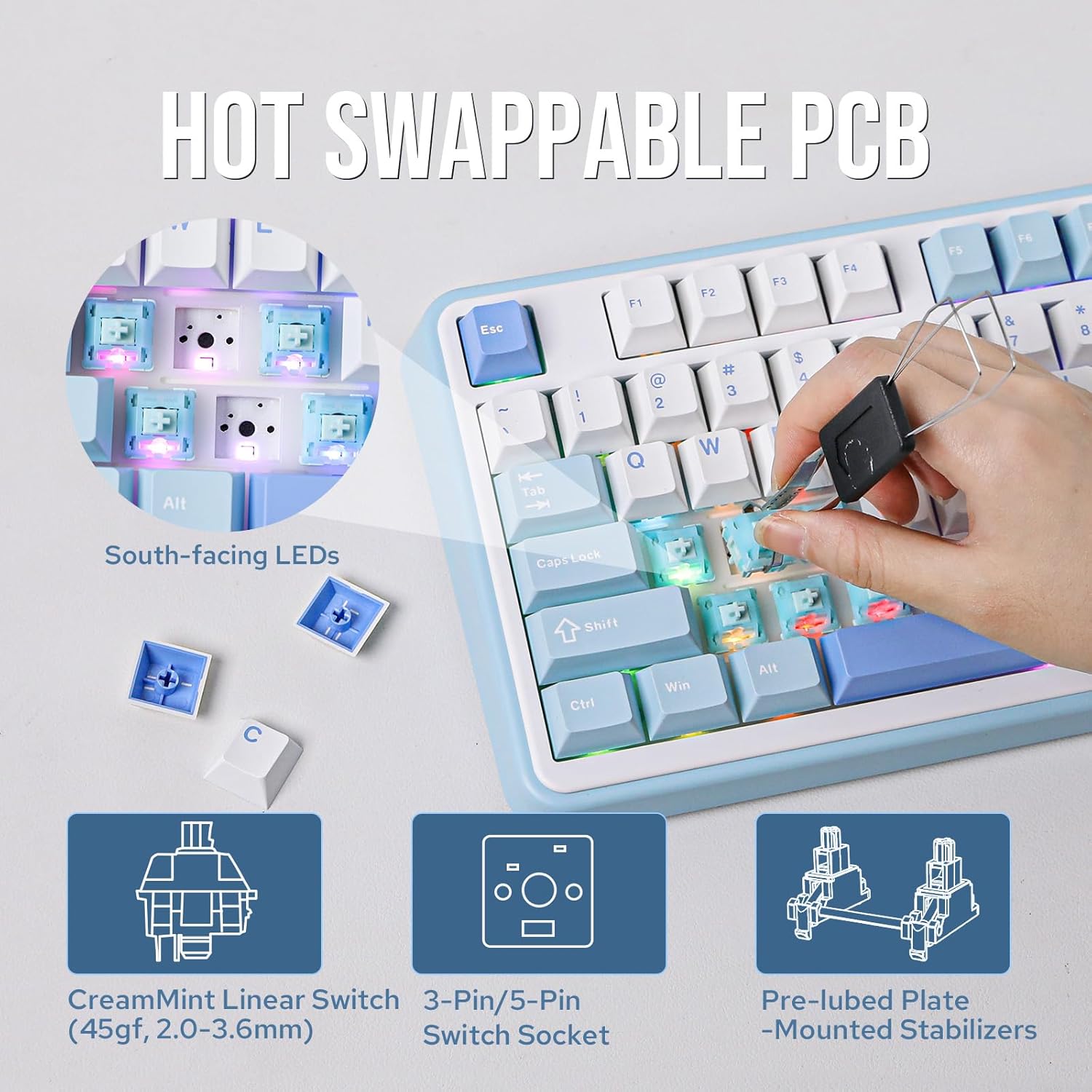
Figure 6: Hot-Swappable PCB
Video 3: Demonstration of the typing sound and feel of the MechLands Vibe99 Keyboard.
5. Maintenance
5.1 Cleaning
- Regularly clean the keyboard with a soft, dry cloth.
- For deeper cleaning, use the keycap puller to remove keycaps and clean dust or debris from beneath.
- Avoid using harsh chemicals or abrasive materials.
5.2 Keycap and Switch Care
The Vibe99 comes with durable Cherry Profile Double-Shot PBT keycaps. These are resistant to wear and shine. When replacing switches, ensure proper alignment to avoid damaging the PCB sockets.

Figure 7: Flex-Cut PC Plate and Stabilizers
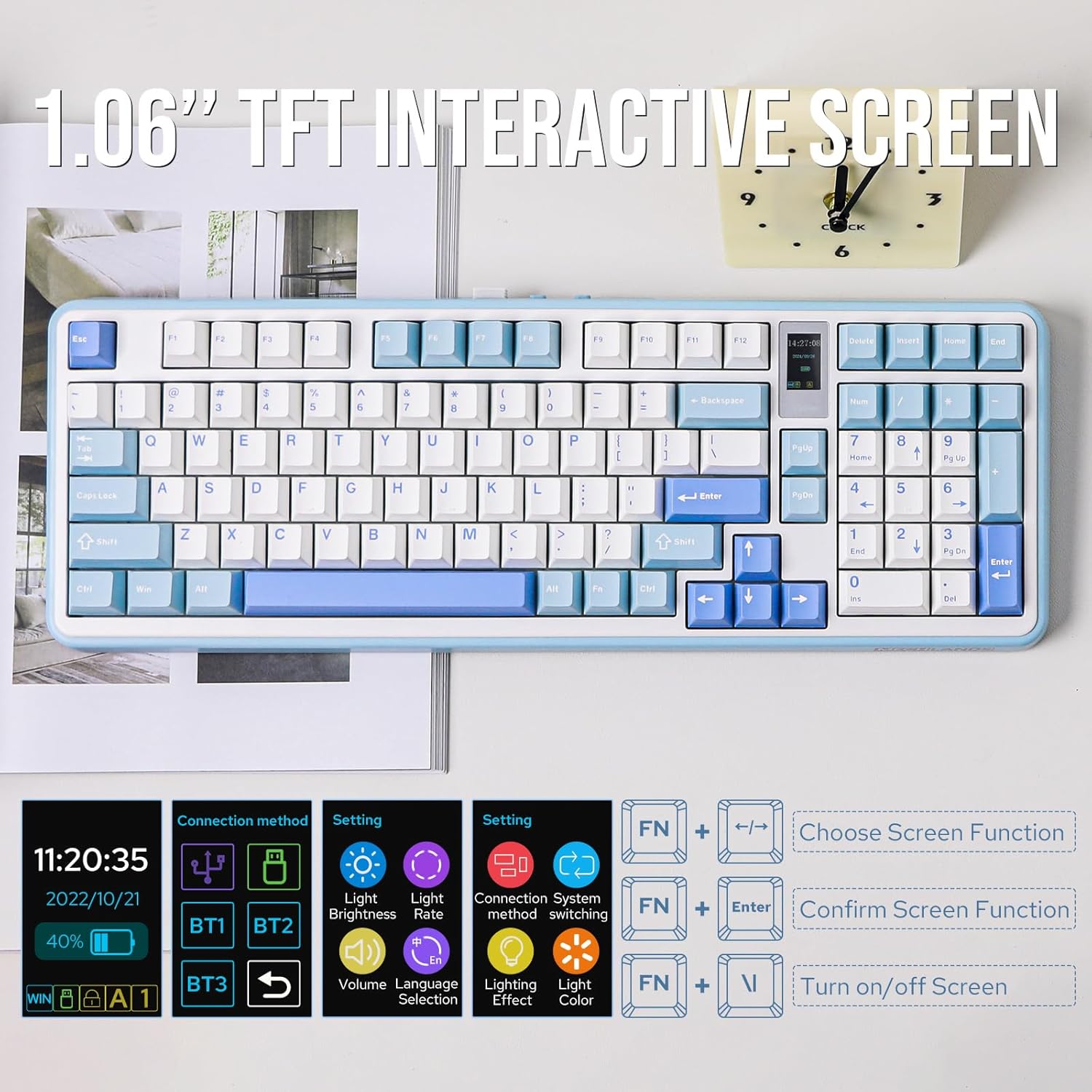
Figure 8: Gasket-Mounted Design Layers
6. Troubleshooting
6.1 Connectivity Issues
- Wireless (2.4GHz/Bluetooth) not connecting: Ensure the keyboard is in the correct mode (2.4G or BT) using the switch. For Bluetooth, ensure your device's Bluetooth is on and the keyboard is in pairing mode (refer to device-specific pairing instructions). Try re-pairing.
- Wired connection not working: Check if the USB-C cable is securely connected to both the keyboard and your device. Try a different USB port or cable.
6.2 TFT Screen Not Displaying/Updating
- Ensure the keyboard is powered on and charged.
- Check if the screen is turned off (refer to keyboard shortcuts or software settings).
- If using custom GIFs, ensure they are in a compatible format and size.
6.3 RGB Lighting Problems
- Verify that RGB is enabled via the TFT screen or software.
- Adjust brightness settings.
- If specific keys are not lighting up, check if the switches are properly seated or if there's an issue with the switch itself.
6.4 Software Issues
The programmable software is currently only supported on Windows systems. Ensure your operating system is compatible. If issues persist, try reinstalling the software or checking for updates on the MechLands official website.
7. Specifications
| Feature | Detail |
|---|---|
| Brand | MechLands |
| Model Number | Vibe99 |
| Layout | 1800 Compact (100 Keys) |
| Connectivity | USB-C Wired, 2.4GHz Wireless, Bluetooth 5.0 |
| Battery Capacity | 4000mAh |
| Display Screen | 1.06-inch TFT |
| Switches | Linear (Hot-Swappable) |
| Keycaps | Cherry Profile Double-Shot PBT |
| Backlighting | South-Facing RGB |
| Dimensions (L x W x H) | 16.46" x 5.91" x 1.65" |
| Material | Acrylonitrile Butadiene Styrene, Poly |
8. Warranty
The MechLands Vibe99 Wireless Gaming Keyboard comes with a 1-year warranty from the date of purchase. This warranty covers manufacturing defects and malfunctions under normal use. Please retain your proof of purchase for warranty claims. The warranty does not cover damage caused by misuse, accidents, unauthorized modifications, or normal wear and tear.
9. Support
For further assistance, technical support, or warranty inquiries, please contact MechLands customer service through the official website or the retailer where you purchased the product. You may also find additional resources and FAQs online.


