
Introduction
This manual provides essential information for setting up, operating, maintaining, and troubleshooting your HP Elite Mini 800 G9 Desktop Computer. This compact and powerful mini PC is designed for business environments, offering high performance in a small form factor.
The HP Elite Mini 800 G9 features an Intel Core i5-12500T processor, 16 GB DDR5 RAM, and a 256 GB SSD, running on Windows 11 Pro. Its small size allows for flexible deployment options, including mounting behind a monitor or discreet placement on a desk.
What's in the Box
Verify that all items are present in the packaging:
- HP Elite Mini 800 G9 Desktop PC
- AC Adapter
- Keyboard
- Mouse
Setup
Follow these steps to set up your HP Elite Mini 800 G9 Desktop Computer:
1. Unpacking and Placement
Carefully remove the mini PC and all accessories from the packaging. Place the mini PC on a stable, flat surface with adequate ventilation. Ensure no vents are obstructed.
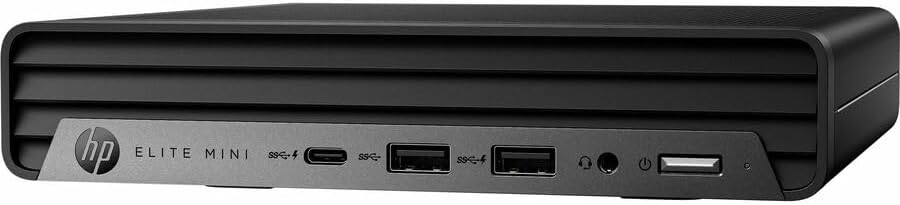
Image: Front view of the HP Elite Mini 800 G9 Desktop PC, highlighting the accessible front ports including USB-C, USB-A, and a headphone jack.
2. Connecting Peripherals
- Connect Monitor: Connect your monitor to one of the available video output ports (e.g., DisplayPort, HDMI) on the rear of the mini PC.
- Connect Keyboard and Mouse: Plug the included keyboard and mouse into the USB ports on the mini PC.
- Connect Network (Optional): For a wired internet connection, connect an Ethernet cable from your router or network switch to the Ethernet port on the mini PC. Wireless connectivity (Wi-Fi 6) is also available.
- Connect Power: Connect the AC adapter to the power input port on the mini PC, then plug the power cord into a wall outlet.
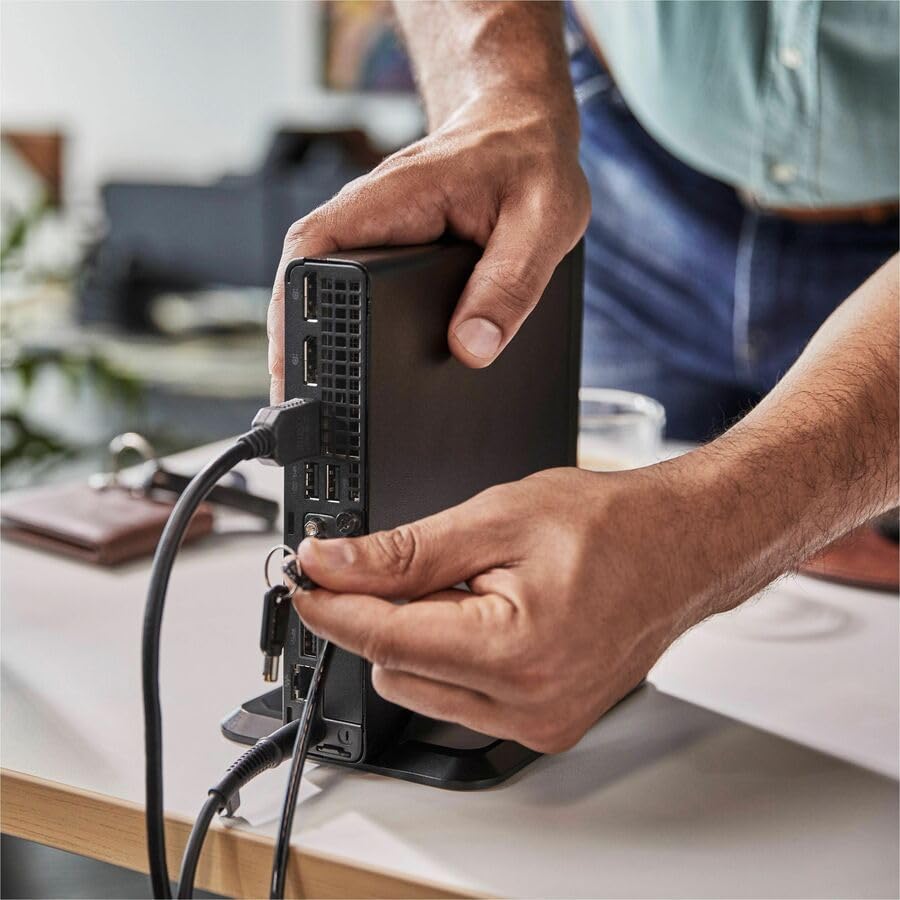
Image: A user connecting various cables, including power and display, to the rear ports of the HP Elite Mini 800 G9. This illustrates the typical connection process for peripherals.
Operating Instructions
Once your HP Elite Mini 800 G9 is set up, follow these steps for basic operation:
1. Powering On
Press the power button located on the front of the mini PC. The power indicator light will illuminate, and the system will begin to boot up. The operating system (Windows 11 Pro) will load automatically.
2. Initial Setup (First Use)
Upon first boot, you will be guided through the Windows 11 Pro setup process. This includes selecting your region, language, accepting terms, and setting up a user account. Follow the on-screen prompts to complete this process.
3. Shutting Down
To properly shut down the computer, click the Start button in Windows, then select Power > Shut down. Avoid powering off the system by holding the power button, as this can lead to data loss or system corruption.

Image: A professional working at a desk, demonstrating the compact integration of the HP Elite Mini 800 G9, which is mounted discreetly behind a monitor.
Maintenance
Regular maintenance helps ensure the longevity and optimal performance of your HP Elite Mini 800 G9 Desktop Computer.
1. Software Updates
Keep your operating system and drivers updated. Windows Update automatically handles OS updates. For driver updates, visit the official HP support website for your model.
2. Cleaning
- Exterior: Use a soft, lint-free cloth slightly dampened with water or a mild cleaning solution to clean the exterior surfaces.
- Vents: Periodically use compressed air to clear dust from the ventilation grilles to prevent overheating. Ensure the system is powered off before cleaning vents.
3. Data Backup
Regularly back up important data to an external drive or cloud storage to prevent data loss in case of hardware failure or other issues.
Troubleshooting
This section addresses common issues you might encounter with your HP Elite Mini 800 G9.
No Power
- Ensure the AC adapter is securely connected to both the mini PC and a working power outlet.
- Verify the power outlet is functional by plugging in another device.
- Check the power button for any damage or obstruction.
No Display on Monitor
- Confirm the monitor is powered on and correctly connected to the mini PC's video output port.
- Ensure the correct input source is selected on your monitor.
- Try connecting the mini PC to a different monitor or using a different video cable if available.
Slow Performance
- Close unnecessary applications running in the background.
- Check for and install any pending Windows updates or driver updates.
- Run a disk cleanup and defragmentation (for HDDs, not typically needed for SSDs).
- Scan for malware or viruses using reputable antivirus software.
Specifications
Detailed technical specifications for the HP Elite Mini 800 G9 Desktop Computer:
| Feature | Detail |
|---|---|
| Model Number | AS1F8AT#ABA |
| Processor | Intel Core i5-12500T (12th Gen, Hexa-core, 2 GHz) |
| RAM | 16 GB DDR5 RAM |
| Storage | 256 GB SSD |
| Graphics | Intel UHD Graphics 770 (Integrated) |
| Operating System | Windows 11 Pro |
| Wireless Connectivity | Wi-Fi 6 (802.11ax), Bluetooth |
| Dimensions (LxWxH) | 6.9 x 7 x 1.4 inches |
| Weight | 3.13 pounds |
| Ports (Front) | USB-C, USB-A, Headphone/Microphone Combo |
| Ports (Rear) | Multiple USB-A, Video Outputs (e.g., DisplayPort, HDMI), Ethernet, Power Input |
Warranty and Support
Your HP Elite Mini 800 G9 Desktop Computer comes with a standard manufacturer's warranty. For specific warranty terms and conditions, please refer to the documentation included with your product or visit the official HP support website.
For technical assistance, driver downloads, or further support, please visit the HP Support website:


